How Site Settings works
Site Settings is where you change the words, pictures, colours and switches of your public site. It is divided into 19 sections, and each is saved by itself. Read this page once and every section will feel familiar.
Who can open it
Site Admins and Admins. A Manager has no Site Settings item in the menu and is sent back to the dashboard if they try its address. See The three kinds of admin.
Open Site Settings
- Log in to the admin panel.
- Choose Site Settings in the menu, or the Site Settings tile on the dashboard.
- Choose a section from the list on the left. You start on Choir.
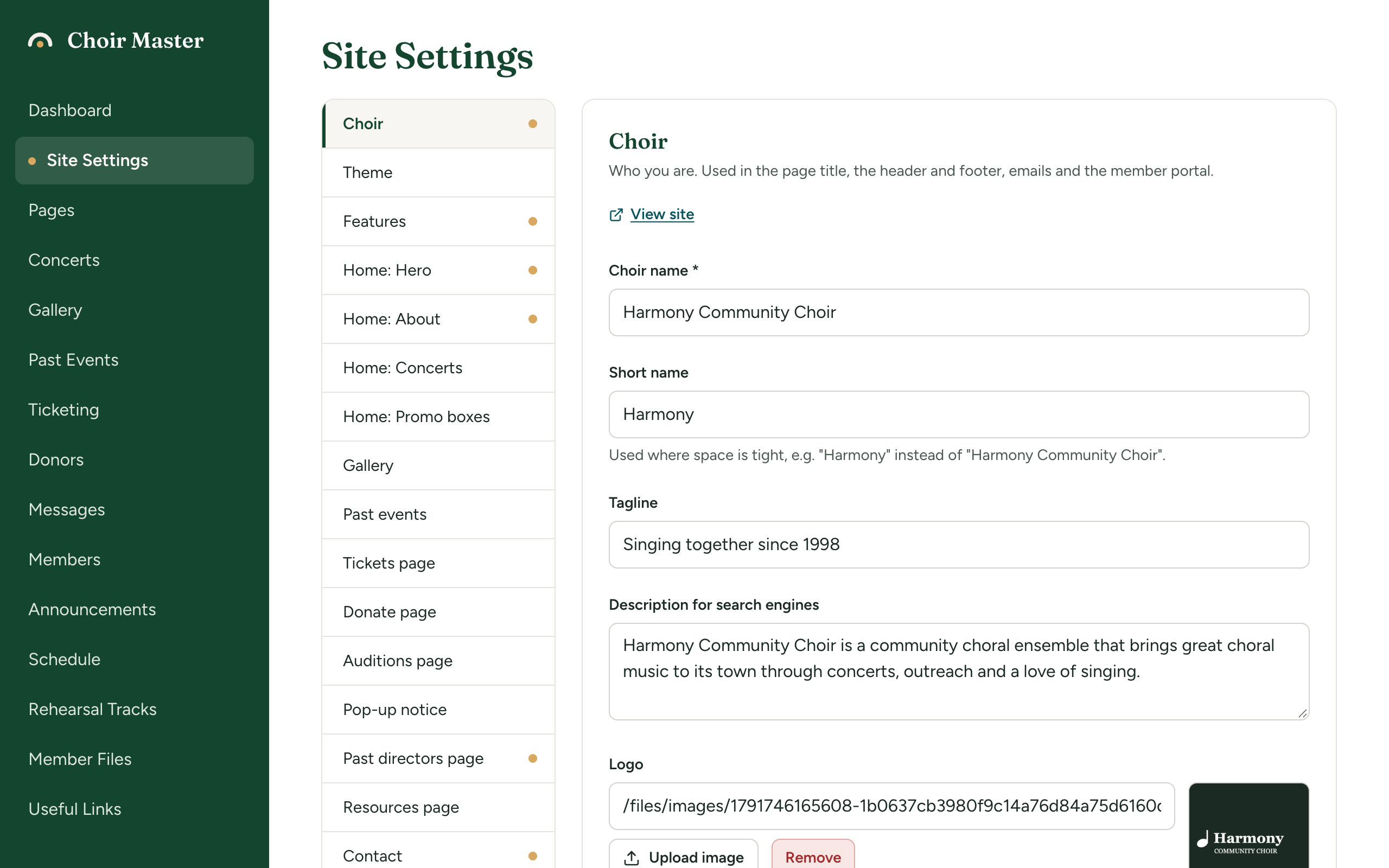
The sections
| Section | What it holds | Explained in |
|---|---|---|
| Choir | Your name, logo, place, currency and time zone | Your choir's name, place, currency and time zone, Your logo and browser-tab icon |
| Theme | Colours and fonts | Choose a ready-made theme, Change your colours, Change your fonts, Add a custom style sheet |
| Features | Tick boxes that turn pages and parts of the site on or off | Switch pages and features on or off |
| Home: Hero | The top of the home page | The top of your home page |
| Home: About | The About Us section and your leaders | About your choir and its leaders |
| Home: Concerts | The wording around your concerts | The concerts section of your home page |
| Home: Promo boxes | Up to three boxes under the concerts | Promo boxes on your home page |
| Gallery | Headings for the gallery page and its preview on the home page | Headings for the gallery and past events |
| Past events | Heading and introduction of the Past Events page | Headings for the gallery and past events |
| Tickets page | The wording of the Tickets page | Your Tickets page |
| Donate page | The wording of the Donate page, and giving by card | Your Donate page |
| Auditions page | Everything on the Auditions page | Your Auditions page |
| Pop-up notice | A notice shown over the site | Show a pop-up notice |
| Past directors page | Everything on the Past Directors page | Your Past Directors page |
| Resources page | Everything on the Resources page | Your Resources page |
| Contact | Your contact details, social media and the "Join us" box | Contact details and social media |
| Footer | The foot of every public page | The footer |
| Member portal | The portal's name, login wording, voice parts and member list | Set up the member portal |
| The sign-off and footer of your emails | The sign-off and footer of your emails |
On a phone or a narrow window
The list of sections becomes one drop-down box labelled Section, above the settings. A section you have changed has (changed) after its name.
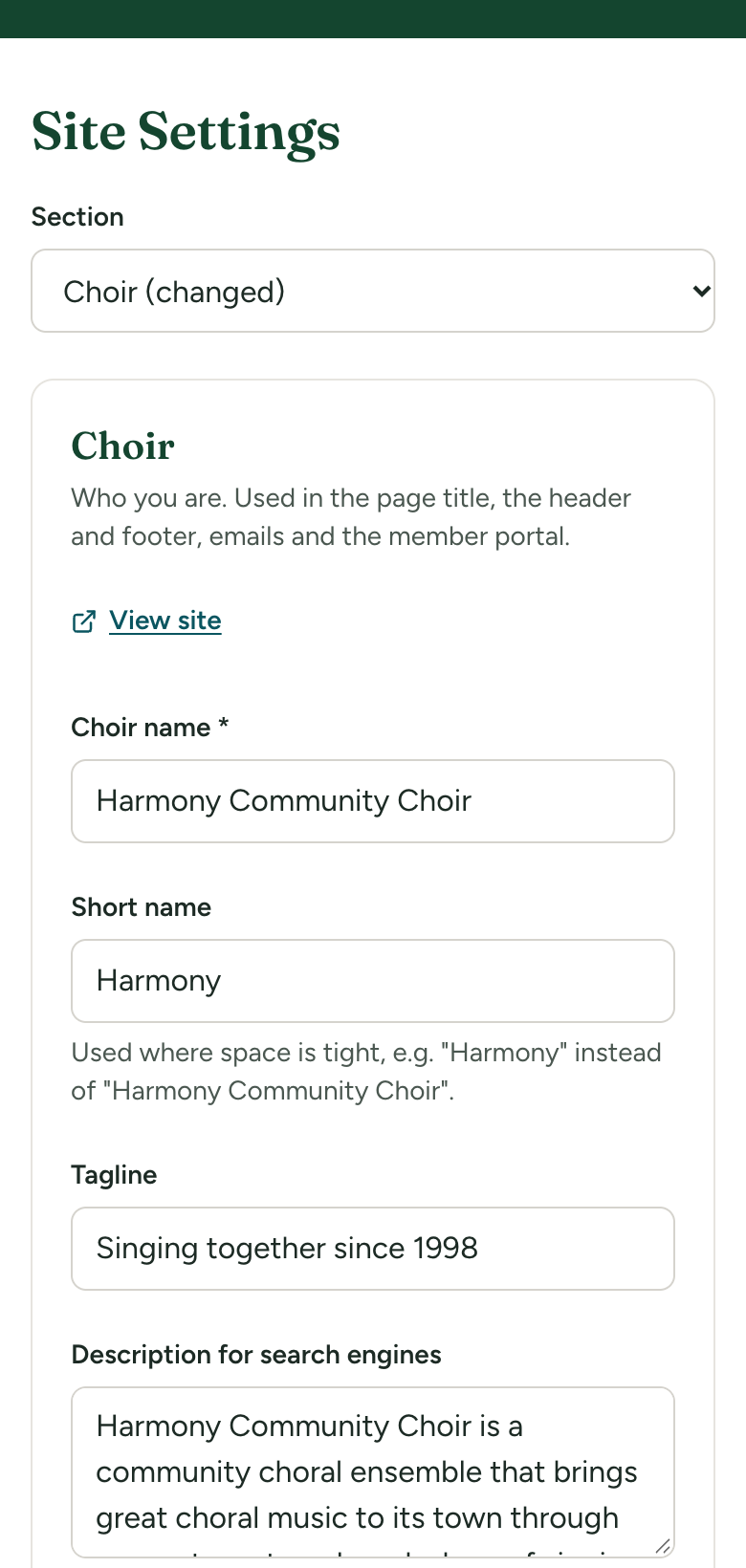
The dot beside a section
A small dot beside a section's name means the section has been saved on your site, so it no longer simply follows the defaults. Under the list it says: "A dot marks a section changed from the defaults in site.config.json."
A section keeps its dot until you reset it, even if you later type the original wording back in. On a site we host, Choir has a dot from the start, because your choir's name was saved when the site was created. The guided setup saves several sections too.
Change a section and save it
- Choose the section.
- Change what you want. The kinds of box are explained in Filling in settings.
- Select Save at the bottom. A short Saved message appears at the bottom right of the screen.
Save can only be pressed once you have changed something. It saves the section you are looking at, all of it, and nothing else. The public site shows the change straight away; View site, at the top right of the section, opens your home page in a new tab so you can check. A page you already had open needs reloading.
Change your mind
- Discard changes puts the section back as it was when you last saved. It asks no question, because nothing saved is lost.
- Reset to defaults puts the whole section back to the defaults. It only appears for a section that has a dot.
To reset a section:
- Open the section and select Reset to defaults.
- A box asks, for example, Put the "Home: Hero" section back to the defaults? and warns: "The defaults are those in site.config.json. Your changes to this section are lost."
- Select Reset to defaults to go ahead, or Cancel.
A reset cannot be undone. Everything you had written in that section is gone, and the message Reset to the defaults. appears.
What "the defaults" are
The defaults are the sample content the product comes with: a made-up choir called Harmony Community Choir, with sample wording in every section. Resetting Home: About, for instance, brings back the sample choir's text and its two sample leaders, not an empty section.
Leaving a section with unsaved changes
If you choose another section before saving, a box asks Leave without saving? and says "You have unsaved changes in this section."
- Stay here keeps you where you are, with your changes still in the boxes.
- Leave without saving throws them away and opens the other section.
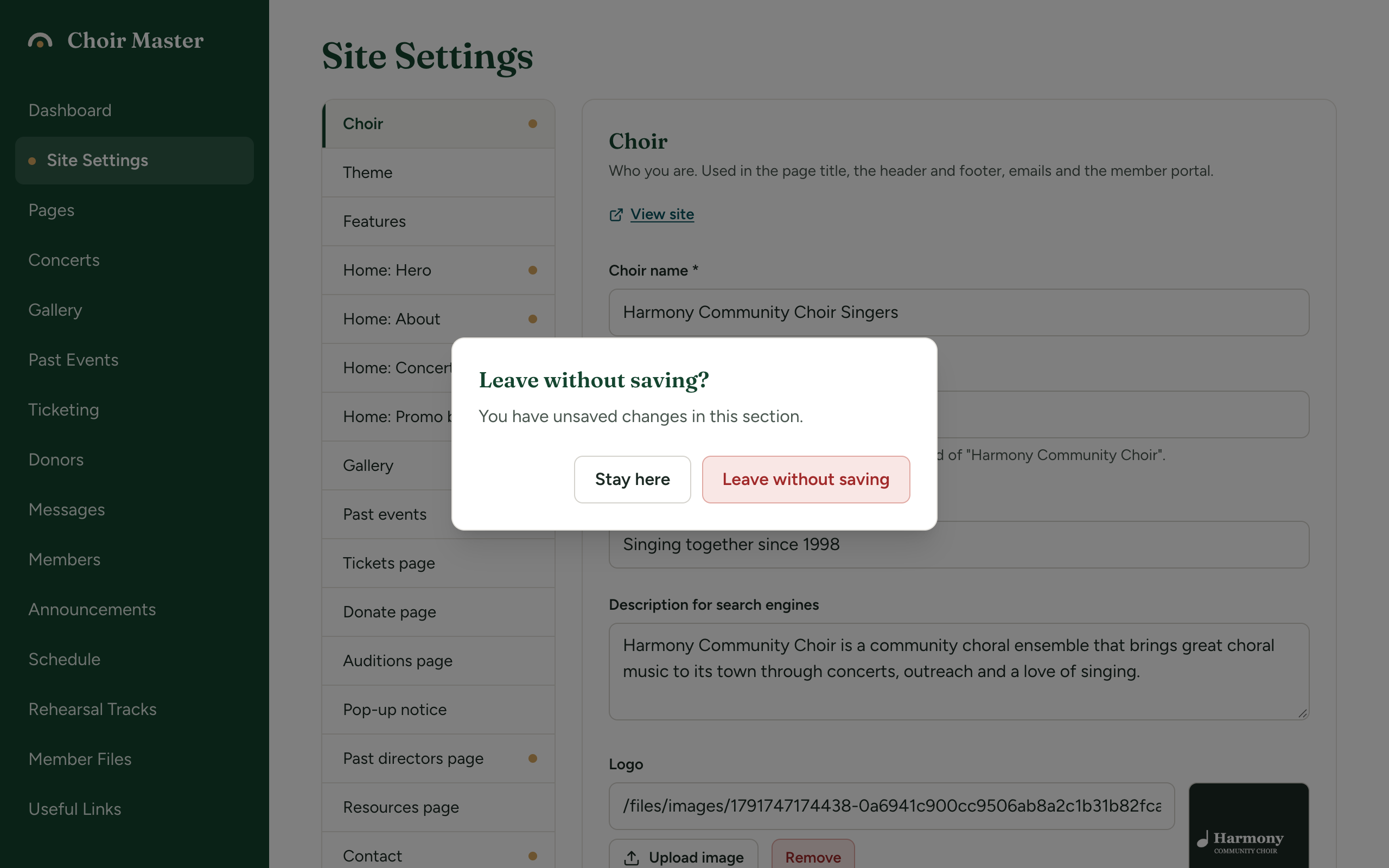
The question is only asked when you move from one section to another. If you go to another part of the admin panel, log out or close the tab, unsaved changes are lost without a question. Save first.
If something goes wrong
When a section cannot be saved, a red message appears above the settings and nothing is saved. It names each box that has a problem, with the box's label first:
| Message | What to do |
|---|---|
Choir name: is required | Fill in the box. Choir name, marked with a *, is the only box in the Choir section that must be filled in. |
…: is too long (120 characters at most) | Shorten the text. |
…: must be a web address, an email address (mailto:...) or a path on this site | Correct the link. See Link boxes. |
…: must be a colour such as #1a2b3c | Use the colour picker, or type # and six figures or letters. |
…: must be a number, must be at least …, must be at most … | Type a number within the range. |
…: has too many lines (5 at most) | Remove some lines from a "one per line" box. |
…: has too many entries (4 at most) | Remove an entry from the list. |
Time zone: is not a time zone we know. … | Choose a time zone from the list. |
Could not save or Error saving settings | Try again. If it keeps happening, the server has a problem: get help. |
A problem inside a list is shown with the entry's number, for example Statistics[2].value: is too long (20 characters at most) for the second statistic.
A problem with a picture you are uploading is shown in red under that picture's box instead. See Upload a picture into a setting.