Show a pop-up notice
A pop-up notice is a box that appears over your site when someone arrives, for news that should not be missed: an audition call, a concert this weekend, a change of venue. It is in Site Settings → Pop-up notice, and it is off until you switch it on.
Use it sparingly. A notice that is always there stops being read.
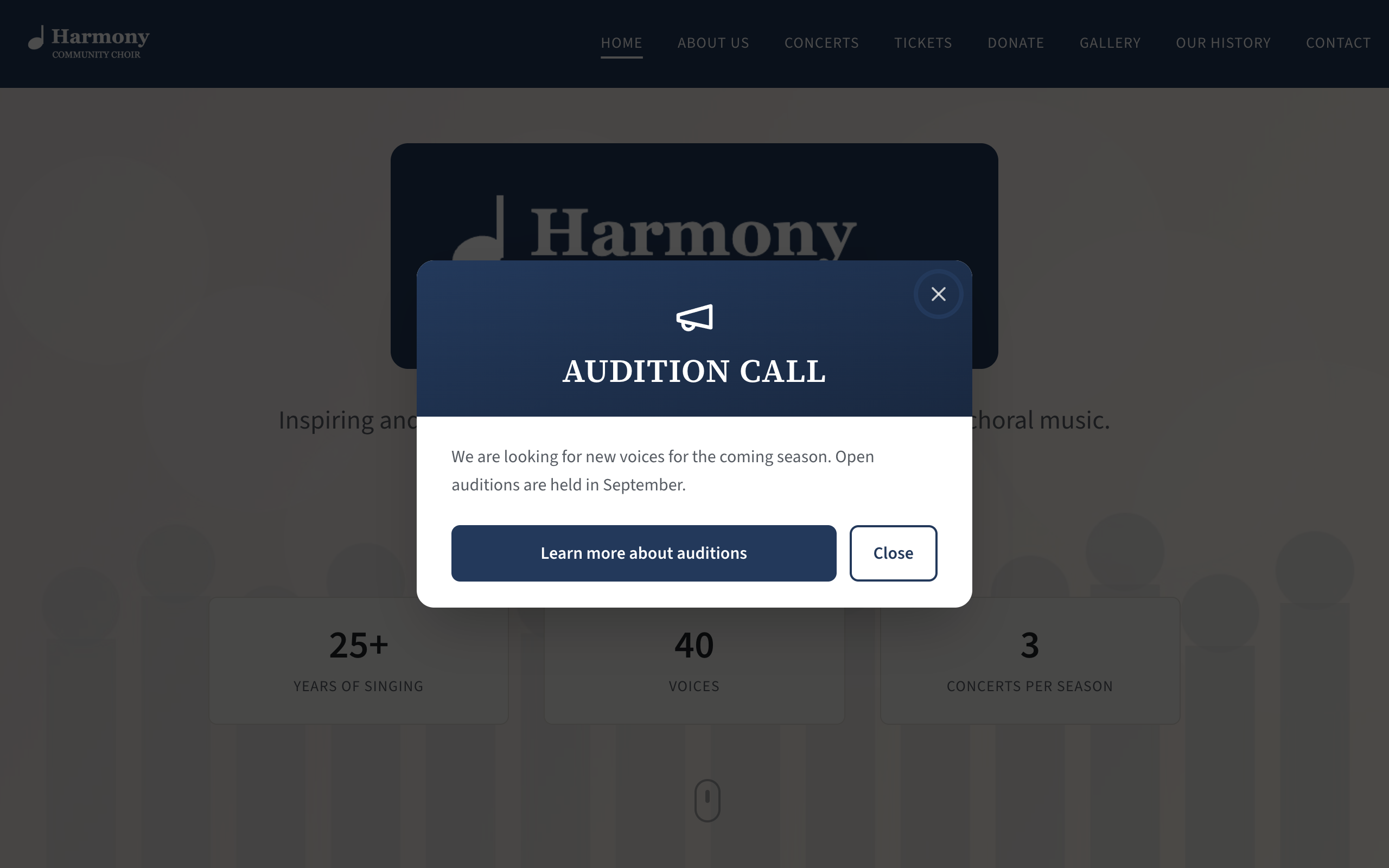
The settings
| Setting | What it does | Limit |
|---|---|---|
| Show the notice | Ticked: the notice is shown to visitors. | |
| Title | The heading of the notice. It is shown in capitals, however you type it. | 80 characters |
| Message | The text, with formatting: see Format text with the editor. | |
| Button label | The words on the notice's own button, such as "Learn more about auditions". | 60 characters |
| Button goes to | Where that button takes people. | A link |
A new site has a sample audition call already written here, switched off.
Put up a notice
- Go to Site Settings → Pop-up notice.
- Type the Title and the Message. Keep both short: the notice is read in a few seconds or not at all.
- To give it a button, fill in both Button label and Button goes to, for example
/auditionsor/tickets. See Link boxes. - Tick Show the notice.
- Select Save.
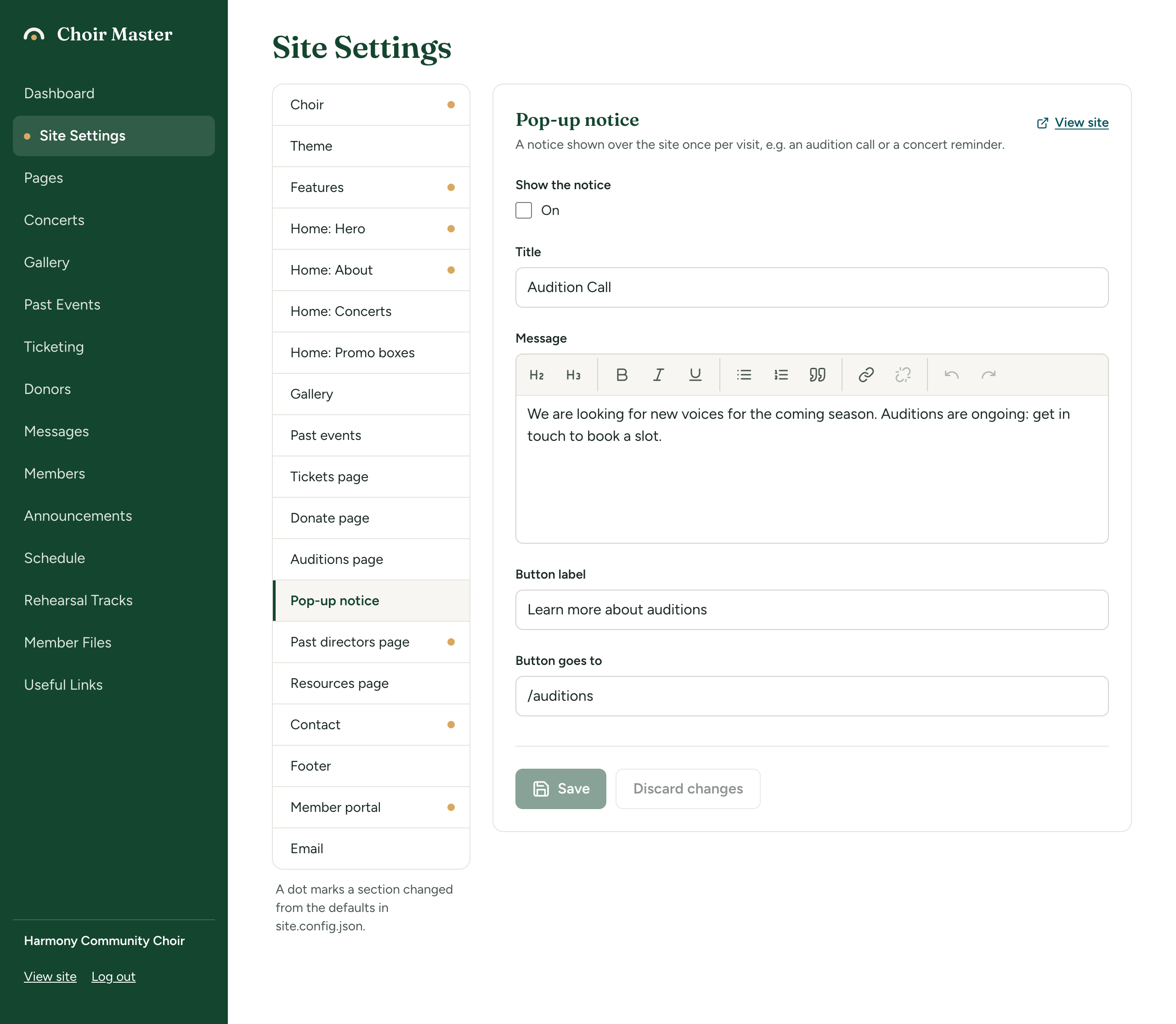
To check it, select View site. If you have already closed the notice in that browser, open your site in a private window to see it afresh.
The button is optional and needs both boxes: with only a label or only a place to go, the notice has no button of its own. It always has a Close button.
How the notice behaves
Where it appears. Over whichever public page a visitor arrives on: the home page, the Tickets page, a page of your own. The page behind is darkened and cannot be scrolled until the notice is closed.
How it is closed. By the Close button, the X at its top corner, the Escape key, or selecting anywhere outside the box. Selecting the notice's own button closes it and goes to the button's page.
Once per visit. After a visitor closes it, it does not come back while they go from page to page in that browser tab. It appears again when they come back another time or open your site in a new tab. Closing it is never remembered for good.
It comes back when you change it. If you change the Title or the Message, the notice counts as new, and visitors who closed the old one see the new one.
Where it never appears.
- In the admin panel and the member portal, including their login pages.
- On the page its own button points to. If Button goes to is
/auditions, someone who lands directly on the Auditions page is not shown a notice inviting them to go there.
Admins see the notice on the public pages like any other visitor.
A few visitors' browsers are set to keep nothing between pages. For them the notice appears each time a page is loaded afresh.
Take the notice down
- Go to Site Settings → Pop-up notice.
- Untick Show the notice.
- Select Save.
Your wording is kept, ready for next time. Put a reminder in your calendar to take a notice down when its date has passed: nothing does it for you.