Your logo and browser-tab icon
Your logo appears in three places on the public site and in the member portal. The favicon is the tiny picture a browser shows on the tab beside your site's name. Both are in the Choir section of Site Settings, and both are optional.
What kind of logo works
- Light or white, with a see-through background. The logo is always drawn on your theme's main colour, which is dark. A dark logo on a see-through background will be hard to see; a logo with a white box around it will show the box.
- SVG or PNG. An SVG stays sharp at any size. For a PNG, use one at least 320 pixels tall, since the largest place it is shown is 160 pixels tall and sharp screens need double.
- Wider than tall is fine. The logo is fitted by its height and keeps its shape.
Where the logo appears
| Place | Height | Notes |
|---|---|---|
| The menu bar of every public page | 48 pixels | Selecting it goes to the top of the home page. |
| The top of the home page (the hero) | 128 pixels on a phone, 160 on a wider screen | Only when Show the logo in the hero is ticked. See The top of your home page. |
| The footer of every public page | 64 pixels | |
| The menu bar of the member portal | 40 pixels |

The patch of colour behind the logo
On a theme with one colour, the top of the home page and the footer are white. A light logo would vanish there, so in those two places it is given a rounded patch of your colour to sit on. In the menu bar, which is a band of your colour already, it sits directly on the band.
If your one colour is too pale to carry white text, the menu bar is white too, and the logo gets a dark grey patch there as well.
On a palette of four colours, the menu bar, the top of the home page and the footer are all dark, and the logo needs no patch.
Without a logo
Your choir's name is shown instead, in your theme's heading font, in the menu bar and the footer. The top of the home page shows your headline. The member portal's menu bar shows your Short name if you have one, otherwise your name.

Add or change your logo
- Go to Site Settings → Choir.
- Under Logo, select Upload image and choose the file from your computer. When it has uploaded, the box fills with the picture's address and a preview appears on a dark square, which shows how it will look on a dark colour.
- Select Save.
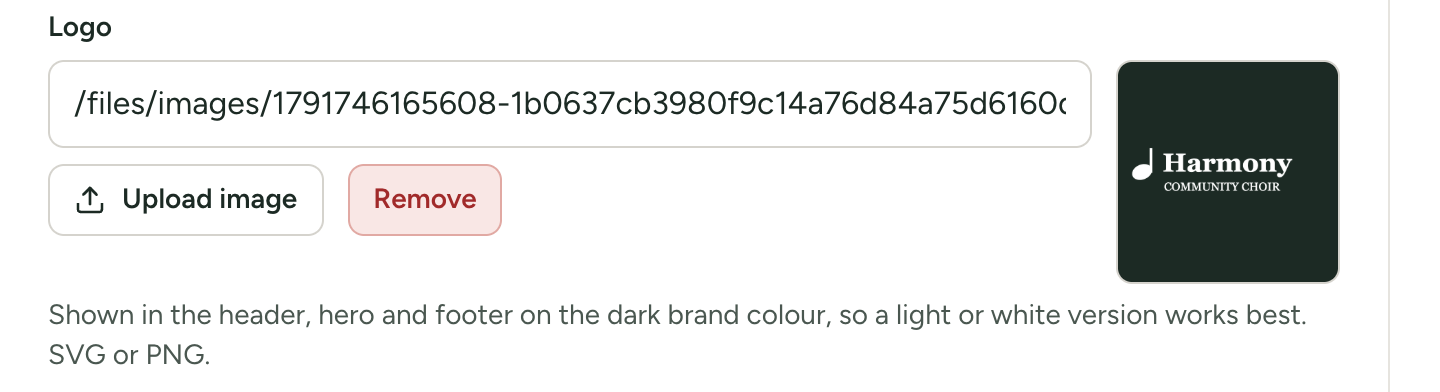
If the logo is already on the web somewhere, you can paste its address into the box instead of uploading.
To take the logo away, select Remove under the box, then Save. The file itself stays on the server; only the setting is emptied.
More about picture boxes, sizes and formats is in Upload a picture into a setting.
A new site may show the sample choir's logo, which has the sample choir's name in it. The guided setup removes it. If you still see it, remove it here.
Set the browser-tab icon
The Favicon is a small square picture. Until you set one, your site uses the Choir Master CMS mark.
The icon is sent with every page of your site, including the admin panel and the member portal, so it is also the small picture some search engines and messaging apps show beside your site's name. It is not the large picture in a link's preview: that is the background photo of your home page, and your logo is never used for it. See How your site looks when a link is shared.
- Make a square picture, the simpler the better: it is shown at about 16 pixels across. An SVG, or a PNG of 64 by 64 pixels or more, works well.
- Go to Site Settings → Choir.
- Under Favicon, select Upload image and choose the file.
- Select Save.
Browsers hold on to tab icons for a long time. If the old one still shows, close the tab and open the site again, or look in a private window.
To go back to the default, select Remove under the box, then Save.
If your icon is an .ico file
The help under the box says "SVG, PNG or ICO". An .ico file works as a favicon, but the Upload image button does not accept that kind of file: it takes JPEG, PNG, GIF, WebP and SVG. To use an .ico, put the file somewhere on the web and paste its address into the box. A PNG or SVG is simpler.
If something goes wrong
These messages appear in red under the box.
| Message | What to do |
|---|---|
Only JPEG, PNG, GIF, WebP or SVG images are allowed | Save the picture in one of those formats and upload it again. |
File too large. Maximum size is 10MB. | Make the picture smaller. The figure may differ on your site; on a self-hosted site it is set by UPLOAD_MAX_IMAGE_MB. |
Upload failed | Try again. If it keeps failing on a self-hosted site, see Uploads fail, or updates misbehave. |