Your Tickets page
The Tickets page is the public page where visitors find out how to get tickets. This page is for whoever looks after the wording of your site. Changing it needs a Site Admin or an Admin.
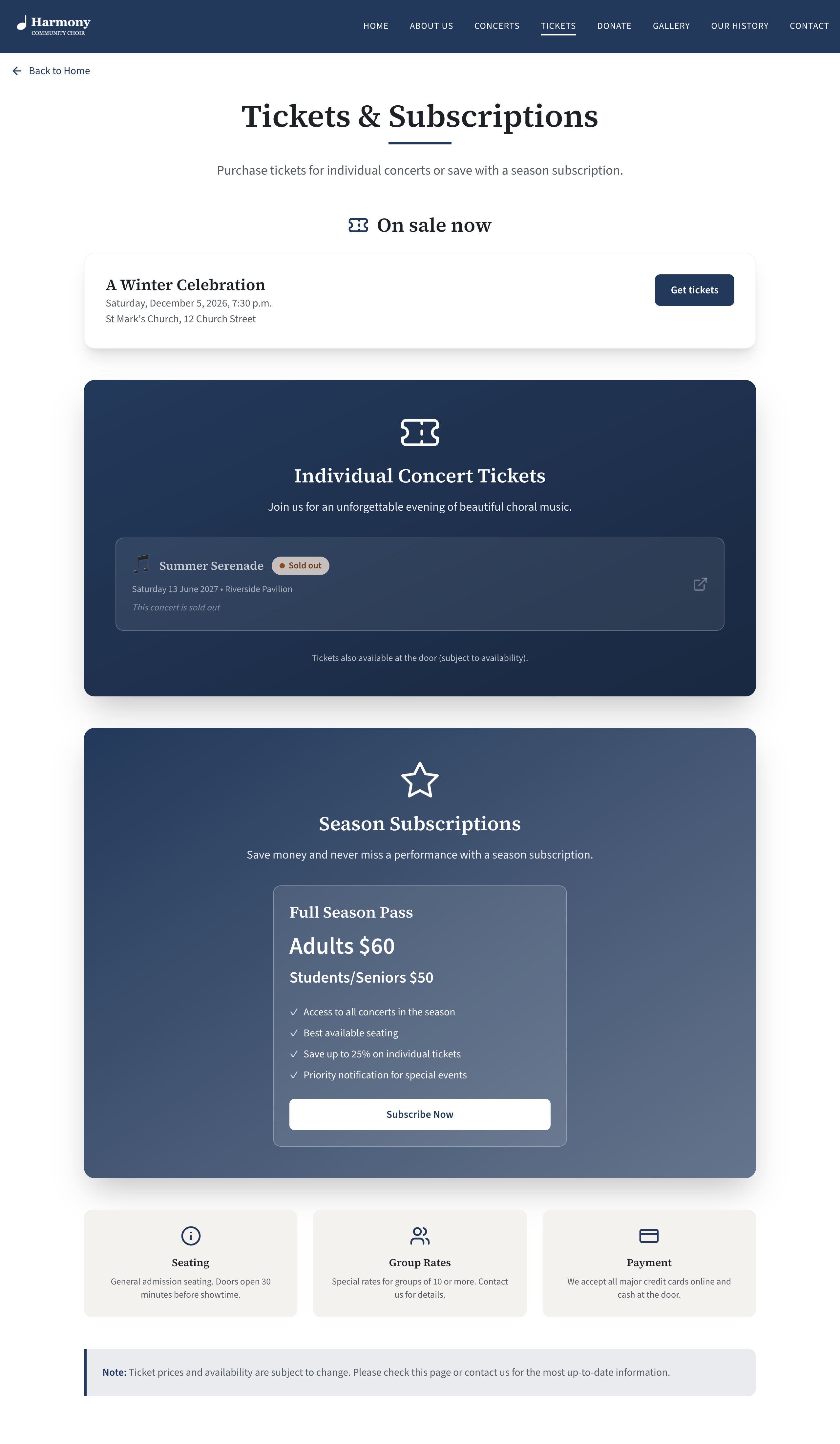
The page is on your site at /tickets, with a Tickets item in the menu. It is there while both Concerts section and ticket links and Tickets page are on in Site Settings → Features.
What is on the page
From top to bottom:
- Your heading and introduction.
- On sale now: an order form for each concert you are selling on your own site. This part is missing when nothing is on sale on the site. See What buying a ticket looks like.
- A box listing your other concerts, each with its prices and a link to wherever its tickets are sold.
- The season subscription box, if you show it.
- Up to four information cards.
- Your small print.
Change the wording
- In the admin panel, open Site Settings.
- Choose Tickets page.
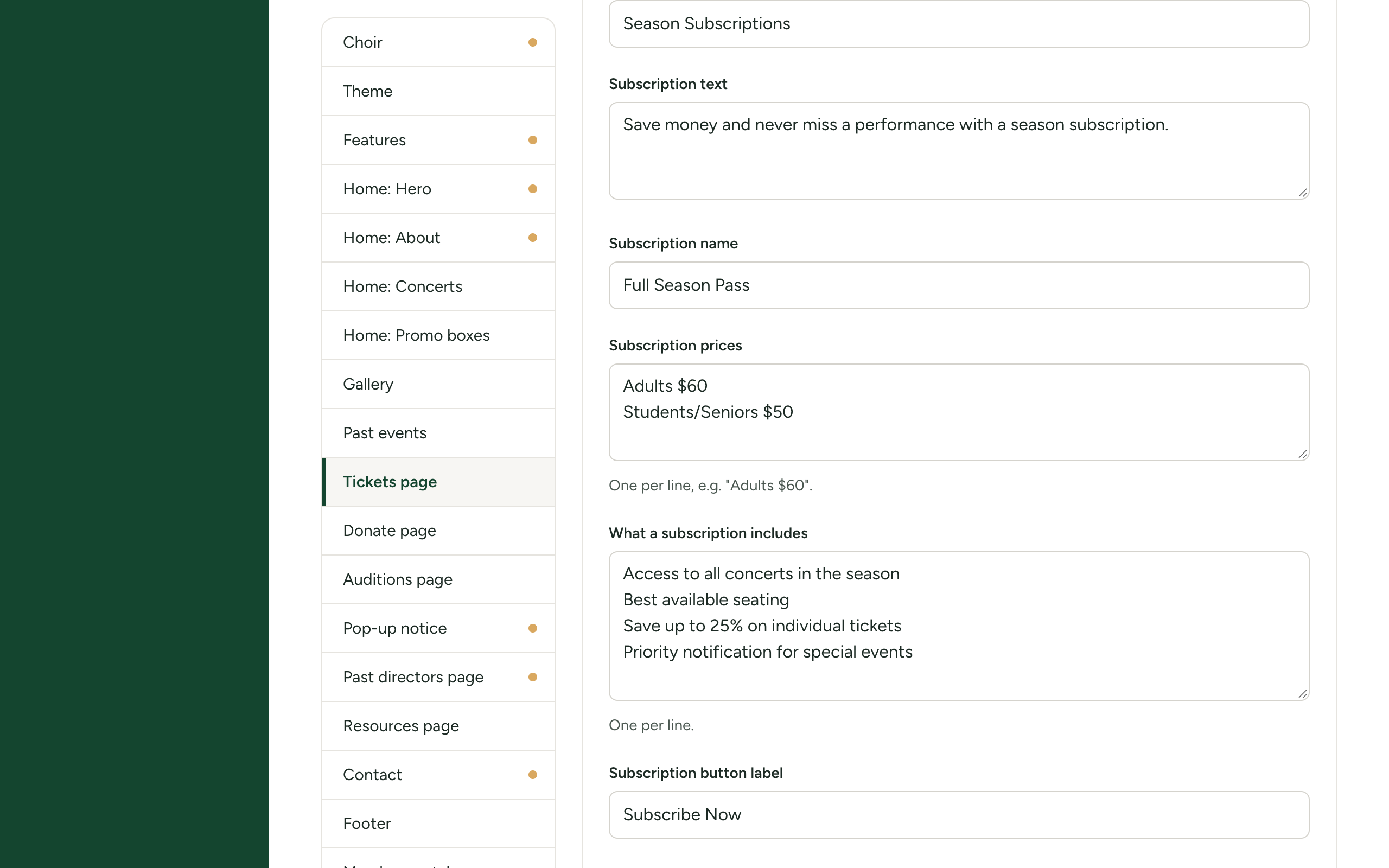
- Change the fields you want. The table below says what each one is.
- Save. See How Site Settings works for saving and going back to the defaults.
| Field | Where it appears | Limit |
|---|---|---|
| Heading | The title of the page. If empty, the page says "Tickets". | 80 characters |
| Introduction | Under the title. | 400 characters |
| Individual tickets heading | The heading of the box that lists your concerts. If empty, "Individual Concert Tickets". | 80 characters |
| Individual tickets text | A sentence under that heading. | 300 characters |
| Note under the ticket list | A line at the bottom of the box, for example that tickets are also sold at the door. | 200 characters |
| Show the season subscription box | Shows or hides the whole subscription box. | On or off |
| Subscription heading | The heading of the subscription box. If empty, "Season Subscriptions". | 80 characters |
| Subscription text | A sentence or two under that heading. | 400 characters |
| Subscription name | The name of the subscription, shown above the prices. | 80 characters |
| Subscription prices | One per line, for example "Adults $60". The first line is shown largest. | 6 lines |
| What a subscription includes | One per line. Each is shown with a tick. | 8 lines |
| Subscription button label | The words on the button. | 60 characters |
| Subscription button goes to | A web page, or an email link such as mailto:tickets@example.org. | |
| Line under the subscription box | Optional, for example who to ask for more information. | 200 characters |
| Information cards | Up to four cards, each with an Icon, a Title (60 characters) and Text (300 characters). A card with no title is not shown. | 4 cards |
| Small print | A box at the foot of the page that begins "Note:". | 600 characters |
The subscription button appears only when it has both a label and somewhere to go. A web address opens in a new tab.
The subscription box is wording only. It does not sell anything: the button leads to whatever page or email address you give it.
For help with lists, links and icons, see Filling in settings: text, lists, links and icons.
How the page lists your concerts
The list comes from Concerts in the admin panel. You do not type it here.
- Which concerts appear. Every concert that is not hidden and whose date has not passed.
- Prices. The prices you gave the concert: "General", then "Students/Seniors". If Show a separate senior price is on in Site Settings → Home: Concerts, students and seniors are shown separately. A price of zero is left out.
- The link. A concert with a Ticket link is a link: pressing it opens that address in a new tab. A concert with no Ticket link is listed but cannot be pressed.
- Sold out. A concert marked as sold out shows a "Sold out" label and "This concert is sold out" in place of its prices, and cannot be pressed.
- Concerts sold on your site. A concert that is on sale on your own site right now is left out of this list. It appears under On sale now at the top of the page, with an order form. A concert whose tickets are set up but not yet on sale stays in this list.
To change a concert's prices, Ticket link or sold-out mark, see Posters, prices and ticket links and Reorder, hide, sell out, edit or delete a concert.
When there is nothing to list
| What the page says | When |
|---|---|
| "No concerts are on sale at the moment. Check back soon!" | There are no concerts to list and nothing is on sale on your site. |
| "Tickets for our other concerts will be announced here." | Every concert you have is on sale on your site, so the list underneath is empty. |
Use another ticket seller
If your tickets are sold through another service, your site only needs to point people to it.
- Open Site Settings → Features.
- Switch Sell tickets on this site off, and save. Ticketing leaves the admin panel and the order form leaves the Tickets page.
- Open Concerts. For each concert, press Edit, paste the address of its page on the other service into Ticket link, and save.
Each concert on the Tickets page now opens the other seller's page in a new tab.
Leave Concerts section and ticket links and Tickets page on. If you would rather have no Tickets page at all, switch Tickets page off: the menu item goes, and /tickets sends visitors to your home page.
Switching Sell tickets on this site off does not delete anything. Tickets already issued keep working: a buyer's link still opens their tickets. Switch it back on and Ticketing returns as you left it.