The top of your home page
The top of your home page is the first thing a visitor sees, and it fills their screen. Site Settings calls it the hero. It holds your logo or a headline, a line of welcome, up to two buttons and up to four statistics.
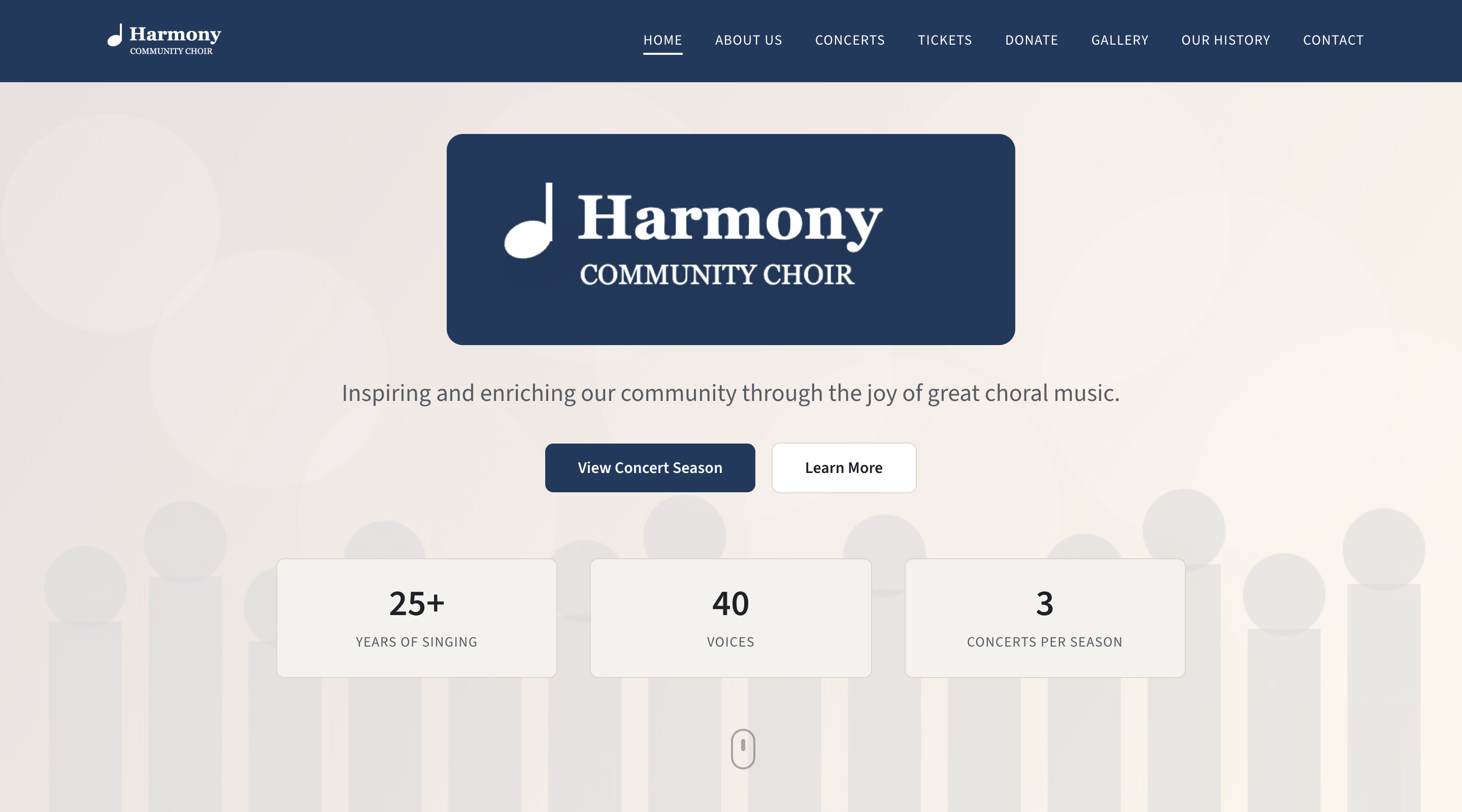
Everything here is in Site Settings → Home: Hero.
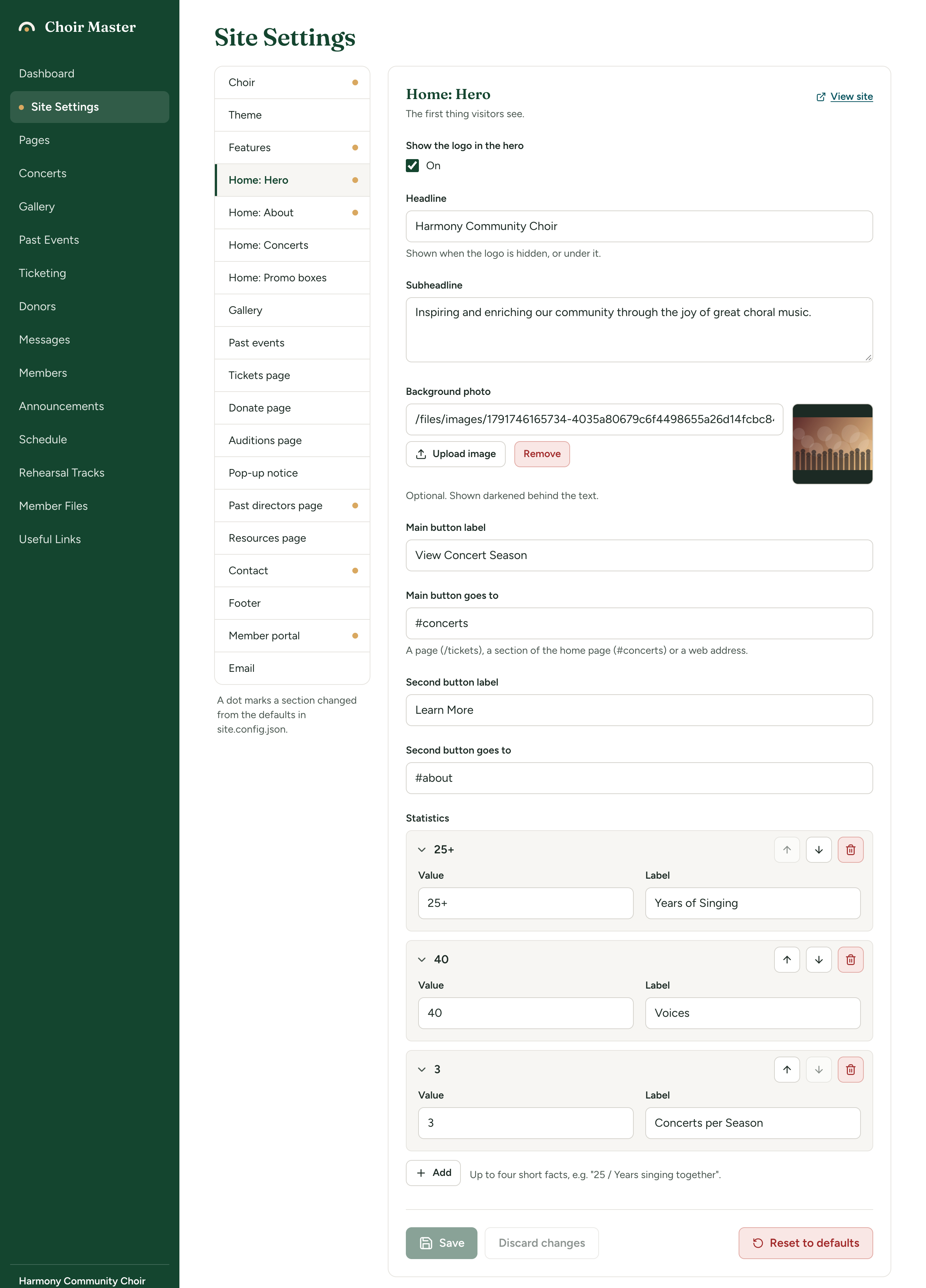
The settings
| Setting | What it does | Limit |
|---|---|---|
| Show the logo in the hero | Ticked: your logo is shown large at the top. It needs a logo to be set under Choir. | |
| Headline | The large heading. On screen: "Shown when the logo is hidden, or under it." | 120 characters |
| Subheadline | A sentence or two under the headline. The guided setup calls this the Welcome line. | 400 characters |
| Background photo | Optional. On screen: "Shown darkened behind the text." It is also the picture shown when a link to your site is shared. | A picture |
| Main button label | The words on the first button. | 60 characters |
| Main button goes to | Where the first button takes people. On screen: "A page (/tickets), a section of the home page (#concerts) or a web address." | A link |
| Second button label | The words on the second button. | 60 characters |
| Second button goes to | Where the second button takes people. | A link |
| Statistics | Short facts in boxes under the buttons. Each has a Value and a Label. | Up to 4 |
Logo, headline or both
What appears at the very top depends on three things.
| Your settings | What visitors see |
|---|---|
| Show the logo in the hero ticked, and you have a logo | Your logo. Under it, your Headline as well, unless it is empty or exactly the same as your choir's name. |
| Show the logo in the hero unticked, or you have no logo | Your Headline in large letters. If the headline is empty, your choir's name. |
So with a logo that already spells out your name, leave the headline as your name and it is not repeated. To add a second line under the logo, such as "Celebrating 25 years", put that in Headline.
How the logo is drawn here, and what kind of logo works, is in Your logo and browser-tab icon.
Change the headline and the welcome line
- Go to Site Settings → Home: Hero.
- Type your Headline.
- Type your Subheadline: one or two inviting sentences. Empty it to show no line at all.
- Select Save.
Add a background photo
- Under Background photo, select Upload image and choose a photo. A wide photo of the whole choir works best; it is stretched to cover the whole top of the page and the edges are cropped to fit.
- Select Save, then View site to check that the words are still easy to read.
The photo is shown faintly behind the words, not at full strength: more faintly on a one-colour theme, where it sits on white, than on a palette of four colours, where it sits on the dark main colour. A busy or high-contrast photo can still make the words harder to read; choose a calm one.
To take it away, select Remove under the box, then Save. More about picture boxes is in Upload a picture into a setting.
The same photo is your link preview
When someone shares a link to any public page of your site in Facebook, Messages, WhatsApp or Slack, the picture in the preview is this photo. There it is shown at full strength, not faintly, and usually cropped to a wide rectangle, so choose a photo that also looks right on its own.
- With no background photo, a shared link has no picture: the preview is your choir's name and description only. Your logo is not used in its place, because a logo made for a dark background would not show on a white card.
- A photo that is an SVG file is not used for previews. A JPEG, PNG or WebP is.
More in How your site looks when a link is shared.
Set the two buttons
Each button has a label and a place to go.
- Type the words in Main button label, for example "View Concert Season".
- Type where it goes in Main button goes to, for example
#concerts. - Do the same for the second button, or leave both of its boxes empty to have one button only.
- Select Save.
Useful places to send people:
| To send people to | Type |
|---|---|
| Your concerts, lower on the home page | #concerts |
| The About section | #about |
| The Contact section | #contact |
| The Tickets page | /tickets |
| The Auditions page | /auditions |
| The Donate page | /donate |
| Another website | The full address, starting https:// |
Every kind of address is listed in Link boxes.
A button with no label is not shown. A button with a label but nowhere to go is shown, and does nothing when selected, so fill in both boxes.
Add, change or remove the statistics
Statistics are up to four short facts, shown in boxes: a big Value such as "25+" over a small Label such as "Years of Singing". The label is shown in capitals.
- Under Statistics, select Add.
- Type the Value (20 characters at most) and the Label (60 at most).
- Use the arrows on an entry to change the order, or the bin to remove it.
- Select Save.
With no statistics, the row is left out altogether. How lists of entries work is in Lists of entries.
The guided setup clears the sample choir's statistics, because they were not yours. If your home page has none, that is why.