Filling in settings: text, lists, links and icons
Every section of Site Settings is built from the same few kinds of box. This page explains each one, so the pages about individual sections do not have to.
Text
A one-line box, or a taller box for a few sentences. Each has a maximum length, and the box simply stops taking letters when you reach it. The pages about each section give the lengths.
Text is shown on the site exactly as typed. A one-line box turns any new line you paste into it into a space. In the taller boxes you can type new lines, and most pages keep them (introductions and notes do, for example), but in a few the lines run together on the site, so look at the result after you save. Nothing here is treated as code, so you cannot break the page by typing something odd.
Formatted text
A few settings have a row of buttons above the box for headings, bold, italic, lists and links, such as About the choir, a leader's Biography, About auditions and the pop-up's Message. See Format text with the editor.
Tick boxes
A tick box has two lines. The bold line above is the name of the setting. The wording beside the box explains it; where there is nothing to explain, it just says On.
Ticked means on. Like everything else, a tick only takes effect when you Save.
Numbers
A short box that takes a number. Each has a lowest and a highest value. Clearing the box leaves the setting empty.
Colours
A square that opens your browser's colour picker, and beside it a box showing the colour as a code such as #23395b. Use either: they stay in step. A code is # followed by six figures or letters from a to f (three also works, as in #abc).
Colours only appear in the Theme section. See Change your colours.
"One per line" boxes
Some settings are a short list of plain lines, such as Address or location. Type each on a line of its own. Empty lines are dropped when you save. Each section's page gives how many lines a box takes (Address or location takes 5); too many are refused when you save, with a message such as has too many lines (5 at most). A line longer than 300 characters is cut to 300.
The icon chooser
Where a setting has an Icon, you choose it from a drop-down list. The small square beside the list shows the icon you have chosen.
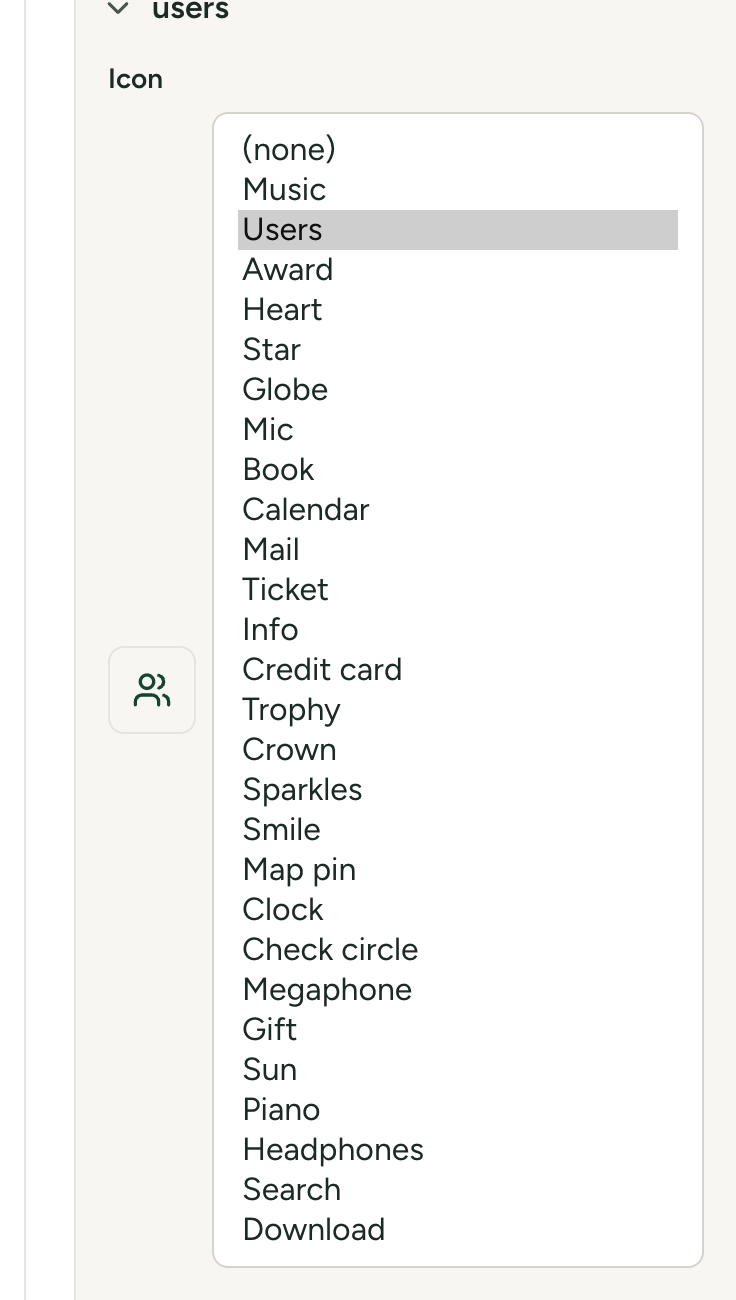
There are 27 icons:
| Music | Users | Award | Heart |
| Star | Globe | Mic | Book |
| Calendar | Ticket | Info | |
| Credit card | Trophy | Crown | Sparkles |
| Smile | Map pin | Clock | Check circle |
| Megaphone | Gift | Sun | Piano |
| Headphones | Search | Download |
The first choice in the list is (none). It does not leave a gap on the site: a standard icon is shown instead (a musical note in most places, a book on a Resources card, an "i" on a Resources link tile).
Lists of entries
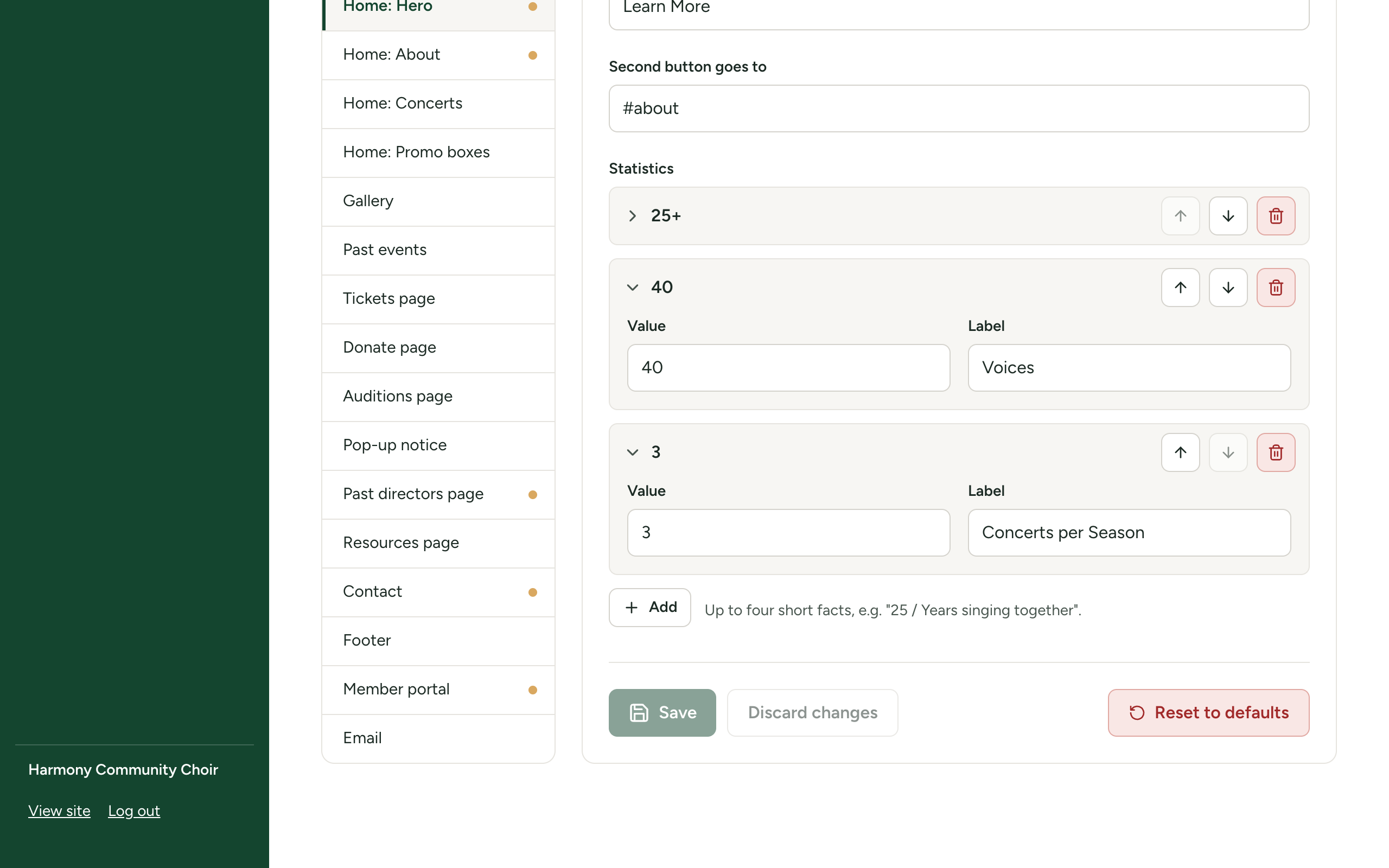
Some settings are a list of entries that each have several boxes: the statistics at the top of the home page, your leaders, the steps of an audition. They all work the same way.
| To do this | Do this |
|---|---|
| Add an entry | Select Add under the list. A new, empty entry opens at the bottom. Beside the button there is a note: usually how many the list takes, for example Up to 4., and for a few lists a hint about what to put in it. When the list is full, Add cannot be pressed. |
| Open or close an entry | Select its title bar. The title is whatever is in the entry's first box, or Entry 1, Entry 2 while that is empty. Where the first box is an Icon (Highlights, Promo boxes, Cards, Link tiles), the title bar shows the icon's code name, such as users or credit-card, until you have chosen one; open the entry to see its Title box. A list of more than three entries starts with them all closed. |
| Change the order | Use the up and down arrows on the entry's title bar (Move up, Move down). The order in the list is the order on the site. |
| Remove an entry | Select the bin on its title bar (Remove). A box asks Remove this entry?; select Remove. |
Nothing you do to a list reaches the site until you Save the section. If you remove the wrong entry, Discard changes brings it back, along with undoing anything else you had not saved.
An entry with nothing at all filled in is dropped when you save. An entry you have started but not finished is kept, and is usually not shown on the site until its first box (its title or name) is filled in. Entries in Promo boxes and Social media have a drop-down that always holds a value, so an empty one is kept in the list rather than dropped; remove it yourself.
Link boxes
A link box says where a button or a tile takes people. Its label usually ends in "goes to". It accepts five kinds of address:
| Kind | Example | What happens when someone selects it |
|---|---|---|
| A page of your site | /tickets | The page opens. |
| A section of the home page | #concerts | The home page scrolls to that section. From another page, the home page opens first. |
| A web address | https://example.org/tickets | The address opens in a new tab. |
| An email address | mailto:info@example.org | The visitor's email program opens a new message. |
| A phone number | tel:+15555550100 | On a phone, it offers to call. |
A web address must begin with https:// or http://. www.example.org by itself is refused.
Addresses on your own site
| Address | Where it goes |
|---|---|
#home | The top of the home page |
#about | The About section of the home page |
#concerts | The Concerts section of the home page |
#contact | The Contact section of the home page |
/tickets | The Tickets page |
/tickets#subscriptions | The season subscription box on the Tickets page |
/donate | The Donate page |
/gallery | The Gallery page |
/auditions | The Auditions page |
/past-events | The Past Events page |
/past-directors | The Past Directors page |
/resources | The Resources page |
/p/<address> | A page of your own. The address is the one you gave the page under Pages, for example /p/summer-workshop. |
/member/login | The member login page |
A link to a page that is switched off in Features takes the visitor to the home page instead. #concerts does nothing while the Concerts section is switched off. The full list is in Addresses on your site.
If a link is refused
When you save, a link that is none of the five kinds is refused with the box's label and:
must be a web address, an email address (mailto:...) or a path on this site
Check for these:
- a web address without
https://at the front; - a path on your site without the
/at the front (ticketsinstead of/tickets); - an email address without
mailto:at the front; - a space, a quotation mark, an apostrophe,
<or>in a path on your site (/tickets now) or in a section name (#my section); - a space in a
mailto:ortel:address, or an apostrophe anywhere in a web address.
The box does not check that the page exists. Select View site after saving and try the button.
Pictures
A picture box takes the address of a picture, with an Upload image button that puts one of yours on the site and fills in the address for you. See Upload a picture into a setting.