The footer
The footer is the band at the bottom of every public page. Most of it fills itself in from other settings. Site Settings → Footer holds the few words that are only for the footer.
What is in the footer
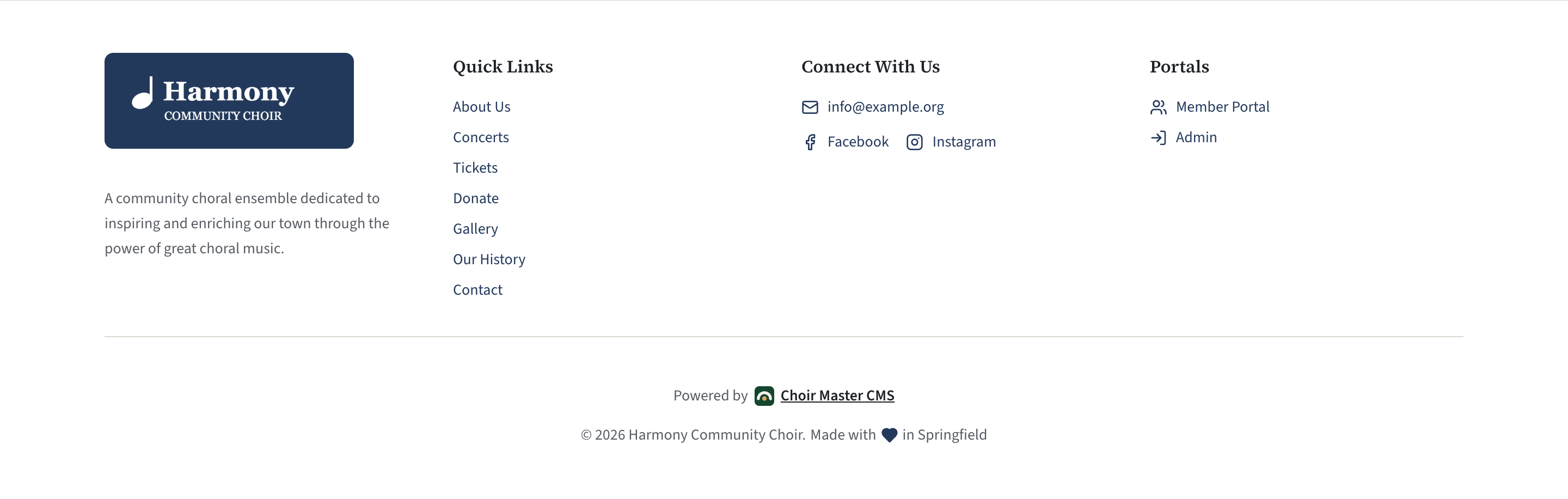
The footer has four columns, then a line at the bottom.
| Column | What it shows | Where it comes from |
|---|---|---|
| 1 | Your logo, or your name if you have no logo, and a short description. | The logo and name are in Choir. The description is Short description in Footer. |
| 2 | Quick Links: every item in the menu bar except Home. | Switched on and off in Features; pages of your own are added under Pages. |
| 3 | Connect With Us: an optional sentence, your email address and your social media links. | The sentence is Text under "Connect With Us" in Footer. The email and the social media are in Contact. |
| 4 | Portals (or your own heading): a link to the member portal and a link to the admin login. | The member portal link is shown when Member portal is ticked in Features, and uses the portal's name from Set up the member portal. The rest is in Footer. |
| Bottom | The "Powered by" line, then the copyright and your credit line. | The copyright is "©", this year and your choir's name, and is not a setting. |
Change the footer's words
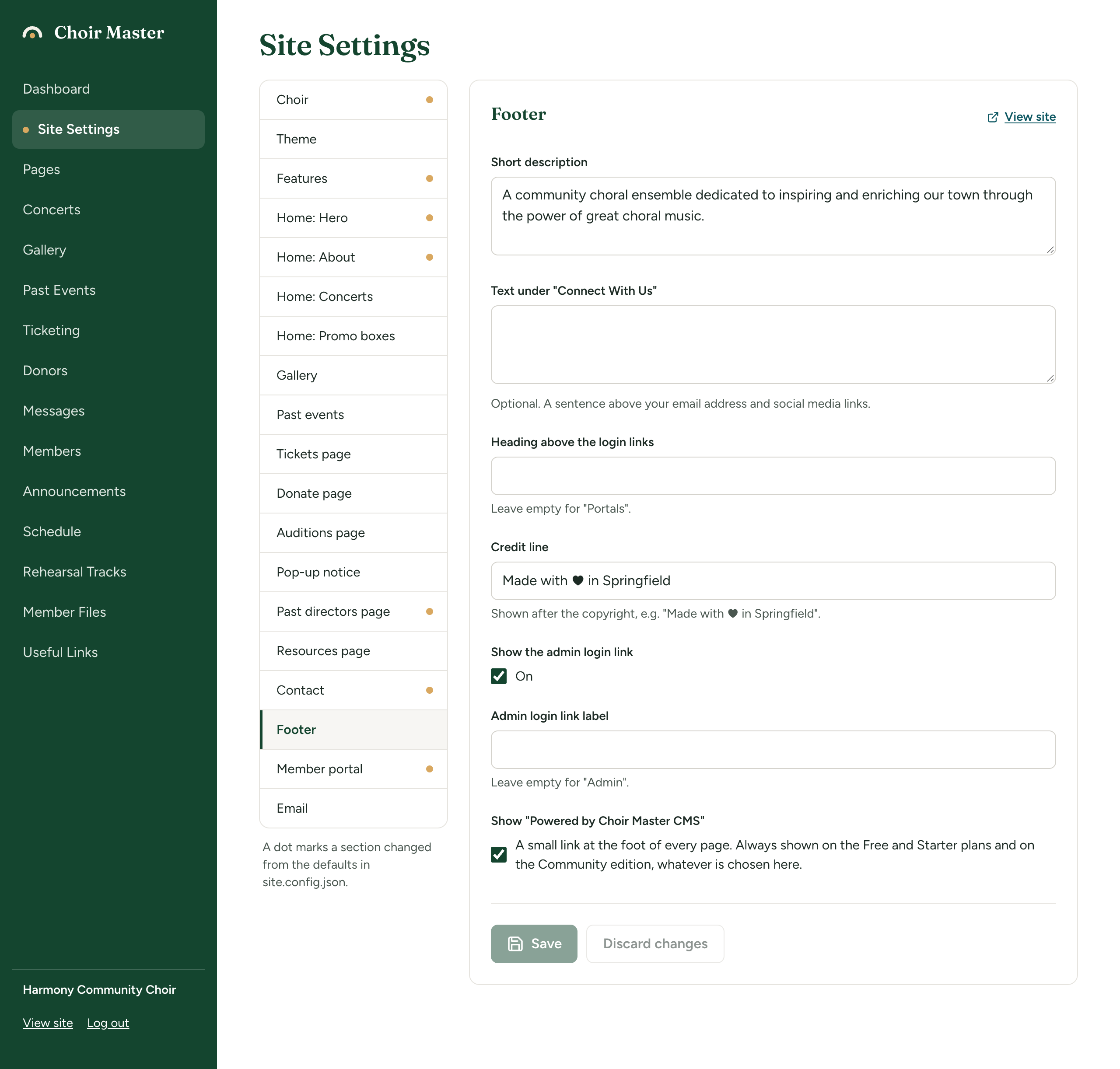
- Go to Site Settings → Footer.
- Fill in the boxes below.
- Select Save, then View site and scroll to the bottom of any page.
| Setting | What it does | Limit |
|---|---|---|
| Short description | A few sentences under your logo or name in the first column. | 300 characters |
| Text under "Connect With Us" | Optional. A sentence above your email address and social media links. | 300 characters |
| Heading above the login links | The heading of the fourth column. Leave empty for "Portals". | 60 characters |
| Credit line | Shown after the copyright, for example "Made with ♥ in Springfield". A ♥ in the text is drawn as a small heart. | 120 characters |
| Show the admin login link | Ticked: the fourth column has a link to the admin panel's login page. Unticked: no link. | |
| Admin login link label | The words of that link. Leave empty for "Admin". | 60 characters |
| Show "Powered by Choir Master CMS" | See The "Powered by" line. |
Hide the admin login link
Most choirs hide this link. Visitors do not need it, and you can always reach the admin panel by adding /admin to your site's address.
- Go to Site Settings → Footer.
- Untick Show the admin login link.
- Select Save.
The link goes; the login page itself stays where it is.
The "Powered by" line
A small link at the foot of every page reads "Powered by Choir Master CMS" and goes to the product's website. It also appears at the foot of the member portal.
Whether you may hide it depends on how you run the site:
- It is always shown on the Free and Starter plans of a site we host, and on the Community edition of a self-hosted site, whatever Show "Powered by Choir Master CMS" says.
- It is your choice on the Premium plan of a hosted site, and on the Standard edition of a self-hosted site. Untick the box and save.
The full rules are in Plans and editions compared.
Unticking the box on a site that must show the line changes nothing you can see, and the setting is kept. If the plan or edition later allows it, the line goes at that moment.