Your Resources page
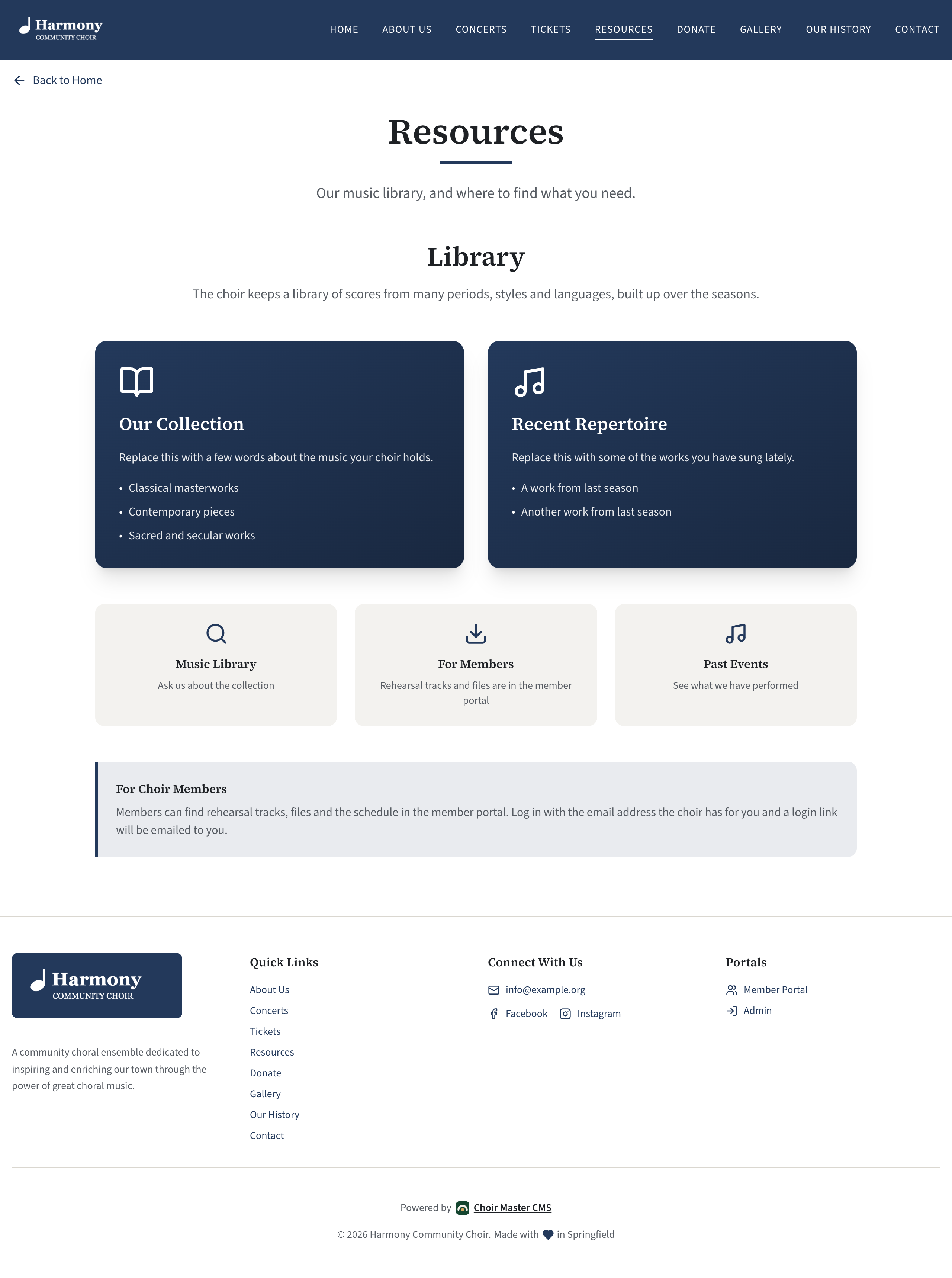
The Resources page (/resources) is a public page about your music library and what you offer singers and visitors. It has room for a few words about the library, up to three cards with lists of points, up to three tiles that link elsewhere, and a note for members.
It is new in version 1.6.11 and is off until you switch it on.
Switch the page on
- Go to Site Settings → Features.
- Tick Resources page.
- Select Save.
A Resources item appears in the menu at the top of your site and in the footer's Quick Links, after Tickets and before Donate. The page starts with sample wording, so fill it in before or straight after switching it on.
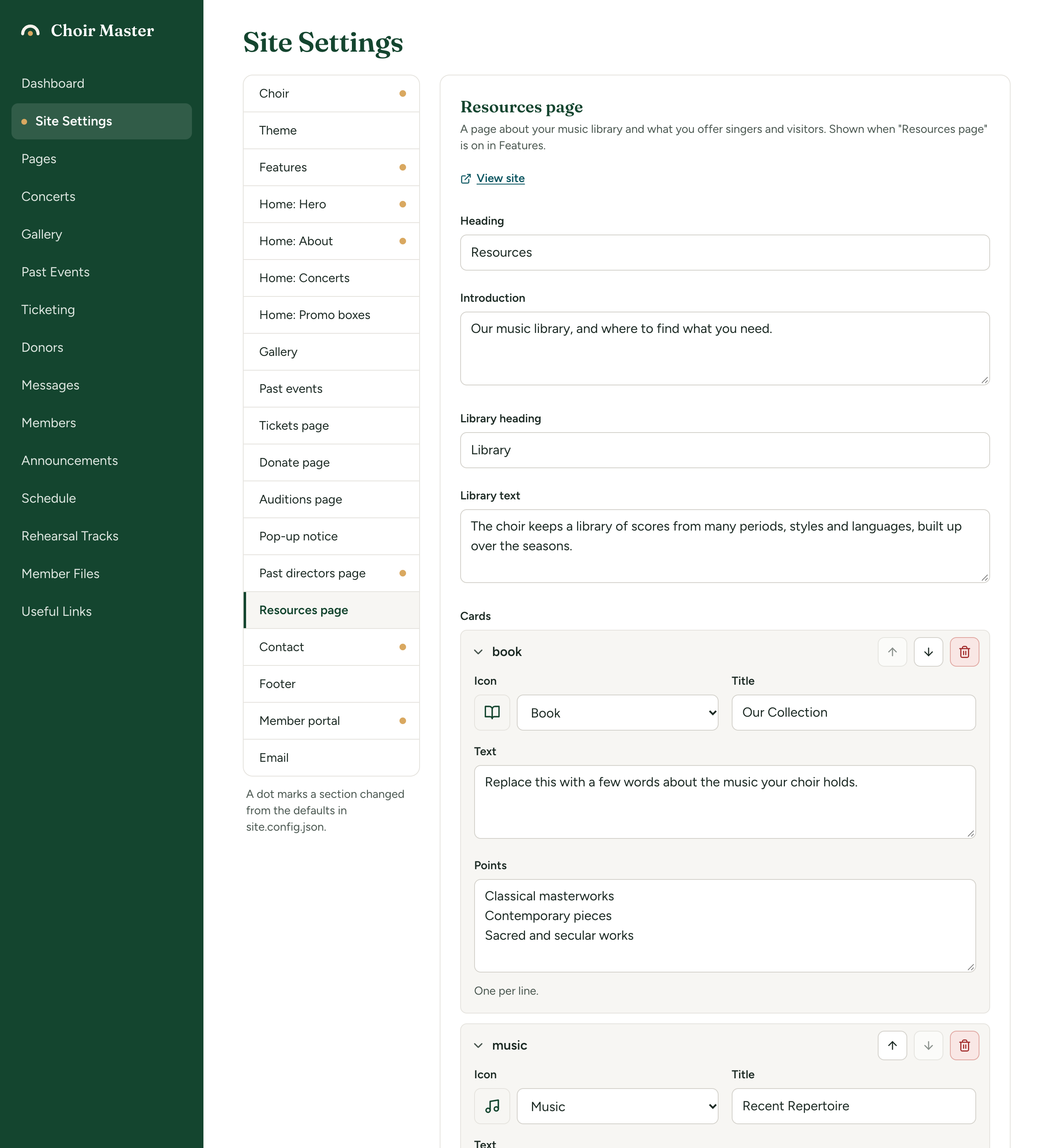
Everything on the page is in Site Settings → Resources page. You can fill that section in while the page is still off.
The settings
| Setting | What it does | Limit |
|---|---|---|
| Heading | The page's heading. Empty means "Resources". | 80 characters |
| Introduction | A paragraph under the heading. | 400 characters |
| Library heading | A second, large heading. | 80 characters |
| Library text | A paragraph about your music library. | 600 characters |
| Cards | Coloured cards with a list of points. | Up to 3 |
| Link tiles | Pale tiles that take people somewhere. | Up to 3 |
| Note for members: heading | The heading of a note at the foot of the page. | 80 characters |
| Note for members: text | The note itself. | 800 characters |
The menu item always says Resources, whatever the heading is.
Cards
Each card has:
| Setting | What it does | Limit |
|---|---|---|
| Icon | The large icon at the top. With (none), a book is shown. | One of the 27 icons |
| Title | The card's heading. A card with no title is not shown. | 80 characters |
| Text | A paragraph. Optional. | 600 characters |
| Points | A list with a dot before each point. Type one per line. Optional. | Up to 8 lines |
Use cards for things such as "Our Collection" and "Recent Repertoire".
Link tiles
Each tile has:
| Setting | What it does | Limit |
|---|---|---|
| Icon | The icon at the top. With (none), an "i" is shown. | One of the 27 icons |
| Title | The tile's heading. A tile with no title is not shown. | 60 characters |
| Text | One line under it. Optional. | 300 characters |
| Goes to | Where the tile takes people. On screen: "A page (/past-events), a section of the home page (#contact) or a web address." | A link |
The whole tile is the link. The sample tiles go to #contact, /member/login and /past-events, which shows the idea: a tile can lead to the contact section, the member login, another page of yours or another website. See Link boxes.
Two icons were added with this page and suit it: Search (a magnifying glass) and Download (an arrow).
The note for members
A box with a coloured bar down its side, at the foot of the page. It is for telling your own singers where their things are, for example that rehearsal tracks and files are in the member portal.
This page is public. Do not put anything here that only members should see, such as a rehearsal address you keep private or a link to shared files. Those belong in the member portal.
Fill in the page
- Go to Site Settings → Resources page.
- Type the Heading, Introduction, Library heading and Library text.
- Under Cards, open each sample card and replace its wording, or remove it with the bin. Select Add for another.
- Under Link tiles, do the same, and check each Goes to.
- Type the note for members, or empty both of its boxes.
- Select Save, then View site and choose Resources in the menu.
What is shown only when filled in
The heading and the introduction are always there. Every other part appears only when it has something in it:
| Part | Shown when |
|---|---|
| The library block | Library heading or Library text has something in it |
| The cards | At least one card has a Title |
| The link tiles | At least one tile has a Title |
| The note for members | Either of its two boxes has something in it |
So a simple page can be just a heading, an introduction and one card.
How it is laid out
On a wide screen, one card is centred, two sit side by side and three sit in a row; the tiles do the same. On a phone everything is stacked.
Switch the page off again
Untick Resources page in Features and Save. The menu item goes, the address /resources leads to the home page, and your wording is kept.