Add a custom style sheet
A custom style sheet is CSS of your own, added to your public pages after the theme. It is for someone who writes CSS and wants a change the Theme section does not offer. A site does not need one, and this is the one page of this part of the guide written for a technical reader.
Where it is and what it applies to
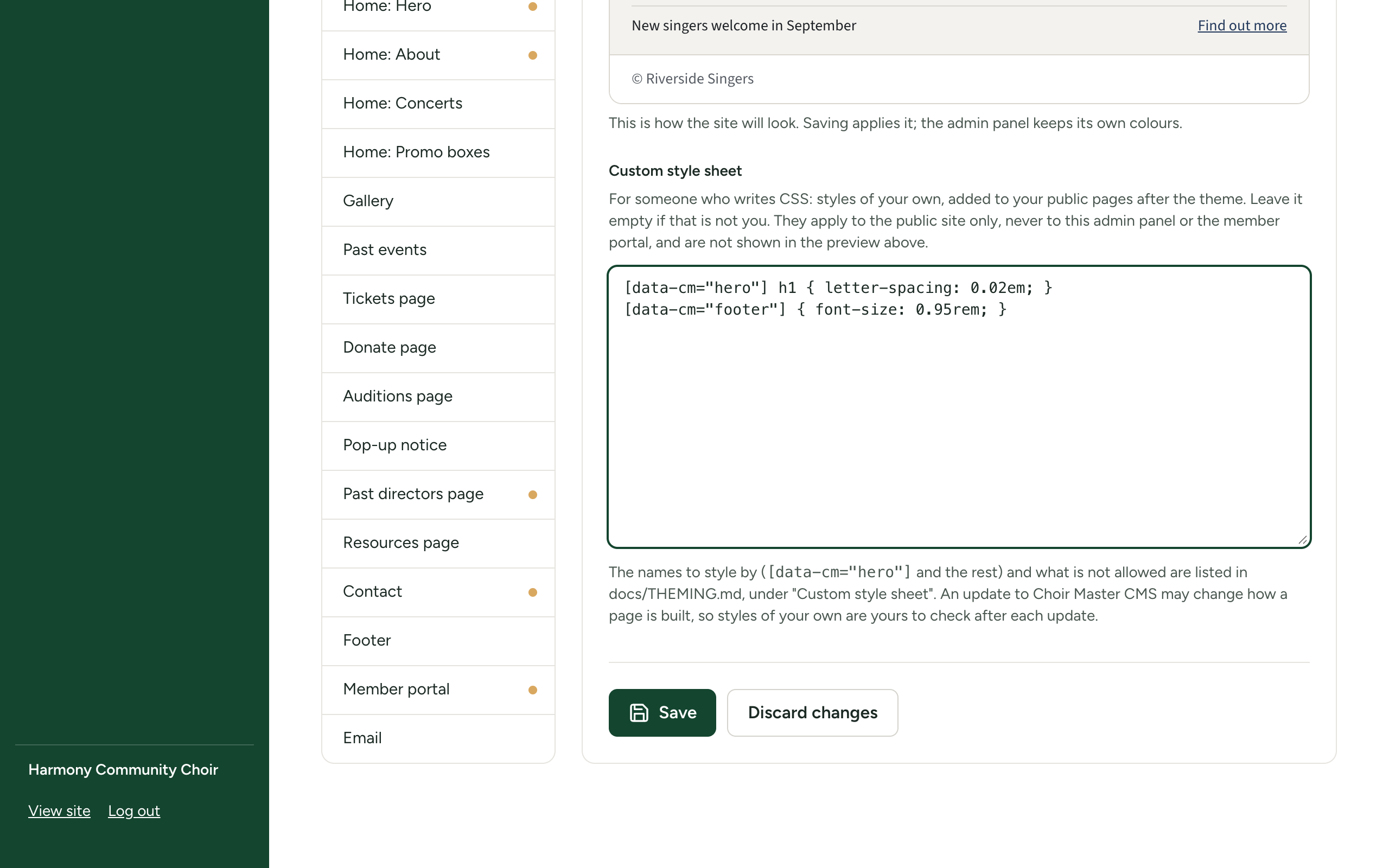
Site Settings → Theme → Custom style sheet, the last part of the section, below the Preview. Its introduction reads:
For someone who writes CSS: styles of your own, added to your public pages after the theme. Leave it empty if that is not you. They apply to the public site only, never to this admin panel or the member portal, and are not shown in the preview above.
| Length | 20,000 characters at most. The box stops taking text there. |
| Applies to | Public pages only. It is taken out of the page under /admin and /member, so a rule that hides everything can always be put right from the admin panel. |
| Order | It is the last style element in the page, after the theme and the site's own styles, so a rule of yours wins over one of the same weight. |
| Preview | Not shown in the Theme section's Preview. Save, then select View site. |
| What is saved | Exactly what you wrote, with line endings made uniform and blank space trimmed from the two ends. Nothing is ever quietly removed or repaired. |
Add or change the style sheet
- Log in as a Site Admin and go to Site Settings → Theme.
- Scroll to Custom style sheet and type or paste your CSS.
- Select Save. If anything in it is not allowed, the whole section is refused with the reason, and nothing is saved.
- Select View site and check the public pages, on a phone as well as a wide screen.
To remove it, empty the box and select Save.
What is refused
The style sheet is checked when you save. It is refused, with one of these messages after Custom style sheet:, if it contains any of the following.
| Not allowed | Message | Why |
|---|---|---|
| More than 20,000 characters | is too long (20,000 characters at most) | |
| A backslash | cannot contain a backslash | Every CSS escape starts with one, and an escape can spell any of the words below. This rules out escaped class names and content: "\201C"; type the character itself instead. |
| A less-than sign | cannot contain "<" | Nothing in CSS needs it, and it keeps a closing style tag out. A greater-than sign, the child selector, is fine. |
| Control characters | cannot contain control characters | Tabs and new lines are fine. |
@import | cannot use @import | It fetches a style sheet from somewhere else. |
url(...) that is not a path on your own site or a data:image/ address | can only use url() with a path on this site, such as url(/files/images/photo.jpg), or a data:image/ address | No requests to other sites. url(https://…), url(//example.org/x.png) and relative paths such as url(x.png) are refused. url(/files/images/photo.jpg) and url("/images/footer.svg") are accepted. |
image-set( | cannot use image-set() | It takes an address without url(). |
expression( | cannot use expression() | Old ways of running a script from a style sheet. scroll-behavior and overscroll-behavior are ordinary properties and are fine. |
javascript: | cannot use javascript: | |
behavior: | cannot use behavior | |
-moz-binding | cannot use -moz-binding |
Capital letters, spacing and comments make no difference: @IMPORT, URL ( and a word with a comment in the middle of it are all caught. A comment cannot contain any of these either, so do not leave a refused rule "commented out".
Everything else CSS offers is accepted, including @media, @font-face (with a font file on your own site) and @keyframes.
Style by the data-cm names
Each section and page of the public site, and the notable parts inside them, carries a data-cm attribute. These names are kept from release to release. The class names on elements are not, so select by the names.
/* Wider letter-spacing on the home page headline */
[data-cm="hero"] h1 {
  letter-spacing: 0.05em;
}

/* Square corners on every concert card */
[data-cm="concert-card"] {
  border-radius: 0;
}

/* A background picture of your own behind the footer.
   Upload it in any picture box and copy its address. */
[data-cm="footer"] {
  background-image: url(/files/images/footer-texture.png);
}
A picture uploaded through the admin panel normally has an address beginning /files/, which url() accepts. If your site serves its public files from another address (PUBLIC_FILES_URL), uploaded pictures are not paths on your site and are refused in url(); use a file served by the site itself, or a data:image/ address.
A promo box also says which style was chosen for it, in data-cm-style:
/* Only the promo boxes set to "Primary colour" */
[data-cm="promo"][data-cm-style="primary"] {
  box-shadow: none;
}
Narrow a rule with a media query as usual:
@media (min-width: 768px) {
  [data-cm="about-person"] {
    max-width: 28rem;
  }
}
The complete list of names is in Custom style sheet: names to style by.
Override a theme variable
The theme's colours and fonts are CSS variables set on the html element itself. A rule that changes one therefore needs !important, or the theme's own value wins.
/* Headings in Georgia, whatever font pairing is chosen */
:root {
  --font-heading: Georgia, serif !important;
}
Colours are written as three numbers, red, green and blue, each from 0 to 255, with spaces between them and no rgb() around them:
/* The main colour as R G B: this is #23395b */
:root {
  --color-primary: 35 57 91 !important;
}
The variable names and what each is used for are in Custom style sheet: names to style by. Changing a colour this way skips the check that keeps lettering readable, so look at every page afterwards.
What an Admin's changes do to it
The style sheet is the Site Admin's alone, and nobody else's save can disturb it.
| Who does what | What happens to the style sheet |
|---|---|
| An Admin saves the Theme section | Kept as it was |
| An Admin selects Reset to defaults on the Theme section | Kept as it was; the colours and fonts are reset |
| Someone runs the guided setup and picks a theme | Kept as it was |
| A Site Admin saves the Theme section | Replaced by what is in the box |
| A Site Admin selects Reset to defaults on the Theme section | Removed, with the rest of the theme |
Check it after each update
An update to Choir Master CMS may change how a page is built. The data-cm names stay; the elements inside them and their classes may not. After every update, open your public pages and check that your rules still do what you meant.
The note under the box says the names and the rules "are listed in docs/THEMING.md". That file is part of the product's source code and is not in the Docker image or the update packages; this page and the reference page hold the same information.
If you have hidden something you need
The style sheet never applies to the admin panel. Go to /admin, log in, open Site Settings → Theme and correct or empty the box.