The concerts section of your home page
The Concerts section of your home page lists your concerts as cards. This page is about the words around the cards: the heading and introduction above them and the note and button below. They are in Site Settings → Home: Concerts.
The concerts themselves are added under Concerts in the admin menu: see Add a concert.
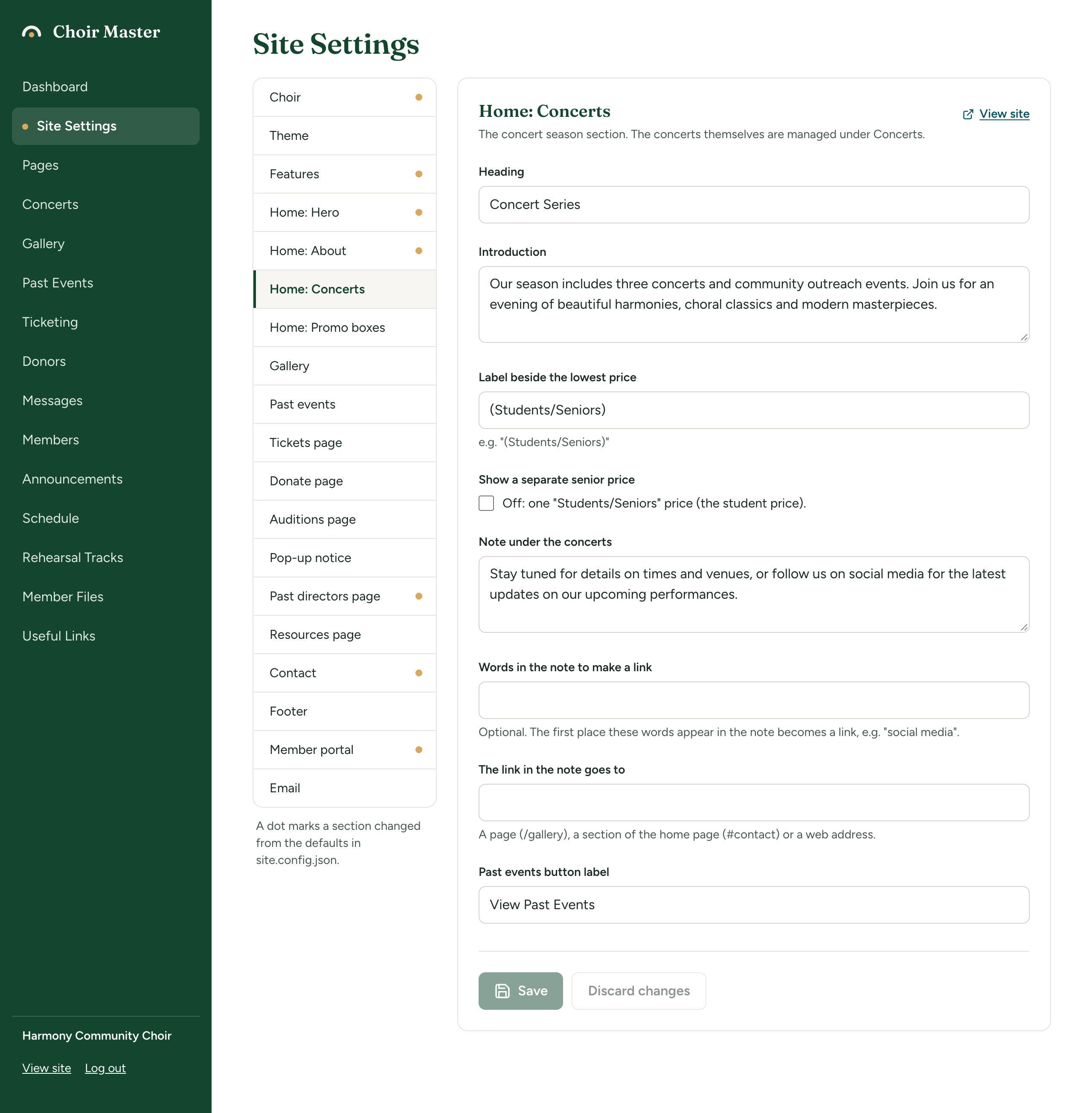
The settings
| Setting | What it does | Limit |
|---|---|---|
| Heading | The section's heading. Empty means "Concerts". | 80 characters |
| Introduction | A paragraph under the heading. | 1,500 characters |
| Label beside the lowest price | Small words after "From $20" on a concert's card. On screen: 'e.g. "(Students/Seniors)"'. | 60 characters |
| Show a separate senior price | Whether seniors have a price of their own. Off for a new site. | |
| Note under the concerts | A paragraph in a box under the cards. | 600 characters |
| Words in the note to make a link | Optional. Words from the note that become a link. | 80 characters |
| The link in the note goes to | Where that link takes people. | A link |
| Past events button label | The words on the button to your Past Events page. Empty means "View Past Events". | 60 characters |
The heading here is not the menu item, which always says Concerts.
Change the heading and introduction
- Go to Site Settings → Home: Concerts.
- Change Heading and Introduction. A new line in the introduction is kept as a new line on the site.
- Select Save.
The label beside the lowest price
Each concert card that has a price shows the lowest of its prices as "From $20". The label is shown after it in small letters, to say whose price that is: "(Students/Seniors)", "(under 18)". Empty the box to show the price alone.
The price line and the Get Tickets button are shown only for a concert that is not past and not sold out, and only while Tickets page is on in Features.
A separate senior price
Show a separate senior price decides whether your concerts have two prices or three. Beside the box it says: 'Off: one "Students/Seniors" price (the student price).'
| Unticked (two prices) | Ticked (three prices) | |
|---|---|---|
| The concert form in the admin panel | General price and Student price | General price, Student price and Senior price |
| The Tickets page | "General: $25" and "Students/Seniors: $20" | "General: $25", "Students: $20" and "Seniors: $22" |
To offer a senior price:
- Tick Show a separate senior price and select Save.
- Go to Concerts in the admin menu, edit each concert and fill in its Senior price.
- Change Label beside the lowest price to suit, since "(Students/Seniors)" may no longer be right.
A price left at 0 is not shown. See Posters, prices and ticket links.
The note under the concerts
Under the cards is a box with a musical note at the top. It holds your note and the button to past events.
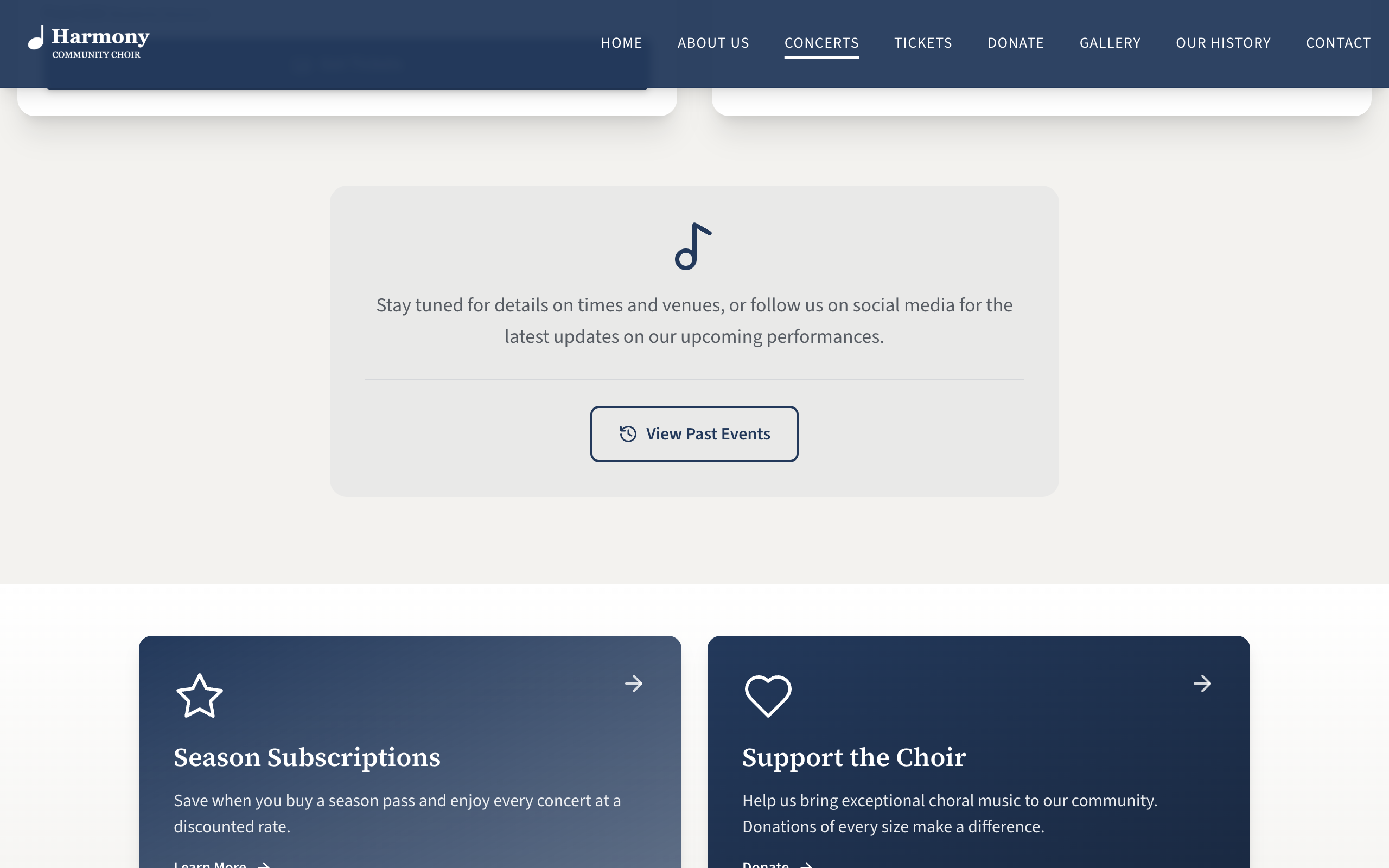
- Type the paragraph in Note under the concerts, for example "Follow us on social media for the latest news."
- To make part of it a link, type those exact words in Words in the note to make a link, for example "social media".
- Type where the link goes in The link in the note goes to: a page such as
/gallery, a section of the home page such as#contact, or a web address. See Link boxes. - Select Save.
The link is made at the first place those words appear in the note. For it to work:
- the words must be in the note exactly as typed, capitals included ("Social Media" does not match "social media");
- both the words and the place to go must be filled in.
Otherwise the note is shown as plain text, with no error.
The past events button
The button appears while Past events page is on in Features, under the note. Change its words in Past events button label.
The whole box is left out only when there is no note and the Past events page is off.
When there are no concerts to show
If no concert is visible (none added yet, or all hidden), the section still appears, with your heading and introduction and the line:
Details of the next concerts are coming soon.
That line cannot be changed. To say more, use the Introduction. To leave the whole section out between seasons, untick Concerts section and ticket links in Features; see also When a concert is over, and starting a new season.