Upload a picture into a setting
Several settings hold a picture: your logo, the photo behind the top of your home page, the group photo, each leader's portrait. A concert's poster works the same way. This page explains the picture box they all share.
Gallery photos and videos are a different thing: see Upload photos and videos to the gallery.
Where the picture boxes are
| Picture | Where |
|---|---|
| Logo, Favicon | Site Settings: Your logo and browser-tab icon |
| Background photo | Site Settings → Home: Hero: The top of your home page |
| Group photo, and each leader's Photo | Site Settings → Home: About: About your choir and its leaders |
| Each past director's Photo | Site Settings: Your Past Directors page |
| A concert's Poster | Concerts: Posters, prices and ticket links |
Site Settings is for a Site Admin or an Admin. Any admin, a Manager included, can upload a concert's poster.
Upload a picture
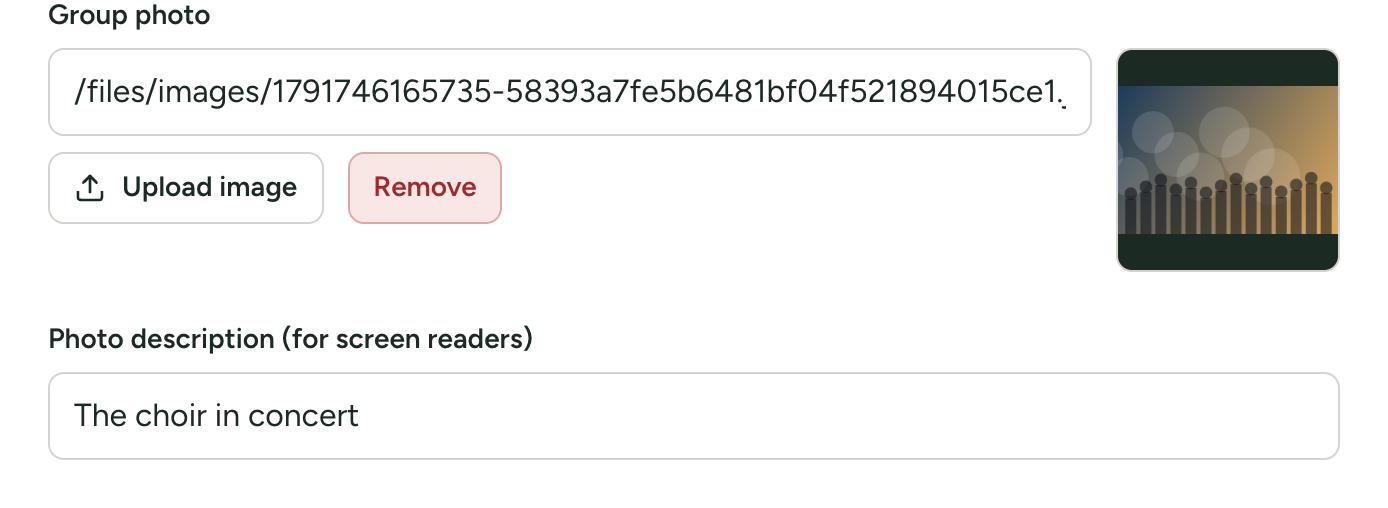
- Find the picture's box. While it is empty it reads Upload, or paste an image address.
- Press Upload image under the box and choose the file from your computer or phone. The button reads Uploading... while it is sent.
- When it is done, the box fills in with a web address, and a small preview of the picture appears beside it. The address is where your site now keeps the file; you do not need to understand or copy it.
- Save the settings. Uploading puts the file on your site, but the setting is not changed until you save the page. See How Site Settings works.
The preview has a dark background, which is how a logo is shown on your site, so a white logo is easy to see in it.
On a concert, the box reads Upload below, or paste an image address and the button is Upload a poster image. Otherwise it works in the same way, and you finish with Create Concert or Save Changes.
Use a picture that is already on the web
Paste its address, starting with https://, into the box in place of uploading. Your site then shows the picture from wherever it is, and it will vanish from your site if it is moved or deleted there. Uploading your own copy is safer, and is the only choice if you are not sure you may use somebody else's file.
Change or remove a picture
- Change it: press Upload image again and choose the new file. Its address replaces the old one. Save.
- Remove it: press Remove, which is beside Upload image whenever the box has something in it. Save. In a concert's form there is no Remove button: clear the Poster box by hand.
Removing or replacing a picture only changes the setting. The file you uploaded earlier is not deleted from your site's storage, and anyone who has its address can still open it. Uploads made through these boxes cannot be deleted from the admin panel, so do not upload a picture here that must not stay online.
What you can upload
| Kinds of file | JPEG, PNG, GIF, WebP or SVG |
| Largest file | 10 MB, unless whoever runs your site has changed it |
An icon file ending in .ico cannot be uploaded here, even for the Favicon: upload a PNG or an SVG, or paste the address of an .ico file that is already on the web.
The types and sizes for every kind of upload on your site (gallery, member files, rehearsal tracks) are listed together in Limits.
Sensible sizes
Your site shows a picture as it was uploaded; it does not shrink it. A large file works, but every visitor has to download it, and a phone on a weak signal will show an empty space for a long time.
| Picture | Good size | Good format |
|---|---|---|
| Logo | About 600 pixels wide | SVG, or PNG with a transparent background |
| Background photo (top of the home page) | About 2,000 pixels wide | JPEG |
| Group photo | About 1,600 pixels wide | JPEG |
| A person's portrait | About 800 pixels on the long side, upright rather than wide | JPEG |
| Concert poster | About 1,200 pixels wide | JPEG or PNG |
Aim for files under 500 KB; under 1 MB is acceptable for the large background photo. A photo straight from a camera or a recent phone is often 5 to 15 MB: resize it first. The photo programs that come with Windows and macOS can both do this, by "Resize" or "Export" with a chosen width.
If something goes wrong
In Site Settings, a refused upload shows a red message directly under the picture's buttons. In a concert's form, it appears at the top of the form.
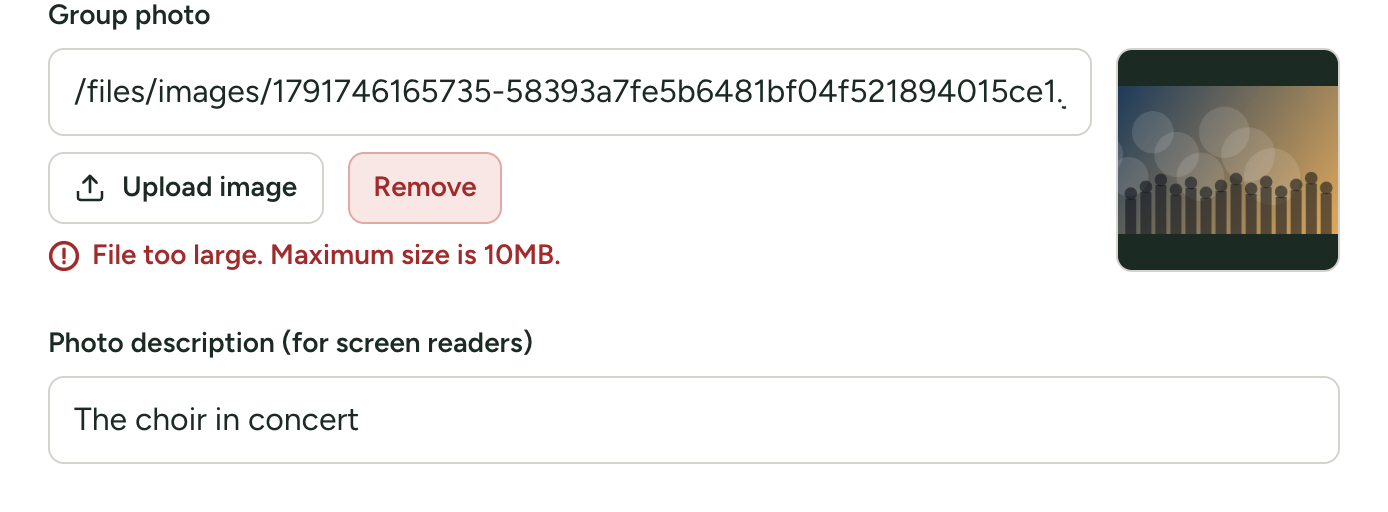
| Message | What to do |
|---|---|
| Only JPEG, PNG, GIF, WebP or SVG images are allowed | The file is another kind. Common causes: a PDF, a Word document with a picture in it, a photo in an iPhone's HEIC format, or a TIFF from a scanner. Open it in a photo program, save or export it as JPEG or PNG, and upload that. |
| File too large. Maximum size is 10MB. | Resize the picture as described above and upload it again. The number shown is the limit on your site. |
| No file uploaded | The file did not arrive. Choose it again. |
| Upload failed | Something went wrong on the way. Try again in a moment. If it keeps happening on a site you run yourself, see Uploads fail, or updates misbehave. |
| A message when saving that says a picture's box "must be a web address, an email address (mailto:...) or a path on this site" | The box holds something that is not an address, usually a file name typed by hand. Clear it and use Upload image. |
If the upload worked but the picture is missing from your site, check that you saved the settings afterwards.