Promo boxes on your home page
Promo boxes are large coloured boxes on your home page, under the concerts. Each points at something you want visitors to notice: season subscriptions, donating, auditions. They are in Site Settings → Home: Promo boxes.
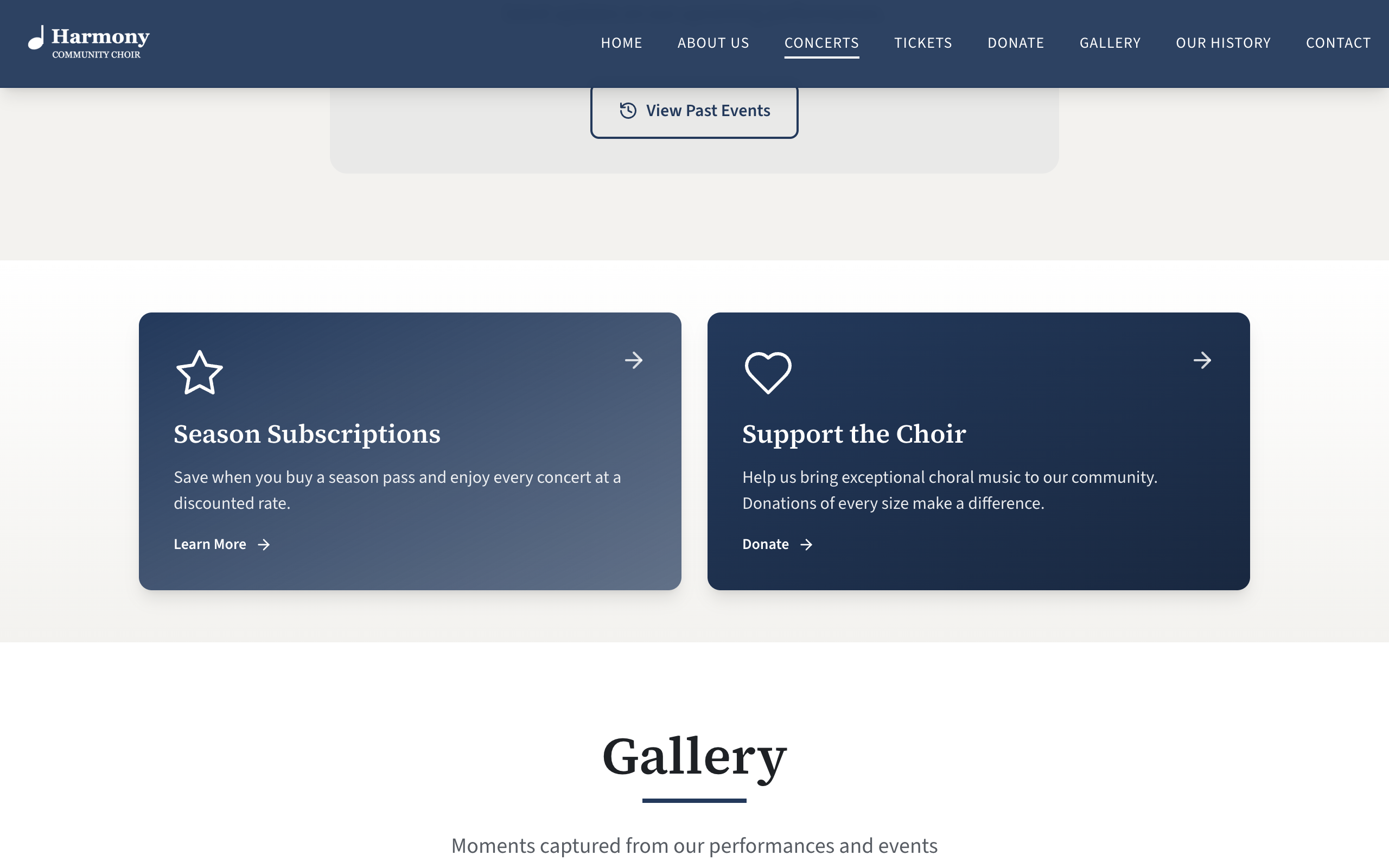
A new site has two: "Season Subscriptions" and "Support the Choir".
What a box has
| Setting | What it does | Limit |
|---|---|---|
| Icon | The large icon at the top left of the box. | One of the 27 icons |
| Title | The box's heading. A box with no title is not shown. | 80 characters |
| Text | A sentence or two under the title. Optional. | 300 characters |
| Link label | The words at the foot of the box, followed by an arrow, such as "Learn More". Optional. | 60 characters |
| Goes to | Where the box takes people. | A link |
| Style | Accent colour or Primary colour. |
You can have up to three boxes.
The whole box is the link, not just the label at its foot: selecting anywhere on it goes to the Goes to address. So a box works without a Link label, though the label makes it clearer that it can be selected. A box with nothing in Goes to is shown but does nothing; fill it in.
The two styles
- Accent colour fills the box with your theme's second colour.
- Primary colour fills it with your theme's dark main colour.
On a palette of four colours the two look clearly different, and using one of each makes a pair stand apart. On a one-colour theme there is only one colour to use, so the two styles look much alike.
Add a box
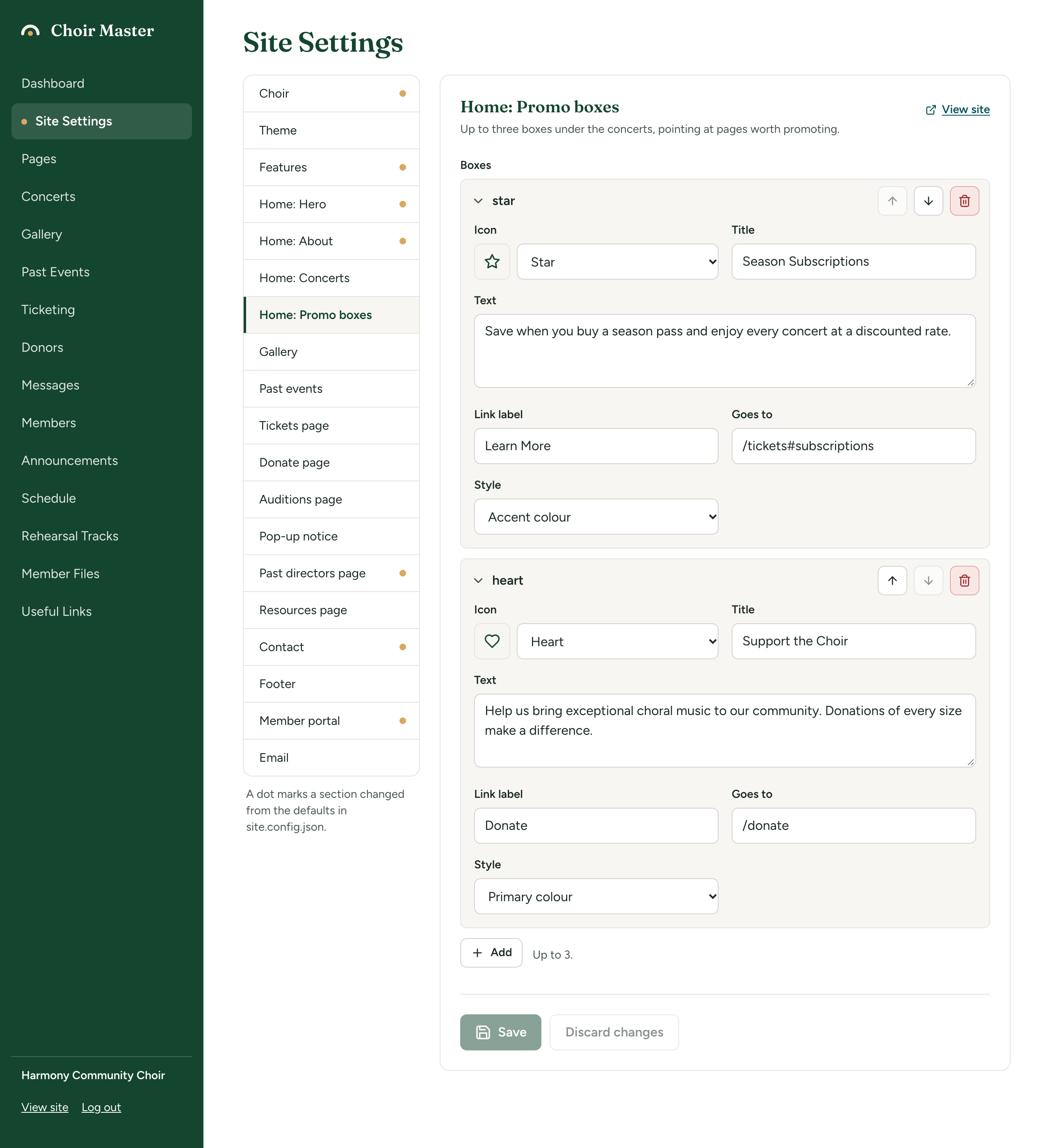
- Go to Site Settings → Home: Promo boxes.
- Under Boxes, select Add.
- Choose an Icon and type a Title and Text.
- Type the Link label and, in Goes to, where the box leads: for example
/donate,/auditions,/tickets#subscriptionsor a web address. See Link boxes. - Choose a Style.
- Select Save.
Change, reorder or remove a box
- Change: select the box's title bar to open it, change it, and Save.
- Reorder: use the up and down arrows on its title bar. The first in the list is on the left.
- Remove: select the bin on its title bar, confirm with Remove, and Save.
How lists work is in Lists of entries.
How they are laid out
| Boxes with a title | On a wide screen |
|---|---|
| One | A single box, centred |
| Two | Side by side |
| Three | Three in a row |
| None | The whole section is left out of the home page |
On a phone they are stacked one above the other.
To take the promo boxes off your home page without losing them, there is no switch: remove the boxes, or empty their titles and add them back later.