Contact details and social media
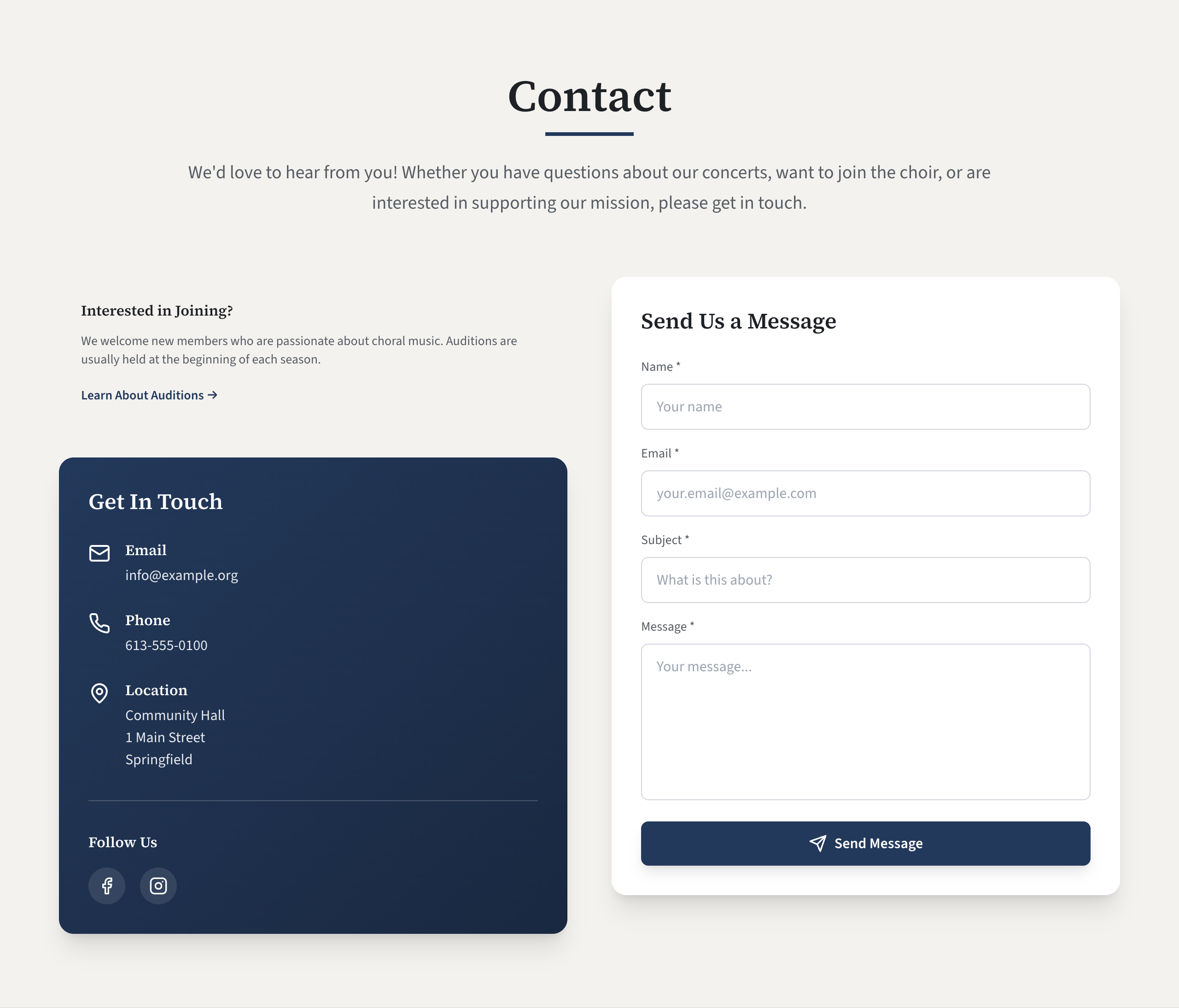
The Contact section is the last part of your home page. Your email address and social media links appear again in the footer. It is where visitors find your email address, phone number and location, follow you on social media and write to you through a form. All of its wording and details are in Site Settings → Contact.
Fill in your details
- Go to Site Settings → Contact.
- Fill in the boxes in the table below.
- Select Save, then View site and scroll to the Contact section.
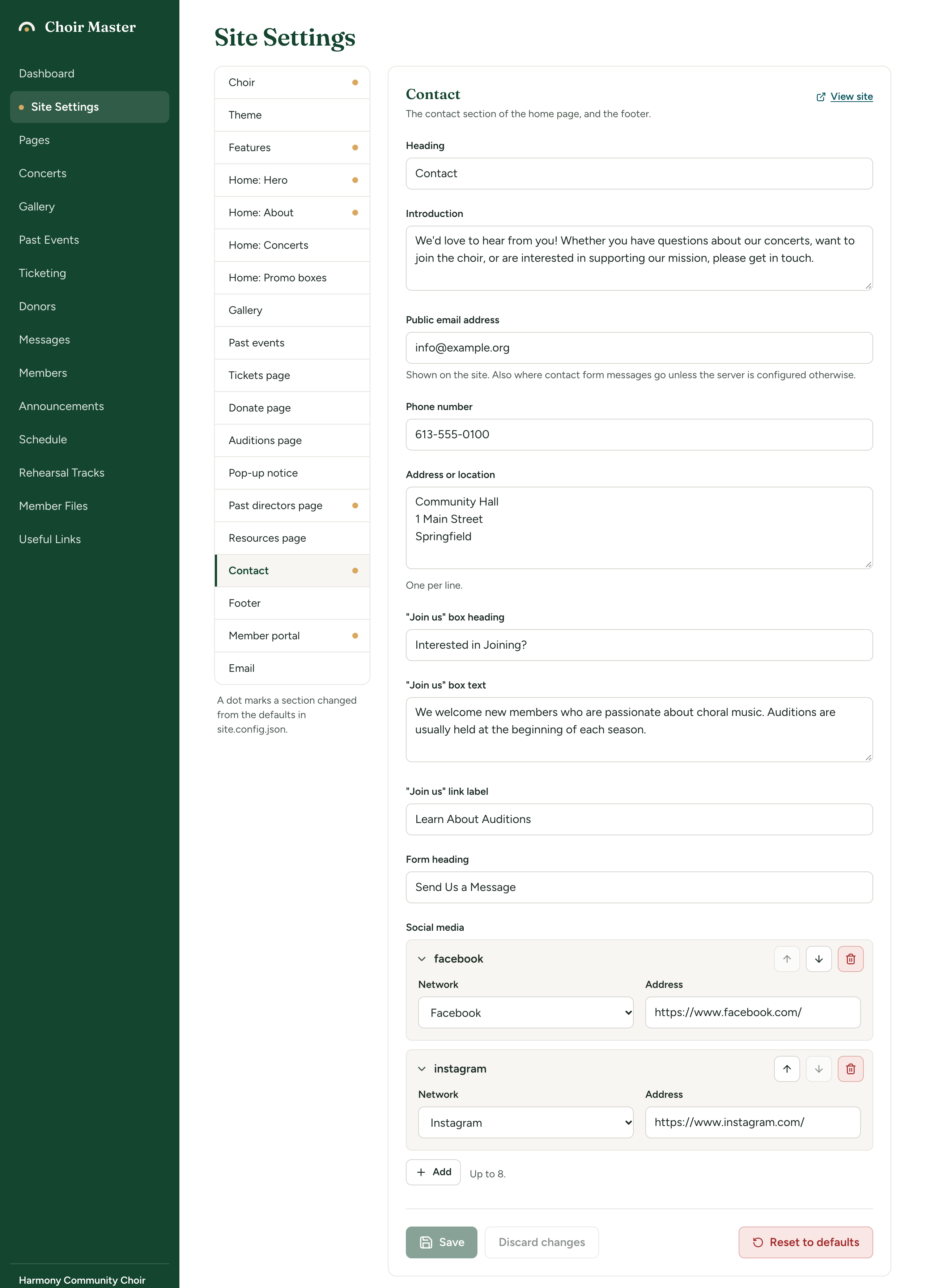
| Setting | What it does | Limit |
|---|---|---|
| Heading | The section's heading. Empty means "Contact". | 80 characters |
| Introduction | A paragraph under the heading. | 500 characters |
| Public email address | Shown in the Contact section and in the footer, as a link that opens the visitor's email program. See Where messages go. | 200 characters |
| Phone number | Shown as a link. On a phone, selecting it starts a call. | 40 characters |
| Address or location | One line per line of the address. | Up to 5 lines |
| "Join us" box heading | See The "Join us" box. | 80 characters |
| "Join us" box text | Words in the box. | 400 characters |
| "Join us" link label | The words of the link to the Auditions page. | 80 characters |
| Form heading | The heading above the message form. Empty means "Send Us a Message". | 80 characters |
| Social media | Your links to other sites. See Add your social media. | Up to 8 |
Each of the email, phone and location boxes is shown only when it is filled in. Under the heading Get In Touch, the section gives them the labels Email, Phone and Location.
A new site starts with info@example.org as its public email address, which is nobody's. Replace it before you tell anyone about the site.
Where messages go
The form asks the visitor for a Name, an Email, a Subject and a Message, and has a Send Message button. What happens next depends on how email is set up.
- The message is emailed to you. It goes to your Public email address, unless the person who runs the server has chosen another address for contact form messages. Your reply goes to the visitor, because their address is set as the reply address.
- The message is kept instead. If email is not set up, if the site cannot send email on its plan, or if sending fails, the message is stored on the site. Read it under Messages in the admin panel: see Contact form messages. The visitor is told "Thank you for your message! We will review it shortly."
Either way the visitor sees a thank-you, and either way the form works. Switching the form off is a separate choice: untick Contact form in Features. The rest of the Contact section stays.
If the site has a bot check turned on, the form also shows a security check, and the visitor must pass it before Send Message works.
The "Join us" box
The box above the contact details invites visitors to find out about joining. It links to your Auditions page.
It is shown only when both of these are true:
- Auditions page is ticked in Features;
- "Join us" box heading is filled in.
The link under the text says what you put in "Join us" link label, or "Learn About Auditions" if that is empty, followed by an arrow. "Join us" box text is optional.
To leave the box out, empty its heading. This box is the usual way into the Auditions page, because that page is not in the menu.
Add your social media
- In Site Settings → Contact, find Social media and select Add.
- Open the new entry. In Network, choose one of: Facebook, Instagram, Youtube, X, Tiktok, Spotify, Linkedin or Website. (The drop-down spells them that way; the site shows Facebook, Instagram, YouTube, X, TikTok, Spotify, LinkedIn or Website.)
- In Address, paste the full address of your page, starting with
https://. - Select Save.
An entry with no address is not shown. Use Website for any site that is not on the list. The links open in a new tab.
They appear twice: as round icons under Follow Us in the Contact section, and as the network's name with an icon in the footer, under Connect With Us.
For how lists work (reordering, removing), see Lists of entries.
If something goes wrong
- "must be a web address, an email address (mailto:...) or a path on this site" appears when you save: an Address is not in a form the site accepts. Check that it starts with
https://and has no spaces. - "has too many lines (5 at most)": the Address or location box has more than five lines. Join some of them.
- Visitors say the form does not send. Try it yourself, then look under Messages. A message there means the form works and only the email could not be sent.