Log in to the admin panel
The admin panel is where you change everything about your site. Only admins can open it. This page is for anyone who has been made an admin and needs to get in.
Admins are separate from choir members: being a member of the choir does not let you into the admin panel, and members log in somewhere else. See How members log in.
Find the admin login
Do either of these:
- Go to your site's address followed by
/admin, for examplehttps://www.example.org/admin. - Scroll to the bottom of any page of your public site and follow the Admin link in the footer.
If you are already logged in, you go straight to the dashboard. Otherwise you see a page headed Admin with your choir's name under it.
The footer link can be hidden or given a different name. See The footer. The address ending in /admin always works.
Which form will I see?
There are two ways to log in, and your site uses one or both.
Log in by emailed link
Use this when the page asks for an Email address.
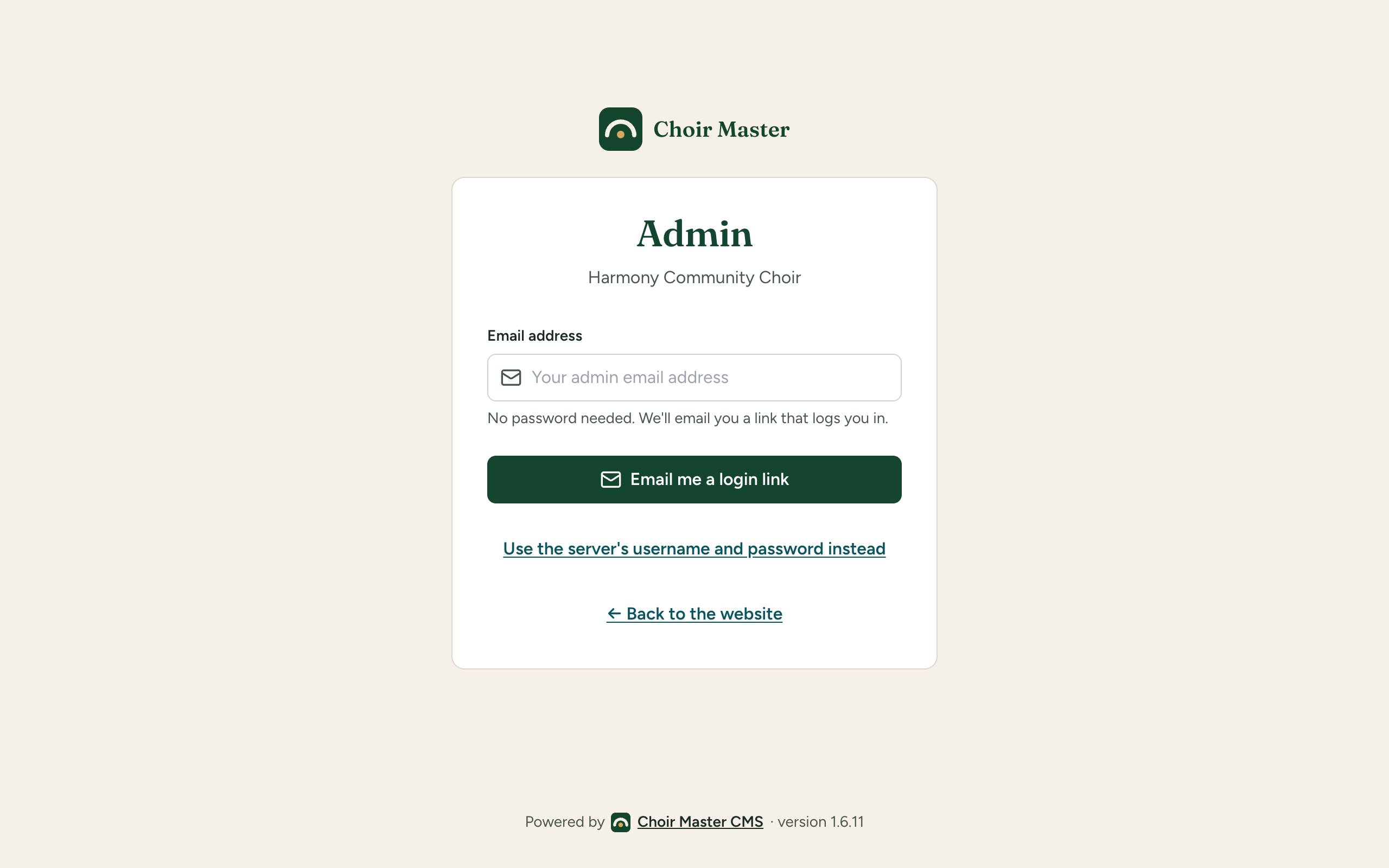
- Type the email address you were added as an admin with into Email address.
- Press Email me a login link.
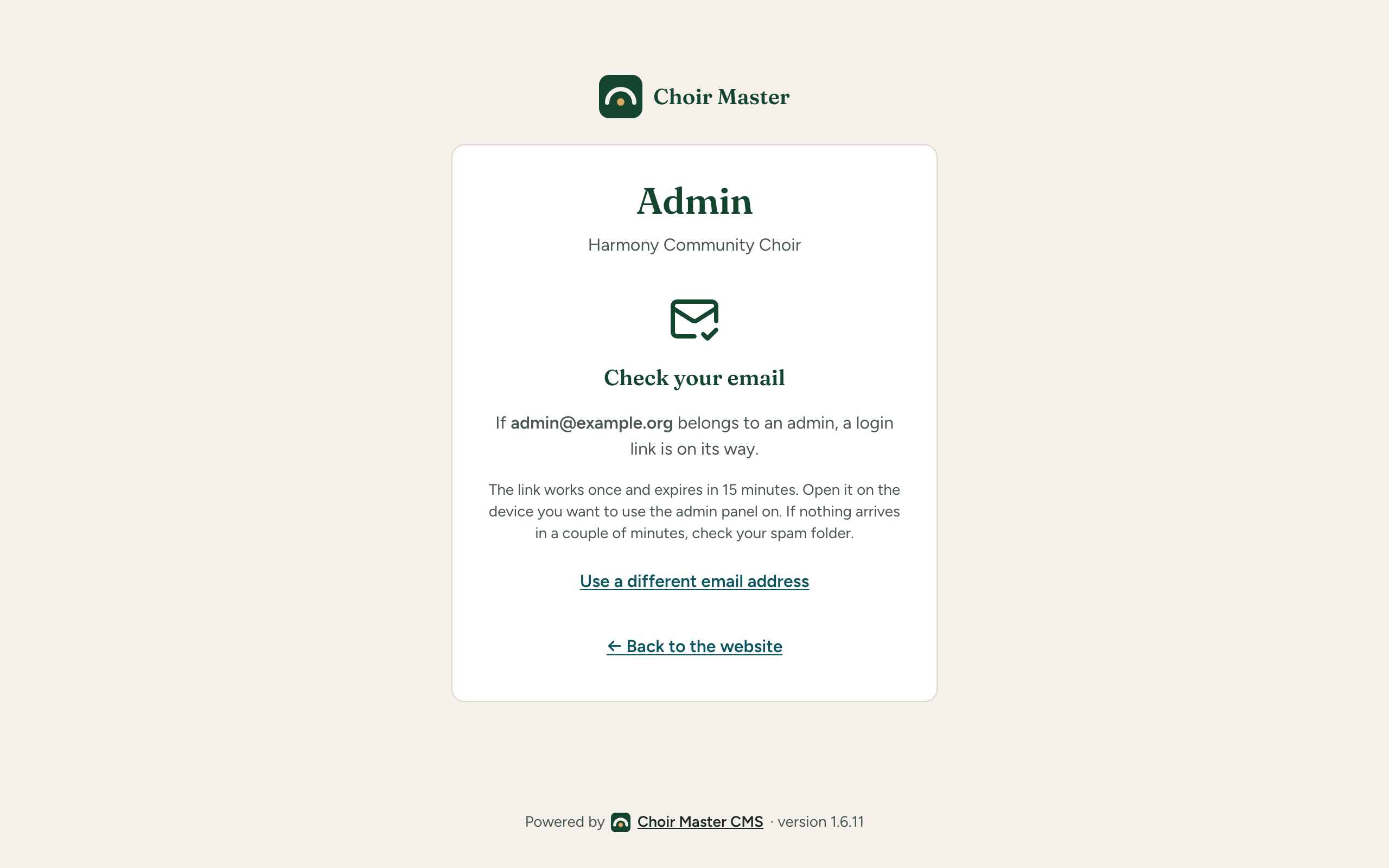
- The page changes to Check your email. Open the email from your site and follow the link in it.
- A page opens saying You're almost in. Click below to finish logging in on this device. Press Log in.
You are now on the dashboard.
Things to know about the link:
- It works once and stops working after 15 minutes.
- Open it on the device you want to use the admin panel on. Requesting it on a computer and opening it on a phone logs in the phone.
- If you typed the wrong address, press Use a different email address and start again.
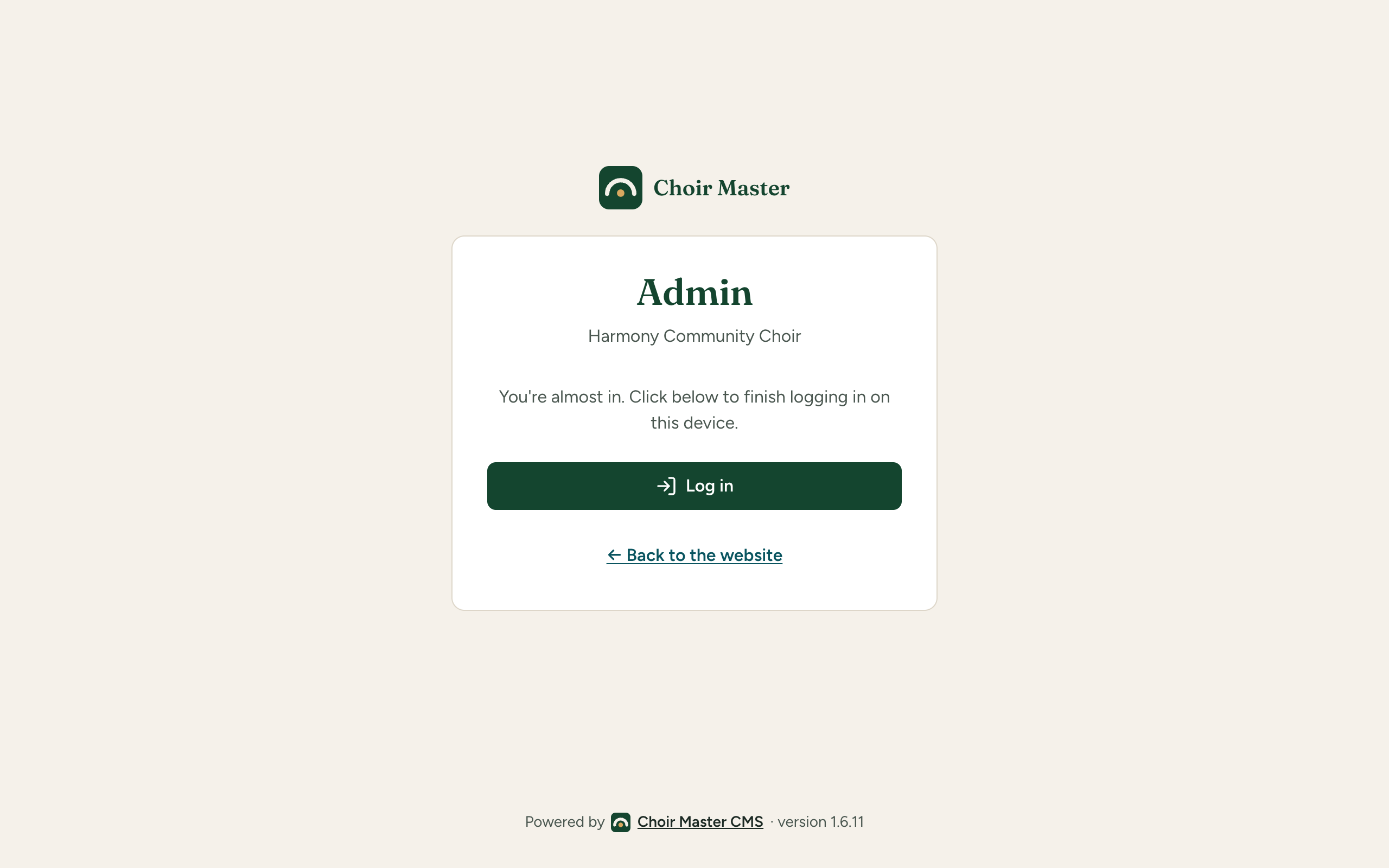
Why do I have to press Log in?
Many email services open the links in a message before you do, to check them for danger. If opening the link were enough, that check would use up your single-use link before you saw it. The extra press makes sure it is really you.
Log in with a username and password
Use this when the page asks for a Username and Password. Only self-hosted sites have this form.
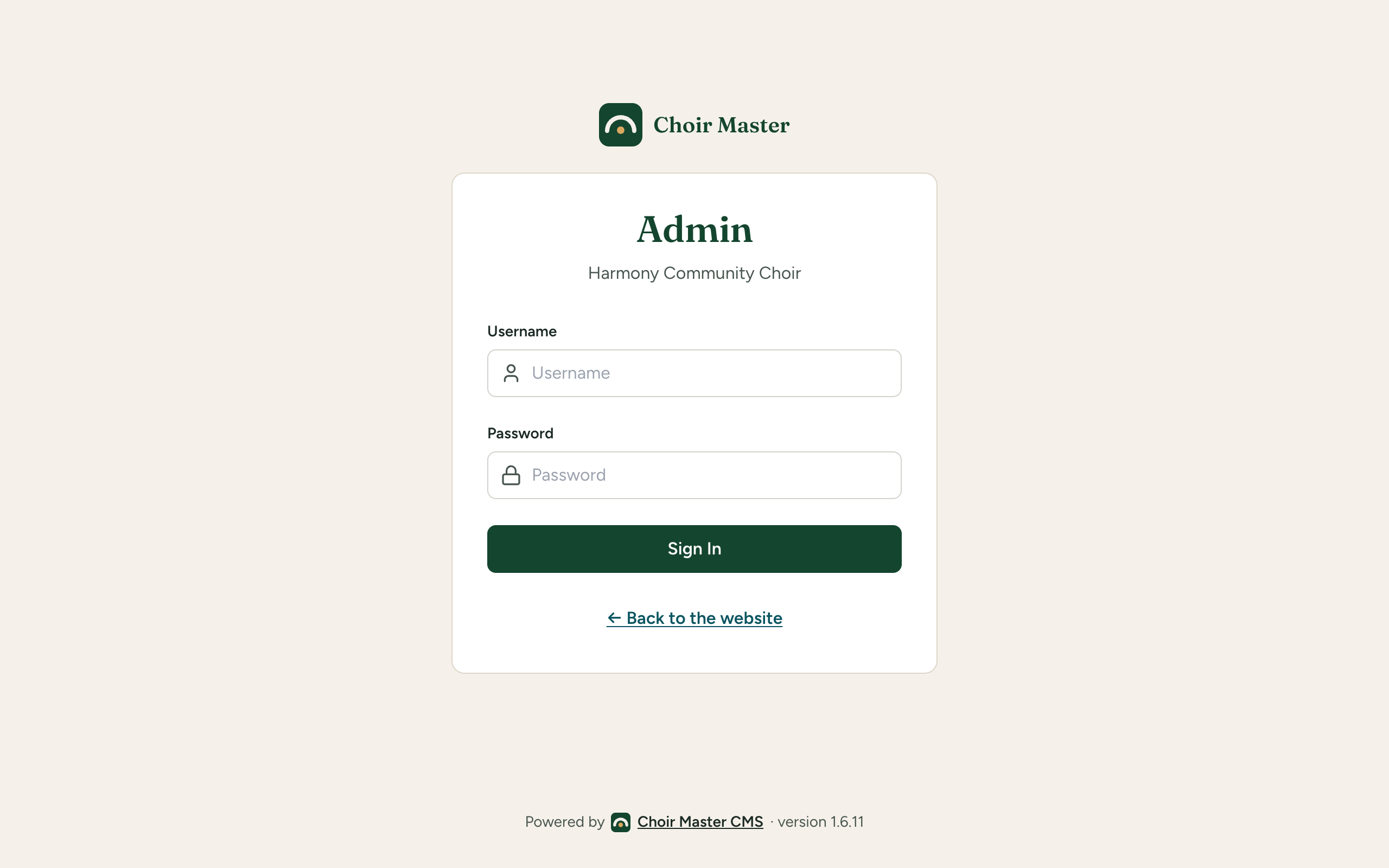
- Type the Username.
- Type the Password.
- Press Sign In.
How long you stay logged in
A login lasts 24 hours by default. After that you are asked to log in again.
If a Site Admin disables or deletes your admin account, you are logged out straight away, whatever time is left.
Log out
Press Log out at the foot of the menu in the admin panel. On a shared computer, always log out when you have finished.
If something goes wrong
The email does not arrive
The page says Check your email whatever address you type. It never says whether the address belongs to an admin, so that a stranger cannot use the page to find out who your admins are. If nothing has come after a couple of minutes, check these in order:
- Your spam or junk folder.
- The address. It must be the address a Site Admin added you with. Press Use a different email address and try again, watching for typing mistakes.
- How often you have asked. Each admin can be sent one link a minute and five an hour. Asking more often than that sends nothing, although the page looks the same. Wait a minute, ask once, and wait for it.
- Whether you are still an admin. An admin who has been set to Disabled, or deleted, is sent nothing. Ask a Site Admin to look at the list in Add, change or remove an admin.
Messages on the login page
| Message | What it means | What to do |
|---|---|---|
| This login link has expired or has already been used. Request a new one below. | The link is more than 15 minutes old, has been used once already, or your admin account has since been changed or disabled. | Ask for a new link and use the newest email. |
| This login link is no longer valid | The same, shown when the site could not give a fuller reason. | Ask for a new link. |
| Enter a valid email address. | What you typed is not an email address. | Check for a missing @ or a stray space. |
| Invalid credentials | The username or password is wrong. | Type them again. If they are lost, whoever runs the server can set new ones. |
| The admin account is not set up on the server (ADMIN_USERNAME and ADMIN_PASSWORD). | A self-hosted site has no username and password set. | Whoever runs the server needs to set them. See The settings every site needs. |
| Could not send a login link or Server error | The site could not deal with the request. | Try again in a minute. On a self-hosted site, look at the server's logs: see Logs and health checks. |
An old link keeps failing
Each link works once, for 15 minutes. If you have asked several times and have several emails, the simplest thing is to ask once more and use the newest one. Changing an admin's name, email address or kind also cancels every link already sent to them.