How your public site is put together
Your public site is one long home page plus a handful of separate pages. Which of them exist is decided by the switches in Site Settings → Features; you never build a menu by hand. Read this page first if you are new to the site and want to know where a thing lives before you change it.
The top menu
The menu is the same on every page and its order is fixed. An item appears only when its part of the site is switched on.

| Item | Appears when | What it does |
|---|---|---|
| Home | Always | Goes to the top of the home page |
| About Us | Always | Scrolls the home page to the About section |
| Concerts | Concerts section and ticket links is on | Scrolls the home page to the Concerts section |
| Tickets | Concerts section and ticket links and Tickets page are both on | Opens the Tickets page |
| Resources | Resources page is on | Opens the Resources page |
| Donate | Donate page is on | Opens the Donate page |
| Gallery | Photo and video gallery is on | Opens the gallery |
| Your own pages | The page is Published and Show in the menus is ticked | Opens that page |
| Contact | Always | Scrolls the home page to the Contact section |
Things to know:
- The words Home, About Us, Concerts, Tickets, Resources, Donate, Gallery and Contact cannot be changed, and the built-in items cannot be moved or removed except by switching their feature off. The heading shown on each section or page is a separate setting that you can change.
- Your own pages always sit together between Gallery and Contact. You choose their order and their menu labels. See Drafts, menus and the order of your pages.
- An item that scrolls the home page still works from another page: the visitor is taken to the home page and then down to that section.
- The item for the page or section a visitor is looking at is underlined.
- Your logo (or your choir's name, if you have no logo) at the left of the menu also goes to the top of the home page.
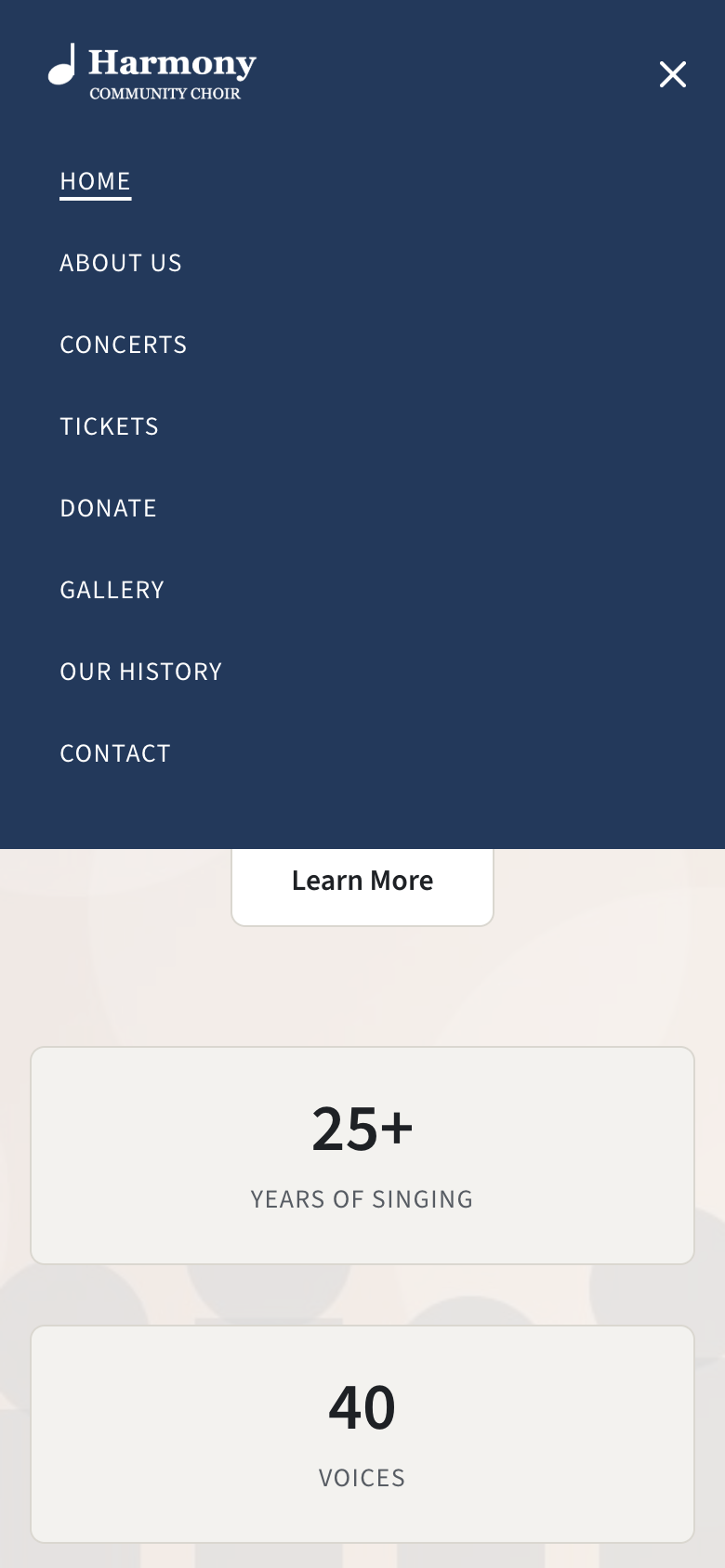
On a phone, or in a narrow browser window, the items are replaced by a menu button at the right. Pressing it lists the same items, in the same order, one under another.
The switches are described in Switch pages and features on or off.
The home page, top to bottom
| Section | What it is | Shown when | Where you set it up |
|---|---|---|---|
| Hero | The first screen: logo or headline, a few words, up to two buttons | Always | The top of your home page |
| About | Who you are, highlights, your leaders | Always | About your choir and its leaders |
| Concerts | A card for each concert, a note, and the button to past events | Concerts section and ticket links is on | Add a concert for the concerts; The concerts section of your home page for the wording |
| Promo boxes | Up to three boxes pointing at pages worth promoting | You have added at least one box | Promo boxes on your home page |
| Gallery preview | The first few photos and videos, and a View Full Gallery button | Photo and video gallery is on, the gallery has something in it, and the preview is not set to 0 items | Organise the gallery |
| Contact | Your email, phone, address and social media, and the message form | Always; the form only when Contact form is on | Contact details and social media and Contact form messages |
| Footer | Your logo or name, Quick Links, Connect With Us, and the login links | Always, on every public page | The footer |
A pop-up notice, when you have one switched on, appears over the page.
The footer's Quick Links column repeats the top menu without Home, so anything in the menu is in the footer too.
Pages that are not in the menu
Some pages have no menu item. Visitors reach them from a link somewhere else on the site.
| Page | Address | How visitors reach it | Set up in |
|---|---|---|---|
| Auditions | /auditions | The link in the "join us" box above your contact details. The box appears when Auditions page is on and the box has a heading. | Your Auditions page |
| Past Events | /past-events | The View Past Events button under the concerts on the home page. It appears when Past events page is on, and only inside the Concerts section, so the Concerts section must be on too. | The Past Events page |
| Past Directors | /past-directors | A link at the bottom of the About section. It appears when Past directors page is on and the link has a label. | Your Past Directors page |
| Member portal | /member/login | The link in the last column of the footer, when Member portal is on | Members and the member portal |
| Admin panel | /admin | The Admin link in the last column of the footer, if you have chosen to show it. The address always works whether or not the link is shown. | The footer |
You can also point a hero button, a promo box or a link tile on the Resources page at any of these by typing its address (for example /auditions) into the setting.
Every separate page has a Back to Home link at its top. All of them carry the top menu except the gallery, which has a plain heading bar with Back to Home in it.
What happens at an address that is switched off
- A page whose feature is off (for example
/gallerywhen the gallery is off) sends the visitor to the home page. So does/ticketswhen either Concerts section and ticket links or Tickets page is off. - An address that does not exist on your site sends the visitor to the home page. There is no "page not found" screen.
- A page of your own that is a draft, or has been deleted, sends the visitor to the home page.
Switching a feature off hides it; it does not delete anything. Your concerts, photos and past events are still there when you switch it back on.
The full list is in Addresses on your site and Feature switches: what each one shows and hides.