Drafts, menus and the order of your pages
Each page of your own has two switches: whether visitors can open it, and whether it is in the menus. This page explains both, and how to order, change and remove pages. To write a page in the first place, see Add a page of your own.
Only a Site Admin or an Admin has Pages in the admin panel.
The Pages list
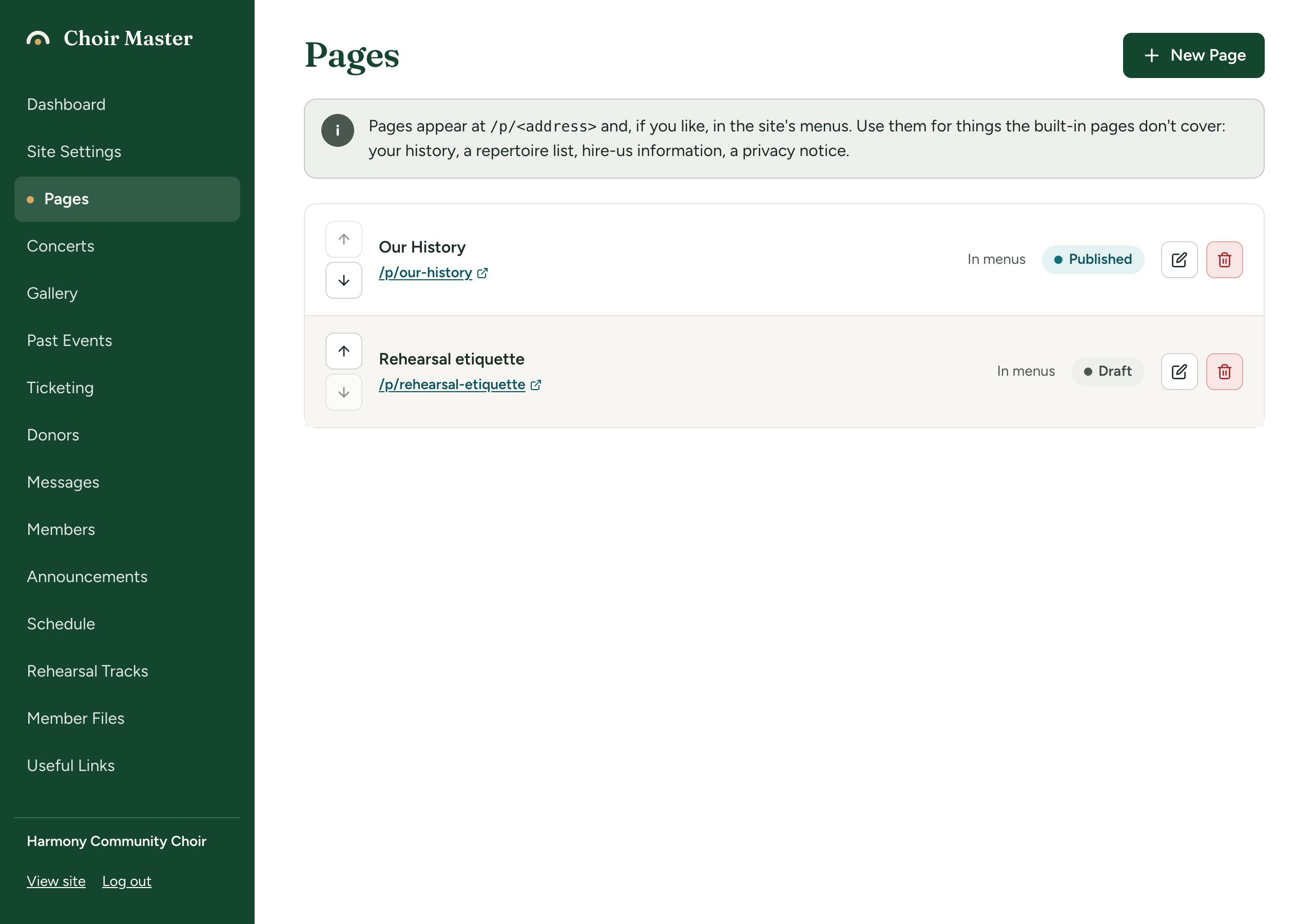
Each row shows:
- up and down arrows, for the order;
- the page's title, followed by "(menu: …)" when its menu label is different from the title;
- its address, such as
/p/our-history, as a link that opens the page in a new tab; - In menus or Not in menus (not shown on a phone);
- Published or Draft. A draft's row has a grey background;
- a pencil to edit and a bin to delete.
With no pages, the list reads "No pages yet".
The two switches
Both are tick boxes in the page's form: Show in the menus and Published.
| Published | Show in the menus | Result |
|---|---|---|
| Ticked | Ticked | Anyone can open the page, and it is in the top menu and the footer. |
| Ticked | Not ticked | Anyone who has the address can open the page, but it is not in the menus. |
| Not ticked | Either | A draft. Visitors cannot open it and it is not in the menus. |
Keep a page as a draft
- Add the page, or press the pencil on it.
- Untick Published.
- Press Create Page or Save Changes.
The list shows Draft. A visitor who tries the page's address is sent to your home page.
You can still read it yourself: while you are logged in to the admin panel, click the page's address in the list. It opens in a new tab exactly as it will look.
When it is ready, edit the page, tick Published and save.
A draft is one whole page that is not public. There is no way to keep unpublished changes to a page that is already public: when you save a published page, visitors see the change at once.
While you are logged in to the admin panel, the top menu and the footer of the public site in the same browser list every page, including drafts and pages you have left out of the menus. That is not what visitors see. To check the real menu, open your site in a private window, or log out first.
Leave a published page out of the menus
Some pages should exist without taking a place in the menu: a privacy notice, terms for ticket buyers, details for one event.
-
Edit the page and untick Show in the menus. Leave Published ticked.
-
Save.
-
Link to the page from wherever it belongs, by typing its address, such as
/p/privacy, into the setting:Where Setting A button at the top of the home page Main button goes to or Second button goes to: The top of your home page A promo box Goes to: Promo boxes on your home page A link tile on the Resources page Goes to: Your Resources page Words in the note under your concerts The link in the note goes to: The concerts section of your home page Text written with the editor (another page, the About text, an announcement) A link to the full address, such as https://www.example.org/p/privacy: Format text with the editor
A page that is out of the menus is not secret. Anyone with the address can read it, and so can search engines. Do not use it for anything private; members' documents belong in the member portal.
Where pages sit in the menus
- Top menu: all your pages together, after Gallery and before Contact. They cannot be placed anywhere else in it.
- Footer: in the Quick Links column, in the same position.
Each one uses its Menu label, or its title when the label is empty. The whole menu is described in How your public site is put together.
The top menu is a single line on a computer screen. Three or four pages with short labels fit comfortably beside the built-in items; many more, or long labels, will crowd it. Keep the rest out of the menus and link to them from one page or from the home page.
Change the order
The order of the list is the order of your pages in the menus.
- Find the page in the Pages list.
- Press its up or down arrow until it is where you want it.
The order is saved each time you press an arrow. A new page goes to the bottom of the list. Drafts and pages that are not in the menus are in the list too; their position only matters once they are shown.
The order can be changed while you have up to 40 pages. With more, pressing an arrow shows Send each page once, in the order wanted and nothing is saved.
Edit or delete a page
- Edit: press the pencil. The Edit Page form opens at the top of the page with everything filled in. Change it and press Save Changes. The boxes and the messages you may meet are described in Add a page of your own.
- Delete: press the bin. A question appears: Delete the page "(its title)"? Press Delete. The page and its text are gone for good, its address sends visitors to your home page, and it leaves the menus. Links to it from buttons and promo boxes are not removed for you: change those settings yourself.
If you might want the text again, untick Published instead of deleting.
If something goes wrong
| Message | What to do |
|---|---|
| Send each page once, in the order wanted | You have more than 40 pages. Delete some. |
| Could not save the order | The order was not saved and the list goes back to how it was. Try again. |
| Could not load the page or Page not found | The page has been deleted by another admin. Reload the list. |
| Could not delete the page | Try again in a moment. |