Upload photos and videos to the gallery
The gallery is a public page of photos and short videos, with a preview of the first few on your home page. Any admin can add to it.
Gallery is in the admin panel when Photo and video gallery is on in Site Settings → Features.
Upload
-
In the admin panel, open Gallery.
-
Press Upload Media at the top right and choose your files. You can choose several at once: hold Ctrl (Command on a Mac) while clicking, or Shift to take a run of them.
-
A panel headed Ready to upload (3) appears, with a box for each file. Nothing has been sent yet.
-
Fill in each box:
Box What to put in it Title Already filled in from the file's name, without the ending. Change IMG_4031into something a visitor can read, such as "Spring concert, 2026".Description Optional. A sentence shown under the title. Category Optional. A word or two, such as "Concerts" or "Rehearsals". Categories become buttons on the public gallery. See Organise the gallery. Visible to the public Ticked to begin with. Untick it to upload now and show later. Under each box is the file's name and size.
-
Press Upload All. The button reads Uploading... while the files are sent, one after another. Keep the page open until it finishes; large videos take a while.
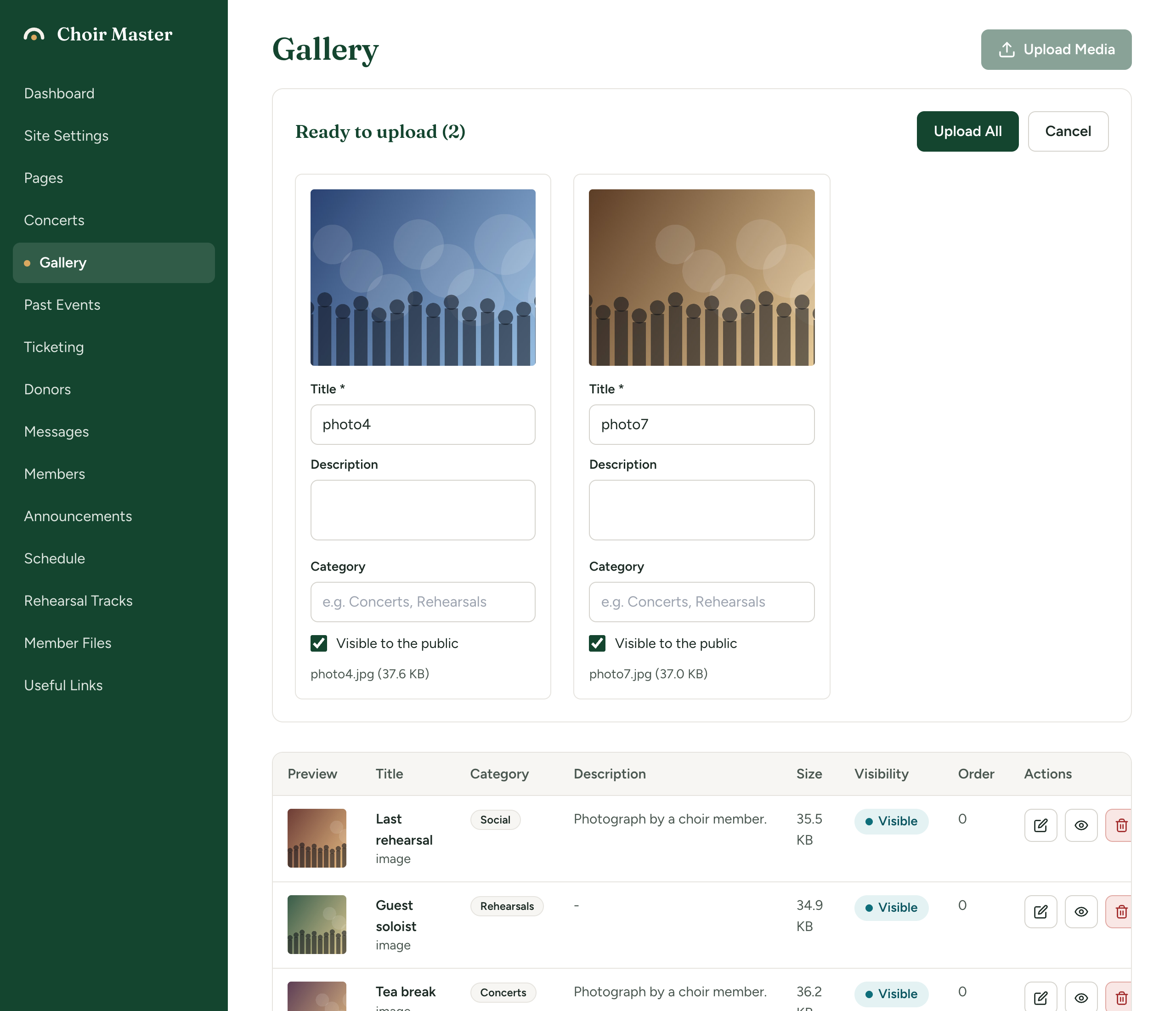
When it is done the panel closes and the new items are in the table below. To back out before uploading, press Cancel: nothing is sent.
While the panel is open, Upload Media is greyed out. Finish or cancel the batch before choosing more files. To leave one file out of a batch, cancel and choose again without it.
New items appear on the public gallery at once, ahead of older ones. To change the order, see Organise the gallery.
What you can upload
| Kinds of file | |
|---|---|
| Photos | JPEG, PNG, GIF, WebP |
| Videos | MP4, WebM, MOV |
Each file can be up to 100 MB, unless whoever runs your site has set a different limit. The message you get for a file that is too big names the limit on your site.
Practical advice:
- Photos from an iPhone are often in HEIC format, which is not accepted. Export or share them as JPEG first.
- Photos straight from a camera can be 10 MB or more each. They upload, but they make the gallery slow for visitors on a phone. Resize them to about 2,000 pixels on the long side first.
- Videos are played as they are; the site does not shrink or convert them. Keep them short, and use MP4, which plays everywhere. For a whole concert, put the video on a video service and link to it instead.
- A video shows as a plain dark tile with a camera symbol in the admin table and on the gallery page, not as a still from the film. Its title is what tells visitors what it is.
All the limits are listed in Limits.
If something goes wrong
Files that could not be uploaded are listed in a red message at the top of the page, under Some files were not uploaded:, each with its reason. The other files in the batch are uploaded as normal.
| Reason | What to do |
|---|---|
| Invalid file type. Allowed: JPEG, PNG, GIF, WebP, MP4, WebM, MOV | Convert the file to one of these and upload it again. |
| File too large. Maximum size is 100MB. | Make the file smaller. For a video, shorten it or export it at a lower quality. |
| Upload failed or upload failed | The connection dropped, or the file is bigger than the server will take in one request. Try that file again by itself. |