Reorder, hide, sell out, edit or delete a concert
Once a concert exists, you look after it from its card in the admin panel's Concerts list. Any admin can do everything on this page.
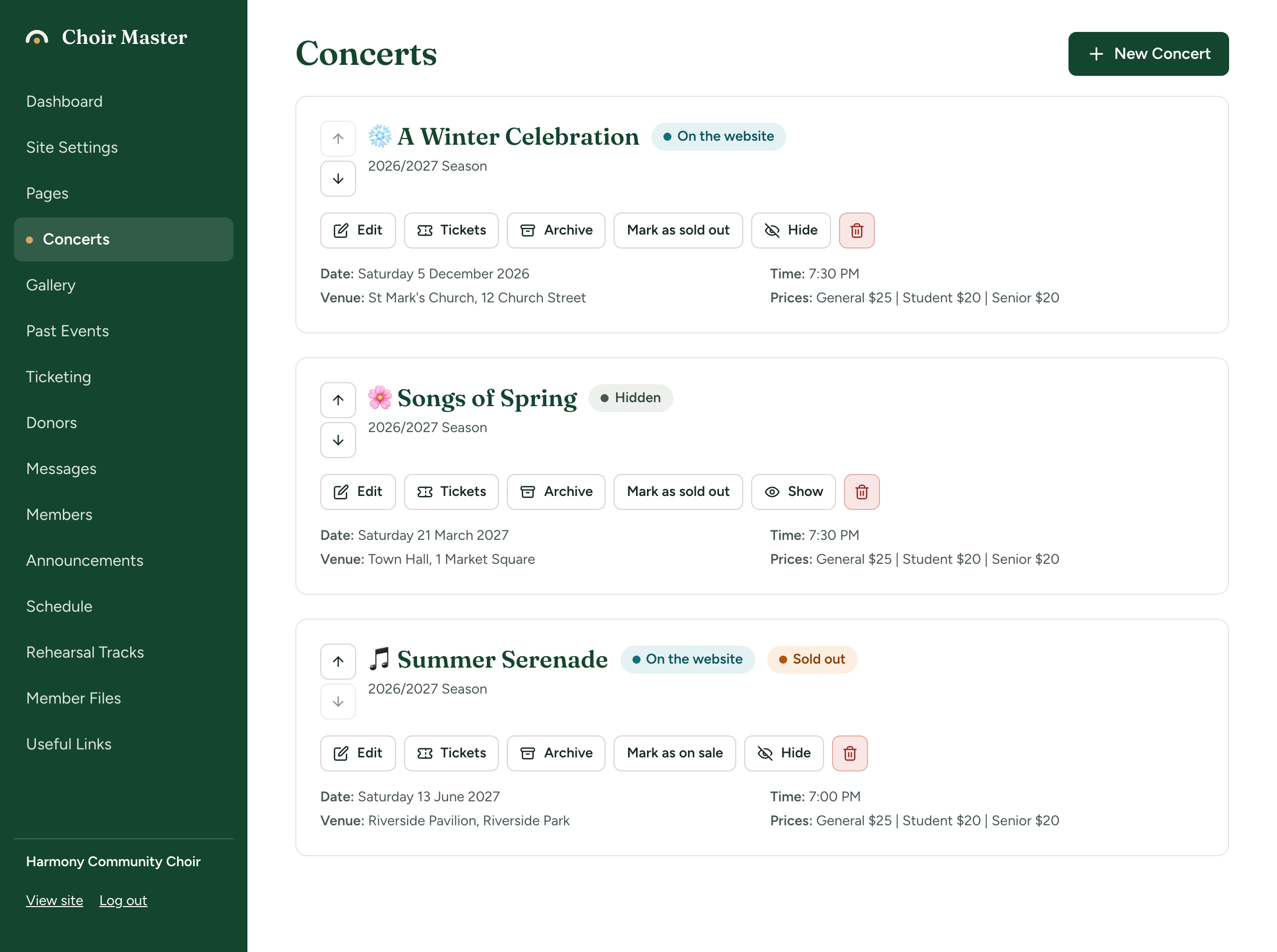
What is on each card
Beside the title:
| Label | Meaning |
|---|---|
| On the website | Visitors can see this concert. |
| Hidden | Visitors cannot see it. The card has a grey background. |
| Sold out | You have marked it as sold out. |
| In past events | You have archived it to the Past Events page, with the title and date it has now. |
Under the title are the season, the date, the time, the venue and the prices, as a reminder of what was entered.
The buttons:
| Button | What it does |
|---|---|
| Up and down arrows | Move the concert up or down the list |
| Edit | Opens the concert's form |
| Tickets | Opens Ticketing for this concert. Only there when you sell tickets on your site. |
| Archive | Copies the concert to the Past Events page. Only there when Past events page is on. |
| Mark as sold out / Mark as on sale | Switches "sold out" on or off |
| Hide / Show | Takes the concert off the site or puts it back |
| Bin | Deletes the concert |
Arrows, Mark as sold out and Hide take effect at once; there is nothing to save.
Change the order
The order of the list is the order of the cards on your home page and of the lines on your Tickets page. Concerts are not sorted by date; a new concert goes to the bottom.
- Find the concert in the list.
- Press the up or down arrow at its left until it is where you want it.
Hidden concerts are in the list too and take a place in it, though visitors do not see them.
The order can be changed while you have up to 40 concerts. With more than that, pressing an arrow shows Send each concert once, in the order wanted and the order is not saved: delete concerts you no longer need. See When a concert is over, and starting a new season.
Mark a concert as sold out
Press Mark as sold out. The Sold out label appears on the card, and the button changes to Mark as on sale, which undoes it.
What visitors see:
- On the home page, the Get Tickets button and the price are gone from the card. If the concert has a poster, SOLD OUT is written across it. A concert with no poster gets no such banner: the only sign is the missing button, so consider adding a line to the description as well.
- On the Tickets page, the concert's line shows "Sold out" and "This concert is sold out", and can no longer be clicked.
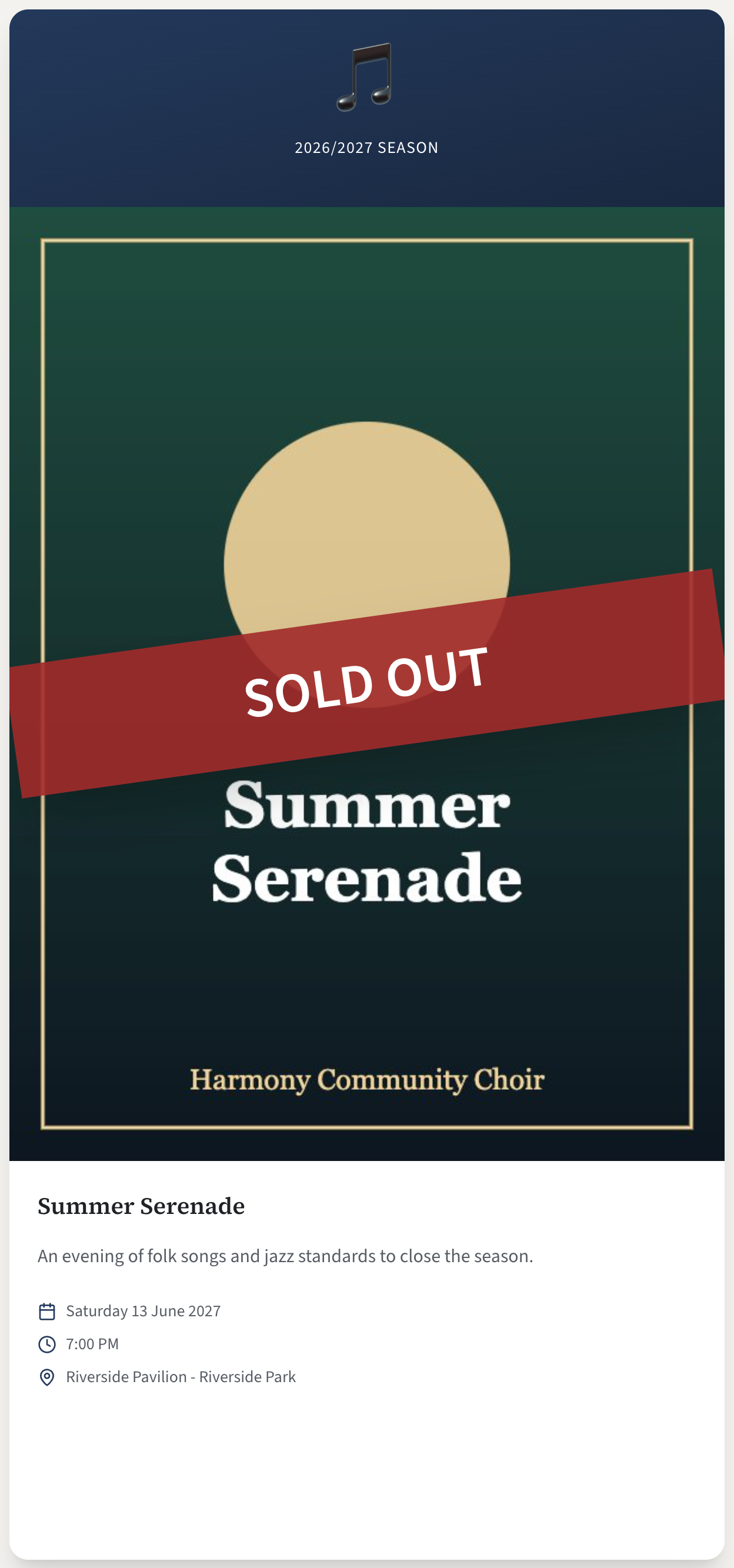
Once the date has passed, PAST EVENT is shown in place of SOLD OUT.
Marking a concert as sold out here is about what the public pages say. It does not stop sales anywhere else: not at an outside ticket seller, and not in your site's own Ticketing, which keeps its own count of places. See Tickets: how it works.
Hide a concert, or show it again
Press Hide. The label changes to Hidden and the concert disappears from the home page and the Tickets page. Press Show to bring it back.
Use this to prepare a concert before announcing it, or to take a finished concert off the site without losing it. Hiding does not delete anything.
Edit a concert
- Press Edit on the concert's card. The card turns into the same form you used to add it.
- Change what you need. The boxes are described in Add a concert.
- Press Save Changes, or Cancel to leave it as it was.
Here the Sold out and Hidden from the public site tick boxes both work, and do the same as the buttons.
If you sell this concert's tickets on your site, changing its Title, Venue or Location here also changes the name and place shown for its tickets. Premium plan
If the concert is already in Past Events and you change its title or date, the In past events label goes away, because the archived copy no longer matches. The copy itself is not changed. See Archive a concert to Past Events.
Delete a concert
- Press the bin on the concert's card.
- A question appears: Delete "(the concert's title)"? with "This cannot be undone."
- Press Delete.
The concert is removed from your site and from this list. A copy you archived to Past Events stays, with its poster.
If you only want it off the site, Hide it instead: a hidden concert can be shown again, a deleted one cannot be brought back.
The Tickets button
Tickets is on each card only when Sell tickets on this site is on in Site Settings → Features. It opens Ticketing on that concert, where you set up its ticket types and see its orders. See Set up tickets for a concert.
If something goes wrong
A red message at the top of the page:
| Message | What it means |
|---|---|
| Could not update the concert or Concert not found | The concert may have been deleted by another admin. Reload the page. |
| Send each concert once, in the order wanted | You have more than 40 concerts. Delete some. |
| Could not save the order | The order was not saved and the list goes back to how it was. Try again. |
| Could not delete the concert | Try again in a moment. |