Archive a concert to Past Events
Archiving puts a finished concert's poster on your public Past Events page, so that the home page can move on while visitors can still see what you have sung. Any admin can do it.
The Archive button is on each concert only when Past events page is on in Site Settings → Features.
Archive a concert
- In the admin panel, open Concerts.
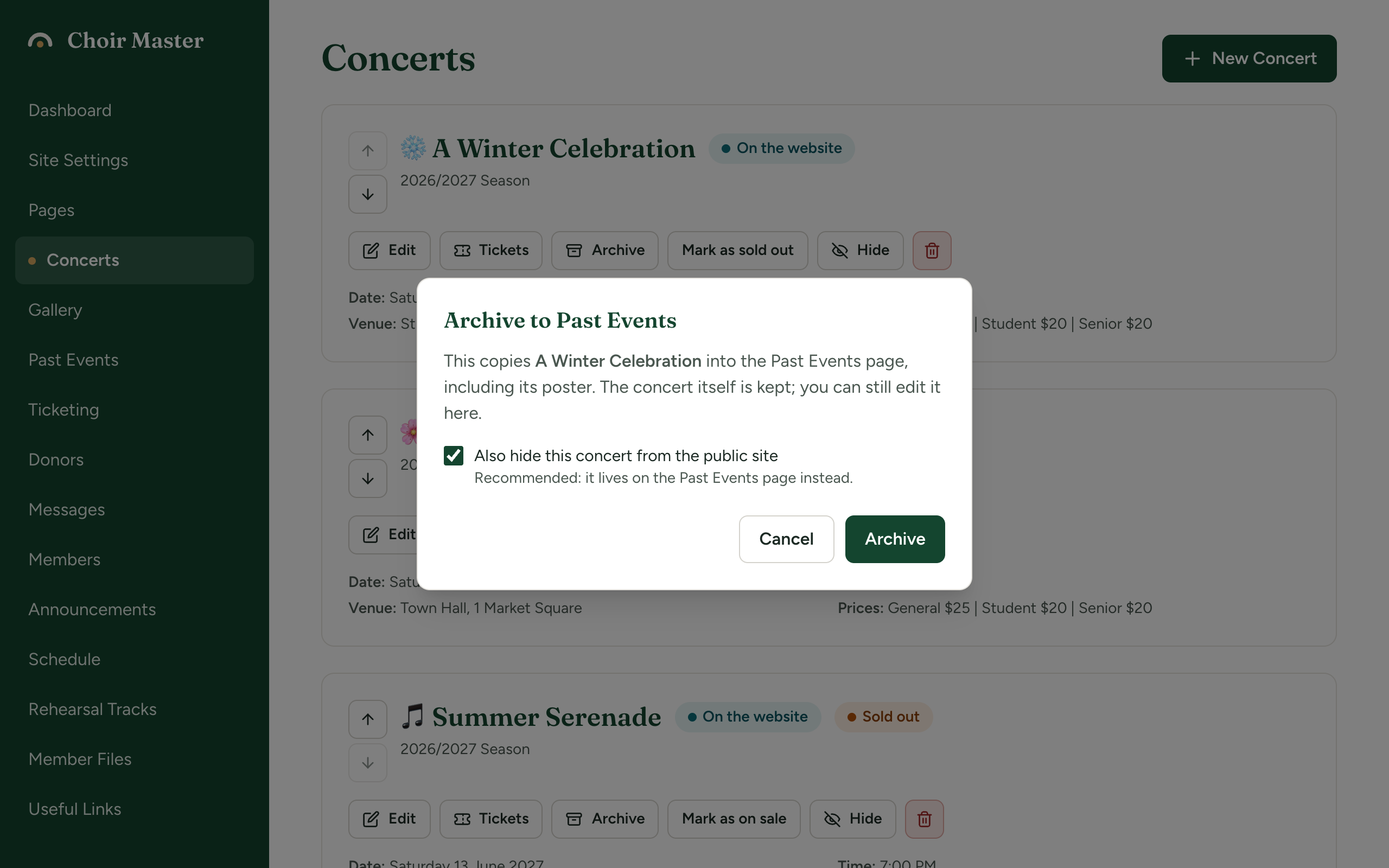
- Press Archive on the concert's card. The Archive to Past Events dialog opens.
- Leave Also hide this concert from the public site ticked, unless you want the concert to stay on the home page for now.
- Press Archive.
A banner at the top of the page says how it went, and the concert's card now carries the label In past events.
What is copied
| Copied to the past event | Not copied |
|---|---|
| The title | Season, time, venue, location |
| The date, turned into a calendar date | Description, prices, ticket link, icon |
| The poster |
The public Past Events page shows posters only, so the poster is what matters. The title and date are used in the admin panel and to put the posters in order, newest first.
The concert itself is kept. It stays in your Concerts list, hidden if you left the box ticked, and you can still edit it, show it again or delete it. Deleting the concert later does not remove the past event or its poster.
The past event is a separate copy. Editing the concert afterwards does not change it.
Read the banner
| Banner | Meaning |
|---|---|
| Teal: Archived to Past Events (2026-12-05). | All done. The date in brackets is the date the site read from the concert, as year-month-day. Check that it is right. |
| Amber, with The date "…" could not be read; set it on the Past Events page so it sorts correctly. | The concert's date was not written in a way the site understands, so the past event has no date. Set one: see Fix the date of an archived event. |
| Amber, with This concert has no poster, so it will not appear on the Past Events page until one is uploaded. | The past event exists but visitors will not see it. See below. |

Both amber notes can appear together. Close the banner with the cross at its right.
If the date in a teal banner is wrong, for example a year of 2001 or 2007, or a day out by one, the concert's date was read differently from how you meant it. Correct it on the Past Events page in the same way.
A concert with no poster
A poster cannot be added to a past event afterwards. To get the concert onto the public page:
- In Past Events, delete the past event that has no poster.
- In Concerts, press Edit on the concert, upload a poster and press Save Changes.
- Press Archive on the concert again.
Or delete the past event and add it by hand with its poster: see Add a past event.
Why the Archive button is greyed out
A concert that is In past events cannot be archived a second time, so you do not end up with the same poster twice. Its Archive button is greyed out.
"The same concert" means the same title and the same date as when it was archived. As soon as you change either, the label goes and the button works again. This is what lets you reuse one concert from year to year: archive this year's, edit it into next year's, and archive that in its turn.
Deleting the past event on the Past Events page also frees the button.
If something goes wrong
| Message | What to do |
|---|---|
| This concert has already been archived | Another admin archived it a moment ago. Reload the page. |
| Concert not found | The concert has been deleted. Reload the page. |
| Could not archive the concert or Failed to archive concert | Try again in a moment. |
What visitors see, and how to change or remove a past event, is in The Past Events page.