Organise the gallery
After photos and videos are uploaded, you look after them in the table on the admin panel's Gallery page. Any admin can do this. To add more, see Upload photos and videos to the gallery.
The Gallery table
| Column | What it shows |
|---|---|
| Preview | A small copy of the photo, or a camera symbol for a video |
| Title | The title, with "image" or "video" under it |
| Category | The category, or a dash |
| Description | The description, or a dash |
| Size | The size of the file |
| Visibility | Visible or Hidden |
| Order | A number that decides the item's place |
| Actions | A pencil to edit, an eye to view, a bin to delete |
The table is in the same order as the public gallery.
Change an item
- Press the pencil on the item's row. The row turns into boxes.
- Change the Title, Category or Description, choose Visible or Hidden, or type a new Order number.
- Press the save button (the disk) at the end of the row, or the cross to cancel.
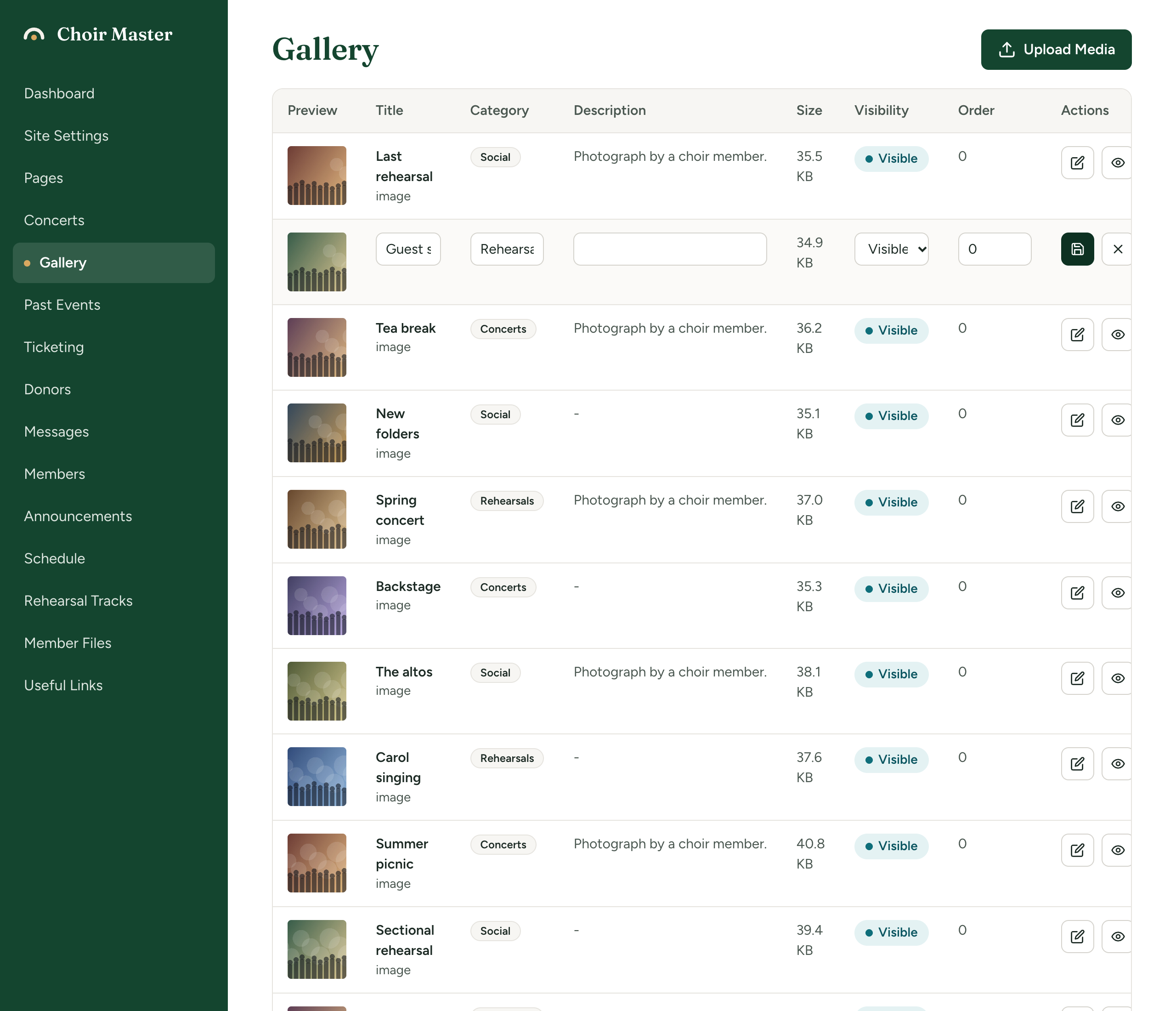
One row is edited at a time. Save or cancel before pressing the pencil on another.
The file itself cannot be replaced. To swap a photo for a better one, delete the item and upload the new file.
Change the order
Every item has an Order number. The gallery is sorted by it:
- Lower numbers come first.
- Items with the same number are shown newest first.
- Every new upload starts at 0.
So if you never touch the numbers, the gallery simply shows your newest uploads first.
To take charge of the order, edit a row and type a number:
- To pin a few favourites to the front, give them negative numbers:
-3,-2,-1. Everything else stays at 0, newest first, behind them. - To push something to the back, give it a high number such as
100. - To set the whole order by hand, number the items
10,20,30and so on. The gaps let you slot something in later without renumbering. Remember that new uploads arrive at 0, in front of all of these.
The first items in this order are also the ones in the home page preview.
Categories
A category is a label you type on an item. There is no list of categories to manage: a category exists as soon as one visible item has it, and is gone when none does.
On the public gallery, each category becomes a button above the photos. Visitors press one to see only that category, or All to see everything. The buttons are in alphabetical order after All. If no visible item has a category, there are no buttons.
Type a category exactly the same way each time. "Concerts", "Concert" and "concerts" may show as separate buttons. To rename a category, edit every item that has it.
An item has one category. Leave the box empty for none: the item is still shown under All.
Hide an item
Edit the row and set Visibility to Hidden. The item leaves the public gallery and the home page preview but stays in your table. Set it back to Visible to show it again.
While you are logged in to the admin panel, the public gallery and the home page preview in the same browser also show you Hidden items. To see the pages as a visitor does, open them in a private window, or log out first.
View or delete an item
- The eye opens the photo or video by itself in a new tab. Use it to check a video plays, or to copy the file's address.
- The bin asks Delete "(the title)"? Press Delete to confirm. The item is removed from the gallery and its file is deleted from your site's storage. This cannot be undone, so keep your own copies of anything you care about.
What visitors see
The gallery page
The Gallery item in the top menu opens the gallery at /gallery.
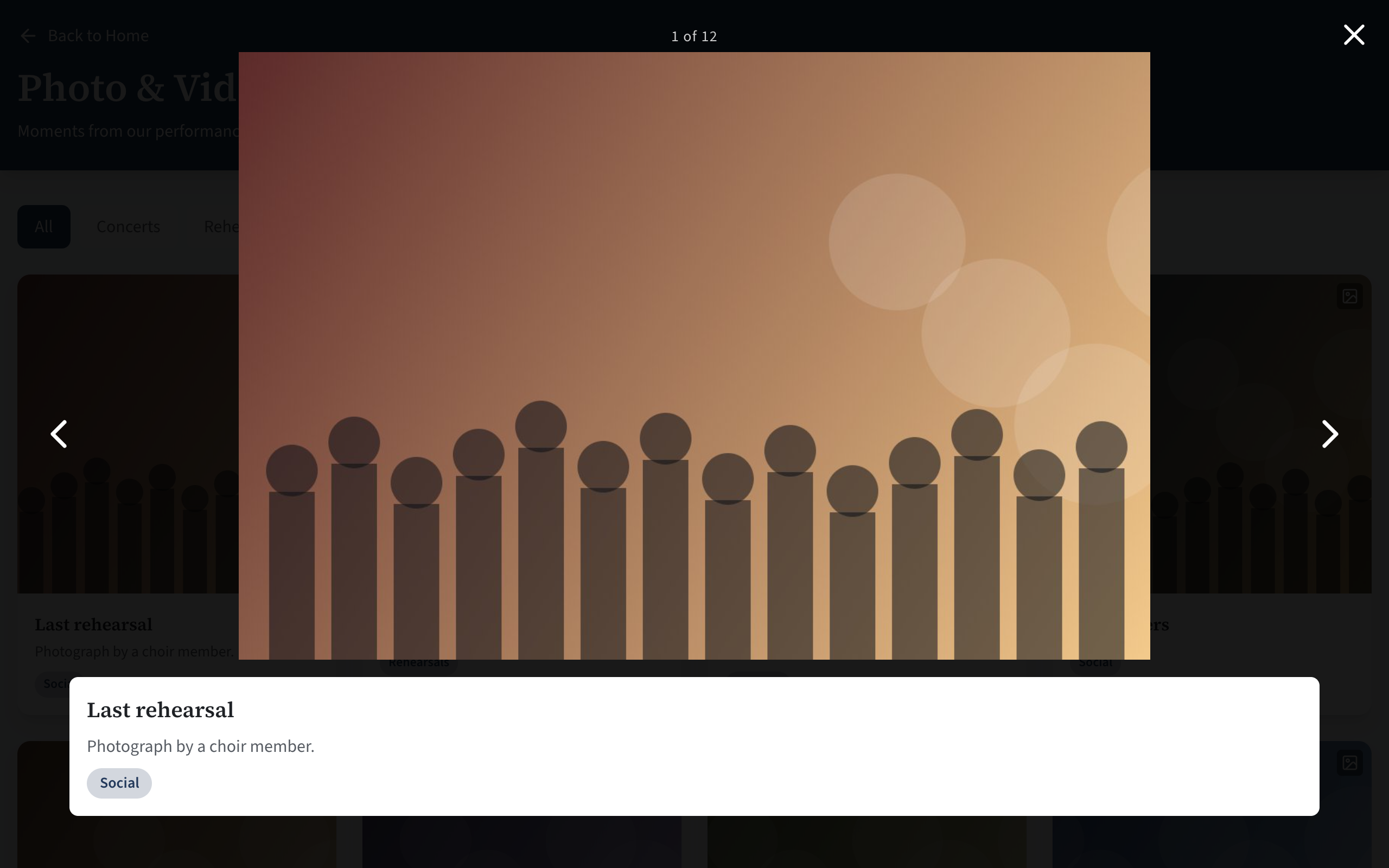
- At the top, a heading, a line of introduction and Back to Home.
- The category buttons, when there are categories.
- The items as square tiles: four in a row on a wide screen, down to one on a phone. Photos are cropped to a square in the tile. A video is a dark tile with a camera symbol. Each tile has the title, the first two lines of the description and the category.
- Clicking a tile opens it large and uncropped, with its full title, description and category underneath. Videos play here, with the usual controls. Arrows at the sides, the arrow keys, or a swipe on a phone move through the items being shown; the cross or the Escape key closes it.
- An empty gallery reads "The gallery is empty"; an empty category reads "No items in this category yet".
The preview on your home page
Between the promo boxes and the Contact section, the home page shows the first few items of the gallery, three in a row (two on a phone), under a heading, with a View Full Gallery button. Clicking any of them opens the gallery page. Videos are shown here with a play symbol over a still from the film.
How many items are shown is Items in the home page preview in Site Settings → Gallery: 6 unless you change it, 12 at most. Set it to 0 to have no preview. The preview is also left out while the gallery has nothing visible in it.
The gallery's heading and introduction, the preview's heading and text, and the number of items are described in Headings for the gallery and past events.
If something goes wrong
| Message | What to do |
|---|---|
| Could not update the item or Item not found | The item may have been deleted by another admin. Reload the page. |
| Could not delete the item | Try again in a moment. |
| Could not load the gallery | Reload the page. If it keeps happening on a site you run yourself, look at the server's log. |