Format text with the editor
Wherever your site lets you write more than a line or two of text for people to read, it gives you the same small editor: a box to type in with a row of buttons above it. It is deliberately simple, so that everything written in it looks right on every page and in every email.
Where you will meet it
| Place | Box |
|---|---|
| Pages | Content |
| Announcements (member portal) | Message |
| Emails to donors and to ticket holders | Message |
| Site Settings → Home: About | About the choir, and each leader's Biography |
| Site Settings → Auditions page | About auditions |
| Site Settings → Pop-up notice | Message |
| Site Settings → Donate page | Tax and receipts text |
Other boxes on your site are plain text: what you type is shown as it is, with no formatting.
The buttons
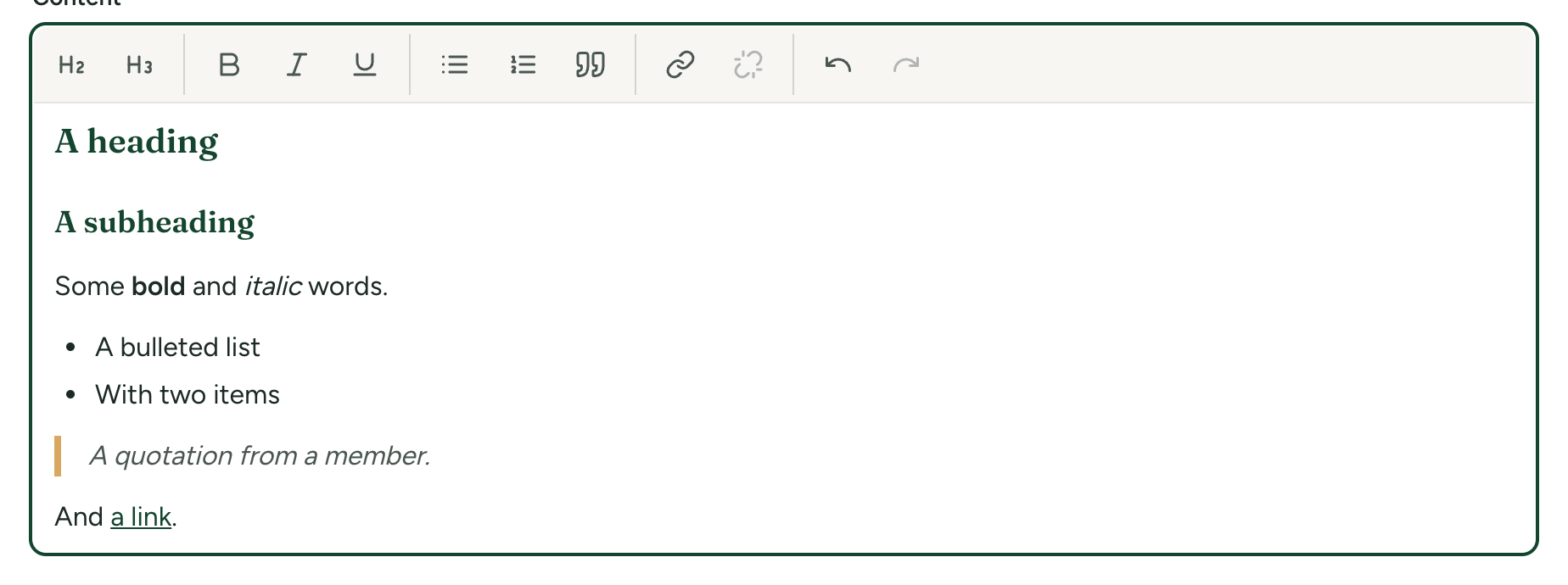
Hold the pointer over a button to see its name. A button is highlighted while the cursor is in text that has that formatting. From left to right:
| Button | What it does |
|---|---|
| Heading | Turns the paragraph the cursor is in into a heading. Press it again to turn it back. |
| Subheading | The same, for a smaller heading under a heading. |
| Bold | Makes the selected words bold. |
| Italic | Makes the selected words italic. |
| Underline | Underlines the selected words. Use it sparingly: on a web page, underlined words look like a link. |
| Bulleted list | Turns the selected paragraphs into a list with dots. |
| Numbered list | Turns them into a list numbered 1, 2, 3. |
| Quote | Sets the paragraph apart as a quotation, indented with a line down its side. |
| Link | Makes the selected words a link, or changes the link the cursor is in. |
| Remove link | Takes the link off, leaving the words. Greyed out unless the cursor is in a link. |
| Undo | Takes back your last change. |
| Redo | Puts back what you just undid. |
To use Bold, Italic, Underline or Link, select the words first, then press the button. For the others, click anywhere in the paragraph.
Typing works as in any word processor:
- Press Enter for a new paragraph. Hold Shift and press Enter for a new line inside the same paragraph, as in an address.
- In a list, press Enter for the next item, and Enter twice to leave the list.
- The usual keyboard shortcuts work: Ctrl+B for bold, Ctrl+I for italic, Ctrl+U for underline, Ctrl+Z to undo (Command in place of Ctrl on a Mac).
The page's own title is already its main heading, so start your text with a paragraph and use Heading for the sections within it.
Add a link
- Select the words that should become the link.
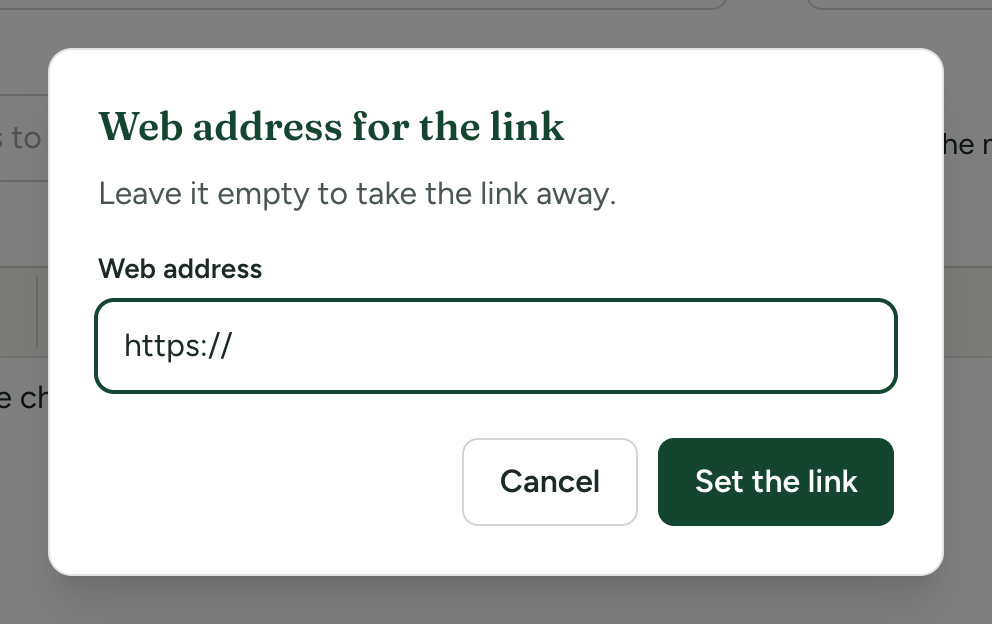
- Press Link. A dialog opens, headed Web address for the link.
- Type or paste the address in the Web address box, which starts with
https://already in it. - Press Set the link.
What you can type:
| You type | The link goes to |
|---|---|
https://www.example.org/concerts | That web page |
www.example.org/concerts | The same: https:// is added for you |
secretary@example.org | A new email to that address: it is made into an email link for you |
If no words are selected when you press Link, the address itself is put into the text as the link.
A web address that you type or paste straight into the text is turned into a link as you go.
Every link opens in a new tab, so the visitor does not lose your site. This cannot be changed.
To link to another page of your own site, use its full address, such as https://www.example.org/p/our-history or https://www.example.org/gallery.
Change or remove a link
- Change it: click inside the link and press Link. The dialog opens with the present address. Correct it and press Set the link.
- Remove it: click inside the link and press Remove link. Or press Link, empty the box, and press Set the link: as the dialog says, "Leave it empty to take the link away."
Pressing Cancel in the dialog leaves everything as it was.
What the editor cannot do
- Pictures. Text only. Photos belong in the gallery or in the picture settings of Site Settings.
- Tables and columns.
- Colours, fonts and text sizes. These come from your site's theme, so that every page matches: Change your colours and Change your fonts.
- Centred or right-aligned text.
- Struck-through text, and lines across the page.
- Videos, maps, forms or anything else embedded from another website, and HTML code of any kind. Code that is typed or pasted in is shown as plain characters, not acted on.
- Links to files on a visitor's computer or to anything other than a web page or an email address. A link that is not one of those two is removed, leaving its words.
Pasting from Word, an email or a website
You can paste text from anywhere. The editor keeps the words, and the formatting it understands: paragraphs, bold, italic, underline, lists, quotes and links. Everything else is dropped as you paste: colours, fonts, sizes, pictures, tables and layout.
After pasting, read the result through:
- Headings from the other document may arrive as ordinary paragraphs. Click in each and press Heading or Subheading.
- A table loses its grid and arrives as its words. Rewrite it as a list.
- Extra blank lines are common. Delete them.
Whatever reaches your site is checked once more when you save, and anything outside the list above is removed there too. So what you see after saving and opening the text again is exactly what visitors get.
How long the text can be
| Where | Longest text | Message if it is longer |
|---|---|---|
| A page | 200,000 characters | The page is too long |
| A box in Site Settings | 100,000 characters | The box's name followed by "is too long" |
| An email to donors or ticket holders | 100,000 characters | The message is too long |
| An announcement | 50,000 characters | The announcement is too long |
The count includes the hidden formatting marks, so the limit in words is a little lower than these figures suggest. Even so, 50,000 characters is roughly fifteen pages of typing: you are unlikely to meet any of these unless something very large has been pasted in.
A box that needs text and is left empty is refused when you save, for example The page needs some text.