The Past Events page
The Past Events page is a wall of posters from concerts and events you have already given: a simple way to show a choir's history. Any admin can look after it.
It exists when Past events page is on in Site Settings → Features. That switch also puts Past Events in the admin panel and the Archive button on your concerts.
What visitors see
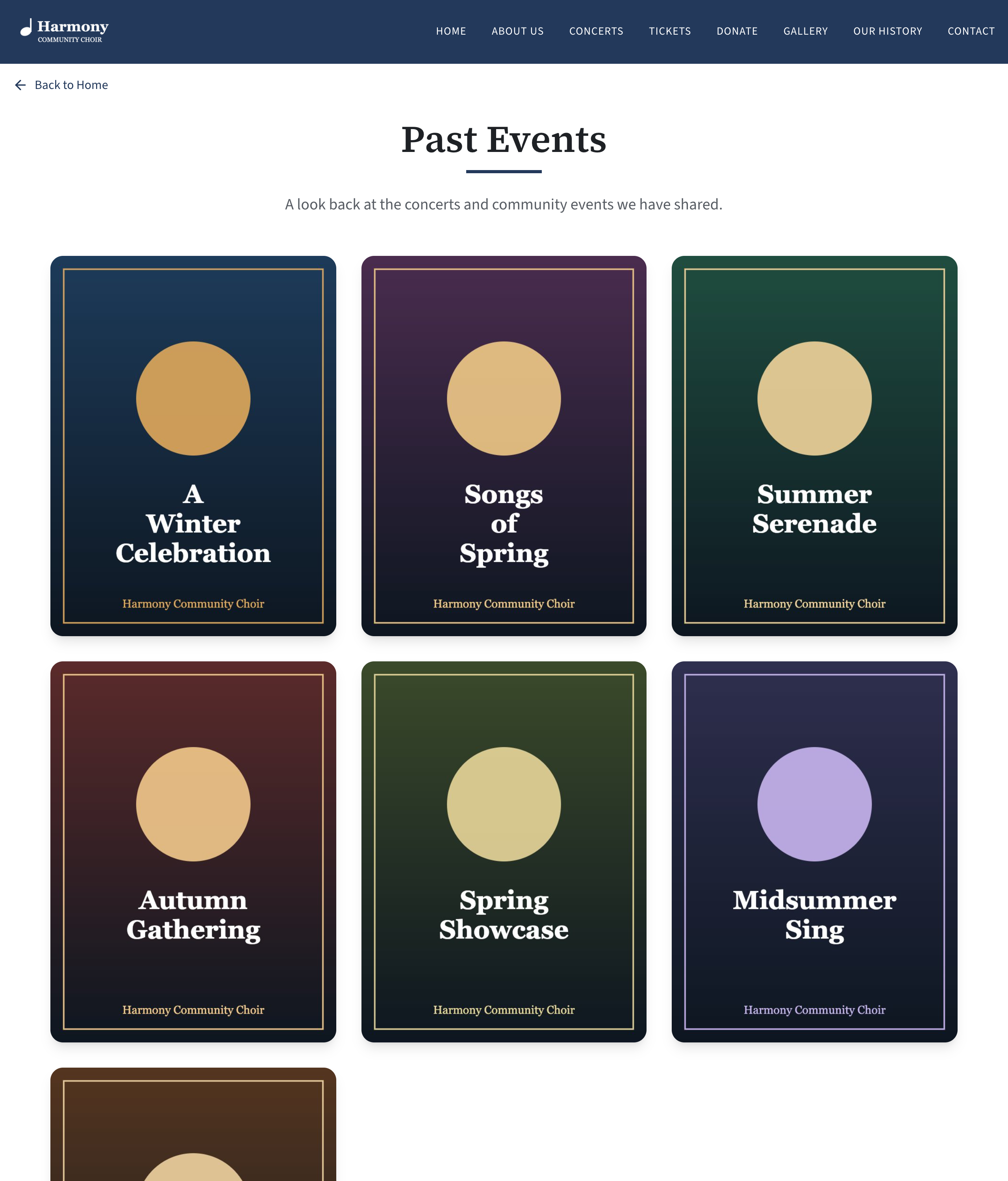
- A heading, an introduction, and the posters in rows of three (two on a tablet, one on a phone), newest first.
- Posters only. No titles, dates or descriptions are shown. The title is used as the picture's description for people using a screen reader.
- Clicking a poster opens it large. Arrows at the sides, the arrow keys, or a swipe on a phone move to the next and previous poster; a counter at the top says "2 of 14". The cross, the Escape key or a click outside the poster closes it.
- With nothing to show, the page reads "Nothing here yet".
Visitors reach the page from the View Past Events button under the concerts on your home page. There is no item for it in the top menu. The button is part of the Concerts section, so it needs Concerts section and ticket links to be on as well. You can also link to /past-events from a hero button, a promo box or a link tile.
The page's heading and introduction, and the words on the button, are settings: see Headings for the gallery and past events and The concerts section of your home page.
Two ways to add a poster
- From a concert on your site: press Archive on the concert. See Archive a concert to Past Events.
- By hand, for anything else: concerts from before you had this site, tours, special events. See below.
Add a past event
-
In the admin panel, open Past Events.
-
Press New Event at the top right. The Add a Past Event form opens.
-
Fill it in:
Box What to put in it Title (required) The event's name. Not shown on the public page; it is how you find the event in this list. Date Choose the date from the calendar. Posters are ordered newest first by this date, so give every event one, even an approximate one. Poster Press Choose poster image and pick the file. The button then shows the file's name. JPEG, PNG, WebP or GIF, 10 MB at most unless whoever runs your site has changed it. Visible to the public Ticked to begin with. Untick it to add the event without showing it yet. -
Press Add Event.
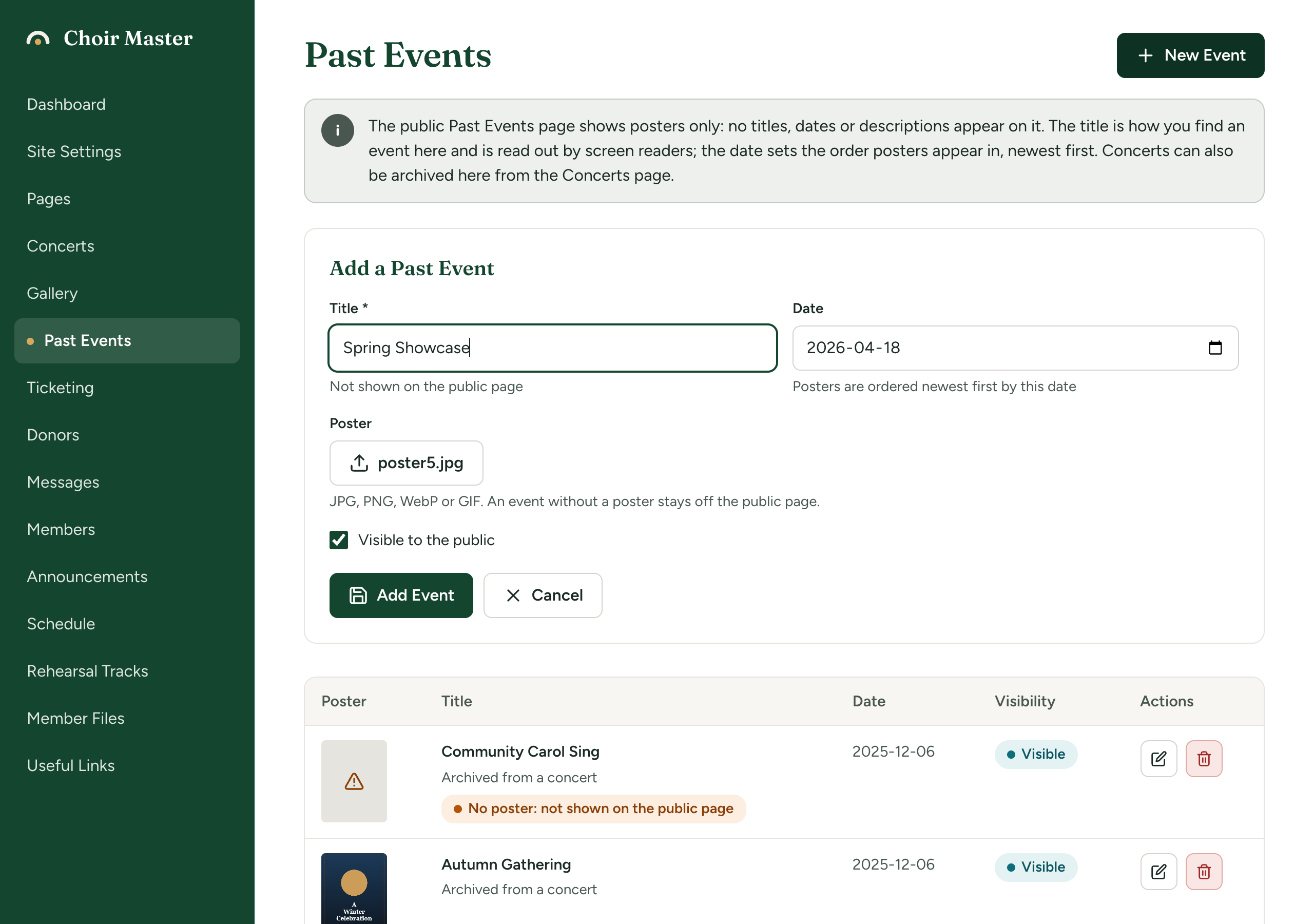
An event added without a poster is saved but stays off the public page, and a poster cannot be added to it later. Have the image ready before you start.
The list
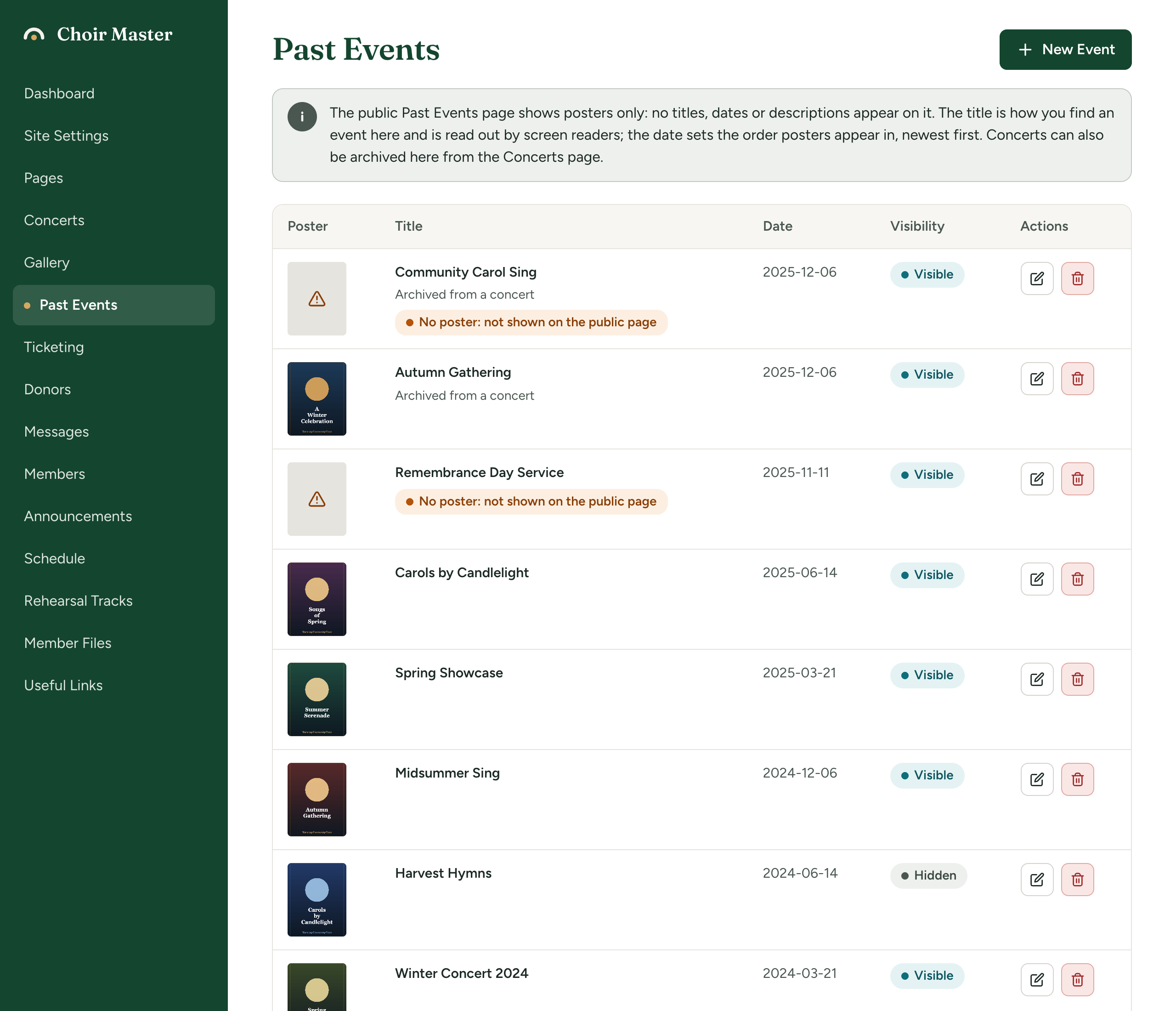
| Column | What it shows |
|---|---|
| Poster | A small copy of the poster, or a warning triangle when there is none |
| Title | The title. Archived from a concert under it means it came from the Concerts page. No poster: not shown on the public page is a warning. |
| Date | The date as year-month-day, or a dash when there is none |
| Visibility | Visible or Hidden |
| Actions | A pencil to edit and a bin to delete |
Change the title, date or visibility
- Press the pencil on the event's row. The row turns into boxes.
- Change the Title, the Date, or choose Visible or Hidden.
- Press the save button (the disk) at the end of the row, or the cross to cancel.
Nothing else can be changed here. In particular, a poster cannot be replaced: delete the event and add it again with the right image.
Fix the date of an archived event
When a concert's date could not be read as it was archived, its past event has a dash in the Date column, and the poster may sit in the wrong place on the public page. Press the pencil, choose the right date, and save. Do the same when the date that was read is wrong.
Hide a poster without deleting it
Edit the row and set Visibility to Hidden. Set it back to Visible to show it again.
Delete a past event
- Press the bin on its row.
- A question appears: Delete "(the title)"? For an event you added by hand it adds "Its poster will be removed too."
- Press Delete.
What happens to the poster file:
- An event added by hand: the uploaded poster is deleted from your site's storage.
- An event archived from a concert: the poster belongs to the concert and is left alone.
Why an event is not showing
| Check | Fix |
|---|---|
| The row says No poster: not shown on the public page | Delete it and add it again with a poster. For an archived concert, see A concert with no poster. |
| Visibility is Hidden | Edit the row and choose Visible. |
| The whole page is missing | Switch Past events page on in Site Settings → Features. |
| The poster was pasted into the concert as an address on another website, and has since been removed there | Delete the event and add it by hand with an uploaded image. |
While you are logged in to the admin panel, the public Past Events page in the same browser also shows you events that are Hidden. To see the page as a visitor does, open it in a private window, or log out first.
If something goes wrong
| Message | What to do |
|---|---|
| A title is required or Title is required | Fill in Title. |
| Invalid file type. Allowed: JPEG, PNG, GIF, WebP | The poster is another kind of file, such as a PDF or an SVG. Save it as a JPEG or PNG. |
| File too large. Maximum size is 10MB. | Make the image smaller. See Upload a picture into a setting for advice on sizes. |
| Could not create the past event, Failed to create past event, Could not update the past event or Could not delete the past event | Try again in a moment. |