Add a concert
A concert is one card in the Concerts section of your home page, and one line on your Tickets page. Add one for each concert of the season. Any admin can do this.
Concerts is in the admin panel when Concerts section and ticket links is on in Site Settings → Features.
Add the concert
- In the admin panel, open Concerts.
- Press New Concert at the top right. The New Concert form opens above the list.
- Fill in the form. Only Title is required; the table below says what each box is for.
- Press Create Concert.
The concert is added at the bottom of the list and appears on your site straight away, unless you ticked Hidden from the public site. To move it up, see Reorder, hide, sell out, edit or delete a concert.
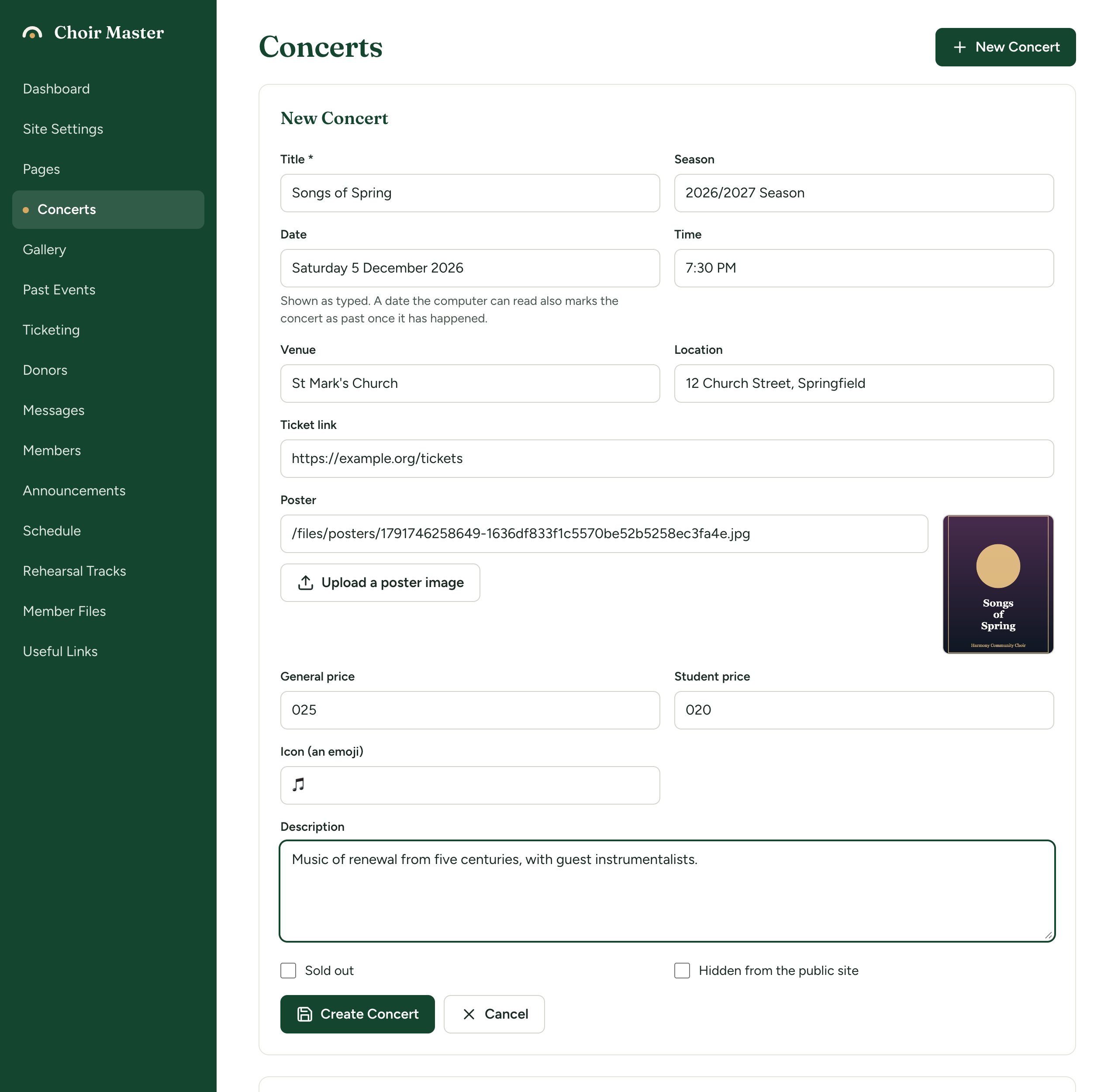
What each box is for
| Box | What to put in it | What visitors see |
|---|---|---|
| Title (required) | The concert's name. 200 characters at most. | The heading of the card, and its name on the Tickets page |
| Season | A few words such as "2026/2027 Season". | Small capitals in the coloured band at the top of the card |
| Date | The date, written out. See How to write the date. | Shown exactly as you typed it |
| Time | For example "7:30 PM". | Shown exactly as you typed it |
| Venue | The hall or church. | On the card as "Venue - Location"; the venue is also shown on the Tickets page |
| Location | The town or the address. | On the card, after the venue |
| Ticket link | The web address where tickets are sold, starting with https://. | Not shown as text. The concert's line on the Tickets page opens it. |
| Poster | Upload an image, or paste the address of one. | The poster, full width, in the card |
| General price, Student price | Numbers only, such as 25 or 12.50. Leave at 0 for none. | "From" and the lowest price on the card; each price on the Tickets page |
| Senior price | Only there when Show a separate senior price is on in Site Settings → Home: Concerts. | As above |
| Icon (an emoji) | One emoji, such as 🎄. | Large, in the coloured band at the top of the card |
| Description | A sentence or two. Press Enter for a new line; line breaks are kept. No other formatting. | Under the title |
| Sold out | See the warning below. | |
| Hidden from the public site | Tick it to prepare a concert without publishing it. | Nothing: a hidden concert is not on the site at all |
Posters, prices and the ticket link have a page of their own: Posters, prices and ticket links.
The Sold out tick is not saved when you press Create Concert. Create the concert first, then press Mark as sold out on its card in the list. The tick box does work when you Edit a concert that already exists.
How to write the date
The date is ordinary text and is shown to visitors exactly as you type it. Your site also tries to read it, so that it can mark the concert as over once the day has passed. It can only do that if the date is written in a way a web browser understands.
Write the day, the month as a word and the year, in English:
| Write it like this | Result |
|---|---|
Saturday 5 December 2026 | Read correctly |
5 December 2026 | Read correctly |
December 5, 2026 | Read correctly |
Sat 5 Dec 2026 | Read correctly |
Put the time in the Time box, not here.
These forms go wrong:
| What you typed | What happens |
|---|---|
December 5 or Saturday 5 December (no year) | Read as a date in 2001, so the concert is marked as over at once |
December 5-6, 2026 or December 5 & 6, 2026 | Read as a date in 2007, so the concert is marked as over at once |
Spring 2027 or May 2027 | Read as 1 January 2027 or 1 May 2027, so the concert is marked as over from the next day |
05/12/2026 | Read the American way, as 12 May 2026 |
2026-12-05 | Marked as over on the day of the concert itself for visitors in North and South America |
5th December 2026, 5 and 6 December 2026, Samedi 5 décembre 2026, To be announced | Cannot be read. It is shown as typed and the concert is never marked as over. |
For a concert on two days, write the last day in full and put the other in brackets after it: Sunday 6 December 2026 (also Saturday 5 December). The site reads the first date and ignores the brackets, so the concert stays current until both days are over.
A concert counts as over from the day after its date. On the day itself it is still current.
The date is read by each visitor's own web browser, and browsers differ a little. The forms above were checked in Chrome and Edge. If a date behaves oddly for some visitors, change it to 5 December 2026 or December 5, 2026, which every common browser reads.
What visitors see once the date has passed is described in When a concert is over, and starting a new season.
How the concert looks on your home page
Each concert is a card. From the top:
- A coloured band with the icon and the season.
- The poster, if there is one.
- The title and the description.
- The date, the time, and the venue and location.
- "From" and the lowest price, and a Get Tickets button that opens your Tickets page. This part is there only when Tickets page is on in Site Settings → Features, and the concert is neither sold out nor over.
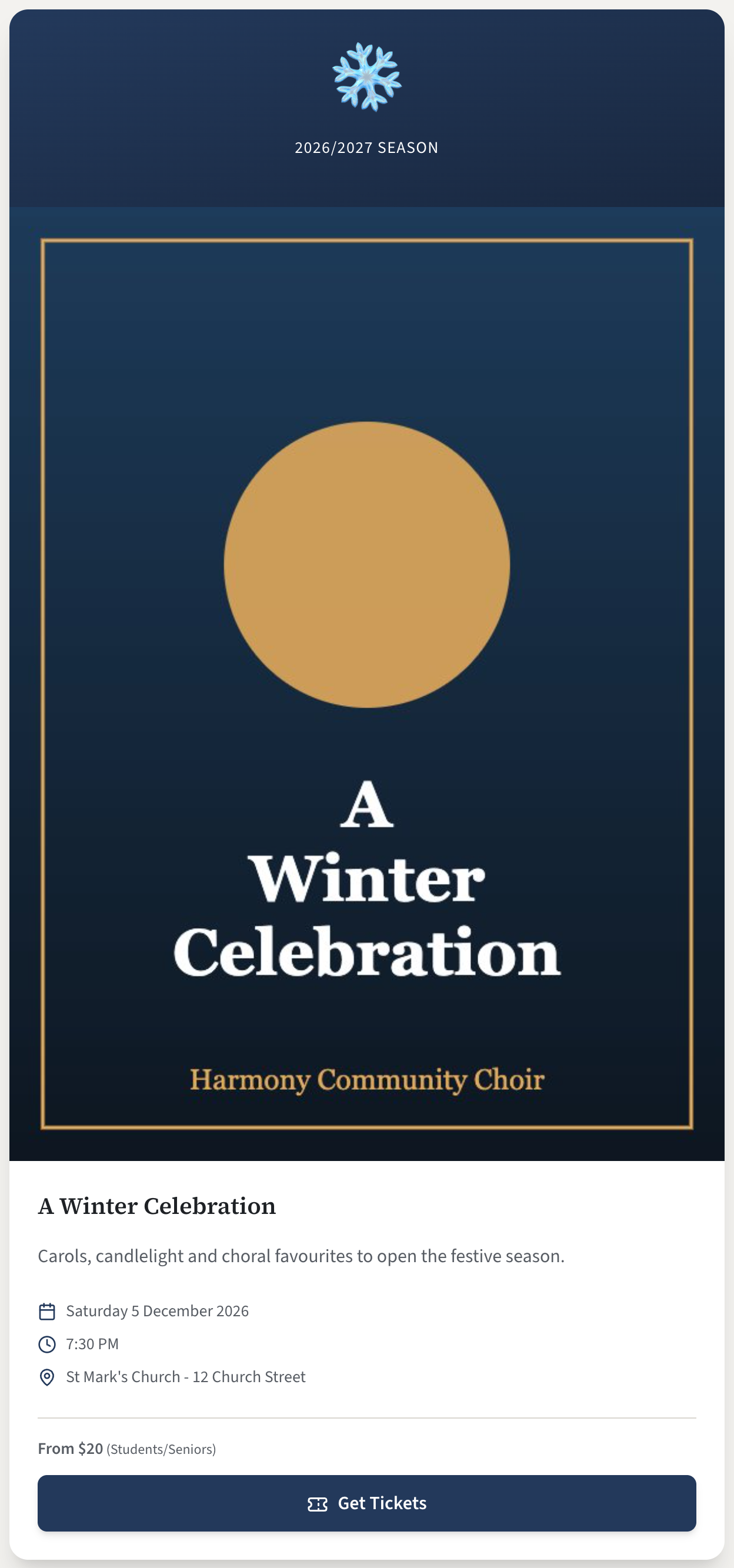
One concert is shown on its own in the middle of the page, two side by side, three or more in rows of three. On a phone they are one under another.
With no concerts to show, the section reads "Details of the next concerts are coming soon."
The heading and introduction above the cards, and the note under them, are in The concerts section of your home page.
If something goes wrong
These messages appear in red at the top of the form.
| Message | What to do |
|---|---|
| A title is required | Fill in Title. |
| The title is too long | Shorten it to 200 characters or fewer. |
| The ticket address is not valid | Start the Ticket link with https://. An address beginning www. is refused. |
| The poster address is not valid | Upload the poster instead, or paste an address that starts with https://. |
| Only JPEG, PNG, GIF, WebP or SVG images are allowed | The poster is another kind of file, such as a PDF or a photo straight from an iPhone (HEIC). Save it as a JPEG or PNG and upload that. |
| File too large. Maximum size is 10MB. | Make the image smaller. See Upload a picture into a setting. The number may differ on your site. |
| Upload failed, Could not save the concert or Error creating concert | Try again in a moment. If it keeps happening on a site you run yourself, look at the server's log. |