Contact form messages
The Contact section of your home page can carry a short form, so visitors can write to the choir without knowing an email address. This page is for whoever answers those messages. Any admin can read them.
The form is there when Contact form is on in Site Settings → Features. The same switch puts Messages in the admin panel.
What a visitor fills in
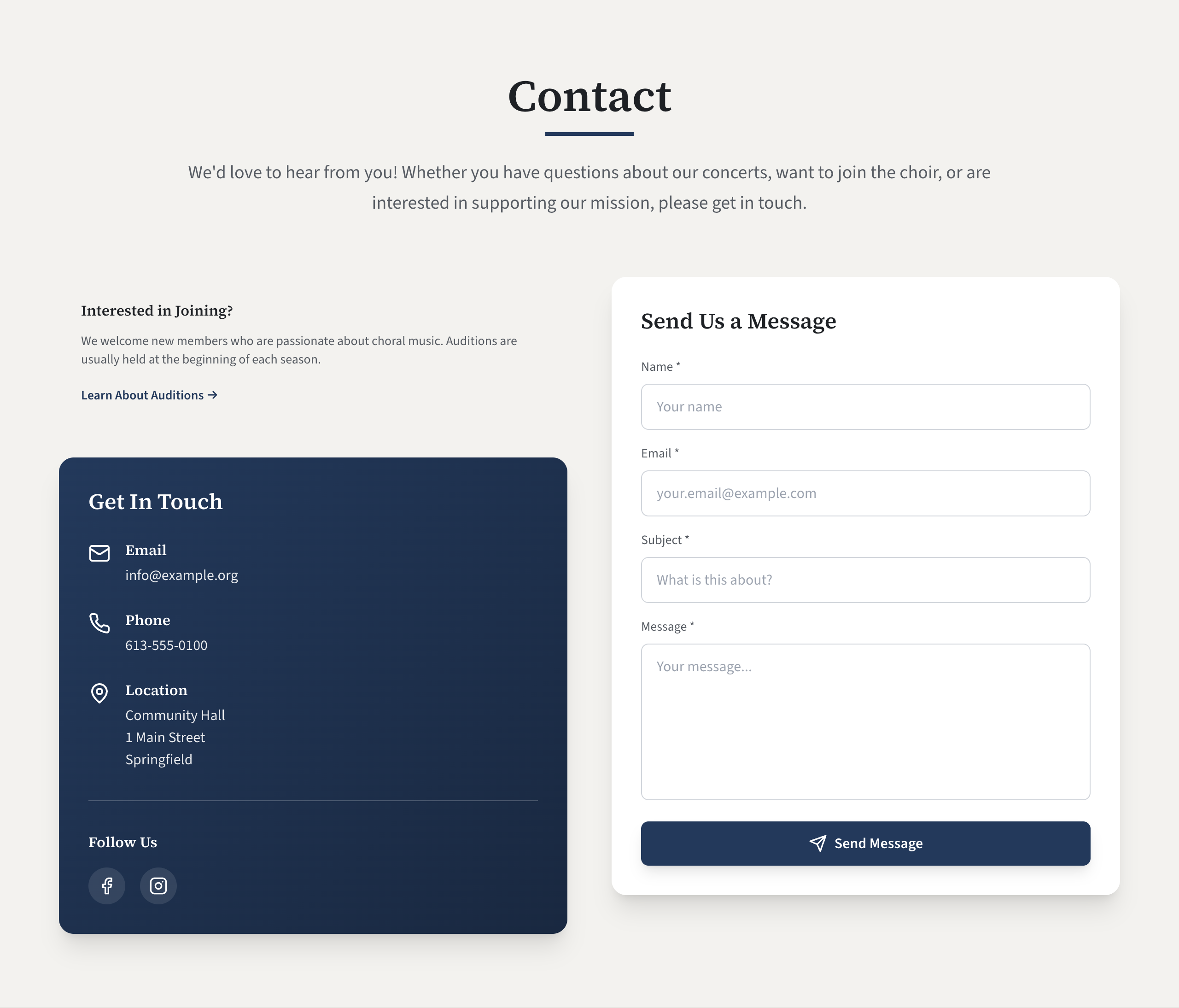
| Box | Limit |
|---|---|
| Name | 200 characters |
| 200 characters; must look like an email address | |
| Subject | 200 characters |
| Message | 10,000 characters |
All four are required. Anything over a limit is cut off without a warning. The visitor then presses Send Message.
If your site has a bot check, a security check appears above the button, and the button stays greyed out until the visitor has passed it. On a site you run yourself, the bot check is set up on the server: Stop spam with a bot check.
The form's heading ("Send Us a Message" unless you change it) is in Contact details and social media.
What the visitor is told
| Message on the form | What happened |
|---|---|
| Thank you for your message! We will get back to you soon. | The message was emailed to the choir. |
| Thank you for your message! We will review it shortly. | The message could not be emailed and was kept in Messages. |
To the visitor these are both a thank-you. The difference matters to you: the second means the message is waiting in the admin panel, and nobody has been told.
Where a message goes
Your site first tries to email the message to the choir.
- It is sent to the Public email address in Site Settings → Contact.
- Its subject is "(your choir's name) contact form:" followed by the visitor's subject.
- The visitor's address is set as the reply address, so pressing Reply in your email program writes straight back to them.
A message that is emailed is not kept in the admin panel. A message is kept in Messages only when it could not be emailed: no address to send to, email not available, or the send failed.
Read the messages kept in the admin panel
- In the admin panel, open Messages.
- The messages are listed newest first. Each shows its subject, who it is from, their email address, the date, and the whole message.
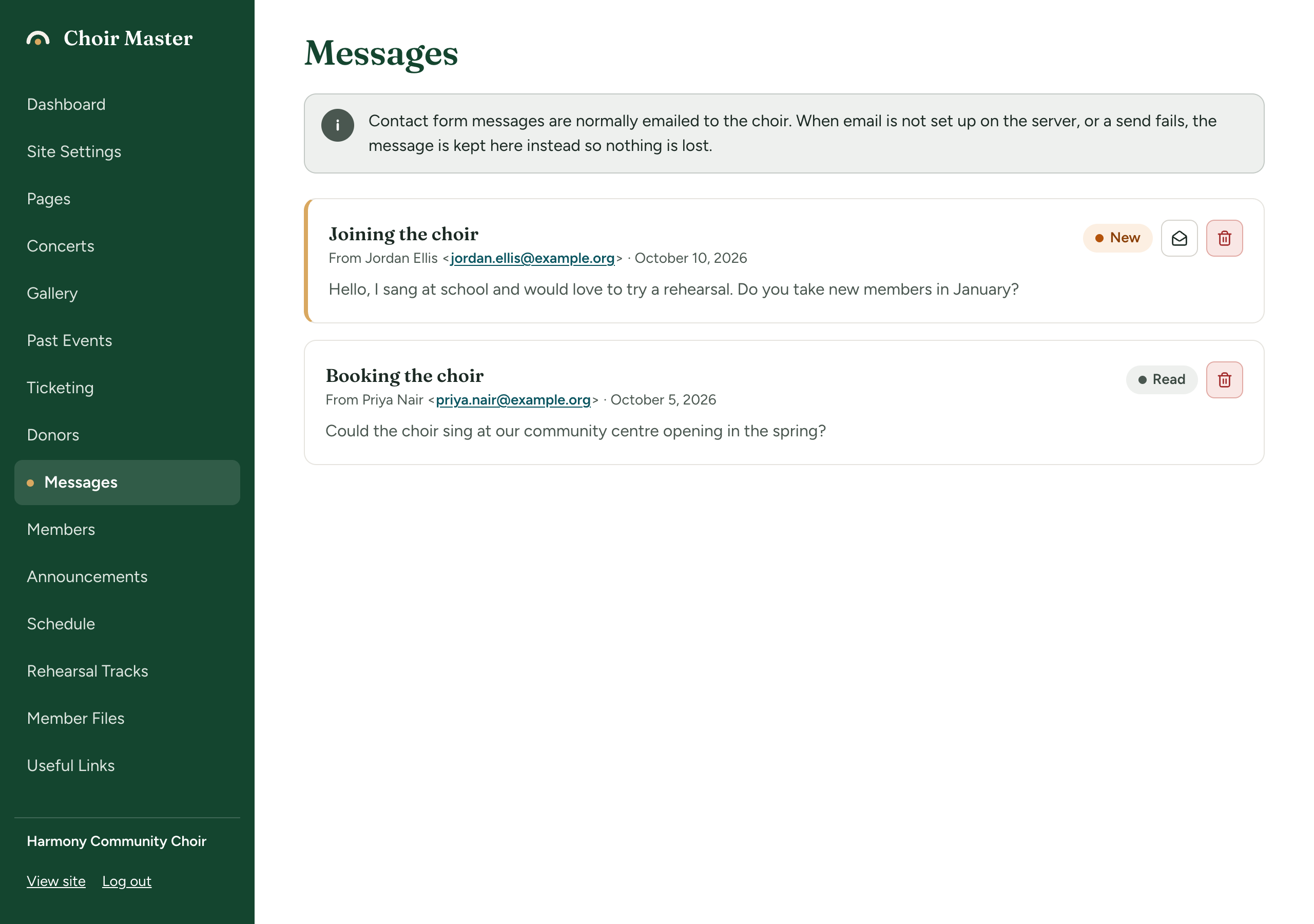
A banner at the top reminds you what this page is: "Contact form messages are normally emailed to the choir. When email is not set up on the server, or a send fails, the message is kept here instead so nothing is lost."
| On each message | What it is for |
|---|---|
| New label and a coloured edge | Nobody has marked this message as read. |
| Read label | Somebody has. |
| The sender's email address | A link that opens a new email to them in your own email program. |
| Envelope button (Mark as read) | Changes New to Read. Only on new messages. |
| Bin (Delete) | Asks Delete the message from (name)? Press Delete to remove it for good. |
Things this page does not do:
- You cannot reply from the admin panel. Click the sender's address, or copy it into your email program.
- A message is not marked as read by being looked at. Press the envelope when you have dealt with it, so the other admins know.
- A message cannot be marked as new again.
- There is no download or export. Copy the text if you need to keep it elsewhere.
- Messages are kept until somebody deletes them.
When there is nothing kept, the page reads "No stored messages".
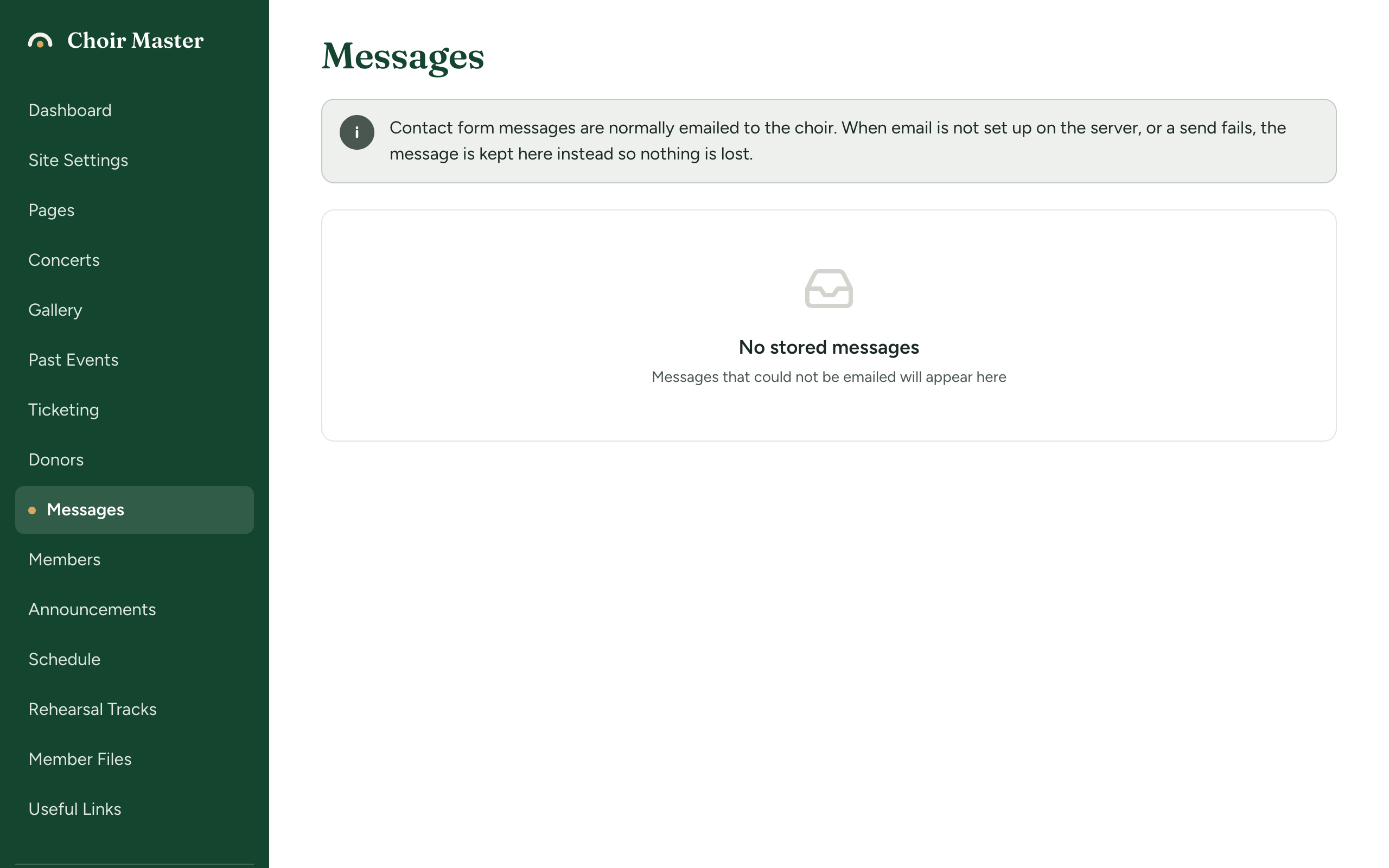
An empty page does not mean nobody has written. Where messages are emailed, they never appear here.
Switch the contact form off
- Open Site Settings → Features.
- Switch Contact form off and save.
The form disappears from the home page. The rest of the Contact section stays: your email address, phone, address and social media. Messages leaves the admin panel's menu; any messages already kept are not deleted and are there again if you switch the form back on.
If something goes wrong
Messages a visitor may see on the form:
| Message | Meaning |
|---|---|
| Please complete the security check | The form was sent before the bot check had finished. The button is greyed out until then, so visitors seldom see this. |
| The contact form is turned off | Contact form was switched off in Site Settings while the visitor was filling in the form. |
| Security verification failed. Please try again. | The bot check did not accept the visitor. Trying again usually works. |
| Invalid email address | The Email box does not hold an email address. |
| All fields are required | A box is empty or holds only spaces. |
| Failed to submit message. Please try again or email us directly. | The site could not email or keep the message. Nothing was saved. |
If visitors report the last one, or messages are not reaching you:
- Check the Public email address in Site Settings → Contact for a typing mistake.
- Look in your spam folder for mail with "contact form:" in the subject.
- Open Messages in the admin panel: messages landing there mean email is not working. On a site we host, see Get help; on a site you run yourself, see Nobody can log in, or emails do not arrive.