When a concert is over, and starting a new season
Your site marks a finished concert as past, but it never removes one. Tidying up is a job for whoever looks after the site, a few times a year.
What the site does by itself
From the day after a concert's date:
- its card on the home page is dimmed;
- PAST EVENT is written across its poster, if it has one;
- the Get Tickets button and the price are gone from the card;
- it is dropped from the list on the Tickets page.
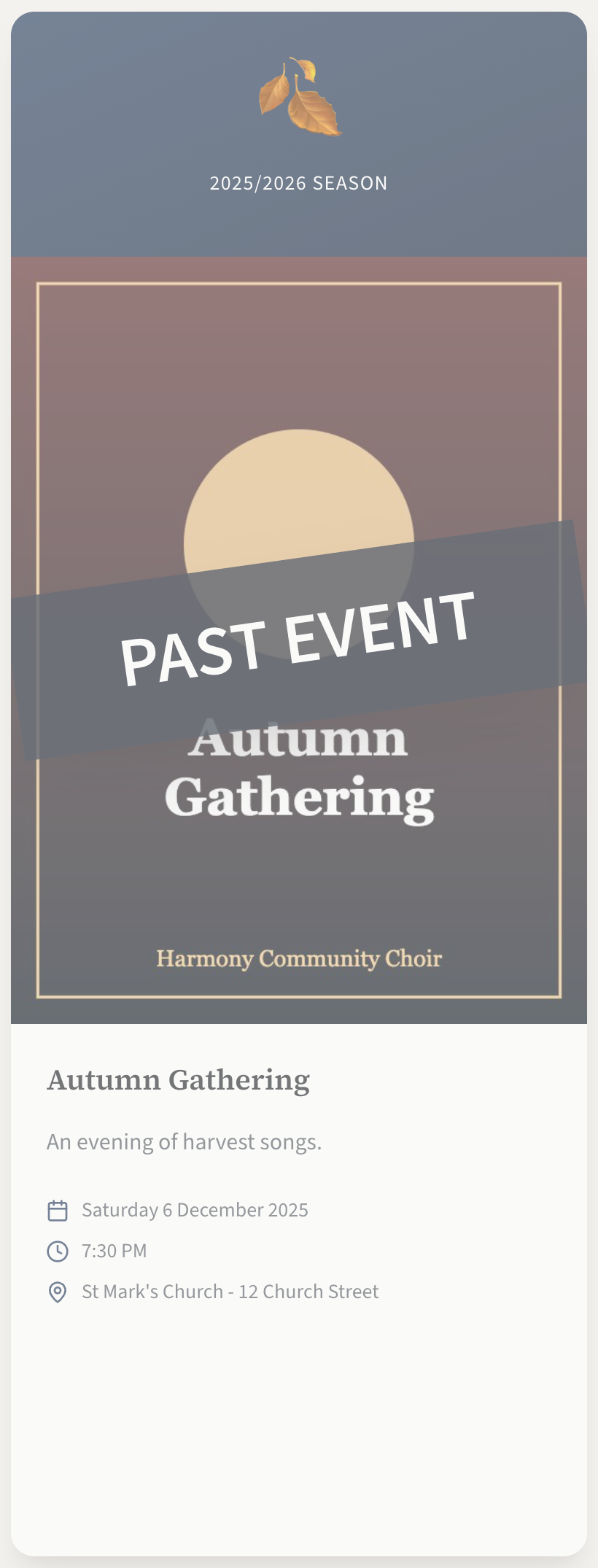
All of this depends on the site being able to read the date you typed. If it cannot, the concert goes on looking current, Get Tickets button included, until you do something about it. How to write the date shows which ways of writing a date work.
The concert stays where it is in the list. It is not moved to the bottom, not hidden and not deleted, and its card in the admin panel does not say that it is past.
Your three choices
| What happens | Use it when | |
|---|---|---|
| Archive | A copy of the concert, with its poster, goes on the Past Events page. The concert is hidden from the home page as well, unless you untick that. | The concert had a poster and you want to keep a record of it for visitors. This is the usual choice. |
| Hide | The concert leaves the public site but stays in your Concerts list. | You may want it again, for example a yearly concert whose details you will reuse. |
| Delete | The concert is gone for good. | You do not need it again. Archive it first if you want it on the Past Events page. |
Archiving and deleting go well together: archive the concert, then delete it. The archived copy does not depend on the concert.
Steps for each:
Leaving a past concert on the home page for a week or two is fine. Leaving last season's concerts above this season's is what makes a site look neglected, so do not let them pile up. The list can only be reordered while it holds 40 concerts or fewer.
A routine for the start of a season
- Archive last season. In Concerts, press Archive on each finished concert and leave Also hide this concert from the public site ticked.
- Delete what you will not reuse. Press the bin on each archived concert you no longer need. Keep hidden any that you will edit into next year's.
- Add the new concerts. Press New Concert for each. Tick Hidden from the public site if the season is not announced yet. See Add a concert.
- Update the Season text. The Season box is typed separately on every concert ("2026/2027 Season"). Check it on any concert you are reusing.
- Put them in order. Use the arrows so that the next concert comes first. See Change the order.
- Show them. Press Show on each when you are ready to announce.
- Look at the result. Open your home page and your Tickets page and check every card: poster, date, price, and that Get Tickets leads somewhere.
If you reuse a concert from year to year by editing it, archive it before you change its title and date. Once they are changed, it can be archived again for the new season.
If you sell tickets on your site, each new concert also needs its tickets set up: Set up tickets for a concert. Premium plan
The other jobs worth doing at the same time are in A routine for keeping the site up to date.