A tour of the admin panel
The admin panel is the private part of your site where you change everything else. Every page in it has the same frame, so once you know one page you know them all. This page is for any new admin.
The menu
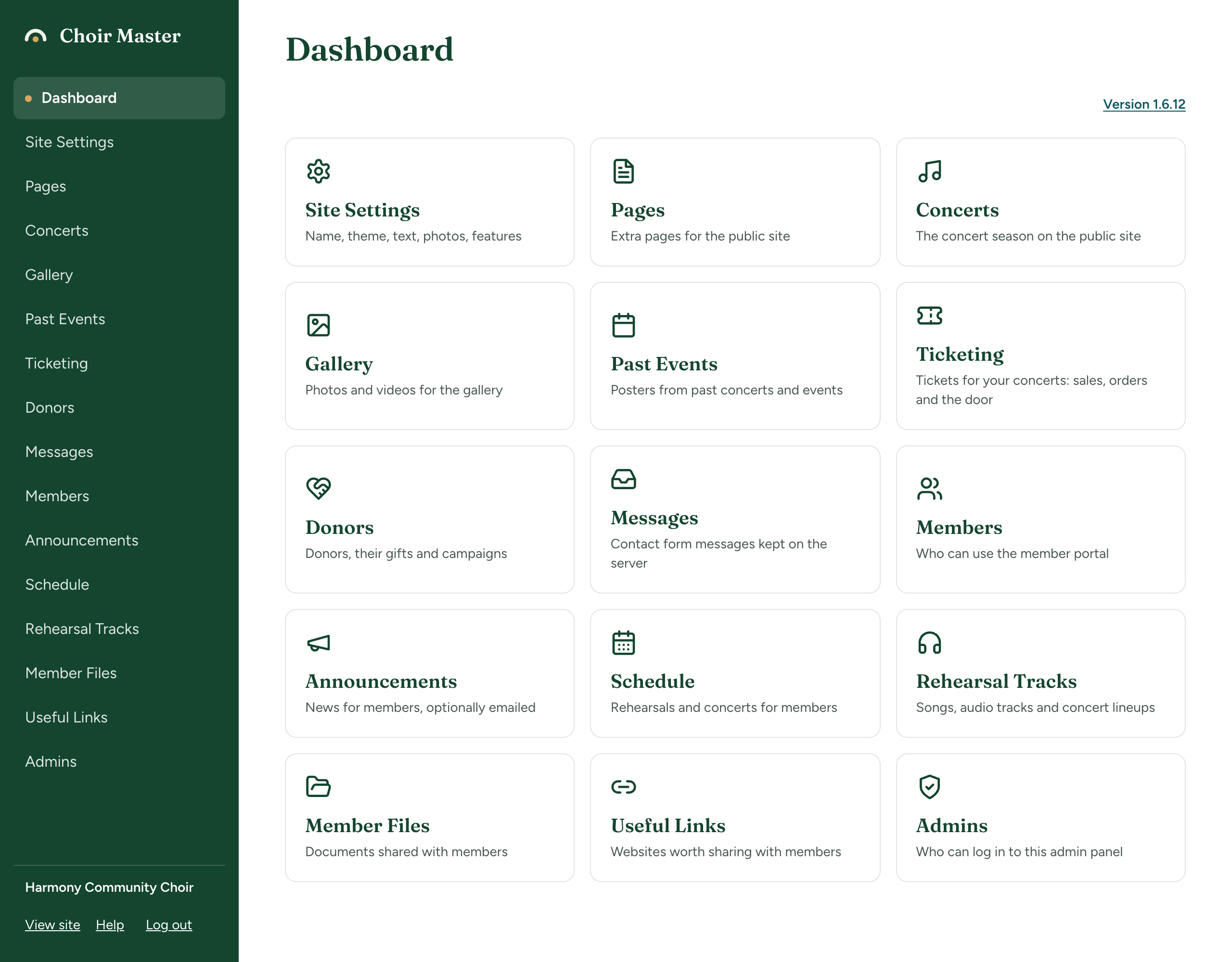
The dark green column on the left is the menu. It lists every place you can go. The page you are on has a dot beside its name.
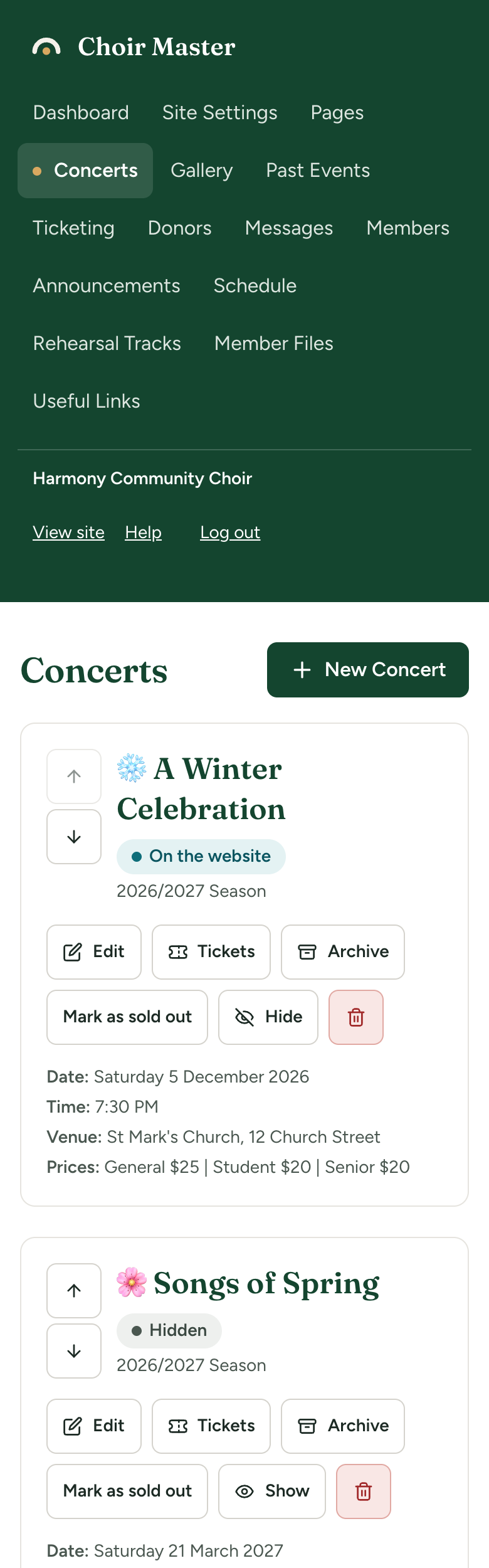
On a phone, or in a narrow window (760 pixels wide or less), the menu becomes a row of links across the top of the page instead.
Here is the whole menu, in the order it appears. You will only see the items that your site has switched on and that your kind of admin may use: see Why is a menu item missing?
| Menu item | What it is for |
|---|---|
| Dashboard | The front page of the admin panel, with a tile for everything else. See The dashboard. |
| Site Settings | Name, theme, text, photos, features. See How Site Settings works. |
| Pages | Extra pages for the public site. See Add a page of your own. |
| Concerts | The concert season on the public site. See Add a concert. |
| Gallery | Photos and videos for the gallery. See Upload photos and videos to the gallery. |
| Past Events | Posters from past concerts and events. See The Past Events page. |
| Ticketing | Tickets for your concerts: sales, orders and the door. See Tickets: how it works. |
| Donors | Donors, their gifts and campaigns. See Donors: how it works. |
| Messages | Contact form messages kept on the server. See Contact form messages. |
| Members | Who can use the member portal. See Add, change, disable or remove members. |
| Announcements | News for members, optionally emailed. See Post an announcement. |
| Schedule | Rehearsals and concerts for members. See Add a rehearsal or concert to the schedule. |
| Rehearsal Tracks | Songs, audio tracks and concert lineups. See Add songs and upload rehearsal tracks. |
| Member Files | Documents shared with members. See Share documents with members. |
| Useful Links | Websites worth sharing with members. See Share useful links. |
| Admins | Who can log in to this admin panel. See Add, change or remove an admin. |
| Send announcements from your own address. Hosted sites only. See Send announcements from your own address. |
Two pages are not in the menu:
- Updates, which shows the version your site is running. You reach it from the dashboard: see Which version your site is running.
- The guided setup, which appears by itself on a new site: see Set up your site step by step.
The foot of the menu
Below the list of pages, the menu shows:
- Your choir's name.
- The plan, such as "Starter plan", on a site we host. A self-hosted site has no plan and shows nothing here.
- Signed in as an Admin or Signed in as a Manager, if that is the kind of admin you are. A Site Admin sees no such line. See The three kinds of admin.
- View site, which opens your public site in a new tab so that you can check a change.
- Help, which opens this guide in a new tab, at the page about the screen you are on: from Concerts it opens Add a concert, from Members Add, change, disable or remove members, and so on. From a screen with no page of its own it opens the guide's front page. The admin panel stays open in its own tab, so nothing you were typing is lost.
- Log out.
The page beside the menu
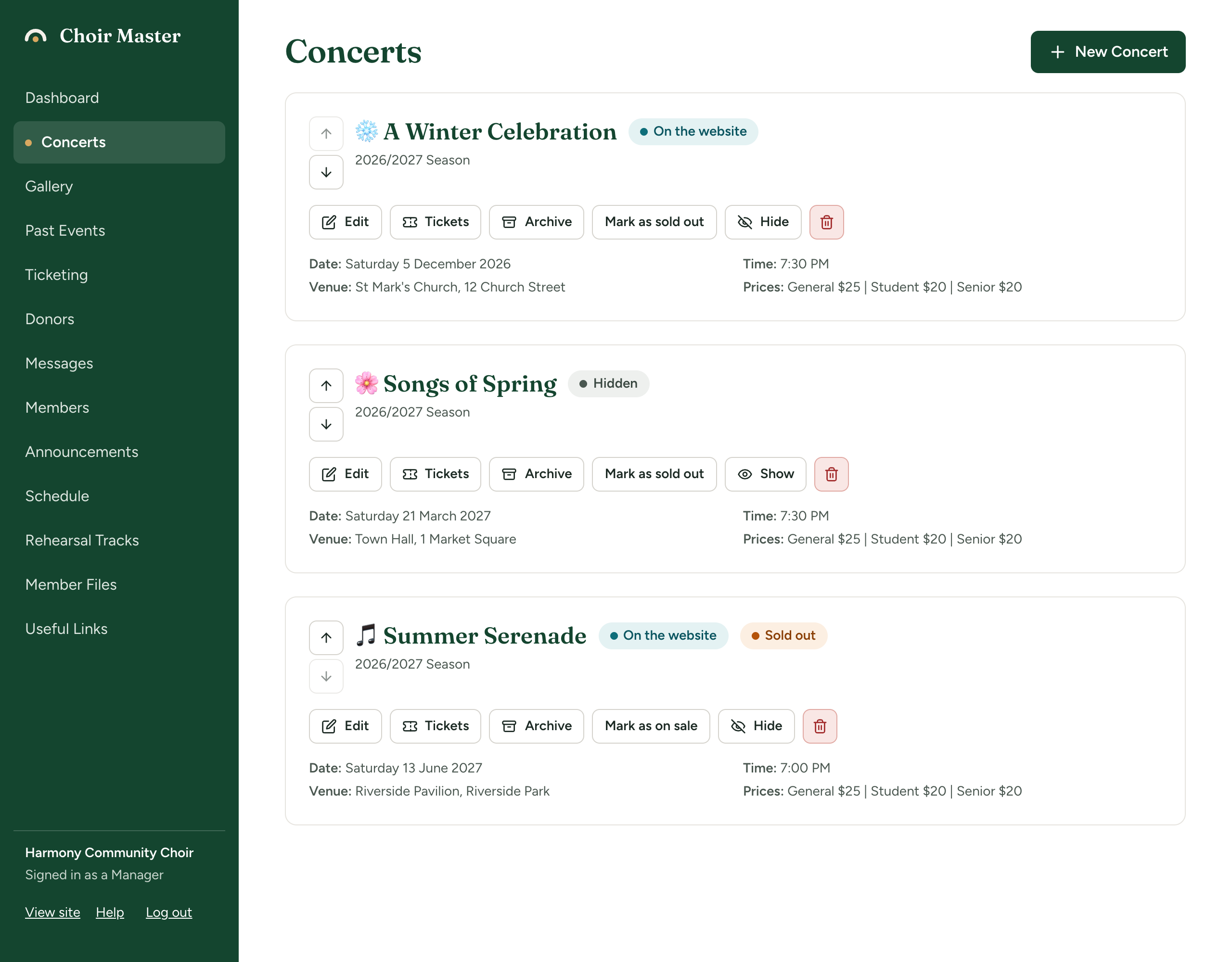
Every page starts with its title at the top left. Where a page has one main thing to do, its button is at the top right, level with the title: New Concert on Concerts, New Admin on Admins, and so on. The rest of the page is usually a list of what is already there.
Things that work the same everywhere
Buttons
| Looks like | Means |
|---|---|
| Dark green with white words | The main thing to do on this page or form. |
| White with a border | Anything else, such as Cancel. |
| Pale red | Something that removes or undoes: deleting, cancelling, refunding. |
| Teal words, underlined | A link that goes somewhere, or a small action such as Undo. |
In lists, small square buttons with only a picture do the same jobs: a pencil to change a row and a bin to delete it. Rest the pointer on one to see its name.
Confirmation dialogs
Before anything that cannot be undone, the panel asks you to confirm in a small box in the middle of the page. The question names the thing, and the button names the action. For example, deleting a concert asks Delete "Spring Concert"? with This cannot be undone. under it, and the buttons Delete and Cancel.
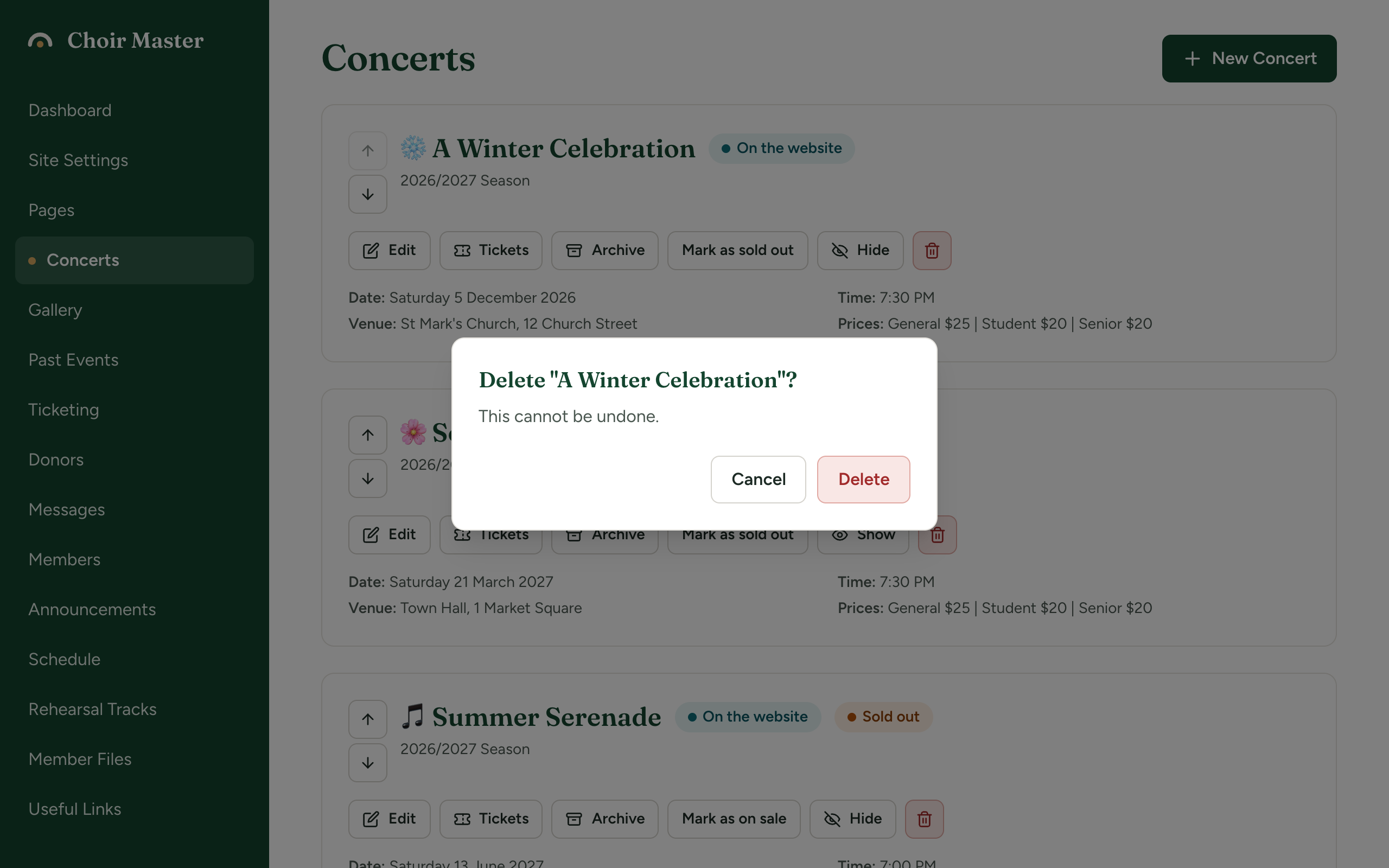
Pressing Cancel, pressing the Escape key or clicking outside the box all leave things as they were.
The "Saved" note
When you save a form such as a section of Site Settings, a small teal note reading Saved appears at the bottom right for a few seconds. A red message at the top of the page instead means the change was not saved.
Colours that tell you how something went
The same four colours are used throughout, always with an icon and words as well.
| Colour | Means |
|---|---|
| Teal | Something is done. |
| Amber | Something needs your attention. |
| Red | Something failed. Read the message: nothing was changed. |
| Grey | A note explaining something. |
A problem with one box in a form is written in red directly under that box.
Labels in lists
Lists show the state of each row as a small label. A teal label means the thing is live; a grey one means it is not.
| Labels | Where | Meaning |
|---|---|---|
| On the website / Hidden | Concerts | Whether visitors can see the concert. |
| Visible / Hidden | The gallery, announcements, member files and useful links | Whether visitors, or members, can see it. |
| Published / Draft | Pages | Whether the page is on the public site. |
| Active / Disabled | Admins | Whether the person can log in. |
Empty lists
A list with nothing in it shows a line saying so and how to add the first one, such as No concerts yet with Use "New Concert" to add the first one.
The panel keeps its own colours
The admin panel, the admin login and the guided setup always look the same: dark green, brass and off-white. They do not take on the colours and fonts you choose for your choir. Your theme applies to the public site and the member portal. To see a change of theme, use View site.
Why is a menu item missing?
There are three possible reasons.
-
The feature is switched off. Concerts, Gallery, Past Events, Ticketing, Donors, Messages and everything for members appear only while their feature is switched on in Site Settings, under Features. Announcements, Schedule, Rehearsal Tracks, Member Files and Useful Links also need the member portal itself to be on. See Switch pages and features on or off and Feature switches: what each one shows and hides.
-
Your plan does not include it. This applies only to a site we host. On the Free plan, Members, Announcements, Schedule, Rehearsal Tracks, Member Files, Useful Links and Email are absent whatever the switches say. Ticketing and Donors need the Premium plan. The switches keep their settings, so everything returns as you left it when you move up. See What each plan includes.
-
Your kind of admin may not use it. A Manager does not see Site Settings, Pages, Admins or Email. An Admin sees Admins but cannot change it. See The three kinds of admin.
Two items have rules of their own:
- Admins is in the menu only on a site where each admin has their own login. That is every site we host. On a self-hosted site with one shared username and password it is absent: see Admin sign-in: one password or a login for each admin.
- Email exists only on a site we host, on a plan that includes sending from your own address.
If you type the address of a page that is not yours to use, you are taken back to the dashboard.