Share documents with members
Member Files is a private shelf of documents for your singers: scores, minutes, the by-laws, a seating plan, a membership form. Members find them on the Files page of the portal. You need Member portal: files switched on in Features.
For audio to rehearse with, use Rehearsal Tracks instead: tracks there are sorted by song and voice part and play in the page.
Upload files
- In the admin panel, open Member Files.
- Press Upload Files and choose one or more files from your computer.
- A panel headed Ready to upload lists what you chose, with the number of files. For each file you can fill in the boxes below. All are optional.
- Press Upload All. To back out, press Cancel: nothing has been uploaded yet.
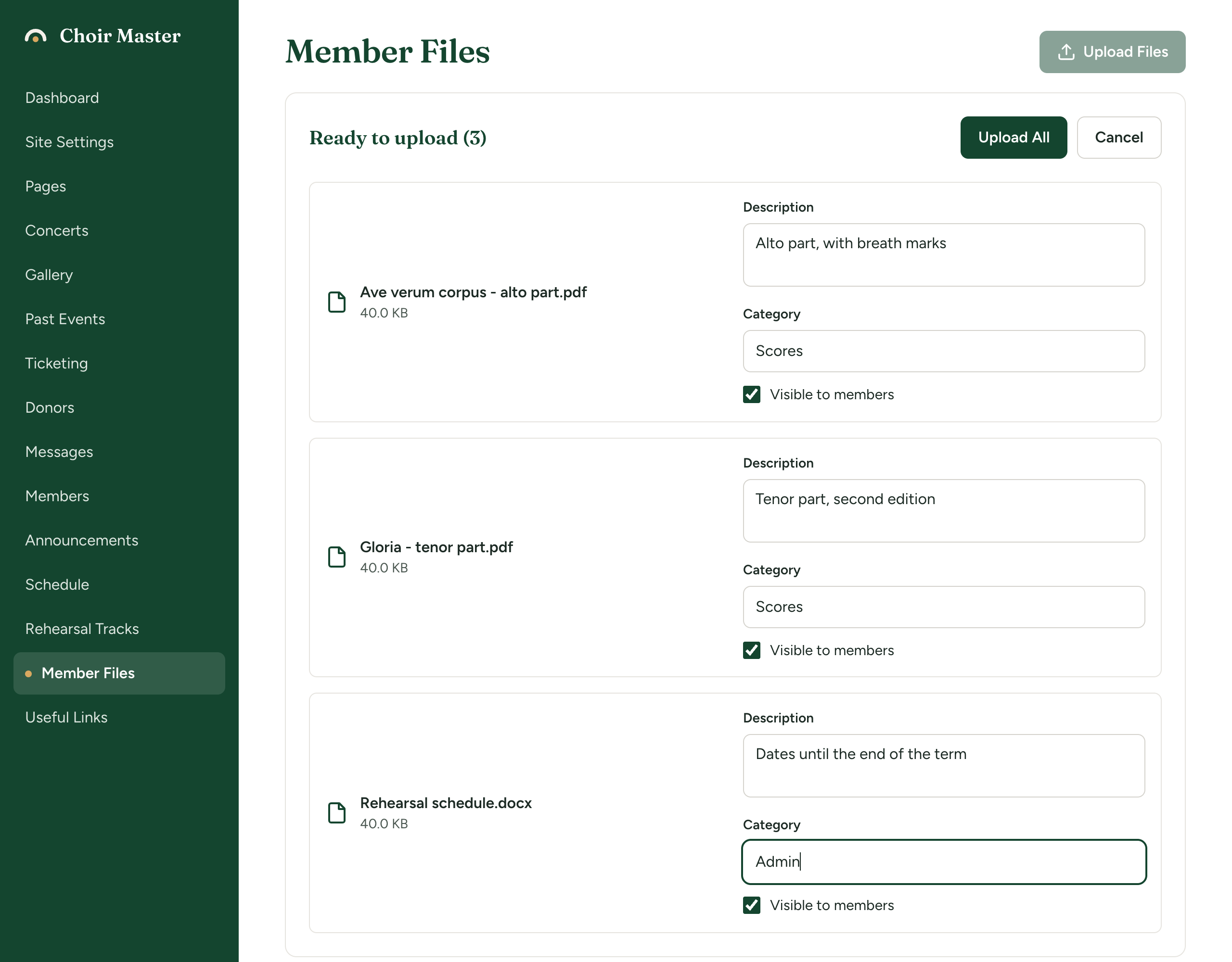
| Box | What it is for |
|---|---|
| Description | A line telling members what the file is. Members can search for words in it. |
| Category | A word or two to group files by, such as "Minutes" or "Scores". |
| Visible to members | Ticked: members see the file. Unticked: only admins do. Ticked to start with. |
The files are uploaded one after another. Wait for the panel to close before leaving the page. If any could not be uploaded, a message lists each one with the reason; the others are uploaded.
Categories are whatever you type
There is no list of categories to set up. Type a category on a file and it exists. Members get a box to show one category at a time, built from the categories of the files they can see.
Spelling and capitals matter: "Minutes" and "minutes" are two categories. Decide on a few and type them the same way each time.
Which files can be uploaded
| Kind | Types |
|---|---|
| Documents | PDF, Word (.doc, .docx), Excel (.xls, .xlsx), PowerPoint (.ppt, .pptx), plain text (.txt) |
| Pictures | JPEG, PNG, GIF, WebP |
| Audio | MP3, M4A, WAV |
Anything else is refused, including ZIP files, CSV files, and files from notation programs. Save or export such a file as a PDF first.
Each file can be up to 50 MB.
Read the list
Under the upload panel, a table lists every file, newest first.
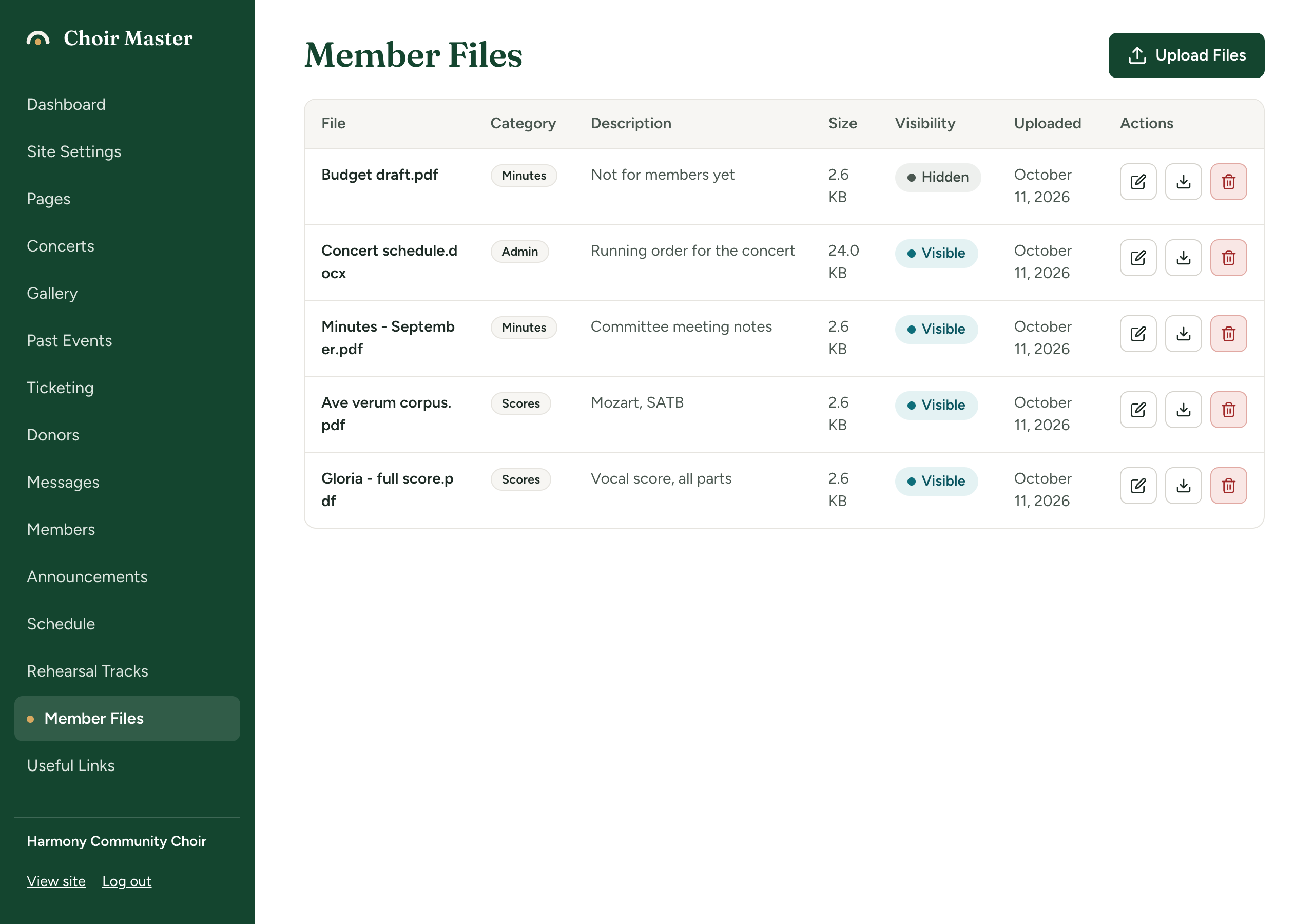
| Column | What it shows |
|---|---|
| File | The file's name, as it was on your computer. |
| Category | Its category, or a dash. |
| Description | Its description, or a dash. |
| Size | How big it is. |
| Visibility | Visible or Hidden. |
| Uploaded | The date it was uploaded. |
| Actions | A pencil to edit, an arrow to download, a bin to delete. |
Change a file's details, or hide it
- Press the pencil in the file's row. The row turns into boxes.
- Change Category or Description, or set Visibility to Hidden or Visible.
- Press the save button at the end of the row. To leave it unchanged, press the cross.
A hidden file stays on your list and is invisible to members. Use it to prepare files ahead of time, or to withdraw one without losing it.
Replace a file with a new version
A file cannot be replaced or renamed once it is uploaded. Upload the new version, then delete the old one. Give the file the name you want members to see before you upload it.
Delete a file
Press the bin in its row and confirm with Delete. The file is removed for good. Copies members have already downloaded are not affected.
Who can fetch a file
Files are private to your choir:
- Only a member who is logged in and Active, or an admin, can open or download a file. Anyone else who has the address of a file gets nothing, even if a member passes the address on.
- A Hidden file does not exist as far as a member can tell: it is not listed, and its address does not work for them.
- A member who is set to Disabled or deleted loses access at once.
Once a member has downloaded a file it is theirs to keep or forward, like anything you email. Do not upload something you would not hand to every member.
What members see
The portal's Files page lists each file with its name, description, category, size and date, and a Download button. A box at the top searches names and descriptions. A second box, shown when at least one file has a category, narrows the list to one category.
See A tour of the member portal.
If something goes wrong
| Message | What to do |
|---|---|
| Some files were not uploaded: | Read the reason beside each file name, below. Files not named were uploaded. |
| Invalid file type. Allowed: PDF, Word, Excel, PowerPoint, audio, images, text | The file is not one of the kinds above. Convert it to a PDF. Sometimes a browser does not recognise an allowed file, such as a .docx on a computer without Word; try another browser or computer. |
| File too large. Maximum size is 50MB. | The message gives the limit in force. Make the file smaller: for a scanned PDF, scan again at a lower quality or split it into parts. |
| Upload failed | The upload did not complete, often because the connection dropped. Try that file again. |