The dashboard
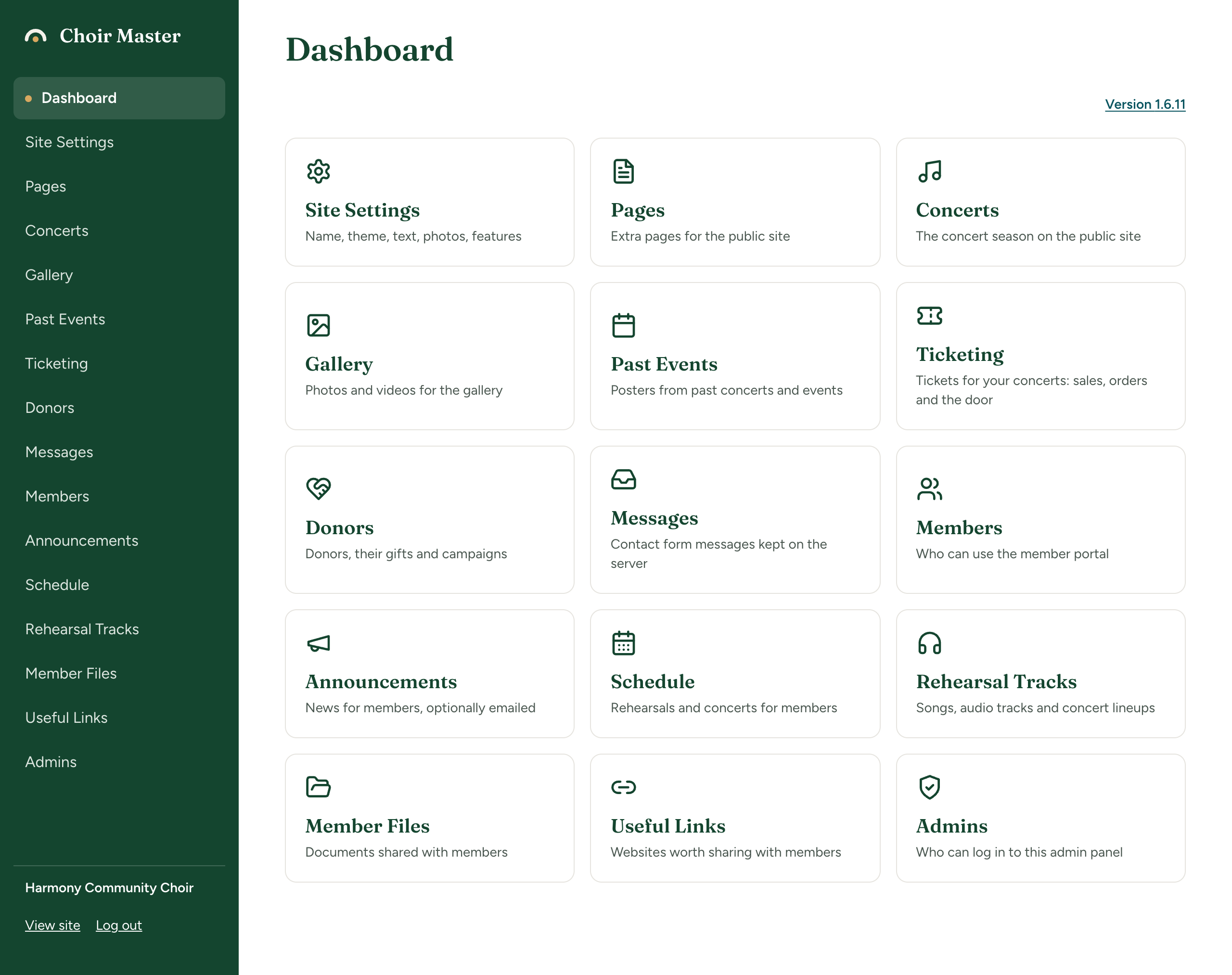
The dashboard is the first page you see after logging in. It has a tile for every part of the admin panel you can use, and it is where the site tells you anything you need to know. This page is for every admin.
Its address is your site's address followed by /admin/dashboard. Going to /admin takes you there too. From any other admin page, press Dashboard at the top of the menu.
On a site that has not been set up yet, a Site Admin or an Admin who opens the dashboard is taken to the guided setup first. See Set up your site step by step. A Manager always goes straight to the dashboard.
The tiles
Each tile has a picture, a name and one line saying what it is for. Press a tile to open that page. The tiles are the same as the items in the menu, in the same order, so you can use either.
| Tile | What the tile says |
|---|---|
| Site Settings | Name, theme, text, photos, features |
| Pages | Extra pages for the public site |
| Concerts | The concert season on the public site |
| Gallery | Photos and videos for the gallery |
| Past Events | Posters from past concerts and events |
| Ticketing | Tickets for your concerts: sales, orders and the door |
| Donors | Donors, their gifts and campaigns |
| Messages | Contact form messages kept on the server |
| Members | Who can use the member portal |
| Announcements | News for members, optionally emailed |
| Schedule | Rehearsals and concerts for members |
| Rehearsal Tracks | Songs, audio tracks and concert lineups |
| Member Files | Documents shared with members |
| Useful Links | Websites worth sharing with members |
| Admins | Who can log in to this admin panel |
| Send announcements from your own address |
You see only the tiles for features that are switched on, that your plan includes and that your kind of admin may use. A tour of the admin panel explains why one may be missing, and links to the guide for each page.
Notices above the tiles
Up to three things can appear above the tiles. Most days there is none.
"This site is paused"
"This site is on the Free plan"
"Version X is available"
A site we host never shows this card. We install new versions for you.
Which version your site is running
Above the tiles, at the right, is a small link reading Version followed by a number, such as Version 1.6.12. That is the version your site is running. Press it to open the Updates page. Updates is not in the menu: this link, and the buttons on the card described above, are the ways to reach it.
Only a Site Admin or an Admin sees the version link.