Add, change, disable or remove members
The Members page of the admin panel is the list of people who can use the member portal. Being on it, and Active, is what lets a singer log in. Every admin can use this page, including a Manager.
To add many people at once, see Import your member list.
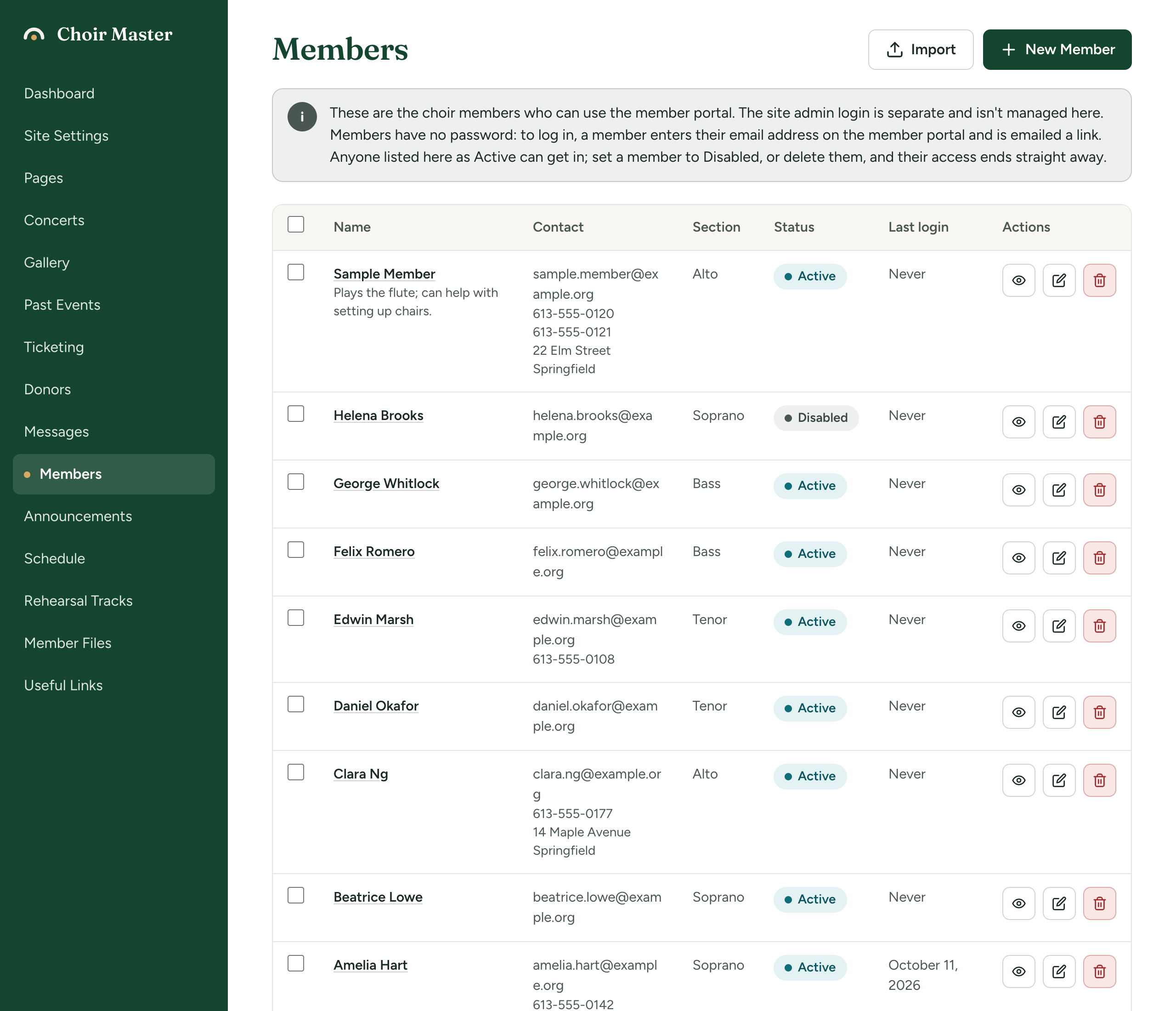
The note at the top of the page is a reminder of how it works: members have no password, the admin login is separate and is not managed here, and anyone listed as Active can get in.
Add a member
- In the admin panel, open Members.
- Press New Member.
- Fill in the form. Only Email is needed.
- Press Add Member.
The new member is Active straight away. Nothing is emailed to them: tell them the portal is ready, and send them How members log in.
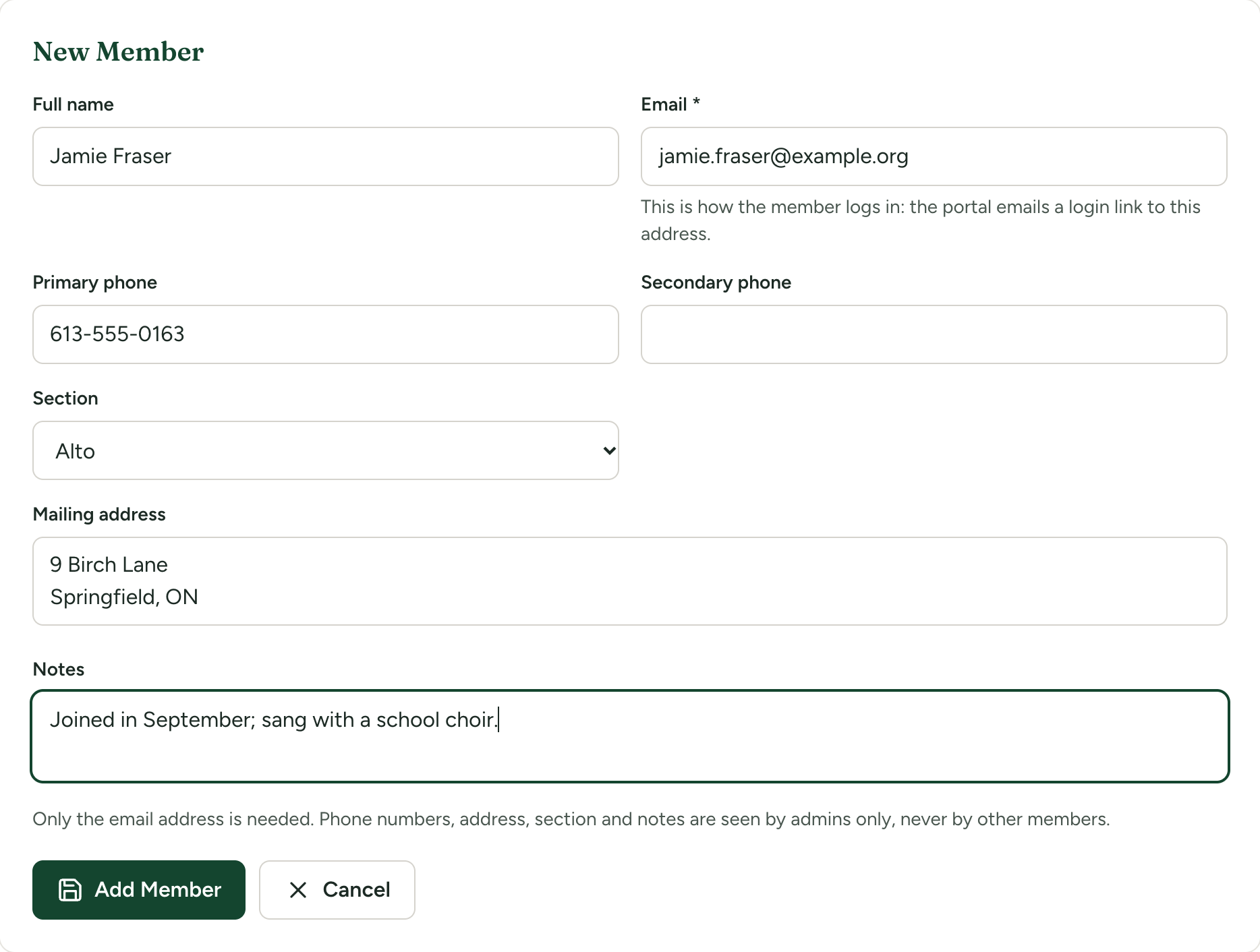
| Box | What it is for | Limit |
|---|---|---|
| Full name | The member's name. Shown in the portal's greeting and at the top of its pages. | |
| Required. This is how the member logs in: the portal emails a login link to this address. No two members can have the same address. | Must be a valid address | |
| Primary phone | For your records. | 40 characters |
| Secondary phone | For your records. | 40 characters |
| Section | The voice part the member sings: one of your voice parts, or Not set. | 60 characters |
| Mailing address | For your records. May run over several lines. | 500 characters |
| Notes | Anything you want to remember about this member. Admins only, always. |
Text longer than a limit is cut off at the limit when you save.
Who sees these details
Admins see everything. Members see nothing about one another unless you switch on the member list. If you do, they see names, and whichever of section, email address, phones and mailing address you choose to share. Notes are never shown to members. See Let members see who else is in the choir.
Read the list
The newest member is at the top.
| Column | What it shows |
|---|---|
| Tick box | Selects the member for the actions on several at once (below). The box in the heading selects everyone. |
| Name | The member's name, with your notes under it. Press the name to see all their details. A dash means no name was given. |
| Contact | Email address, then any phone numbers and mailing address. |
| Section | Their voice part, or a dash. |
| Status | Active or Disabled. |
| Last login | The date they last logged in to the portal, or Never. |
| Actions | The eye opens the member's details, the pencil edits, the bin deletes. |
See a member's details
Press the member's name, or the eye in their row. A panel opens at the top of the page with everything on file: Email, Primary phone, Secondary phone, Section, Mailing address, Last login, Member since, Announcements by email and Notes. Anything empty reads "Not given".
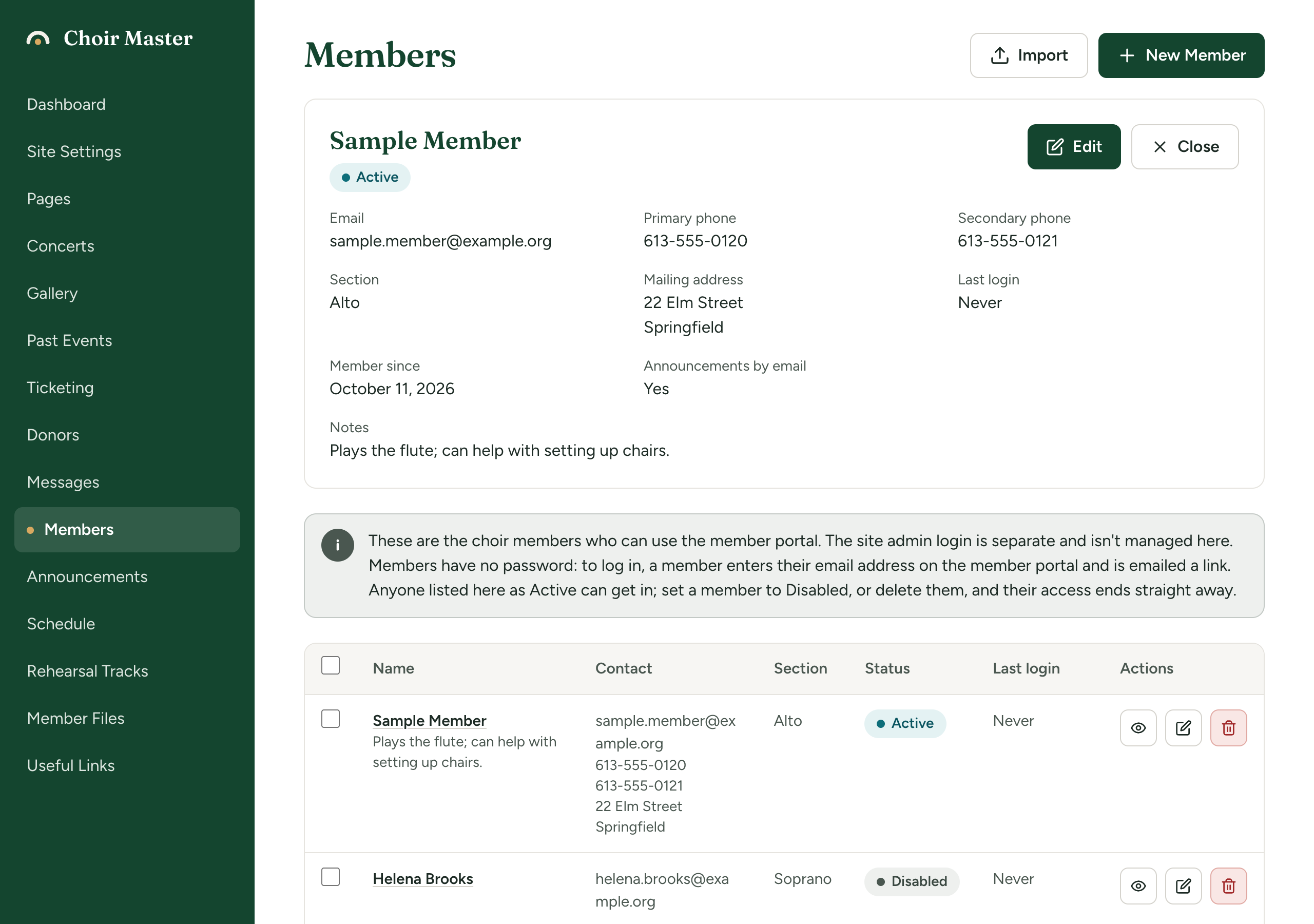
Announcements by email says whether this member is sent your announcements by email:
- Yes: they are.
- No: this member has turned them off: they have chosen not to be. They still see every announcement in the portal.
This is the member's own choice and you cannot change it here or anywhere else. See How people stop your emails.
Press Edit to change the member, or Close to shut the panel.
Change a member
- Press the pencil in the member's row, or Edit in their details panel.
- Change what you need and press Save Changes.
When you edit a member there is one more box, Status, with Active and Disabled.
Saving a member cancels any login link already sent to them and not yet used. If they were about to log in, they need to ask for a new link.
A member's choice not to be emailed announcements is kept against their email address. If you change the address, the new address has made no such choice and is emailed again. See How people stop your emails.
Stop a member's access without deleting them
Set Status to Disabled and press Save Changes. Use this for someone taking a term off, when you want to keep their details.
A disabled member:
- is logged out straight away, on every device, the next time they open a portal page;
- cannot get a login link. The login page answers them as it answers anyone, and no email is sent;
- is not emailed announcements;
- is not shown in the member list in the portal.
Set them back to Active and they can log in again.
Delete a member
- Press the bin in the member's row.
- The question is "Delete" followed by their name (or their email address, if there is no name) and a question mark, with the note "They lose access to the member portal straight away." Press Delete.
The member and their phone numbers, address and section are removed, and they are logged out at once. This cannot be undone, but you can add them again.
Change several members at once
Tick the box in each member's row, or the box in the heading to select everyone. A bar appears above the table saying how many are selected.
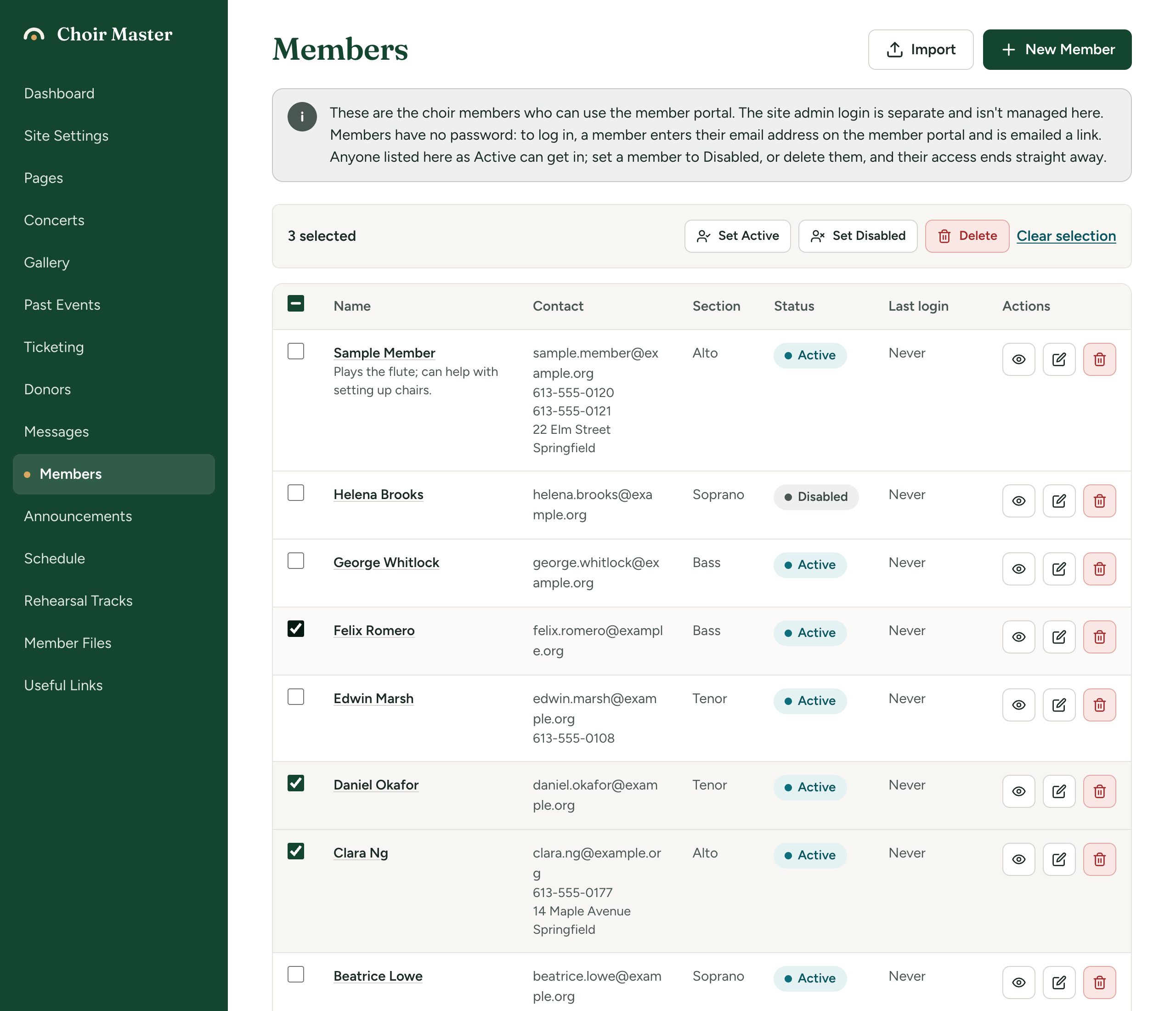
| Button | What it does |
|---|---|
| Set Active | Makes every selected member Active. |
| Set Disabled | Makes every selected member Disabled. Their access ends straight away. |
| Delete | Deletes every selected member, after asking. The question says how many, and "They will lose access to the member portal straight away. This cannot be undone." The button to confirm reads, for example, Delete 3 members. |
| Clear selection | Unticks everyone. |
Up to 500 members can be changed at once. Any login link already sent to those members is cancelled.
If something goes wrong
| Message | What it means |
|---|---|
| Email is required | The Email box is empty. |
| Enter a valid email address | The address is not in the form name@example.org. |
| A member with that email address already exists | Someone on the list already has this address. Capital letters make no difference. Edit the existing member instead. |
| Too many members selected: ... Choose at most 500. | Untick some, do those, then do the rest. |
| Error updating members. Nothing was changed. | The change to several members failed as a whole. Try again. |