Share useful links
Useful Links is a list of websites you want your singers to find easily: a pronunciation guide, a site with practice tracks, your uniform supplier, the shared calendar. Members see the list on the Links page of the portal. You need Member portal: useful links switched on in Features.
Add a link
- In the admin panel, open Useful Links.
- Press New Link.
- Fill in the form (below).
- Press Add Link.
| Box | What it is for |
|---|---|
| Title | Required. The words members press, such as "Practice tracks for Messiah". |
| Web address | Required. Where the link goes. |
| Description | One line on what it is for. Optional. |
| Visible to members | Ticked: members see it. Unticked: only admins do. Ticked for a new link. |
A new link goes to the bottom of the list.
What to type as the web address
- Paste the address from your browser's address bar, such as
https://www.example.org/practice. - If you leave off the
https://at the front, it is added for you:example.orgbecomeshttps://example.org/. - Addresses starting
http://,https://ormailto:are accepted. Nothing else is.
Add an email address as a link
Type mailto: followed by the address, with no space: mailto:librarian@example.org. Members who press it get a new email addressed to that person.
Type the mailto: yourself. An email address typed alone is taken for a web address and saved as a link that does not work.
Put the links in order
Each link has an up arrow and a down arrow at its left. Press one to move the link a place. The new order is saved at once, and is the order members see.
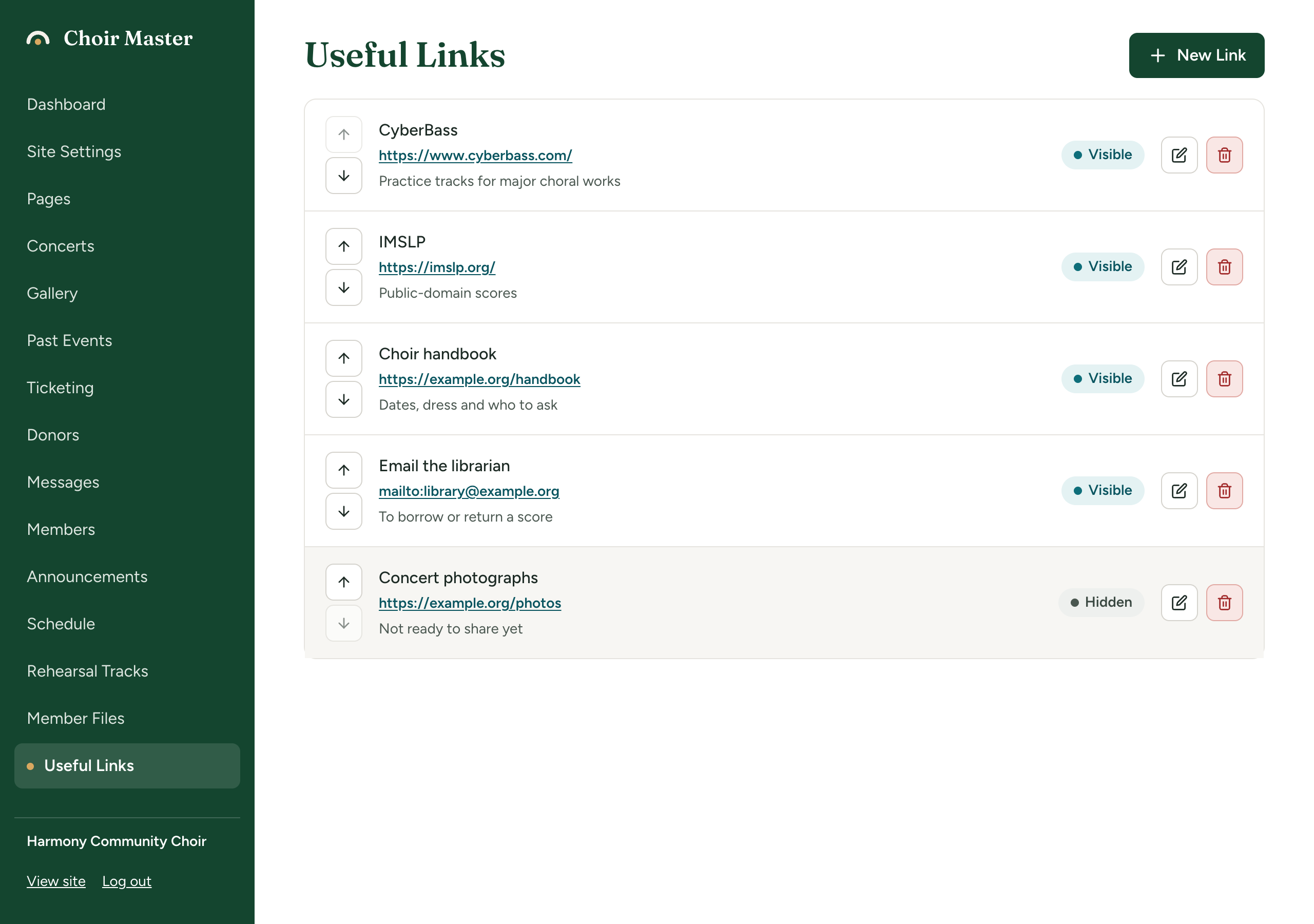
The order can be changed while you have up to 40 links, counting hidden ones. With more than 40, moving a link fails with "Too many links to reorder at once (40 at most)". Delete some links you no longer need, and the arrows work again.
Change, hide or delete a link
To change a link, press its pencil. The form opens headed Edit Link. Make your changes and press Save Changes.
To hide a link, edit it, untick Visible to members and save. It stays in your list, shaded and marked Hidden, and members do not see it.
To delete a link, press its bin and confirm with Delete.
To check a link works, press its address in your list. It opens in a new tab.
What members see
The portal's Links page, headed Useful Links, shows the visible links in your order. Each row shows the title, your description, and the name of the website it goes to. The whole row is the link. Websites open in a new tab; an email link opens the member's mail program and shows the address it writes to.
See A tour of the member portal.
If something goes wrong
| Message | What to do |
|---|---|
| A title is required | Fill in Title. |
| Enter a web address, such as https://example.com | Web address is empty, has a space in it, or starts with something other than http://, https:// or mailto:. |
| Too many links to reorder at once (40 at most) | See Put the links in order. |
| Could not save the new order | The change did not reach the site. The list goes back to the saved order; try again. |