Add, change or remove an admin
The Admins page lists everyone who can log in to the admin panel, and lets a Site Admin add, change and remove them. This page is for a Site Admin, and for an Admin who wants to see who else has access.
Admins are separate from choir members. To let a singer into the member portal, see Add, change, disable or remove members.
Who can use the Admins page
| Kind of admin | What they can do here |
|---|---|
| Site Admin | See the list, and add, change, disable and delete admins. |
| Admin | See the list. Nothing can be changed. |
| Manager | Nothing. Admins is not in their menu. |
See The three kinds of admin for what each kind may do elsewhere.
The list of admins
Go to Admins in the menu.
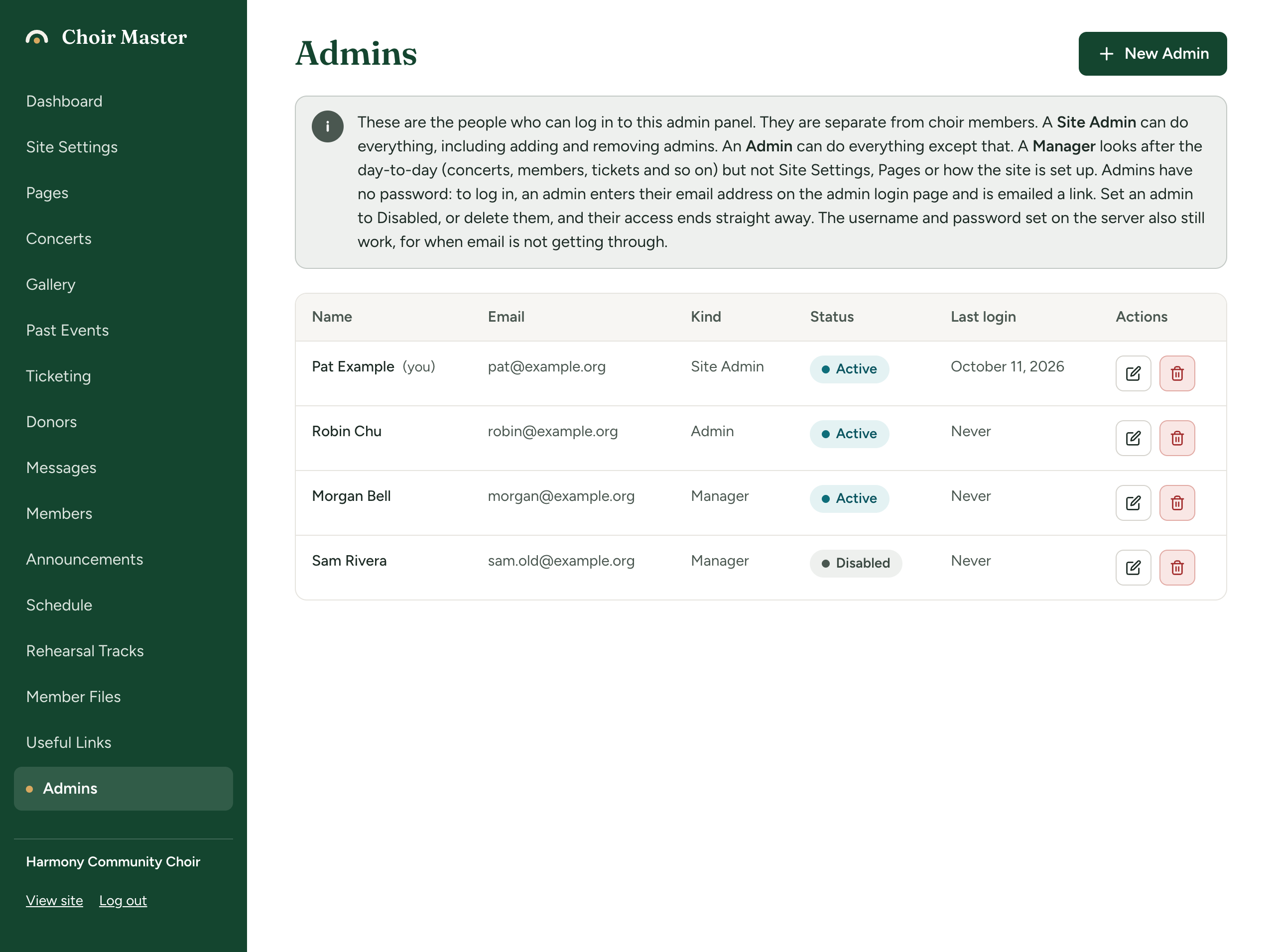
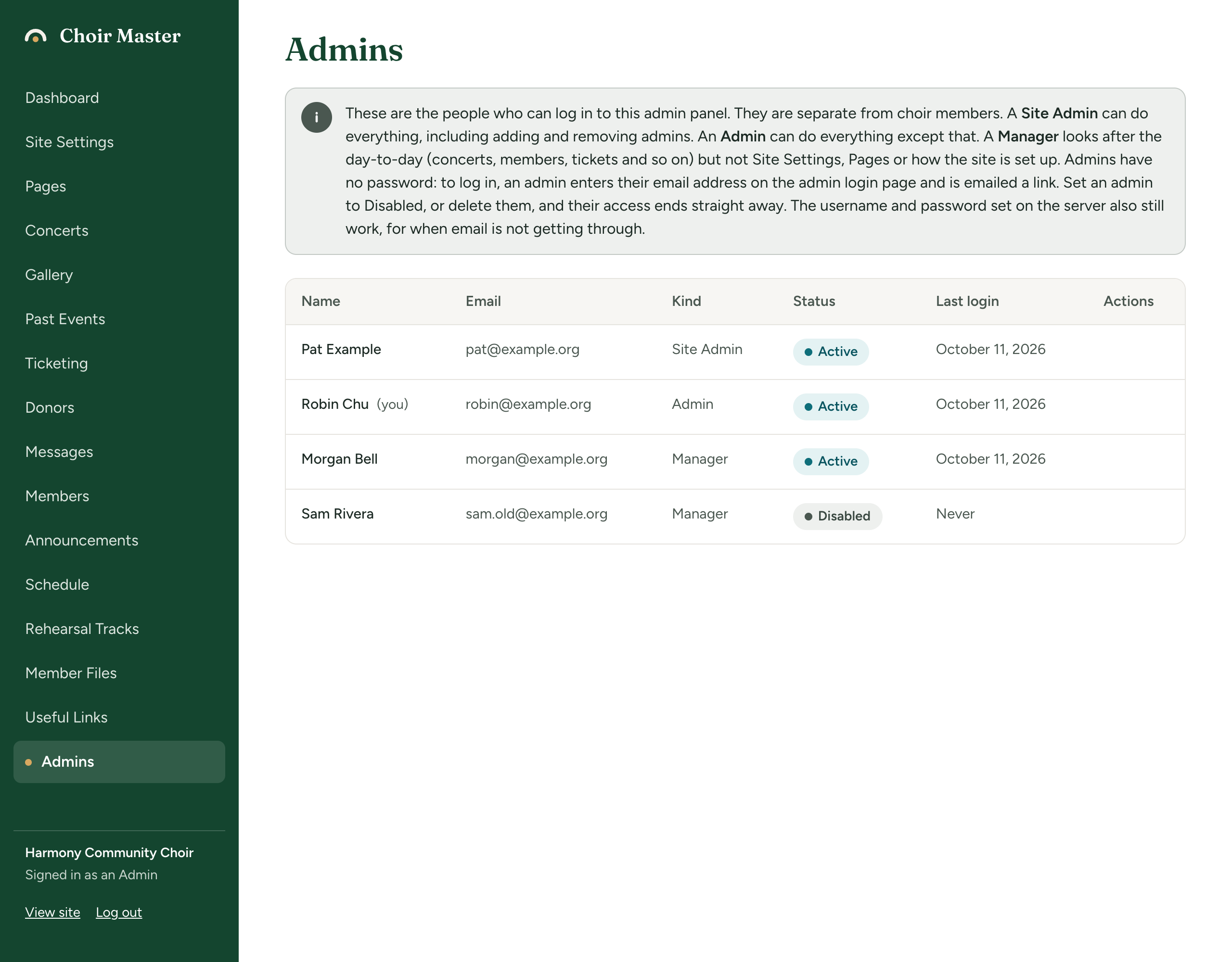
A grey note at the top explains the three kinds and how admins log in. Below it is a table:
| Column | What it shows |
|---|---|
| Name | The admin's full name, or a dash if none was given. Your own row has (you) after it. |
| The address their login links are sent to. | |
| Kind | Site Admin, Admin or Manager. |
| Status | Active, or Disabled for someone who is on the list but cannot log in. |
| Last login | When they last logged in, or Never. |
| Actions | Buttons to edit and delete. Only a Site Admin has them. |
Add an admin
-
Go to Admins.
-
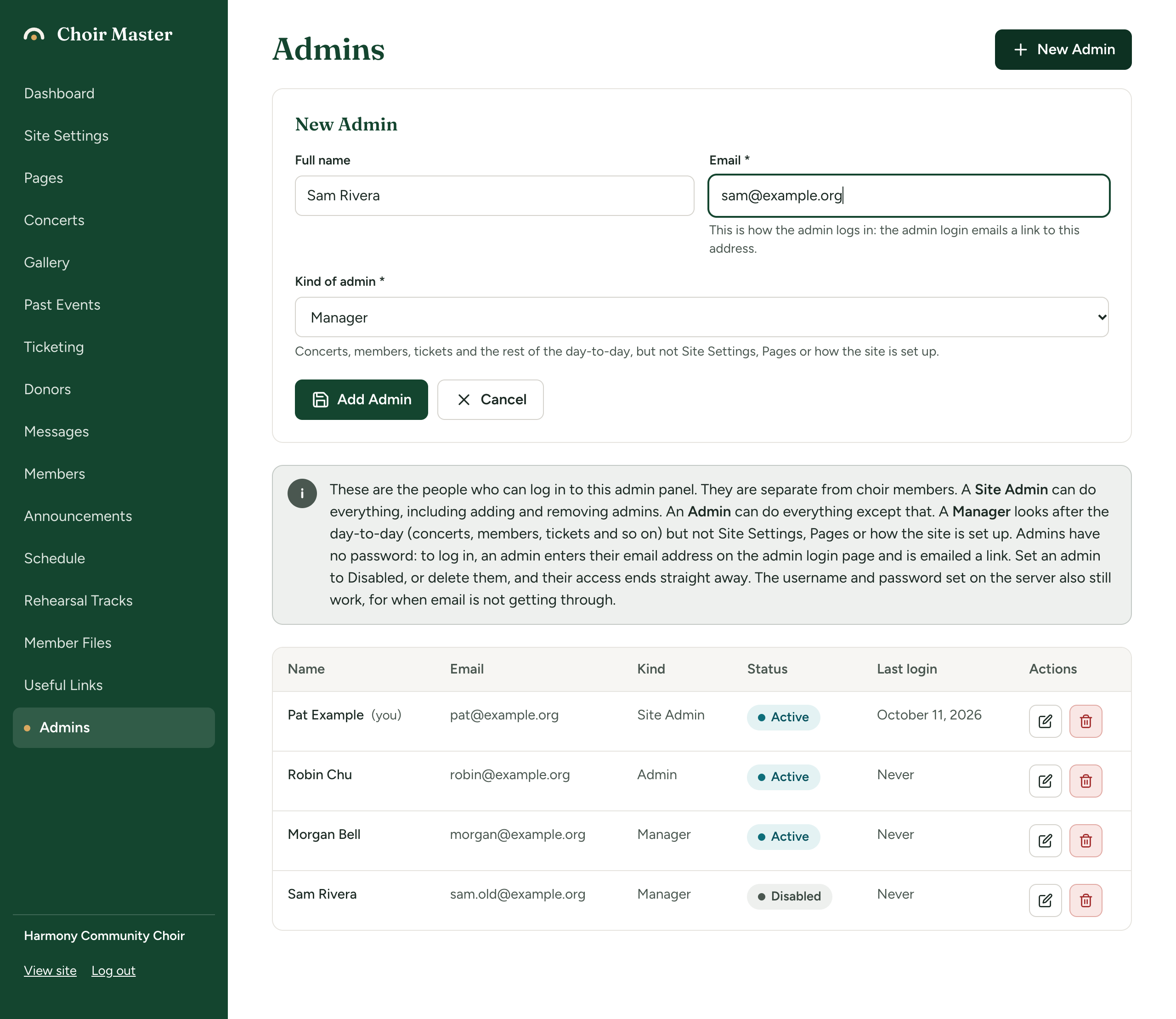
Press New Admin at the top right.
-
Fill in the form:
Box Required What to enter Full name No The person's name, so that you can recognise them in the list. Email * Yes The address they will log in with. The admin login emails a link to this address. Kind of admin * Yes Site Admin, Admin or Manager. Nothing is chosen for you. -
Press Add Admin.
When you choose a kind, a line under the box says what that kind may do.
Adding an admin does not email them. Tell the person yourself: give them your site's address followed by /admin, and ask them to type their email address there and press Email me a login link. Log in to the admin panel explains it for them.
Admins have no password. Each time they log in, they are emailed a new link.
Change an admin's name, email address or kind
- Go to Admins.
- Press the pencil button on the person's row. The row turns into boxes.
- Change the name, the email address, the kind or the status.
- Press the save button on the row. To leave things as they were, press the cross.
The change takes effect straight away: a change of kind applies on that person's next click, with no need to log in again. Saving any change also cancels every login link already sent to that person, so if they were in the middle of logging in they should ask for a new link.
Stop someone logging in without deleting them
Use this for someone who is stepping back for a while, or when you want to keep the record of who had access.
- Press the pencil button on the person's row.
- Change Status from Active to Disabled.
- Press the save button.
They are logged out at once, wherever they are, and can no longer be sent login links. To let them back in, set the status to Active again.
Delete an admin
- Press the bin button on the person's row.
- A box asks you to confirm, naming the person, with They lose access to the admin panel straight away. Press Delete.
They are logged out at once and removed from the list. Nothing they did on the site is removed. If they need access again later, add them again.
If you delete your own row, the box asks Delete your own admin account? and warns that you will be logged out straight away and will not be able to log in again.
Hand the site to a new webmaster
Do these in order, so that the site is never left without a Site Admin.
- Add the new person with Site Admin as their kind.
- Ask them to log in, and wait until they have. Their Last login changes from Never to a date, which proves that email reaches them.
- Ask them to check that they can open Admins.
- Then either change your own kind to Admin or Manager if you are staying on to help, or delete your own row if you are leaving.
If something goes wrong
These messages appear in red at the top of the page or of the form.
| Message | What it means | What to do |
|---|---|---|
| This is the only active admin. Add another admin first, or nobody could log in. | You tried to disable or delete the last admin who can log in. | Add another admin first, and have them log in. |
| This is the only Site Admin. Make someone else a Site Admin first, or nobody could manage the admins. | You tried to disable, delete or change the kind of the last active Site Admin. | Make someone else a Site Admin first. |
| An admin with that email address already exists | That address is already on the list, perhaps as a Disabled admin. Capital letters make no difference. | Edit the existing row instead of adding a new one. |
| Choose what kind of admin this is | Kind of admin was left at Choose one... | Choose a kind. |
| Email is required | The email box is empty. | Enter an address. |
| Enter a valid email address | What was typed is not an email address. | Correct it. |
| Admin not found | Someone else deleted that admin while you had the page open. | Reload the page. |
| Your admin account does not include this. Ask a Site Admin if you need it. | Your own kind was changed while you had the page open. | Reload the page, and ask a Site Admin. |
If a new admin says no login link arrives, see The email does not arrive.