Tickets: how it works
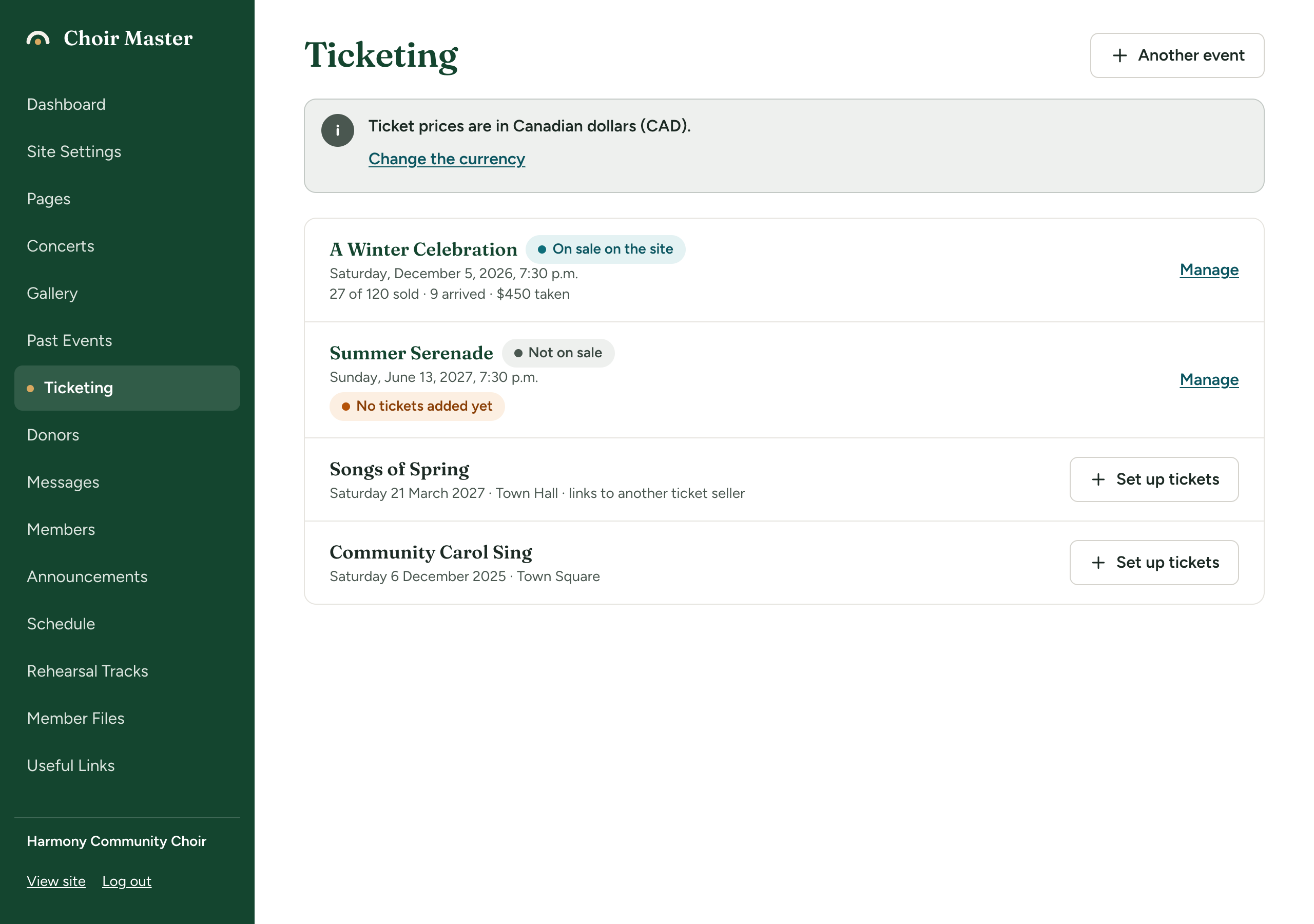
Your site can handle concert tickets in two ways. Read this page first to decide which suits your choir and to check that the right switches are on.
Two ways to handle tickets
| Sell on your own site | Link to another ticket seller | |
|---|---|---|
| Where people order | On your Tickets page, in an order form | On the other seller's website |
| What you set up | Tickets for each concert, in Ticketing in the admin panel | A Ticket link on each concert, in Concerts |
| Who keeps the list of buyers | Your site | The other seller |
| Check-in at the door | On your phone, from the admin panel | Whatever the other seller offers |
You can mix the two: sell one concert on your site and link another to an outside seller. A concert that is on sale on your site gets an order form at the top of the Tickets page; every other concert is listed underneath with its link.
If you only ever use another seller, see Use another ticket seller.
What selling on your site gives you
- Ticket types for each concert, such as Adult, Student and a free child ticket, each with its own price and an optional limit. See Add ticket types and prices.
- An order form on your Tickets page. See What buying a ticket looks like.
- Tickets by email. Each buyer is emailed a private link to a page with their tickets, each with its own code and a QR code (a square pattern a phone camera can read).
- Orders you can search, cancel and download as a spreadsheet. See Find an order and download the list.
- Sales you record yourself: at the door, over the phone, held for someone, or given away. See Sell, hold or give tickets yourself.
- Check-in at the door by code, by camera or by name. See Check people in at the door.
- Email to ticket holders of one concert. See Email a concert's ticket holders.
What has to be switched on
Three switches in Site Settings → Features matter. All three are on when a site is new.
| Switch | What it does |
|---|---|
| Concerts section and ticket links | Shows your concerts on the public site. The Tickets page needs it too. |
| Tickets page | Adds the Tickets page and its menu item. It only appears while Concerts section and ticket links is also on. |
| Sell tickets on this site | Adds Ticketing to the admin panel and the order form to the Tickets page. |
See Switch pages and features on or off for how to change them.
How people pay
| A site we host | A self-hosted site | |
|---|---|---|
| Free tickets | Yes | Yes |
| Reserve on the site, pay on arrival | Yes, for each concert where you allow it | Yes, for each concert where you allow it |
| Pay by card on the site | Yes, once you have connected a Stripe account | No |
| Sales you record yourself (cash, cheque and so on) | Yes | Yes |
Before you start
Check two settings in Site Settings → Choir. See Your choir's name, place, currency and time zone.
- Currency. Every ticket price is in this currency. A new site is set to Canadian dollars. The Ticketing page shows the currency at the top and lets you change it there as well.
- Time zone. Ticket sales for a concert stop by themselves at the end of the concert's day where your choir is. A new site is set to Eastern (Toronto).
Who can do what
Any admin can use Ticketing, including a Manager. Changing the wording of the Tickets page or the Features switches needs a Site Admin or an Admin, because those are in Site Settings. See The three kinds of admin.
Pages in this section
- Your Tickets page: the wording of the public page, and using another ticket seller.
- Set up tickets for a concert: the date, the number of places, and when sales open and close.
- Add ticket types and prices
- What buying a ticket looks like: the public side, and taking cards.
- Sell, hold or give tickets yourself
- Find an order and download the list
- Cancel an order or give a refund
- Check people in at the door
- Email a concert's ticket holders