Post an announcement
An announcement is a piece of news for your members: a change of venue, what to bring next week, a thank-you after a concert. It appears on the Home page of the member portal. You need Member portal: announcements switched on in Features.
Posting an announcement does not email anyone. It puts the announcement in the portal. Emailing it is a separate step you take afterwards: see Email an announcement to your members.
Post an announcement
- In the admin panel, open Announcements.
- Press New Announcement.
- Fill in the form (below).
- Press Post Announcement.
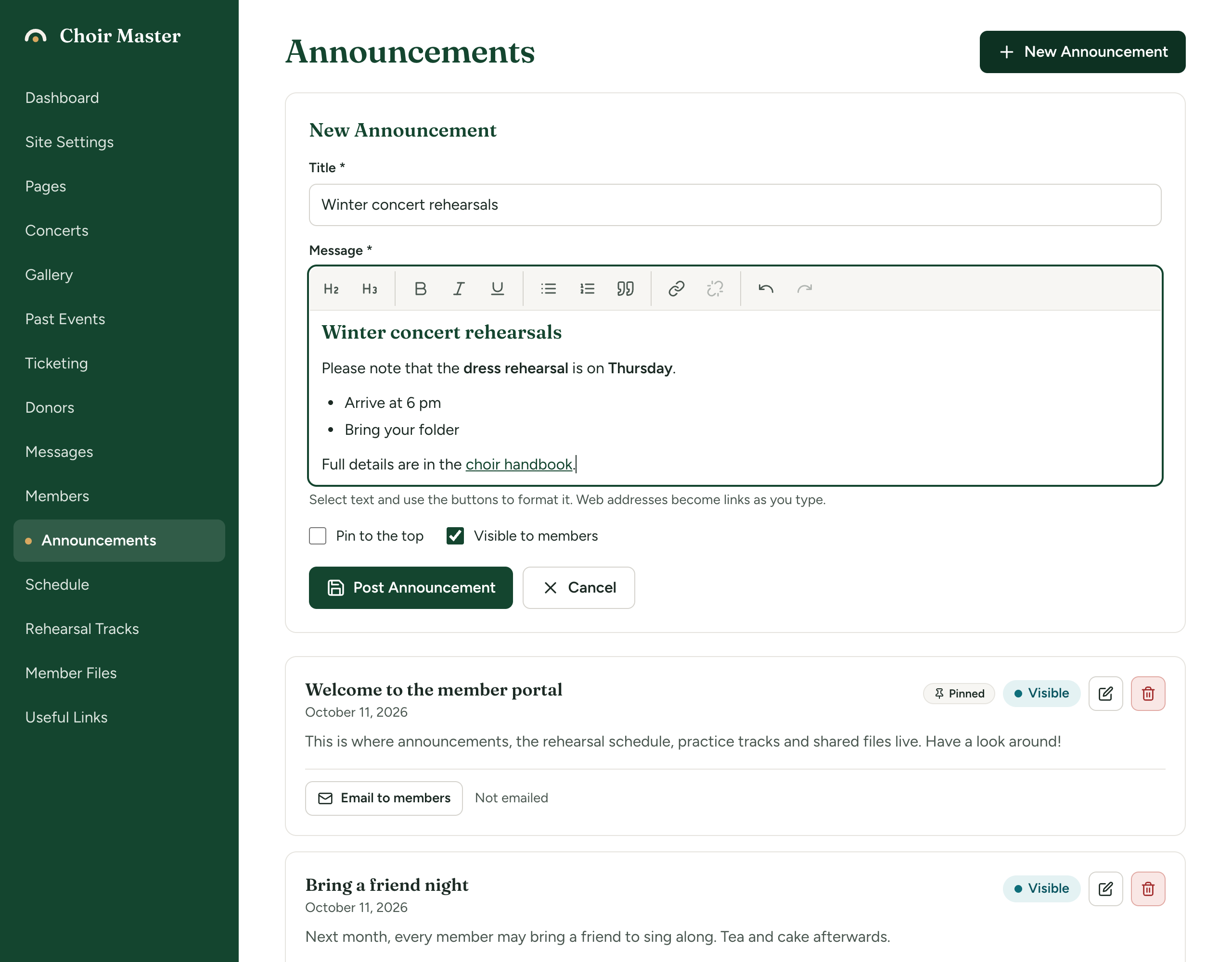
| Box | What it is for | Limit |
|---|---|---|
| Title | Required. The heading of the announcement, and the subject line if you email it. | 200 characters |
| Message | Required. What you want to say. It must contain some text. | About 50,000 characters, which is far more than any announcement needs |
| Pin to the top | Keeps this announcement above the others in the portal, however old it gets. Off unless you tick it. | |
| Visible to members | Ticked: members see it. Unticked: only admins do. Ticked for a new announcement. |
Format the message
Select some text and press a button above the message box. Web addresses turn into links as you type them.
| Button | What it does |
|---|---|
| Heading, Subheading | Makes the line a heading, in two sizes |
| Bold, Italic, Underline | Emphasis |
| Bulleted list, Numbered list | Lists |
| Quote | Sets a paragraph apart as a quotation |
| Link | Asks for a web address and makes the selected words a link to it. Type an email address to make a link that starts an email. |
| Remove link | Takes a link away and leaves the words |
| Undo, Redo | Steps back and forward through your changes |
That is everything an announcement can hold. Pictures, tables, colours and other fonts are not kept: if you paste from a word processor or a web page, the words and the formatting above come through, and the rest is removed when you save. Links open in a new tab.
For more on the editor, see Format text with the editor.
Where members see it
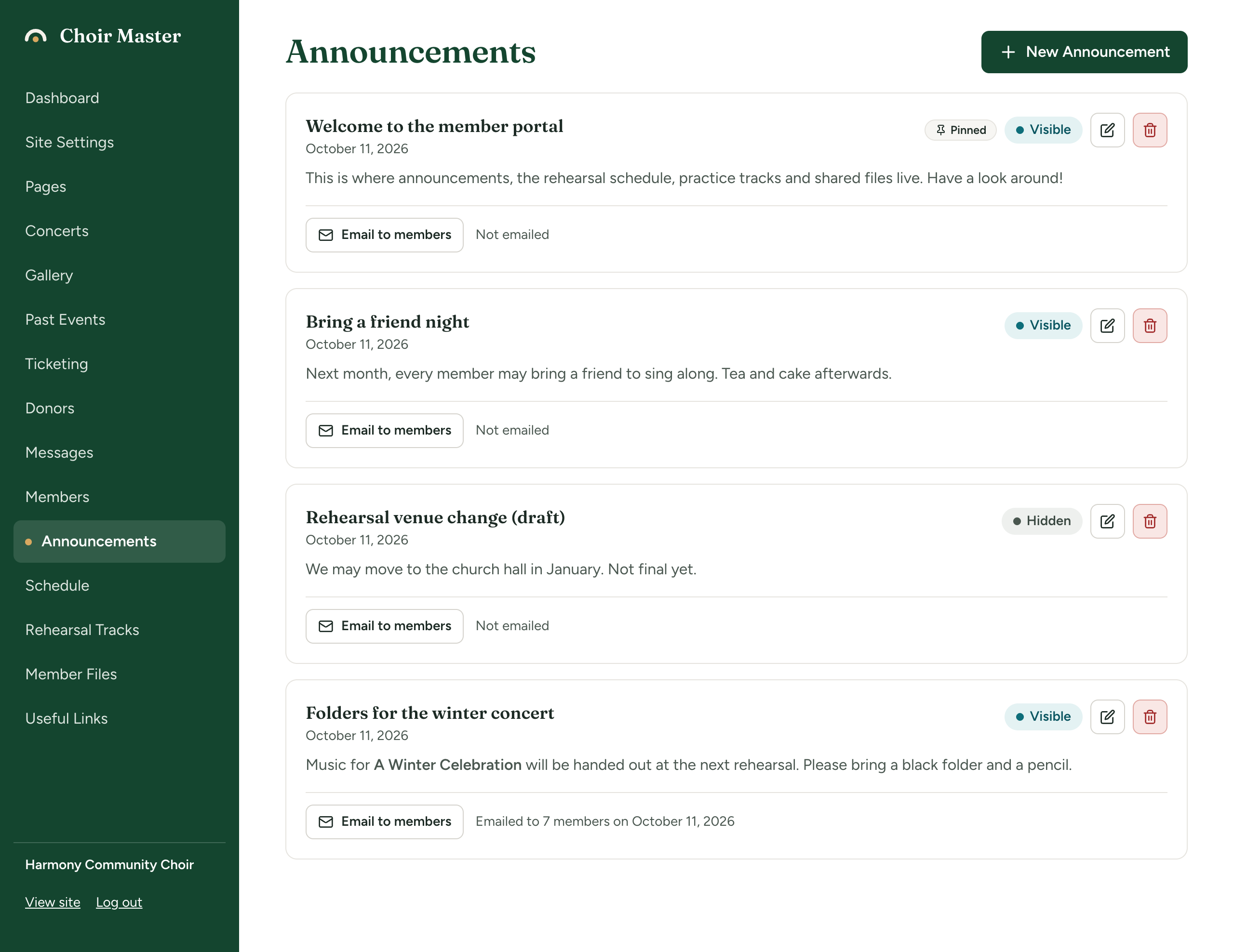
Announcements are on the Home page of the member portal, under the heading Announcements. Pinned announcements come first, then the rest with the newest at the top. A pinned announcement has a Pinned tag and a coloured edge. Each shows the date it was first posted.
All visible announcements are shown: old ones do not drop off by themselves. Hide or delete what is no longer needed.
Read the list
The Announcements page shows every announcement in the same order members see them, each with:
- the date it was posted;
- a Pinned tag, if it is pinned;
- Visible or Hidden. A hidden announcement is shaded;
- a pencil to edit and a bin to delete;
- a line saying whether it has been emailed, beside the Email to members button.
Change, hide or delete an announcement
To change one, press its pencil, make your changes and press Save Changes. The date members see stays the date it was first posted. Changing an announcement does not email it again.
To hide one, edit it, untick Visible to members and save. Members no longer see it; you still do. Use this to prepare an announcement before it is ready, or to take one down without losing it. A hidden announcement cannot be emailed.
To pin or unpin one, edit it and tick or untick Pin to the top.
To delete one, press its bin and confirm with Delete. This cannot be undone.
If something goes wrong
| Message | What to do |
|---|---|
| A title is required | Fill in Title. |
| The title is too long (200 characters at most) | Shorten it. |
| The announcement needs some text | The message is empty, or holds only blank lines. |
| The announcement is too long | Shorten the message, or put the detail in a document and share it as a file. |