Add a rehearsal or concert to the schedule
The schedule tells your members where to be and when: rehearsals, concerts, sectionals, the annual meeting. Members see it on the Schedule page of the portal, and the next three dates on its Home page. You need Member portal: schedule switched on in Features.
This page covers one-off events. For a rehearsal that happens every week, add it once: see Add your weekly rehearsal once.
It is separate from the Concerts on your public site and from Ticketing. Adding a concert here does not put it on your public site or on sale, and adding a public concert does not put it here. Members often need different details anyway, such as the call time. To announce a concert to the public, see Add a concert.
Add an event
- In the admin panel, open Schedule.
- Press New Event.
- Fill in the form (below).
- Press Add Event.
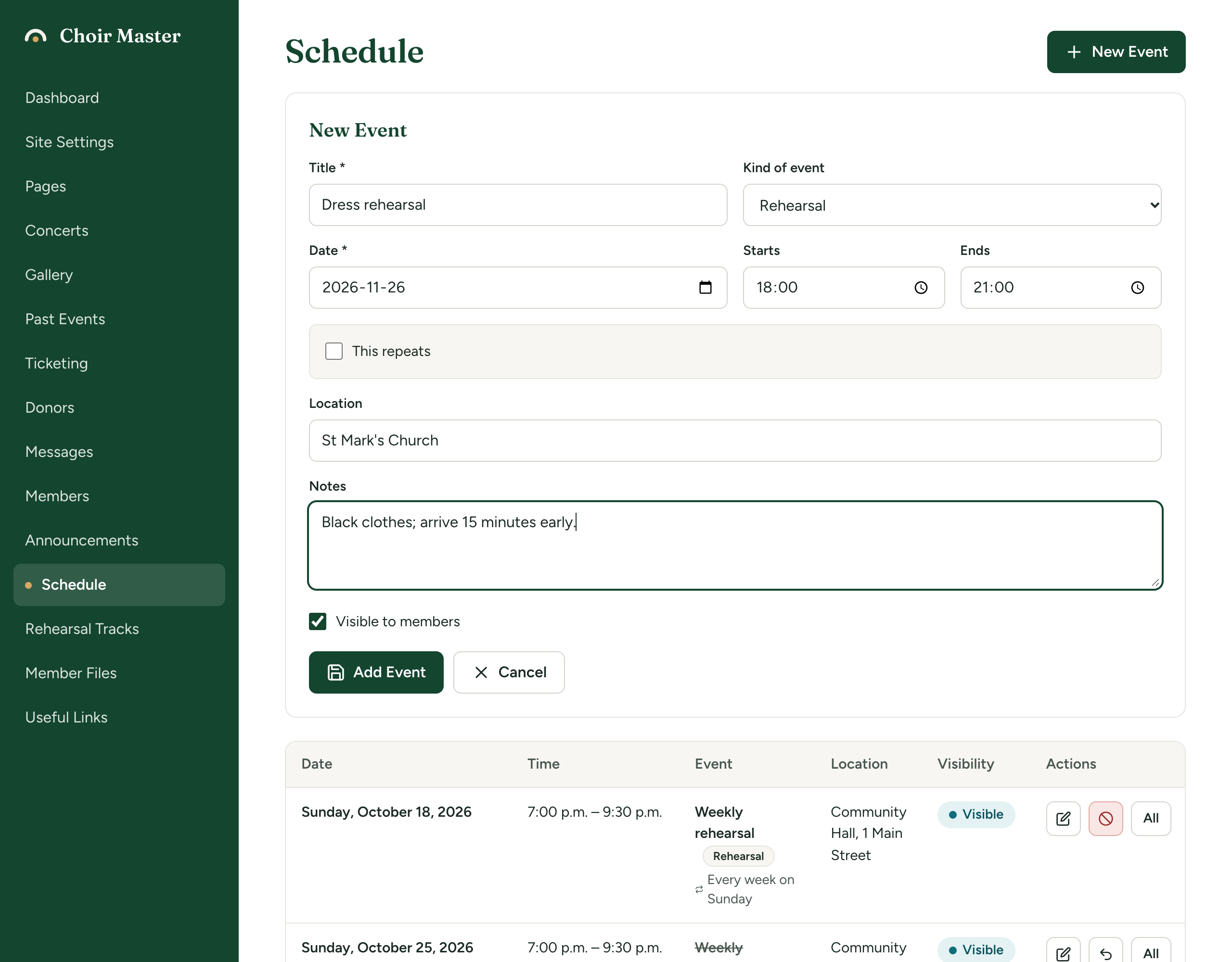
| Box | What it is for |
|---|---|
| Title | Required. What it is, such as "Dress rehearsal". |
| Kind of event | Rehearsal, Concert or Other. Shown to members as a tag on the event; Other is shown as "Event". Starts as Rehearsal. |
| Date | Required. |
| Starts | Optional start time. |
| Ends | Optional end time. It needs a start time and must be later than it, on the same day. |
| This repeats | Tick this to add the event every week, every two weeks or every month. See Add your weekly rehearsal once. |
| Location | Where it is, such as "Community Hall, 1 Main Street". |
| Notes | Anything else: what to bring, what will be rehearsed, the call time. A web address that starts http:// or https:// becomes a link for members. |
| Visible to members | Ticked: members see it. Unticked: only admins do. Ticked for a new event. |
Times are your choir's local time
Dates and times are kept exactly as you type them and shown exactly so to everyone. They are never adjusted for a time zone. Type 7:30 PM and every member sees 7:30 PM, wherever they are.
An event with no start time is listed after the timed events of the same day.
Read the schedule
The Schedule page lists what is coming, earliest first.
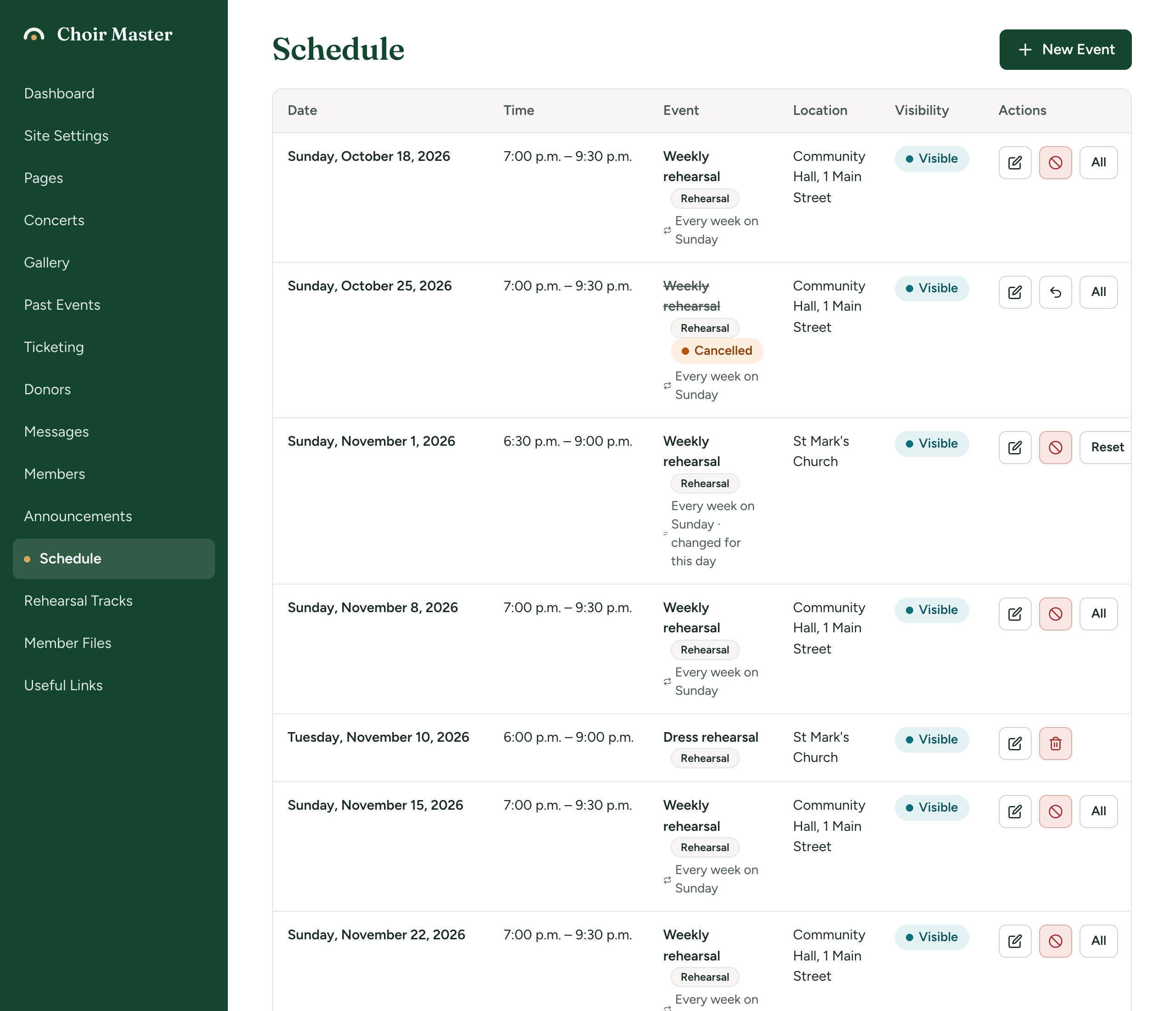
| Column | What it shows |
|---|---|
| Date | The day of the event. |
| Time | Start and end, or a dash if none was given. |
| Event | The title and its kind. A day of a repeating event has a line under it saying how it repeats. |
| Location | Where, or a dash. |
| Visibility | Visible or Hidden. |
| Actions | For a one-off event, a pencil to edit and a bin to delete. A day of a repeating event has its own buttons: see Cancel or change one rehearsal. |
Events before today are tucked away. Press Show past events under the table to list them, most recent first, on shaded rows; the link shows how many there are. Press Hide past events to put them away again.
Change or delete an event
To change a one-off event, press its pencil. The form opens headed Edit Event. Make your changes and press Save Changes.
To delete a one-off event, press its bin. The question names the event and its date. Press Delete. This cannot be undone.
An event you have already added cannot be turned into a repeating one. Add a new repeating event instead, and delete the one-off.
Hide an event while you are planning
Untick Visible to members and save. The event stays in your table, marked Hidden, and members do not see it. Tick the box again when the details are settled.
What members see
On the portal's Schedule page, coming events are grouped under a heading for each month. Each event shows its date in a coloured block, its title and kind, its times, its location and your notes.
Under the list, Show past events opens what has already happened, most recent first, so that someone can look back at last week's notes.
The portal's Home page shows the next three events under Coming up, with a Full schedule link.
An event stays among the coming events for the whole of its day.
See A tour of the member portal.
If something goes wrong
| Message | What to do |
|---|---|
| A title is required | Fill in Title. |
| Choose a valid date | Date is empty or is not a real date. |
| An end time needs a start time | Fill in Starts, or clear Ends. |
| The end time must be after the start time | Correct the times. An event cannot run past midnight: end it at 11:59 PM, or say so in the notes. |
| The start time is not valid / The end time is not valid | Type the time again, or pick it from the clock. |
| Event not found | Someone else deleted it while you had the page open. Reload the page. |