Add songs and upload rehearsal tracks
Rehearsal tracks are audio recordings your singers practise with: one for the sopranos, one for the altos, and so on. Members play or download them on the Rehearsal Tracks page of the portal. You need Member portal: rehearsal tracks switched on in Features.
How it is organised
There are three things, and it helps to know all three before you start.
| Thing | What it is |
|---|---|
| Song | One piece of music. Songs live in the Song Library and stay there from season to season. |
| Track | One audio file for a song, made for one voice part or for everyone. A song usually has several. |
| Lineup | One concert's set list: songs from the library, in running order. |
Members only hear songs that are in a published lineup. A song sitting in the library is yours alone until you put it in a lineup and publish that lineup. So there are two jobs:
- Add songs and upload their tracks. This page.
- Put the songs in a lineup and publish it. See Build a concert lineup and publish it.
You can do them in either order.
Before uploading, check your list of voice parts is right, because every track is filed under one. See Set up your sections and voice parts.
Add a song
- In the admin panel, open Rehearsal Tracks.
- Press the Song Library tab. The page opens on Concert Lineups; the number beside each tab is how many it holds.
- Press New Song.
- Fill in the form (below) and press Add Song.
| Box | What it is for |
|---|---|
| Title | Required. The name of the piece. |
| Composer or arranger | Shown to members under the title. Optional. |
| Notes for singers | Shown to members under the song: which edition, which bars to watch, where to breathe. A web address that starts http:// or https:// becomes a link for members. Optional. |
The new song opens, ready for its tracks.
Upload tracks
- In the Song Library, press a song to open it. A box at the top finds a song by title or composer.
- Press Choose audio files and pick the files for this song. You can pick several at once.
- Each file joins a list. For each one:
- check the voice part in the first box. The site makes a guess from the file's name; a box with a coloured edge, reading Voice part..., means it could not guess and you must choose;
- optionally type a label in the second box.
- To add more files to the list, press Add more files. To take one out, press the cross at its right.
- Press the upload button, which says how many it will upload, for example Upload 4 tracks.
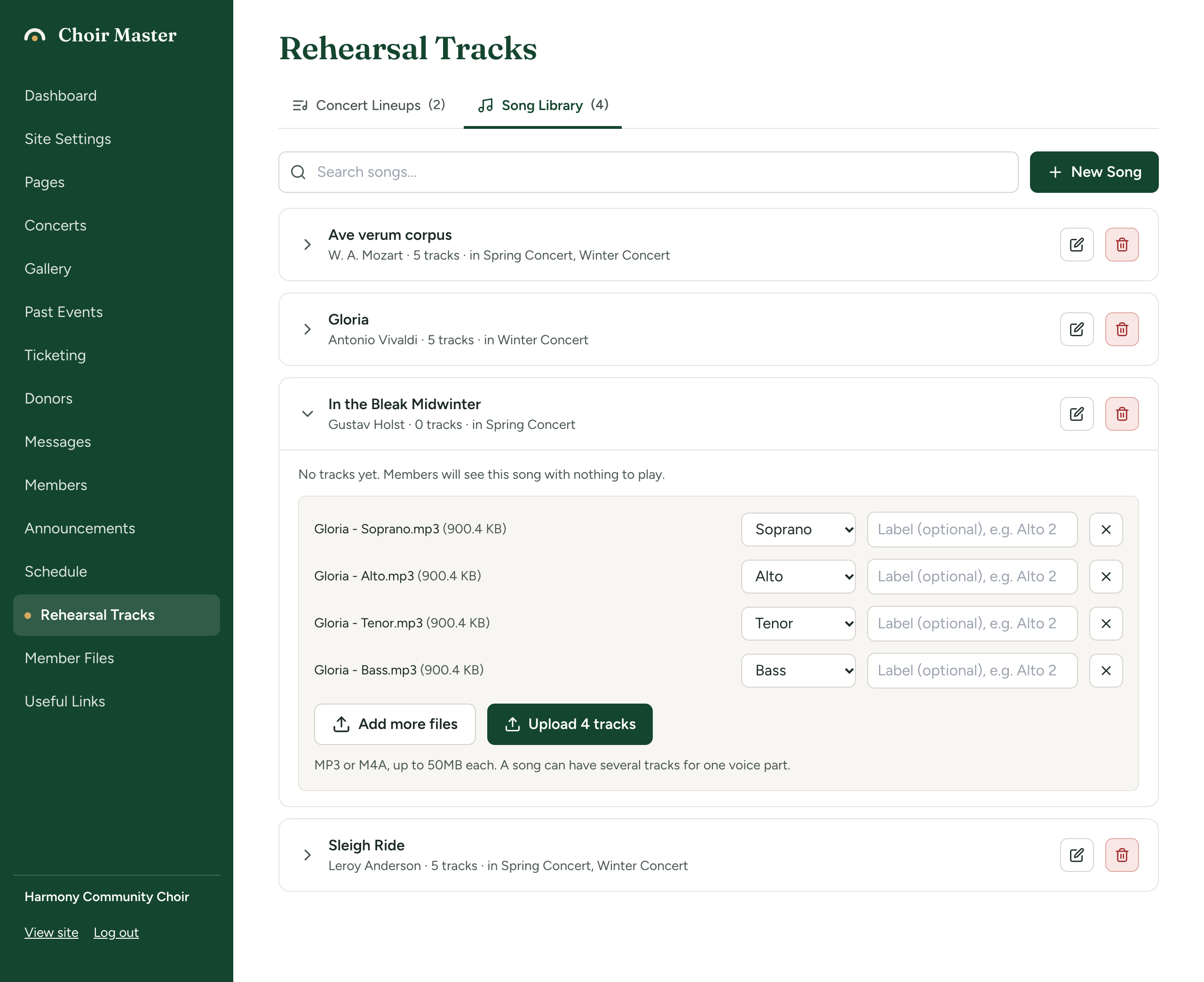
The files are uploaded one after another. Stay on the page until the list empties. A file that fails stays in the list with the reason under it, and the others are uploaded.
How the voice part is guessed
The site looks for whole words in the file name, so "Gloria - Alto.mp3" is taken as Alto.
| Words in the file name | Guessed as |
|---|---|
| sop, soprano, sopranos, s1, s2 | The part whose code is soprano |
| alt, alto, altos, a1, a2 | The part whose code is alto |
| ten, tenor, tenors, t1, t2 | The part whose code is tenor |
| bass, basses, bari, baritone, baritones, b1, b2 | The part whose code is bass |
| The code or the label of one of your own parts | That part |
| all, full, tutti, satb, choir, piano, accomp, accompaniment | All parts |
The guess is a starting point. Check every file before you upload, above all if you have changed the voice parts from the four a new site starts with: a file named for a part you have renamed or split is often left for you to choose.
All parts
Choose All parts for a track everyone uses: the full choir, the accompaniment alone, a recording of the whole piece. Members see these tracks whichever part they have chosen.
The label
A track is shown to members by the name of its voice part, such as "Alto". Type a label to show something else: "Alto 2", "Slow", "Bars 40 to 68". A song can have several tracks for one voice part, and the label is how members tell them apart.
Which audio files can be uploaded
| Accepted | MP3 (.mp3), M4A (.m4a), AAC (.aac), OGG (.ogg, .oga) |
| Refused | WAV, and everything else. WAV files are very large: convert them to MP3 or M4A first. Most audio programs, including the free Audacity, can export MP3. |
| Size | Up to 50 MB for each file |
MP3 is the safest choice: it plays on every phone and computer.
Look at a song
Each song in the library shows its composer, how many tracks it has, and which lineups it is in, or "not in a lineup". Press it to open it.
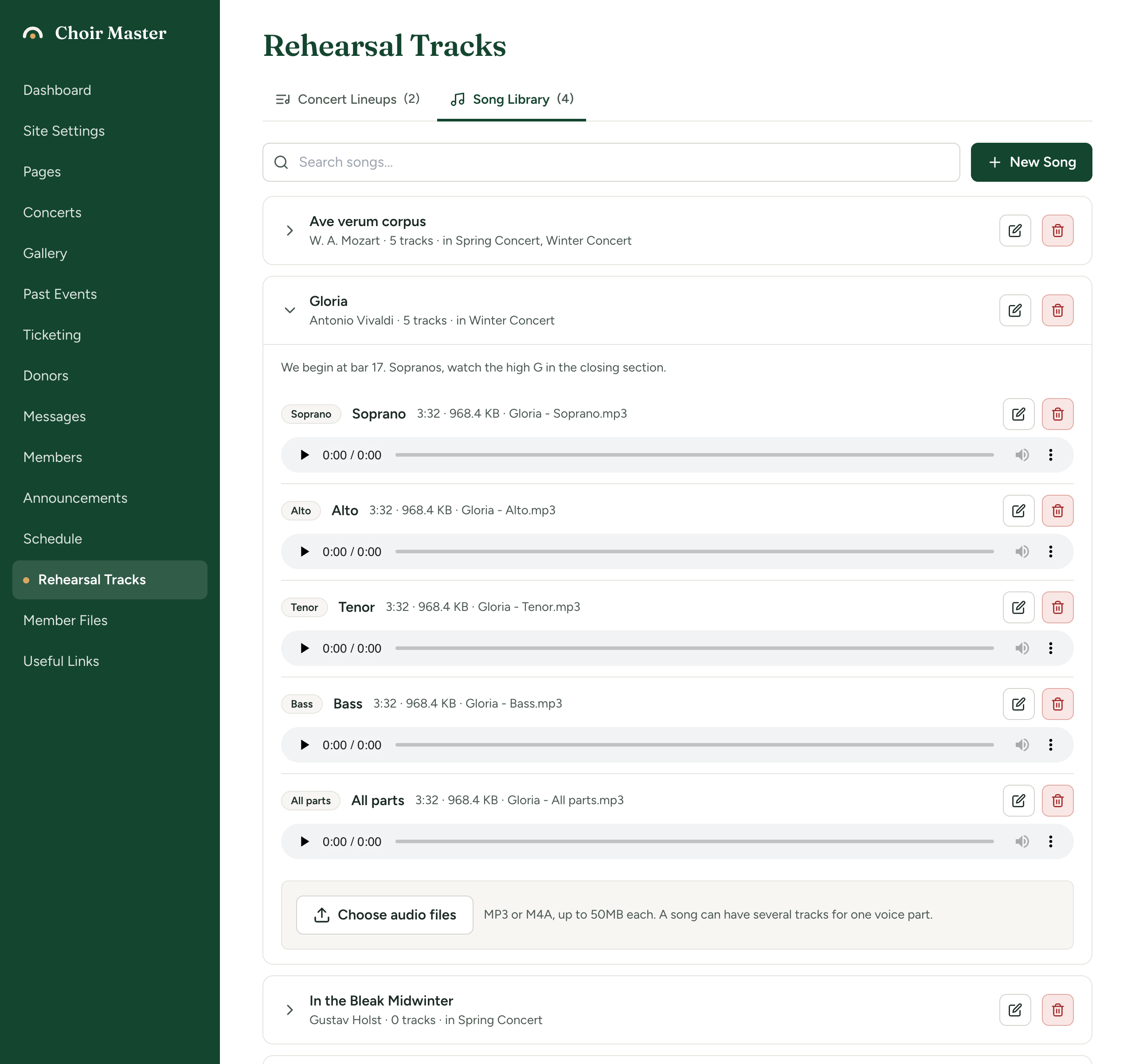
An open song lists its tracks in the order of your voice parts, with All parts last. Each track shows its part, its name, its length, its size and the name of the file, with a player so that you can check it is the right recording.
Change or delete a track
To change a track's voice part or label, press its pencil, choose the part or type the label, and press the save button beside it.
To delete a track, press its bin and confirm with Delete. The audio file is removed too.
A track's audio cannot be replaced. Delete the track and upload the new file.
Change or delete a song
To change a song's title, composer or notes, press the pencil on the song, make your changes and press Save Song.
To delete a song, press the bin on the song. The question names the song and says how many tracks go with it. Press Delete. The song and all its tracks are removed, and this cannot be undone.
A song that is in a lineup cannot be deleted. The message names the lineups: remove the song from each of them first. See Build a concert lineup and publish it.
If something goes wrong
| Message | What to do |
|---|---|
| Choose a voice part for each file first. | At least one file in the list still reads Voice part.... Choose its part. |
| That file type is not supported. Upload an MP3 or M4A (WAV files are too large; convert them first). | The file's name does not end in .mp3, .m4a, .aac, .ogg or .oga. Convert it. |
| File too large. Maximum size is 50MB. | The message gives the limit in force. Export the track again at a lower quality: for a rehearsal track, MP3 at 128 kbps is plenty. |
| That file is empty | The file has nothing in it. Export it again. |
| Choose which voice part the track is for | The track is filed under a part that is no longer on your list. Choose a current part. |
| Upload failed | The upload did not complete, often because the connection dropped. Press the upload button again; only the files still in the list are sent. |
| This song is in a lineup (...). Remove it from there first. | Take the song out of the lineups named, then delete it. |