Announcement emails: a member's choice
This page is written for members of a choir, with a note for admins at the end.
Your choir posts its announcements in the member portal, and may also send them to you by email. Whether you get the emails is your choice. The announcements themselves are always in the portal, whatever you choose.
Turn announcement emails off or on
- Log in to the member portal.
- On the Home page, scroll down to the card headed Email preferences.
- Tick or untick Email me the choir's announcements.
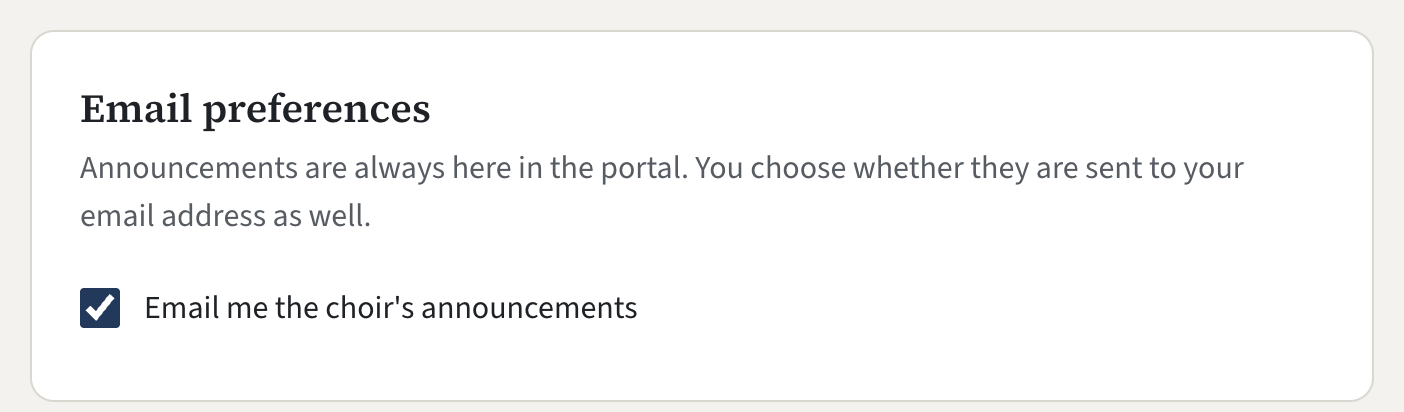
Your choice is saved the moment you change it. There is no save button. A message confirms it:
| You | The message |
|---|---|
| Ticked the box | Saved. Announcements will be emailed to you. |
| Unticked the box | Saved. Announcements will not be emailed to you; they are always here. |
You can change your mind as often as you like.
If you cannot find the card, your choir does not use announcements in its portal.
The link at the foot of an email
Every announcement email ends with a link, Stop receiving announcements by email. Pressing it opens a page that asks you to confirm, with the button Yes, stop sending them. You do not need to log in.
It is the same choice as the tick box. If you stop the emails with the link, the box in the portal is unticked the next time you look, and ticking it starts them again. The page you reach from the link also has Send them to me again, in case you pressed it by mistake.
What your choice covers
- It covers announcements only. The email with your login link is always sent when you ask for one.
- It goes with your email address. If the choir changes the address it has for you, the emails start again for the new address, and you can turn them off again in the same way.
- Your choir is told that you have stopped or restarted the emails, so that it knows who is and is not reached by email. It cannot change your choice for you.
If the box will not save, you see a red message such as "Your email preferences could not be saved". Reload the page and try once more.
For admins
- Where you see a member's choice. Open Members and press the member's name. Announcements by email reads Yes or No: this member has turned them off. The Email to members panel under an announcement also says how many active members are left out.
- Only the member can change it. There is no control for it in the admin panel. If a member asks you to turn the emails back on, point them to Email preferences on the portal's Home page.
- You are told when it changes. Your choir's contact address gets a short email each time a member stops or restarts the emails. Nothing needs doing.
- The card is shown only while Member portal: announcements is switched on in Site Settings, Features.
For the whole picture, including ticket buyers and donors, see How people stop your emails.