Import your member list
If your members are already in a spreadsheet, you can add them all in one go. You paste the list or choose a file, look at a preview of what will happen, and then import. Nothing is saved until you have seen the preview.
What your list needs
- One member on each line.
- An email address for each member. A name is optional.
- A header row is optional. With one, more columns are understood: phone numbers, address, section and notes.
The smallest list that works:
Name,Email
Alice Alto,alice@example.org
Bob Bass,bob@example.org
A fuller one:
Name,Email,Phone,Section,Notes
Alice Alto,alice@example.org,555 0101,Alto,Librarian
Bob Bass,bob@example.org,555 0102,Bass,
Rows copied straight out of Excel, Google Sheets or Numbers work as they are. So does a file saved as CSV. The columns can be separated by commas, semicolons or tabs, and can be in any order.
Column names that are understood
With a header row, a column is recognised by its name. Capital letters do not matter, and columns with other names are ignored.
| What it holds | Names you can use (the most common) |
|---|---|
| Email address | Email, E-mail, Email address |
| Name | Name, Full name, Member |
| Name in two columns | First name and Last name (or Surname). They are joined. |
| Primary phone | Phone, Mobile, Cell, Telephone |
| Secondary phone | Secondary phone, Home phone, Work phone, Phone 2 |
| Mailing address | Address, Mailing address |
| Section | Section, Voice, Voice part, Part |
| Notes | Notes, Comments |
The full table is in Spreadsheet columns for imports and downloads.
Without a header row, the site finds the column holding email addresses by looking for an @ sign, and takes the first other column as the name. Phone numbers, address, section and notes are only taken in when there is a header row naming them.
How sections are matched
A member's section is matched to your voice parts by its label or its code, and capital letters do not matter. "Soprano", "soprano" and "SOPRANO" all become your Soprano part.
Anything that matches none of your parts is kept exactly as written (up to 60 characters), and is shown as written. "Sop 1" stays "Sop 1". Set up your voice parts first, and use their labels in your spreadsheet.
Import the list
-
In the admin panel, open Members and press Import.
-
Paste your list into the box, or press Choose a file and pick a
.csv,.tsvor.txtfile. A chosen file is read into the box, where you can still edit it. -
Press Preview.
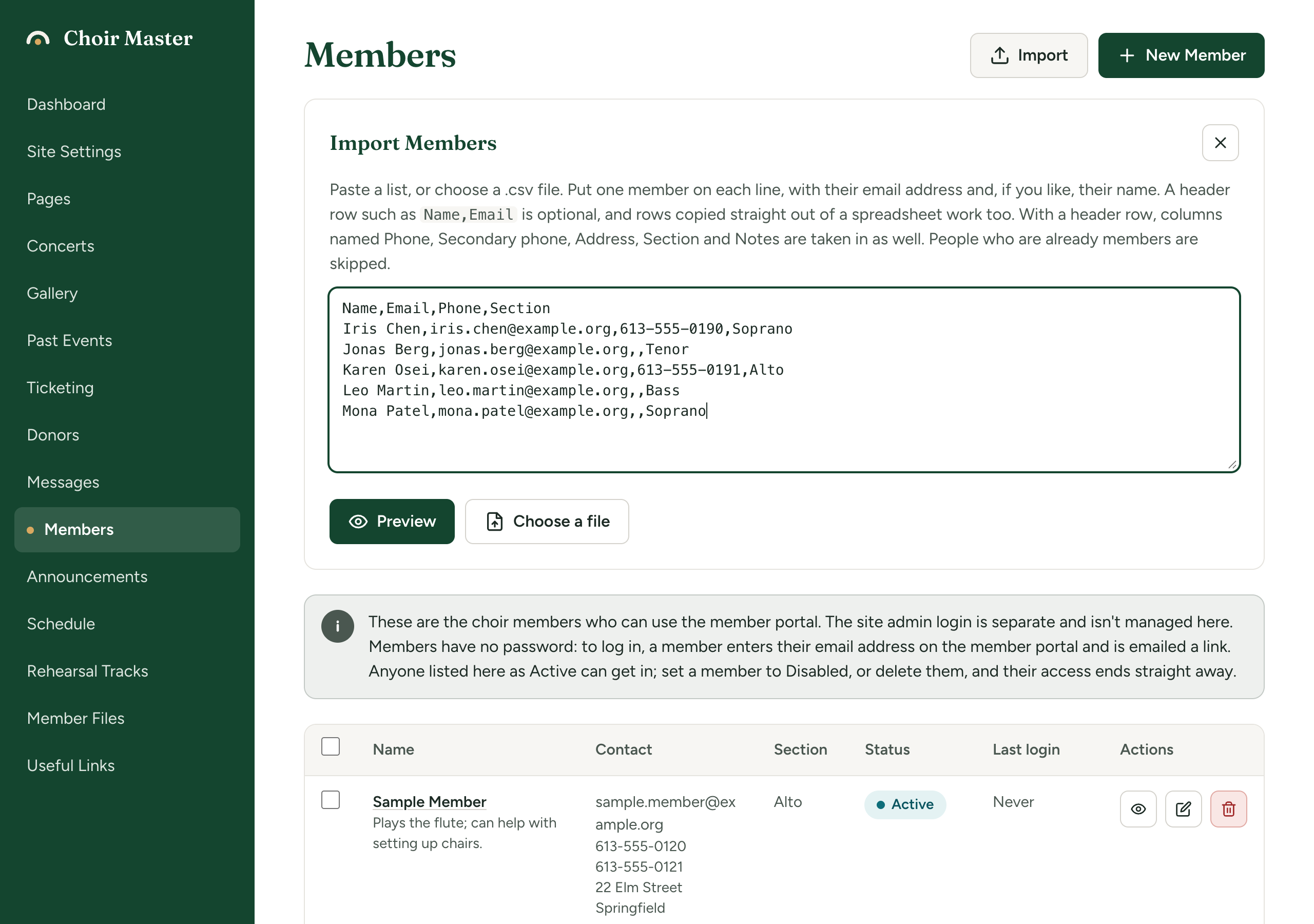
The Import Members panel with a pasted list that has Name, Email, Phone and Section columns -
Read the preview. A line above the table says how many will be added and how many skipped, and that nothing has been saved yet. Each row has a result (below).
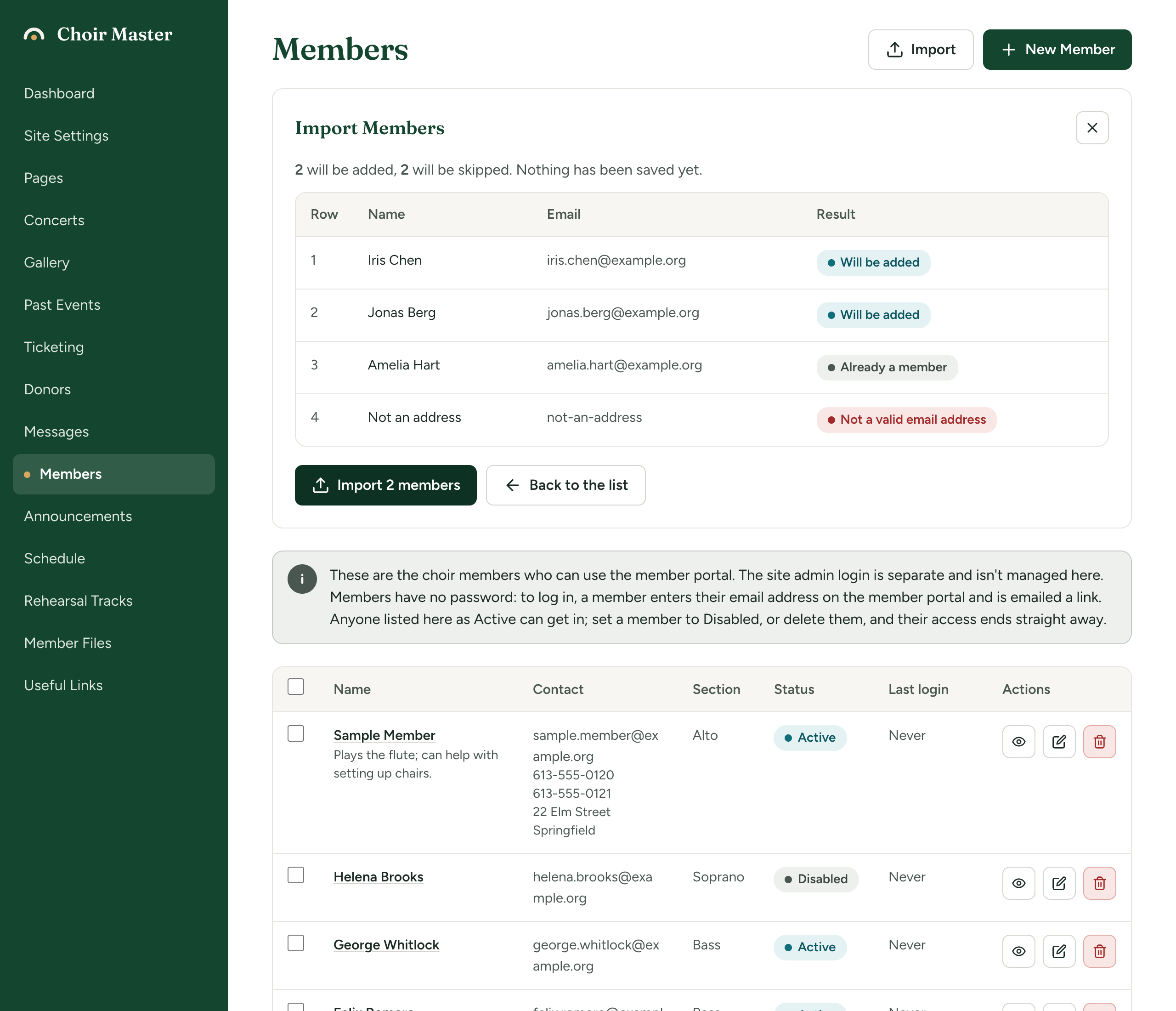
The import preview table with rows marked Will be added, Already a member and Not a valid email address -
If something is wrong, press Back to the list, correct it and press Preview again.
-
Press the import button. It says how many it will add, for example Import 24 members. It is greyed out when no row would be added.
-
A message confirms how many were added, and how many rows were skipped. Press Done.
An Excel workbook (.xlsx) is not a file the import can read. Either copy the cells and paste them, or save the sheet as CSV first.
What each result means
| Result | What it means |
|---|---|
| Will be added | A new member will be made from this row. After the import it reads Added. |
| Already a member | Someone on your list already has this email address. The row is skipped. |
| Same address as an earlier row | The address appears twice in what you pasted. The first row is used and this one skipped. |
| No email address | The row has no address. It is skipped. |
| Not a valid email address | The address is not in the form name@example.org. It is skipped. |
What an import does and does not do
- It only adds. A row for someone who is already a member is skipped and their details are left alone. An import never updates or removes anyone. To change existing members, edit them.
- Imported members are Active and can log in straight away.
- Nobody is emailed. Tell your members yourself, and send them How members log in.
- Running it twice is safe. The second time, everyone is "Already a member".
More than 500 members
An import takes up to 500 rows at a time. For a longer list, split it into parts of 500 or fewer and import each in turn. Keep the header row at the top of each part.
If something goes wrong
| Message | What to do |
|---|---|
| There is nothing to import yet. Paste a list or choose a file. | The box is empty or holds only blank lines. |
| Couldn't find any email addresses. Each member needs one, in a column of its own. | No column is named as the email column and no cell contains an @ sign. Check you pasted the right columns, and that each address is in a cell by itself. |
| The list has a header row but no members under it. | Only the headings were pasted. Add the rows. |
| Could not read that file. Try pasting the list instead. | The file could not be opened as text. Open it in your spreadsheet program, copy the cells and paste them. |
| Too many rows: ... Import at most 500 at a time. | Split the list (above). |
| Could not check the list | The preview could not reach the site. Try again. |
| Error importing members. Nothing was added. | The import failed as a whole and nobody was added. Try again. |