Email an announcement to your members
Once an announcement is posted, you can send it to your members by email as well. It is a separate step on purpose: you can post several small notices and email only the ones that matter. Each member gets their own copy, so nobody sees anyone else's address.
Before you start
- The announcement must be posted and Visible. See Post an announcement.
- Check the wording. An email cannot be taken back, and changing the announcement afterwards does not send it again.
Send a test, then send to everyone
-
In the admin panel, open Announcements.
-
Under the announcement, press Email to members. A panel opens.
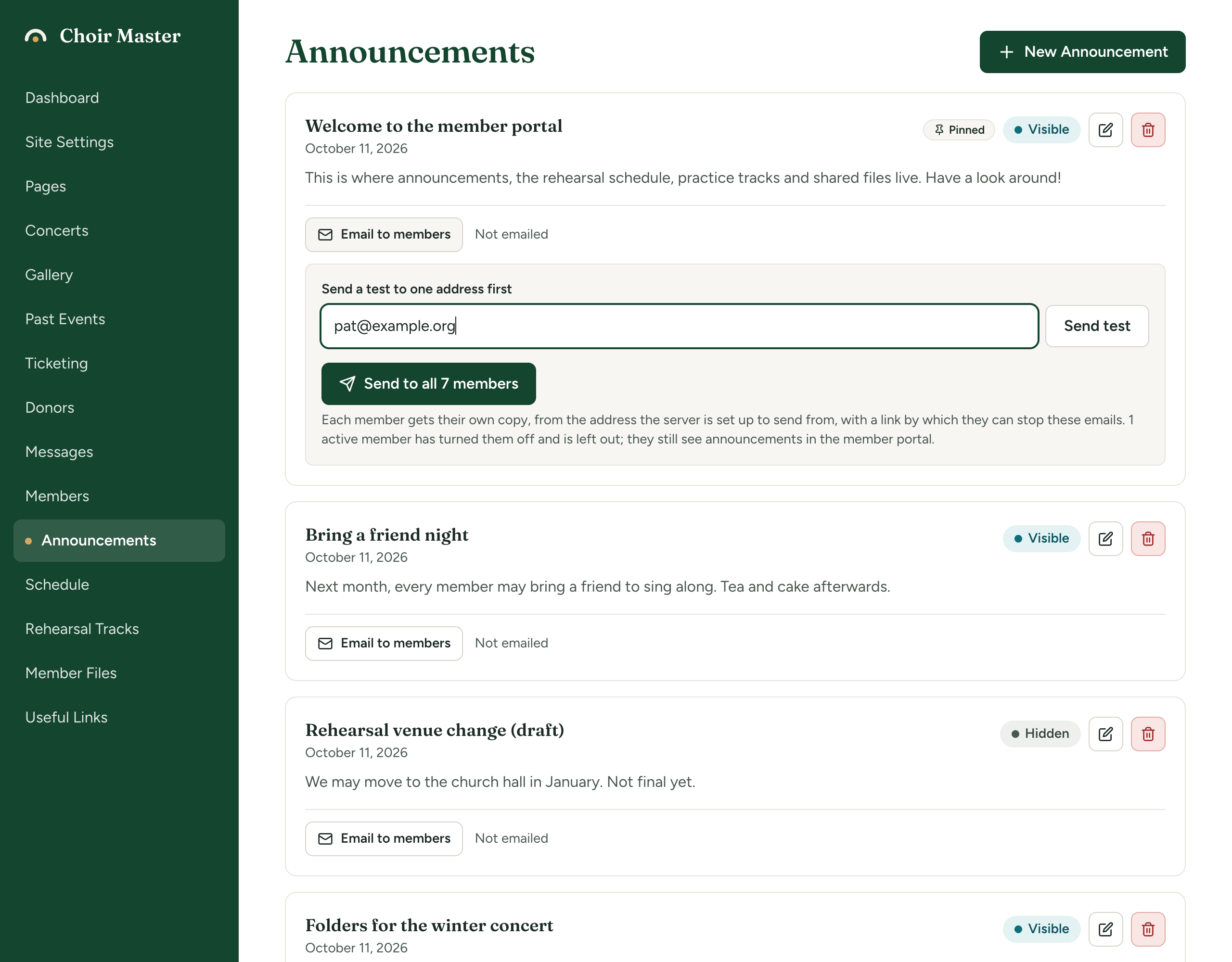
The Email to members panel open under an announcement, with the box Send a test to one address first and the button Send to all 24 active members -
Under Send a test to one address first, type your own address and press Send test. A message confirms "Test sent to" and the address.
-
Read the test in your inbox. Its subject starts with
[Test]. Check it looks right on your phone too. -
Press Send to all 24 active members (the button gives your own number).
-
A box asks you to confirm, naming the announcement and the number of members. Press Send.
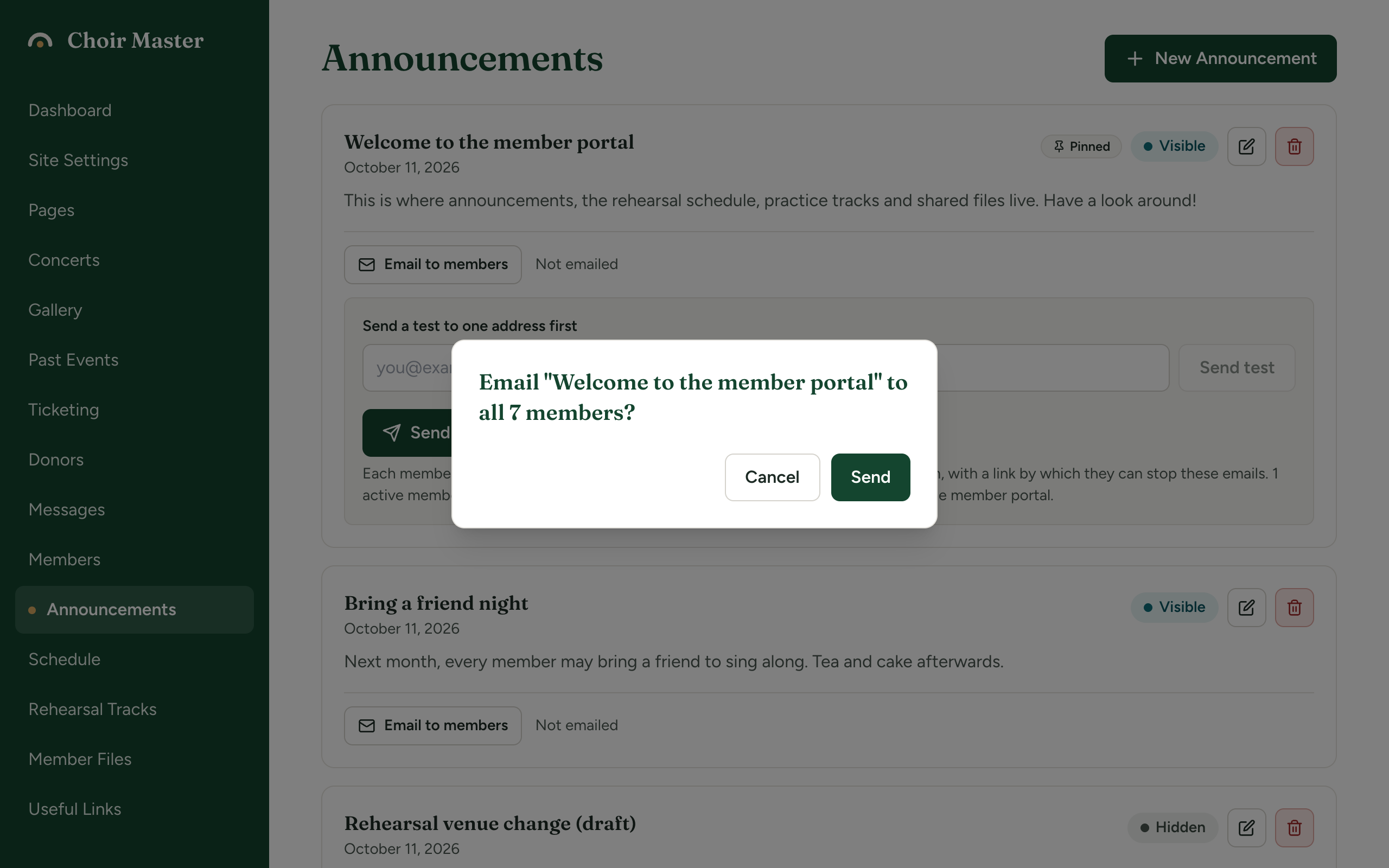
The confirmation box asking whether to email the announcement to all 24 active members, with the Send button
What happens next depends on where your site runs: see How the sending happens below.
The link to stop the emails in a test copy is a dummy. It does nothing for whoever presses it. Real copies each carry the member's own working link.
Who receives it
Every member who is Active and has not turned announcement emails off. Each gets one message addressed to them alone.
- Disabled members are not emailed.
- A member who has turned the emails off is left out. They still see the announcement in the portal. When some have, the button says "members" rather than "active members", and a line under it says how many have turned the emails off and are left out. You cannot override a member's choice. See How people stop your emails.
What the email contains
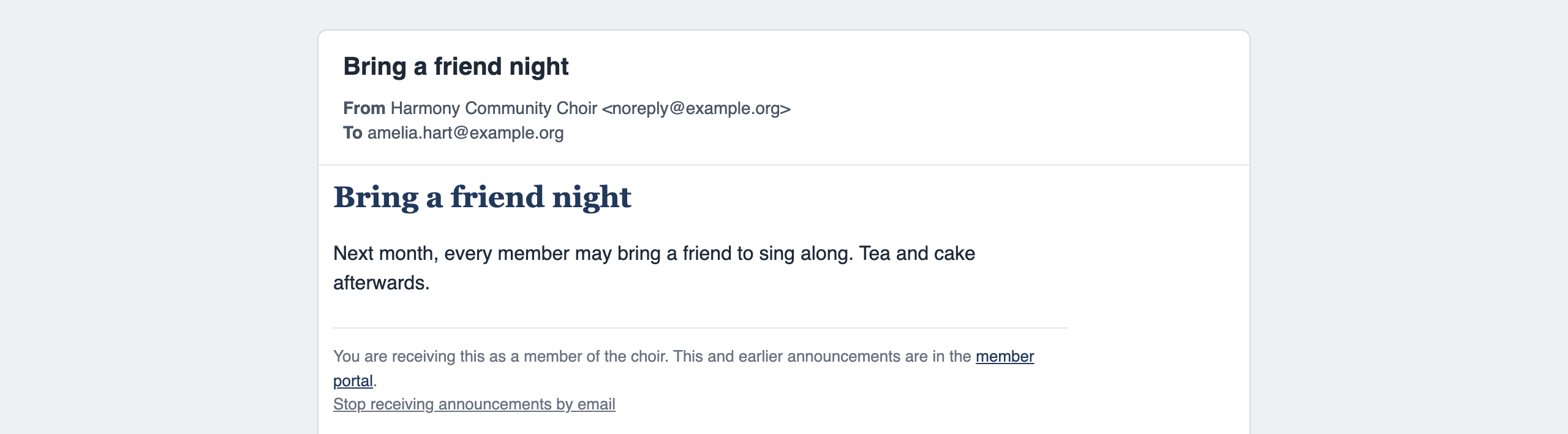
| Part | What it is |
|---|---|
| Subject | The announcement's title |
| Heading | The title again, in your site's main colour |
| Body | Your message, with its formatting and links |
| Footer line | The Announcement email footer from Site Settings, Email. It starts as "You are receiving this as a member of the choir." If you empty it, the line names your choir instead. See The sign-off and footer of your emails. |
| Link to the portal | "This and earlier announcements are in the member portal." |
| Stop link | Stop receiving announcements by email: this member's own link. See How people stop your emails. |
The email also has a plain-text version for mail programs that do not show formatting.
Read the status line
Beside Email to members, each announcement says where it stands.
| Status | What it means |
|---|---|
| Not emailed | It has never been emailed. |
| Emailed to 24 members on a date | The last time it was emailed, and how many copies were accepted for sending. |
| Queued: waiting to be sent to 24 members | Hosted sites only. It is in the queue and will start shortly. |
| Sending: 10 of 24 | Hosted sites only. It is going out now. The page updates every few seconds. |
| Could not send to 2: and addresses | Hosted sites only, in red under the status. Those copies were not accepted. Up to 200 addresses are listed. |
Send it again
After an announcement has been emailed, the button reads Send again to all 24 active members. The box to confirm reminds you of the date it was already emailed. Sending again goes to everyone who qualifies now, including people who received it before. There is no way to send only to those who missed it.
How the sending happens
If something goes wrong
| What you see | What it means and what to do |
|---|---|
| This announcement is hidden. Make it visible to members before emailing it. | Edit the announcement, tick Visible to members, save, and try again. |
| The send button is grey | There is nobody to send to (no active members, or all have turned the emails off), or it is already being sent. |
| Enter a valid email address for the test | The test address is not in the form name@example.org. |
| The test email could not be sent | The mail service refused it. Try once more; if it keeps failing, see the last two rows. |
| Sent to 22 members. Could not send to: and addresses | The mail service did not accept those copies. Check each address for a typing mistake on the Members page and correct it. Then tell those members directly, or send again to everyone. |
| A problem, then "Sent to 10 members. The rest did not get it." | Self-hosted. The sending stopped part-way. Fix the cause, then send again; those who had it will get it twice. |
| A problem, then "Nobody was emailed." | Self-hosted. It failed before anyone was reached. |
| This announcement is already being sent | Hosted. Wait for the status line to show it has finished. |
| Email is not set up on the server (EMAIL_PROVIDER and EMAIL_FROM), so announcements cannot be emailed yet. | Self-hosted. The server has no mail service or no sender address. See Email: what the site sends and how to choose a provider. |
| Nothing was really sent: email is not set up on this server (EMAIL_PROVIDER is "log"). | Self-hosted. The server is set to write emails to its log instead of sending them, which is how a new or test installation starts. The counts are what would have been sent. Choose a real provider. |
"Accepted for sending" is not the same as "arrived". An email can be accepted and still land in a spam folder or bounce later. If members say they are not getting your emails, see Mail server errors and spam on a hosted site, or Nobody can log in, or emails do not arrive on your own server.