Build a concert lineup and publish it
A lineup is one concert's set list: songs from your library, in the order they will be sung. Publishing a lineup is what lets members hear its tracks. Until then, songs and tracks are yours alone.
If you have not added any songs yet, you can start here and add them as you go, or start with Add songs and upload rehearsal tracks.
Create a lineup
- In the admin panel, open Rehearsal Tracks. It opens on the Concert Lineups tab.
- Press New Lineup.
- Type a Title, such as "Winter Concert 2026". It is required, and members see it.
- Optionally type a Description, such as the date and place.
- Press Create Lineup.
The new lineup is a Draft. It opens on the right, ready for its songs.
Your lineups are listed on the left, newest first, each with Draft or Published and its number of songs. Press one to open it.
Put songs in it
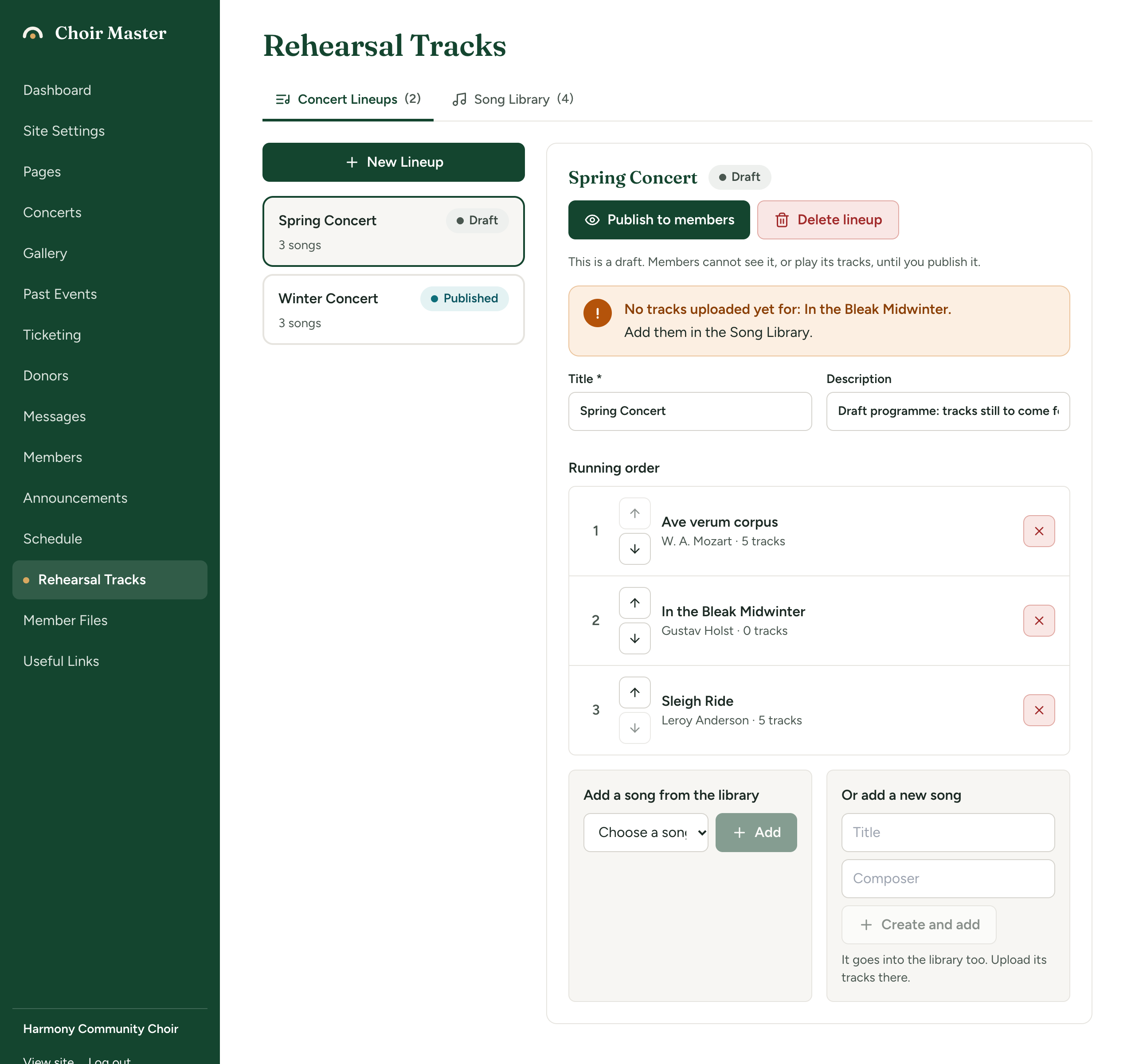
To add a song you already have, under Add a song from the library choose the song and press Add. The list offers every song not yet in this lineup.
To add a song that is not in the library yet, under Or add a new song type its title and, if you like, its composer, and press Create and add. The song goes into the library too. Upload its tracks there.
To change the order, use the up and down arrows beside a song under Running order.
To take a song out, press the cross at its right. The song and its tracks stay in the library.
Each of these is saved as you do it. There is no save button for the running order.
A song can be in several lineups, so a piece you repeat next season needs no uploading again. A song can be in one lineup only once, and a lineup can hold up to 200 songs.
Songs with no tracks
If any song in the lineup has no tracks yet, a warning at the top of the lineup lists them: "No tracks uploaded yet for:" and the titles, with "Add them in the Song Library." You can publish anyway. Members see such a song in its place in the order with "No tracks for this song yet."
Change the title or description
Change Title or Description in the open lineup. A Save details button appears as soon as something is different. Press it.
Members see the description under the title. A web address that starts http:// or https:// becomes a link.
Publish the lineup
Press Publish to members.
The label changes to Published, and the line under the heading reads "Members can see this lineup and play its tracks. Changes you make here show up for them straight away."
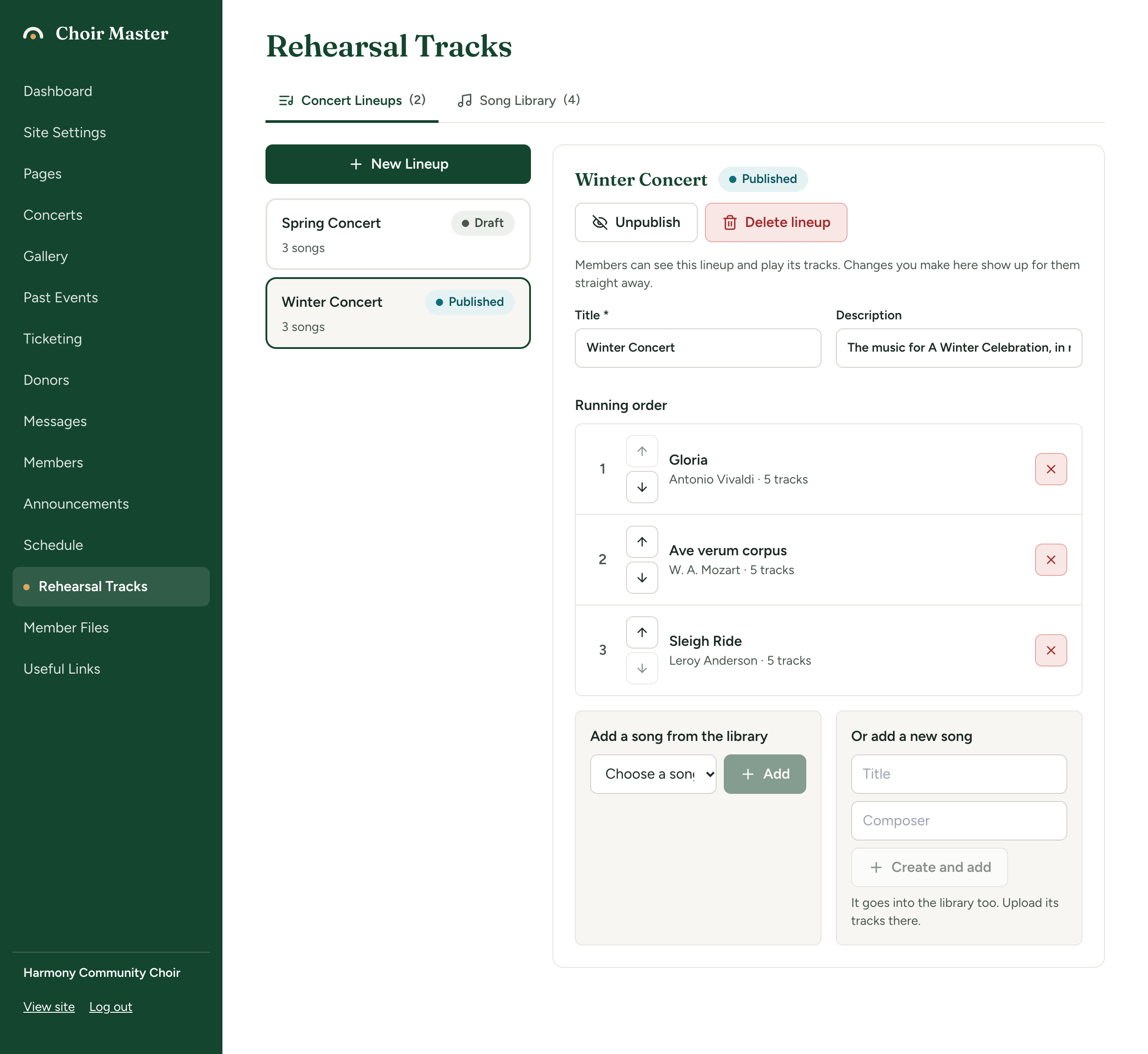
Nobody is told automatically. Post an announcement to say the tracks are ready.
After it is published
Everything you change shows for members at once:
- songs you add, remove or reorder in the lineup;
- tracks you upload, relabel or delete in the Song Library, for any song in the lineup;
- changes to a song's title, composer or notes.
There is no need to publish again.
Unpublish a lineup
Press Unpublish. The lineup goes back to Draft and the line reads "This is a draft. Members cannot see it, or play its tracks, until you publish it." It disappears from the portal at once.
A song that is also in another published lineup can still be heard there.
Unpublish last season's lineups when the concert is over, so that members are offered only what they are working on now. Nothing is lost: publish one again whenever you like.
Delete a lineup
- Open the lineup and press Delete lineup.
- The question names the lineup and says "Its songs and their tracks stay in the library."
- Press Delete lineup.
Only the set list is removed.
What members see
On the portal's Rehearsal Tracks page:
- If more than one lineup is published, a Concert box chooses between them. The one published most recently is shown first.
- The lineup's title and description head the page.
- Songs are listed in your running order, numbered, each with its composer, your notes for singers, and its tracks.
- Under Show tracks for, a member presses their voice part and sees that part's tracks plus those for all parts.
See A tour of the member portal.
If something goes wrong
| Message | What to do |
|---|---|
| A title is required | Type a Title for the lineup, or for the new song. |
| A lineup can have 200 songs at most | Take songs out, or split the concert into two lineups. |
| One of those songs no longer exists. Reload and try again. | A song was deleted from the library while you had the lineup open. Reload the page. |
| Lineup not found | The lineup was deleted while you had it open. Reload the page. |