Set up your sections and voice parts
Your site keeps one list of voice parts. It is used in two places: each rehearsal track is filed under a part, and each member can be given a part as their section. A new site has Soprano, Alto, Tenor and Bass. Change the list if your choir is divided differently.
Change the list
- Open Site Settings and choose the Member portal section.
- Find Voice parts for rehearsal tracks. Each part is a bar showing its code; press a bar to open it.
- To add a part, press Add and fill in Code and Label.
- To change the order, use the up and down arrows on a bar. To take a part out, press the bin on its bar and confirm with Remove.
- Press Save. Nothing changes until you do.
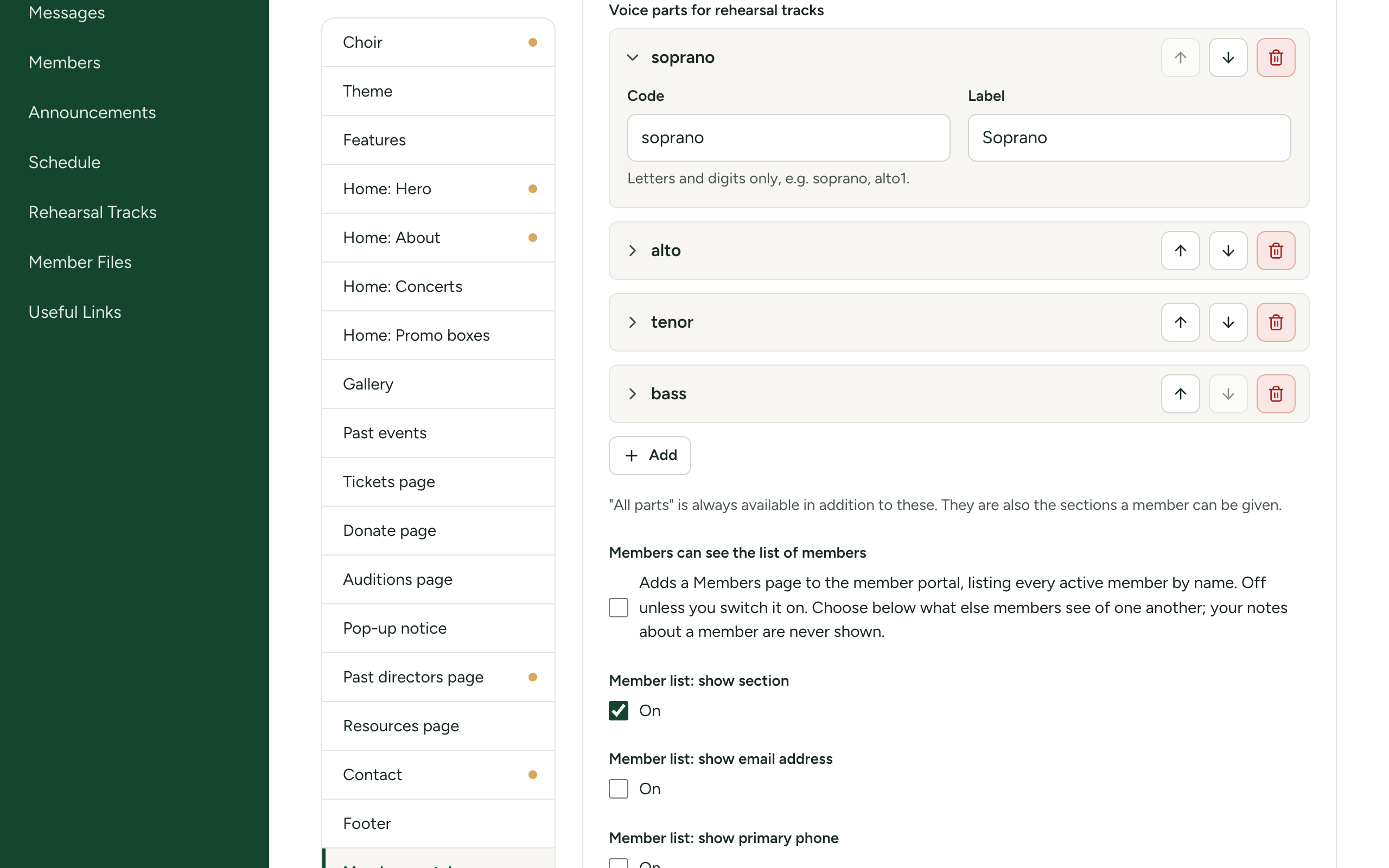
| Box | What it is | Limit |
|---|---|---|
| Code | A short name the site uses behind the scenes to file tracks and members under this part. Nobody but you sees it, unless the part is later removed (below). | 20 characters |
| Label | The name people see: on the buttons of the Rehearsal Tracks page, beside each track, and as a member's section. If you leave it empty, the code is used. | 40 characters |
The order of the list is the order of the buttons members see, and the order tracks are listed in under each song.
Rules for codes
- Letters and digits only, with no spaces or punctuation:
soprano,alto1,s2. - It must start with a letter.
- Each code can be used once.
- A code cannot be
all. All parts always exists in addition to your list, for tracks everyone uses. - Codes are saved in lower case, whatever you type.
You can have up to 12 parts, and there must be at least one.
Change a Label whenever you like. Do not change a Code once tracks or members use it: to the site, a different code is a different part, and the tracks and members filed under the old one are left behind. See If you remove a part.
Example: split the sopranos
To have Soprano 1 and Soprano 2 as well as the others:
| Code | Label |
|---|---|
soprano1 | Soprano 1 |
soprano2 | Soprano 2 |
alto | Alto |
tenor | Tenor |
bass | Bass |
If you already have tracks or members under soprano, keep that code and relabel it rather than replacing it. For example, change the label of soprano to "Soprano 1" and add soprano2.
An alternative that needs no change to the list: keep one Soprano part, and give each track its own label when you upload it, such as "Soprano 2". A song can have several tracks for one part. See Add songs and upload rehearsal tracks.
Where the parts are used
- Rehearsal tracks. Each track you upload is filed under one part, or under All parts. On the Rehearsal Tracks page a member presses their part under Show tracks for and sees that part's tracks, plus the tracks for all parts.
- Members' sections. The Section box of a member offers the same list. A member's section is for your records. It is shown to other members only if you switch on the member list and Member list: show section. It does not decide which tracks a member can hear: every member can choose any part.
If you remove a part
Removing a part from the list deletes nothing. What was filed under it stays, with these effects:
- Members who had it as their section keep it. It is now shown by its code (for example
soprano2) instead of its label, in the Members table, in a member's details, and in the member list in the portal if you share sections there. When you edit such a member, the old section is still in the Section list, so saving does not lose it. Choose another section to move them. - Tracks filed under it are kept and can still be played. Members no longer have a button for that part, so they see those tracks only with Everyone chosen. The track's tag shows the code, and such tracks come after the others under each song. To move a track to a current part, edit the track and choose the part. See Add songs and upload rehearsal tracks.
If you put the same code back, everything filed under it is attached to it again.
If something goes wrong
| Message when you save | What to do |
|---|---|
| Voice part "...": the code must be letters and digits, and not "all" | The code has a space, punctuation, an accent or a leading digit, is empty, or is all. Change it. |
| Voice part "..." is listed twice | Two parts have the same code. Codes are compared in lower case, so Alto and alto are the same. |
| At least one voice part is needed | Add a part before saving. |
| has too many entries (12 at most) | Remove parts until there are 12 or fewer. |
A part with both boxes empty is dropped when you save.