Add your weekly rehearsal once
A rehearsal that happens every Tuesday does not need adding forty times. Add it once as an event that repeats, and the schedule fills in every date. Later you can change them all in one go, or change or cancel a single day.
Add an event that repeats
- In the admin panel, open Schedule and press New Event.
- Fill in Title, Kind of event, Starts, Ends, Location and Notes as for any event. See Add a rehearsal or concert to the schedule.
- Tick This repeats. The date box is now labelled First one on. Choose the date of the first one.
- Under How often, choose Every week, Every two weeks or Every month.
- Under Until, choose the last date it could fall on. An end date is required.
- Read the line under those boxes. It says what you have set up, for example "Every week on Tuesday: 16 in all, the last on Tuesday, December 15, 2026."
- Press the button, which says how many it will add, for example Add 16 Events.
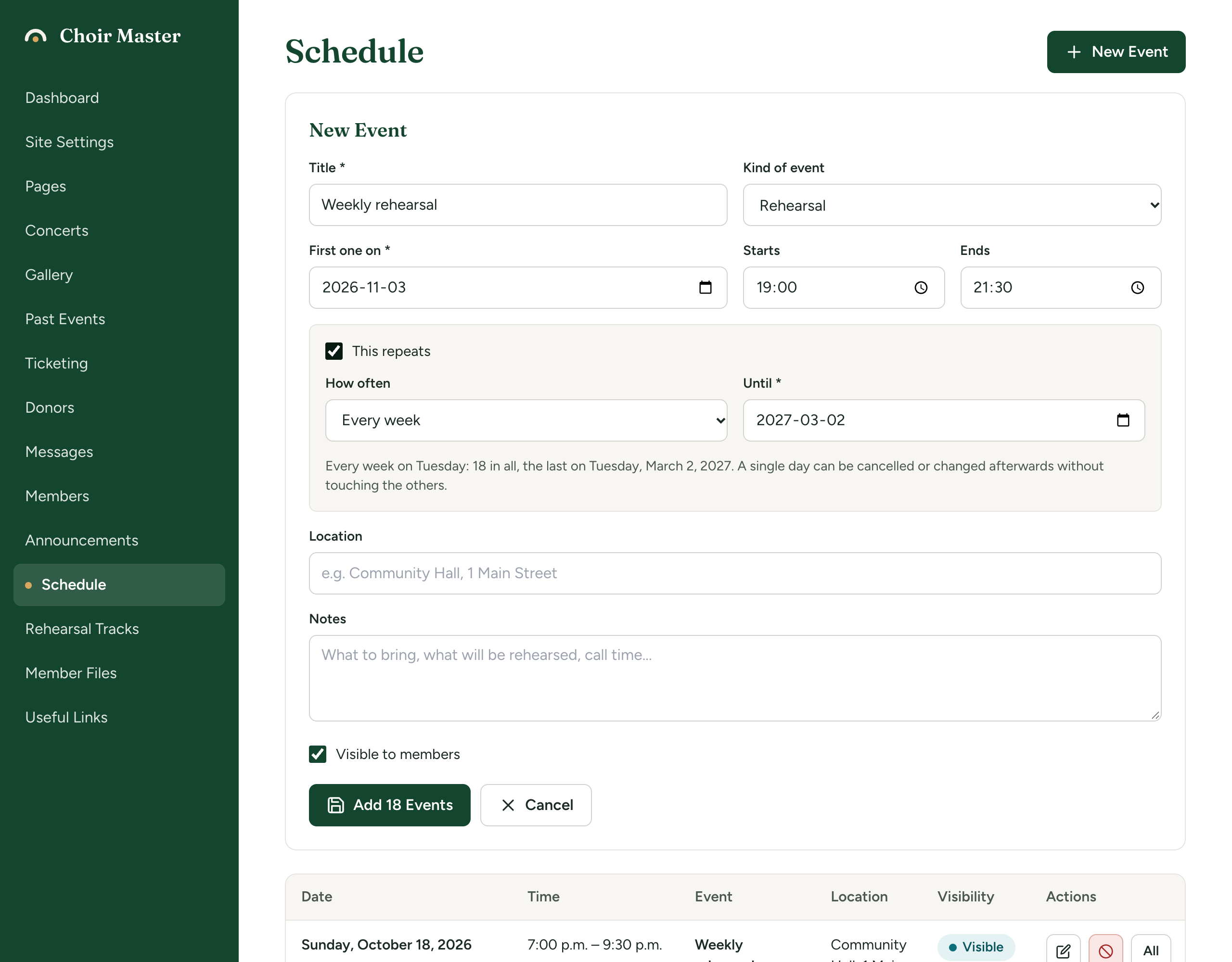
The weekday comes from the first date. To rehearse on Tuesdays, choose a Tuesday for First one on.
How "Every month" chooses its day
It keeps to the same weekday in the same week of the month as the first date. If the first one is on the second Tuesday of September, the rest are on the second Tuesday of each month. It does not keep to the same day number.
If the first date is the last of its weekday in that month, the series follows the last one every month. Start on the last Friday of September and you get the last Friday of every month, whether that is the fourth or the fifth.
The line under the boxes always says which it is: "Every month on the second Tuesday", or "Every month on the last Friday".
Limits
| Limit | Value |
|---|---|
| An end date | Required. A series cannot run for ever. |
| How long a series can run | Up to three years from its first date |
| How many events one series can hold | 160, which a weekly event over three years stays within |
A series can be extended later, so there is no need to set it up for longer than the season.
See your repeating events
On the Schedule page, each day of a series is a row of the table like any other, with a line under its title saying how it repeats.
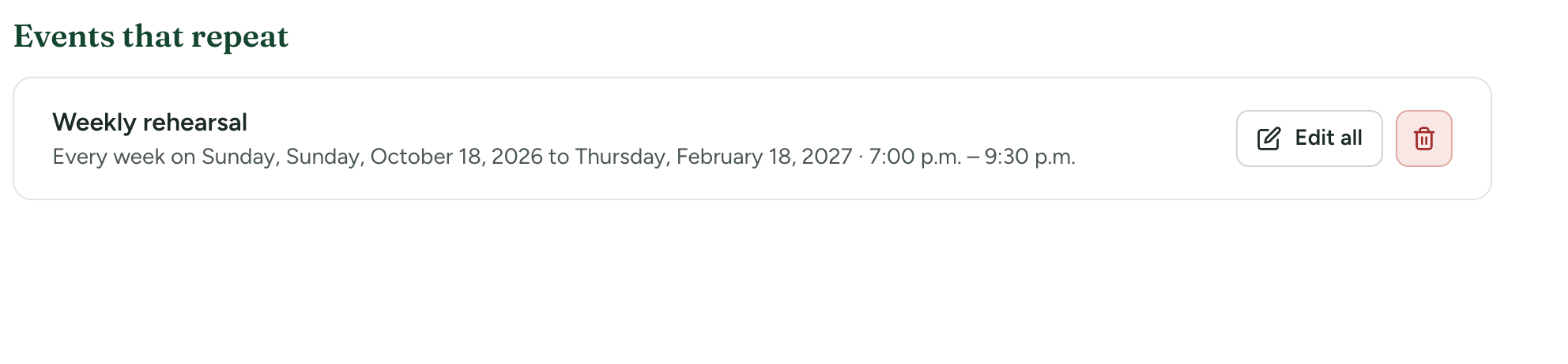
Under the table, a list headed Events that repeat has one entry per series: its title, how often it repeats, its first and last dates, and its times.
Change every one
- Press Edit all beside the series in Events that repeat, or All in the row of any of its days.
- The form opens headed Every and the title, with a line saying how it repeats.
- Change what you need: the title, kind, times, location, notes, how often, the first date or the end date.
- Press Save Changes.
The change reaches every day of the series, past and coming, with one exception: anything a single day has been given of its own stays as it is. If you moved 14 October to a different hall, and then change the hall for the series, 14 October keeps the hall you gave it. See Cancel or change one rehearsal.
If you change How often or First one on so that the series falls on different dates, any one-day changes and cancellations on dates it no longer falls on are dropped. Changes on dates it still falls on are kept.
End a series early, or extend it
Press Edit all and change Until.
- To stop it sooner, bring the date forward. Days after it leave the schedule. Days before it stay, including those already past.
- To run it longer, move the date later, up to three years after the first date.
To carry on beyond three years, add a new series starting where the old one ends.
Hide a series
Visible to members is set for the series as a whole, in the Edit all form. Untick it and none of its days are shown to members. A single day cannot be hidden by itself; it can be cancelled, which members do see.
Delete a whole series
- In Events that repeat, press the bin beside the series.
- The question is Delete every and the title, and reminds you how it repeats and until when.
- Press Delete them all.
Every day of the series leaves the schedule, including days already past and any one-day changes. This cannot be undone.
If the rehearsals have simply finished, or are stopping part-way through the season, bring the Until date forward instead of deleting. Members can then still look back at past rehearsals and their notes.
What you cannot do
- Make an existing one-off event repeat. This repeats is offered only when you add a new event. Add a new repeating event and delete the one-off.
- Turn a series into one-off events. Bring its Until date forward to shorten it instead.
- Delete one day of a series. Cancel it instead: it stays on the schedule marked as cancelled, so members know it is off.
If something goes wrong
| Message | What to do |
|---|---|
| Choose the date of the first one | Fill in First one on. |
| Choose the date it repeats until | Fill in Until. |
| It cannot end before it starts | Until is earlier than First one on. |
| A series can run for up to three years. Choose an earlier end date; it can be extended later. | Bring Until to within three years of the first date. |
| Choose how often it repeats | Choose one of the three under How often. |
| Those events are not on the schedule any more | The series was deleted while you had the page open. Reload the page. |
The messages about titles and times are the same as for a one-off event: see Add a rehearsal or concert to the schedule.