Cancel or change one rehearsal
The hall is booked by someone else on one Tuesday, or one rehearsal starts half an hour early. You can change or cancel a single day of a repeating event and leave every other day alone.
This page is about days that belong to a series. A one-off event is simply edited or deleted: see Add a rehearsal or concert to the schedule.
The buttons on one day
On the Schedule page, each day of a repeating event has these in its Actions column. Hold the pointer over a button to see its name.
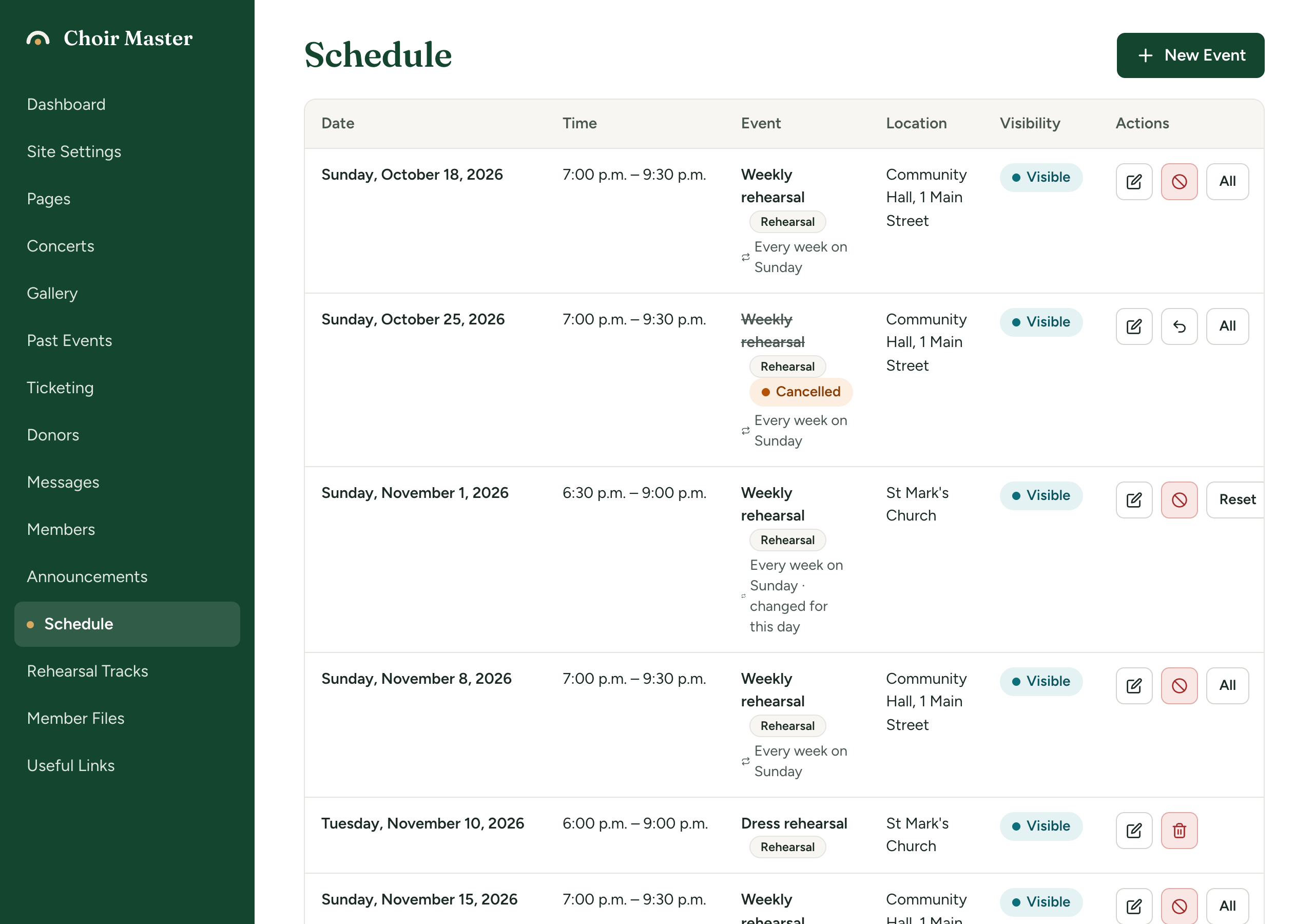
| Button | Name | What it does |
|---|---|---|
| Pencil | Change and the date, then only | Opens a form for this day alone. |
| Circle with a line through it | Cancel and the date, then only | Marks this day as cancelled. |
| Curved arrow | It is going ahead after all | Shown in place of the cancel button on a cancelled day. Takes the cancellation away. |
| Reset | Shown only on a day you have changed. Puts it back to how the rest of the series is. | |
| All | Opens the form for every day of the series. See Add your weekly rehearsal once. |
Cancel one day
Press the cancel button in that day's row. It takes effect at once, without asking.
The day stays on the schedule, for you and for members, with its title struck through and a Cancelled label. It is kept on purpose: a member who looks at the schedule sees that the rehearsal is off, instead of wondering where it went.
Members are not told automatically. Post an announcement and email it as well.
If it is going ahead after all
Press the curved arrow in that day's row, It is going ahead after all. The label goes and the day is as it was, including any other changes you had made to it.
Change one day
- Press the pencil in that day's row.
- The form opens headed with the title, the date and the word only. A line under the heading reads "What you change here is for this day alone. Anything left as it is keeps following the rest of the series."
- Change what is different about this day (below).
- Press Save Changes.
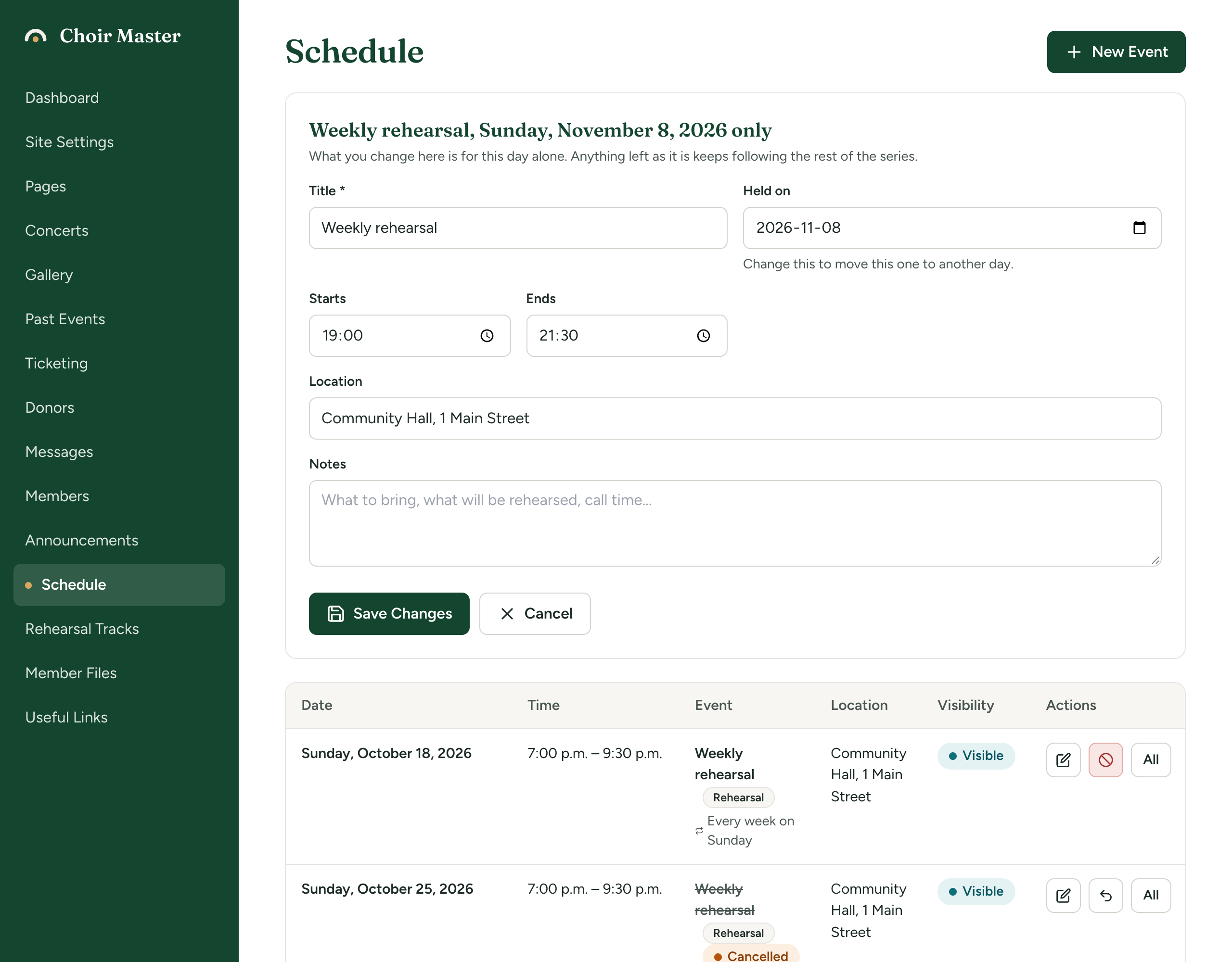
| Box | What it does for this day |
|---|---|
| Title | A different title, such as "Rehearsal with orchestra". |
| Held on | Change this to move this one to another day. |
| Starts, Ends | Different times. |
| Location | A different place. |
| Notes | Different notes. |
The kind of event and Visible to members belong to the series and cannot differ for one day.
In the table, a changed day has · changed for this day after the line saying how it repeats, and a Reset button.
What "keeps following the series" means
Only what you made different is remembered for that day. Everything else still comes from the series.
For example: you move 14 October to the church hall and change nothing else. Later you press All and change the series to start at 7:15 PM. Then 14 October also starts at 7:15 PM, still in the church hall.
It also means a box cannot be emptied for one day. If you clear the location and save, the day goes back to the series' location. To say there is no fixed place, type something, such as "To be confirmed".
A day you have moved
A moved day is listed under its new date. Its buttons still name the date it was originally on, because that is how the site knows which day of the series it is. If you moved Tuesday 14 October 2026 to Thursday 16 October, the row dated 16 October has the buttons "Change Tuesday, October 14, 2026 only" and "Cancel Tuesday, October 14, 2026 only".
Put a day back
Press Reset in that day's row. The question asks whether to put that date back to how the rest of the series is. Press Put it back.
Everything of its own is removed: a different date, title, times, place or notes, and a cancellation too if it had one.
Reset is shown only on a changed day. On a day that is only cancelled, use It is going ahead after all.
What members see
A changed day looks like any other event, with its own details. Members are not shown that it differs from the usual.
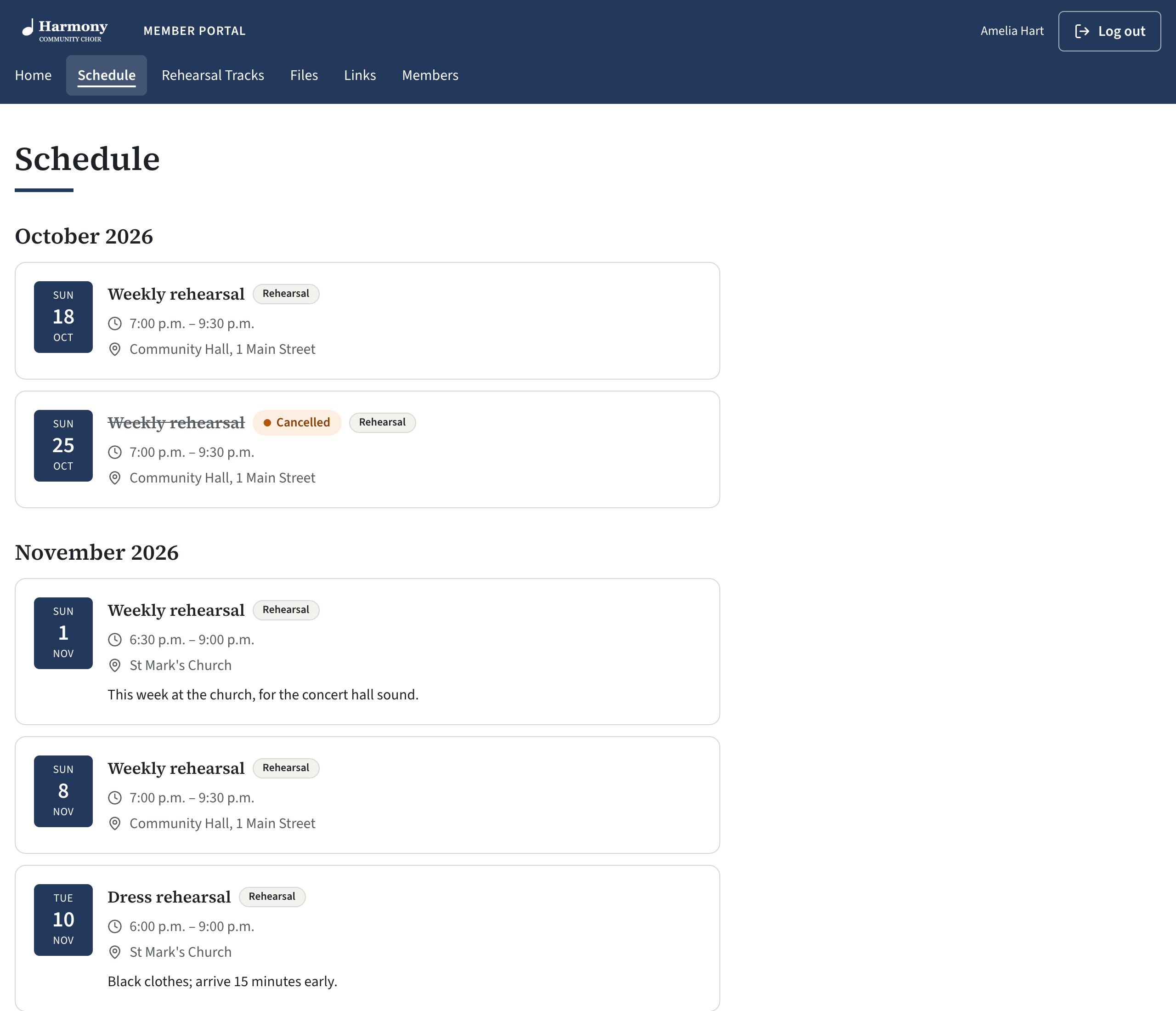
A cancelled day stays in their list, on the Schedule page and under Coming up on the Home page, with its title struck through and a Cancelled label beside it. Its time, place and notes are still shown.
When a change to the series drops one-day changes
If you edit the whole series and change How often or First one on so that it falls on different dates, the one-day changes and cancellations on dates it no longer falls on are dropped. The same happens to days beyond a new, earlier Until date. Changes on dates the series still falls on are kept. Deleting the series removes them all.
Check the table after changing a series' dates, and redo any one-day change you still need.
If something goes wrong
| Message | What to do |
|---|---|
| The end time must be after the start time | Compare the times in the form, remembering that a time you left alone comes from the series. |
| Choose a valid date to move it to | Held on is not a real date. |
| The start time is not valid / The end time is not valid | Type the time again. |
| That event is not on the schedule | The series was changed or deleted while you had the page open, and this date is no longer part of it. Reload the page. |