A tour of the member portal
This page is written for members of a choir. If you run the site, send your singers the link.
The member portal is the private part of your choir's website. It is where the choir puts news, the rehearsal schedule, recordings to practise with and documents, for its members only. To get in, see How members log in.
Your choir chooses which parts its portal has, so yours may not have every page described here.
Finding your way around
At the top of every page are your choir's name or logo, the portal's name, your own name and a Log out button. Under them is the menu:
| Menu entry | What is there |
|---|---|
| Home | News from the choir and what is coming up |
| Schedule | Rehearsals, concerts and other dates |
| Rehearsal Tracks | Recordings to practise with |
| Files | Documents to download |
| Links | Websites the choir recommends |
| Members | A list of the choir's members |
Pressing the choir's name or logo takes you back to Home. Back to the website, at the foot of each page, takes you to the choir's public site.
On a phone the menu is the same, in rows across the top of the page. Nothing is tucked away behind a button.
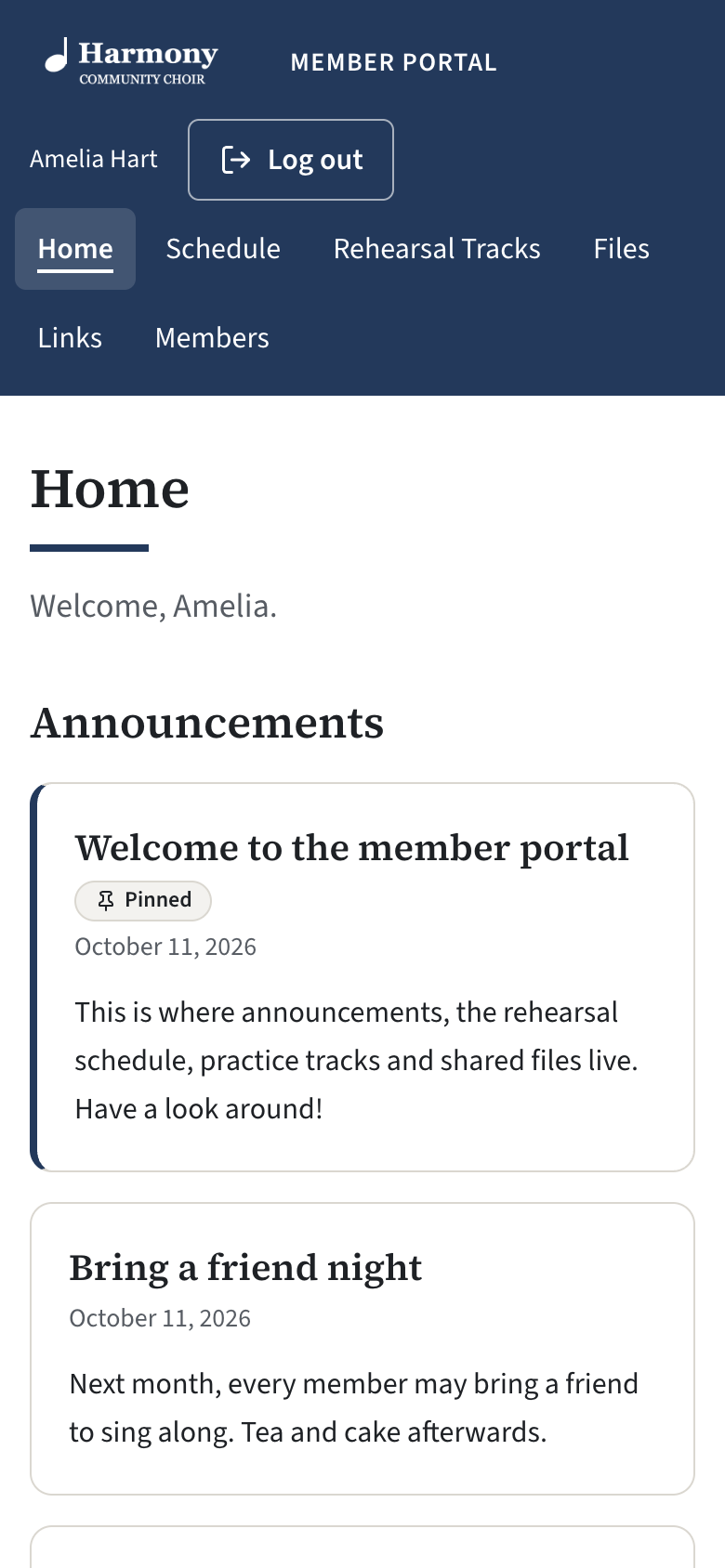
Home
Home greets you by your first name and has up to three parts.
- Announcements: news from the choir. Announcements the choir has pinned come first, marked Pinned; the rest follow with the newest at the top. Each shows the date it was posted.
- Coming up: the next three dates on the schedule. Full schedule opens the rest.
- Email preferences: whether announcements are also sent to you by email. See Announcement emails: a member's choice.
Schedule
Everything that is coming, grouped by month. Each entry shows the date, what it is, whether it is a rehearsal, a concert or another event, its times, where it is, and any notes from the choir, such as what to bring.
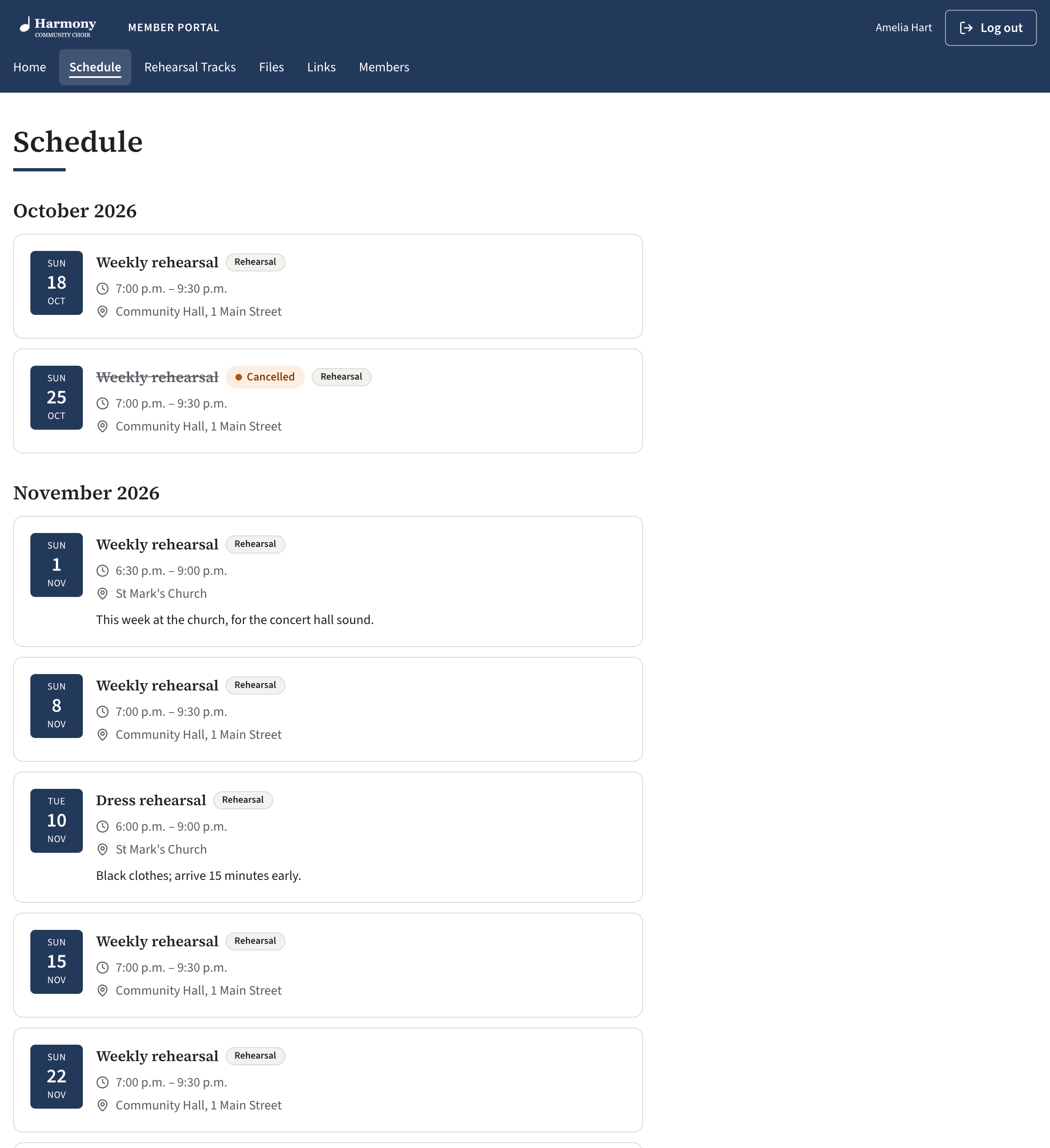
A rehearsal that has been called off stays in the list with its title struck through and the word Cancelled beside it.
Times are the choir's local time.
To look back, press Show past events at the bottom. The most recent is first.
Rehearsal Tracks
Recordings to learn your part with, arranged by concert and by song.
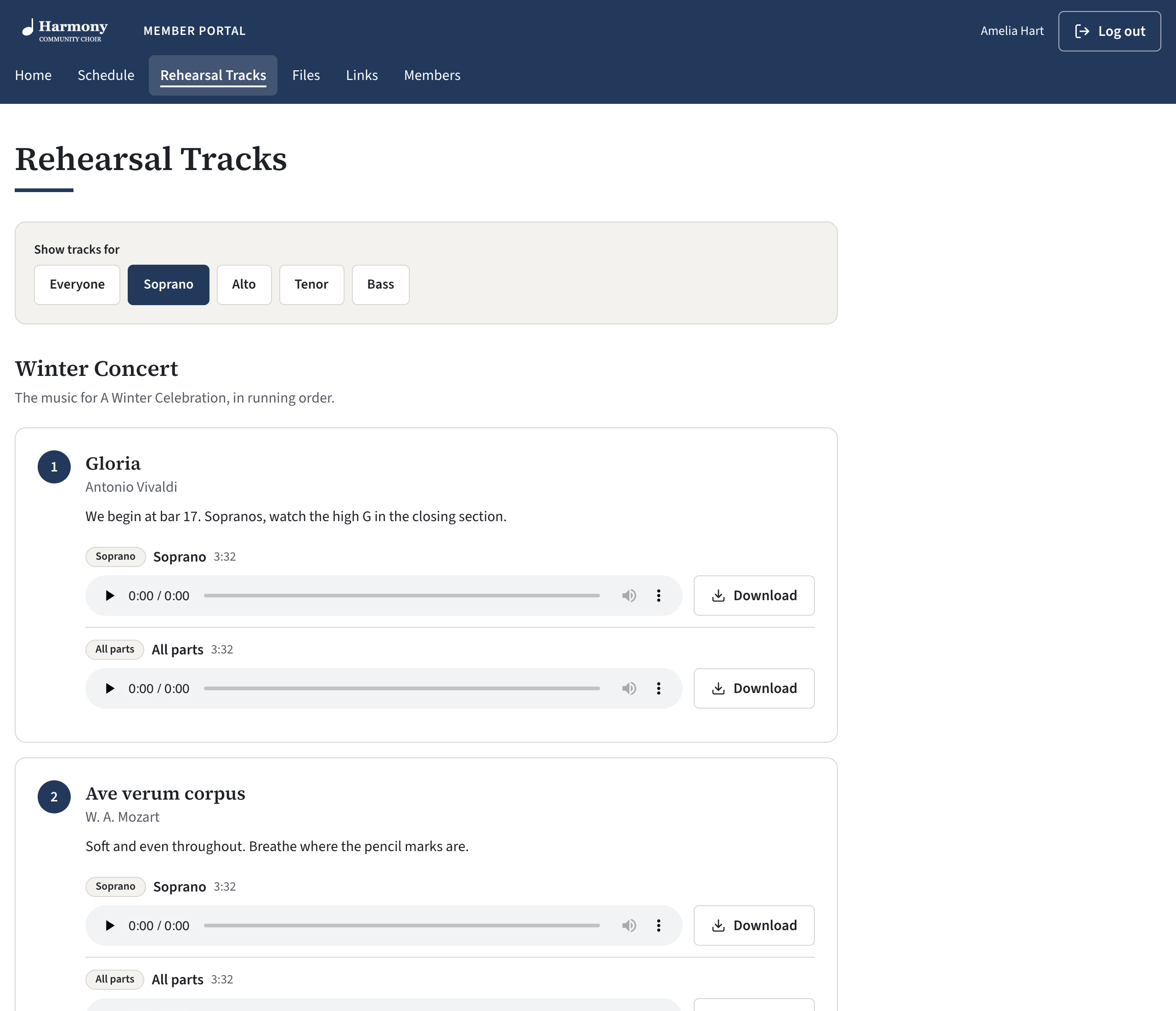
- If there is a Concert box, choose the concert you are preparing. It is only shown when there is more than one.
- Under Show tracks for, press your voice part. You then see the tracks for your part, plus any made for everyone, such as the full choir or the accompaniment. Press Everyone to see every part's tracks.
- The songs are listed in the order of the concert. Under each are its tracks.
- Press play on a track to listen. Starting one track pauses any other that is playing.
- Press Download to save a track to your device, to listen without an internet connection.
Your choice of voice part is remembered on that device, in that browser. On another phone or computer, choose it again.
If a song says "No tracks for this song yet", the choir has not added any. If it names your part, such as "No alto track for this song", there are tracks for other parts but none for yours: press Everyone to see what there is.
Files
Documents the choir shares with its members: scores, minutes, forms.
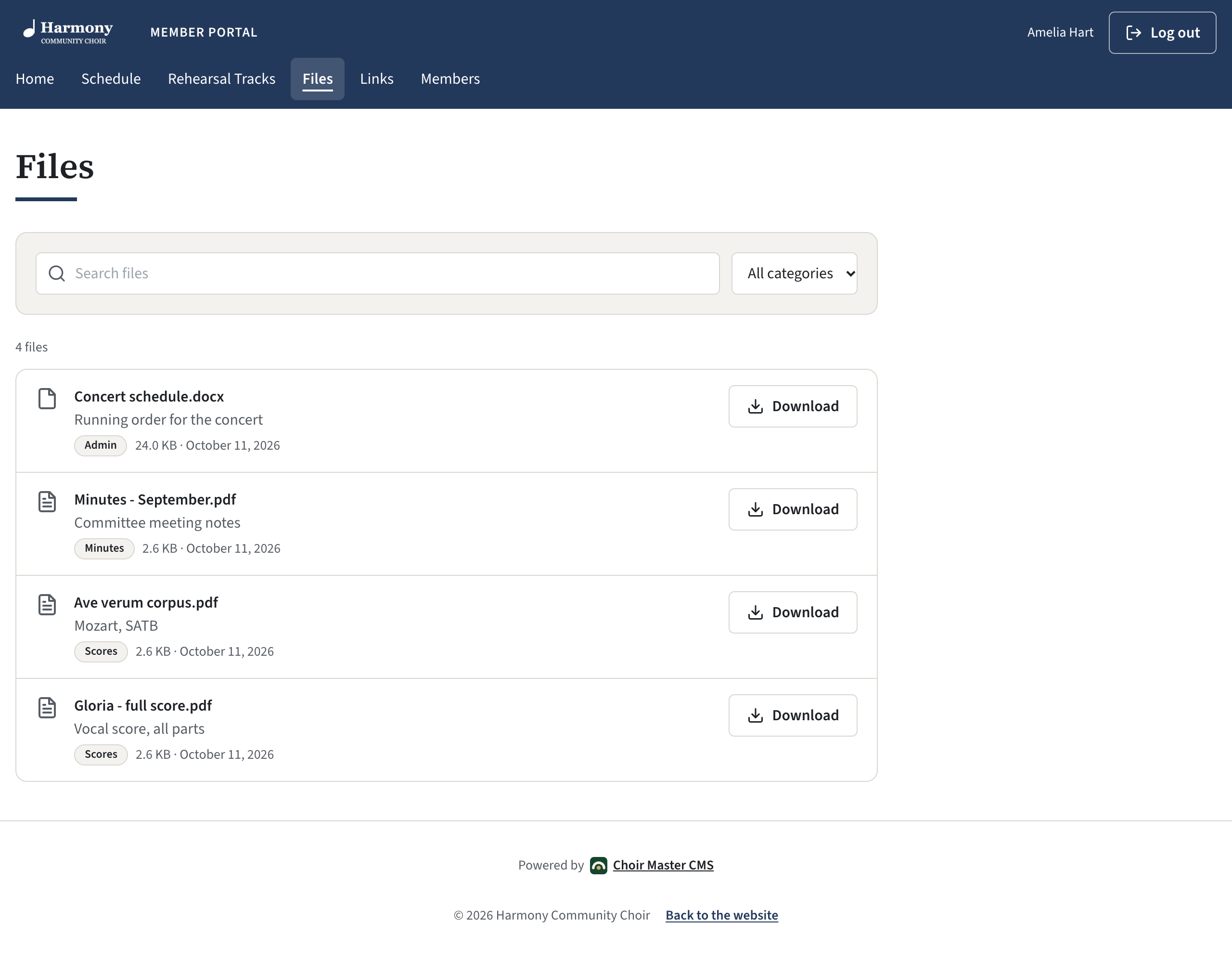
- Type in Search files to find a file by its name or description.
- If there is a second box, choose a category to see only those files.
- Press Download beside a file to save it.
Links
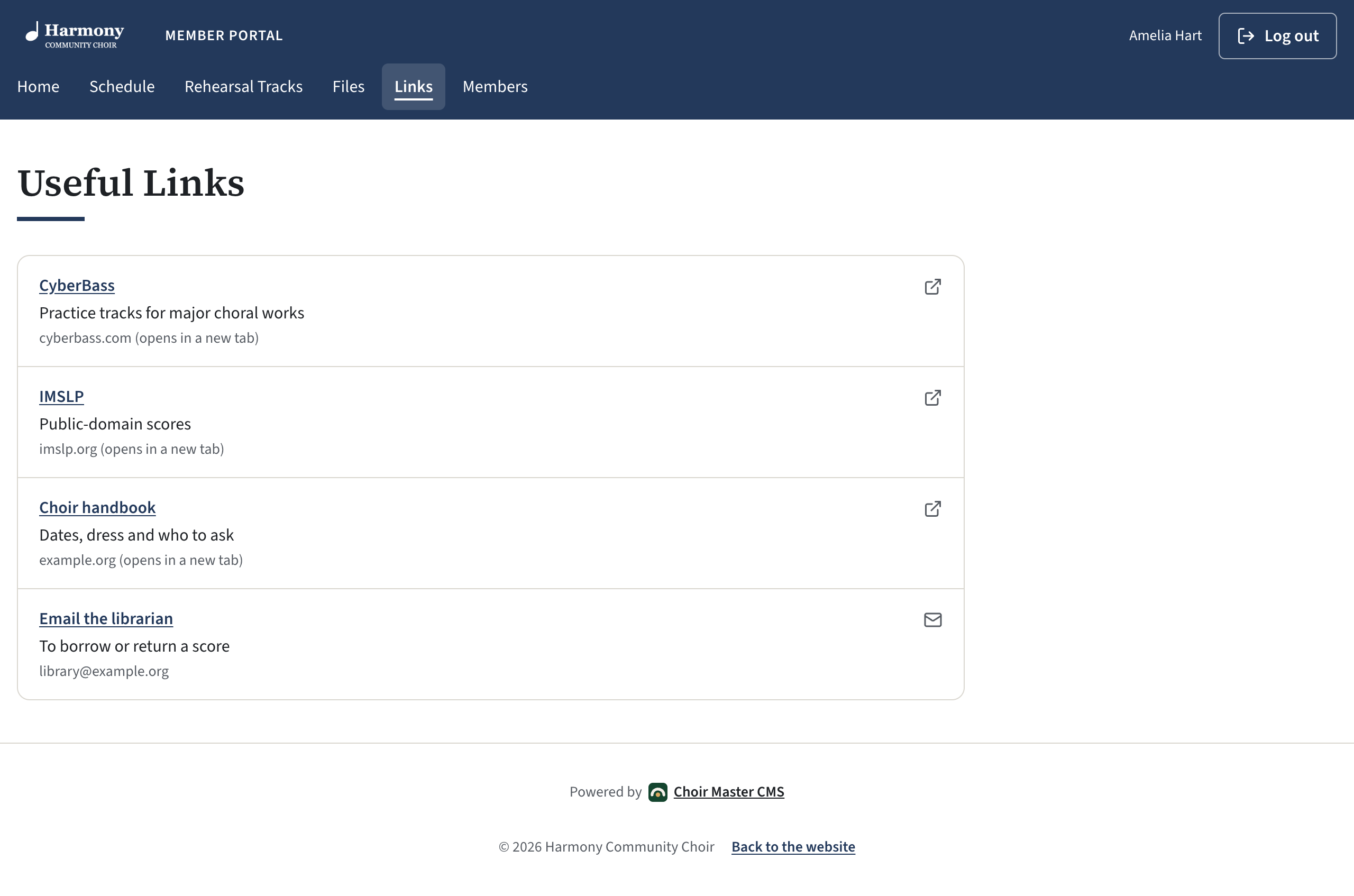
Websites the choir thinks you will find useful. Press anywhere on a row to open it. Websites open in a new tab, so the portal stays open behind. A row that shows an email address starts a new email to that person.
Members
If your choir has chosen to share it, this page lists the choir's members by name. Your choir decides what else is shown: it may be each person's section, email address, phone numbers or address, or none of these.
- Type in the box to find someone by name.
- If there is a second box, choose a section to see only its members.
- Press an email address to write to that person, or a phone number to call them from a phone.
The foot of the page says: "This list is for members of the choir only. Please do not pass it on." If something about you is shown that you would rather was not, speak to whoever looks after your choir's membership.
What you can change
The portal is for reading, listening and downloading. You cannot change anything in it, with one exception: whether the choir's announcements are emailed to you. See Announcement emails: a member's choice.
If your name, email address or section is wrong, ask your choir to correct it.
Logging out
You stay logged in on your own device, so there is normally no need to log out. On a computer you share with others, press Log out at the top of the page when you have finished.