Set up tickets for a concert
Before anyone can buy or be given a ticket, the concert needs its tickets set up: the exact date, how many places there are, and whether it is on sale on your site. Any admin can do this.
Open Ticketing
In the admin panel, open Ticketing. The page lists:
- every concert whose tickets are already set up, with a Manage link;
- every other concert from Concerts, with a Set up tickets button. One that has a Ticket link says "links to another ticket seller".
You can also get here from Concerts: each concert has a Tickets button that opens its tickets, or the form to set them up.
If the page says "No concerts to sell tickets for yet", add a concert first. See Add a concert.
Check the currency first
A banner at the top of Ticketing says, for example, "Ticket prices are in Canadian dollars (CAD)."
To change it:
- Press Change the currency.
- Choose the currency from the list.
- If any ticket already has a price, you are asked to confirm. Press Change to followed by the currency's code.
Changing the currency needs a Site Admin or an Admin, because it is a Site Settings choice. A Manager sees the banner but is refused if they try to change it.
Two things to know:
- The numbers stay as they are. A ticket at 25 becomes 25 in the new currency. Nothing is converted.
- Orders already made keep the currency they were made in.
This is the same setting as Site Settings → Choir → Currency. The currencies offered are listed in Your choir's name, place, currency and time zone.
Set up tickets for a concert
- In Ticketing, find the concert and press Set up tickets.
- Fill in the form headed Tickets for followed by the concert's name. The fields are described below.
- Press Next: add the tickets.
The concert opens on its Tickets tab, ready for you to add ticket types and prices. Nothing can be sold until it has at least one.
The concert's name and venue are not asked for. They come from the concert itself and follow any change you make to it in Concerts.
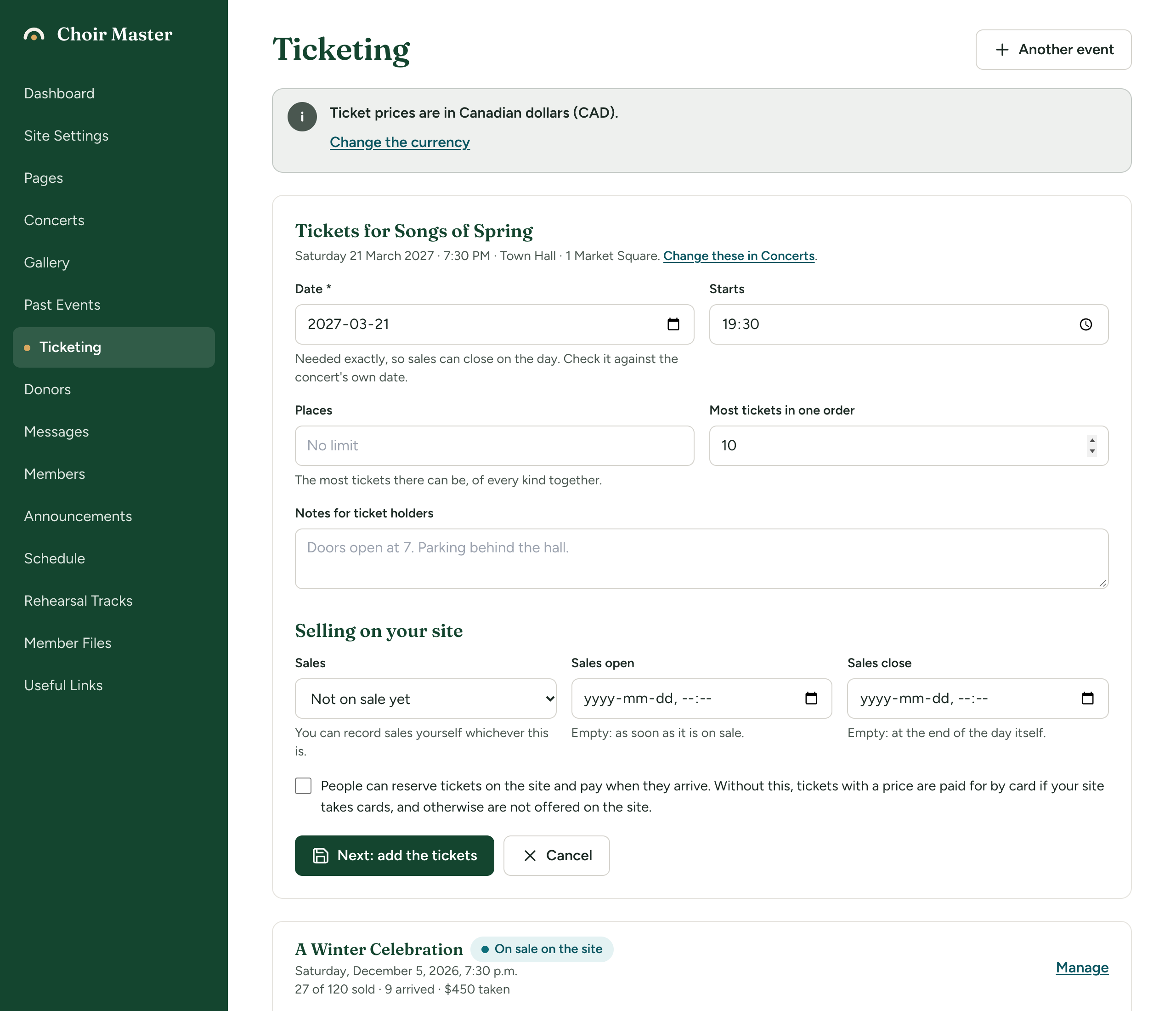
The details
| Field | What it is for | If left empty |
|---|---|---|
| Date | The day of the concert. Required. It is needed exactly so that sales can close on the day. The form fills it in from the concert when it can read the concert's date: check it. | Cannot be empty |
| Starts | The time it starts. Shown to buyers. | No time is shown |
| Places | The most tickets there can be, of every kind together. A whole number of 1 or more. | No limit |
| Most tickets in one order | The most one buyer can order at once on your site. From 1 to 50. | 10 |
| Notes for ticket holders | Shown on the order form, on the buyer's tickets page and in the email their tickets come in. For example "Doors open at 7. Parking behind the hall." Up to 2,000 characters. | Nothing is shown |
The date here is separate from the date written on the concert in Concerts, which is free text. If the concert moves to another day, change the date in both places.
Selling on your site
| Field | What it does |
|---|---|
| Sales | Not on sale yet: the concert is not on your Tickets page. On sale on the Tickets page: visitors can order. Closed: it is no longer on your Tickets page. A new concert starts as Not on sale yet. |
| Sales open | A date and time before which visitors cannot order. Empty means as soon as it is on sale. |
| Sales close | A date and time after which visitors cannot order. Empty means at the end of the day itself. |
| Tick box: People can reserve tickets on the site and pay when they arrive. | Lets visitors reserve a ticket with a price and pay you at the door. Without it, tickets with a price are paid for by card if your site takes cards, and otherwise are not offered on the site. Off to begin with. |
Sales must close after they open, or the form is not saved.
You can record sales yourself whichever Sales is set to. See Sell, hold or give tickets yourself.
Sales open and Sales close are read in the time zone of the computer or phone you type them on. If you are travelling, set them from where your choir is, or allow for the difference.
What visitors need before a concert appears
A concert is under On sale now on your Tickets page only when all of these are true:
- Sales is On sale on the Tickets page;
- the Sales open time, if there is one, has passed, and the Sales close time, if there is one, has not;
- the concert's day is not over;
- it has at least one ticket type that is on sale and offered on the site.
The Hidden from the public site and Sold out marks on a concert in Concerts do not switch its order form off. They only change how that concert is listed in the box underneath. To stop selling on your site, set Sales to Closed here.
When sales stop by themselves
Visitors can order until the end of the concert's day in your choir's time zone. A concert on Saturday can still be ordered on Saturday evening; on Sunday it has left the Tickets page. You do not have to close it.
The time zone is the one in Site Settings → Choir → Time zone. If it is wrong, sales stop at the wrong hour.
Set Sales close if you want sales to stop sooner, for example at noon on the day.
Tickets for something that is not a concert
Use Another event for a fundraiser, a workshop or anything else that is not one of the concerts on your site.
- In Ticketing, press Another event at the top of the page.
- Fill in Title (required, up to 200 characters) and Venue, then the same fields as for a concert.
- Press Next: add the tickets.
When it is on sale, it appears under On sale now on your Tickets page like a concert.
Change the details later
- In Ticketing, press the concert.
- Press Edit, change what you need, and press Save.
The label beside the concert's name shows how it stands: Not on sale, On sale on the site or Sales closed.
Delete a concert's tickets
Open the concert and press Delete. This deletes the tickets set-up and its ticket types. It does not delete the concert from Concerts.
A concert that has any order, even a cancelled one, cannot be deleted, because each order has to keep a record of what it was for. Set Sales to Closed instead.
If something goes wrong
| Message | What to do |
|---|---|
| "Choose the date of the concert" | Fill in Date. |
| "The number of places must be a whole number, or left empty for no limit" | Type a whole number in Places, or clear it. |
| "The most tickets in one order must be between 1 and 50" | Change Most tickets in one order. |
| "Sales must close after they open" | Check Sales open and Sales close. |
| "12 places are already taken, so there cannot be fewer than that" | Places cannot go below the number already sold or being paid for. Use that number or more. |
| "That concert already has tickets set up" | Open it from the list instead of setting it up again. |
| "That concert is not in your season any more" | The concert was deleted from Concerts. Reload the page. |
| "There are orders for this concert, so it cannot be deleted. Close its sales instead." | Press Edit and set Sales to Closed. |