Find an order and download the list
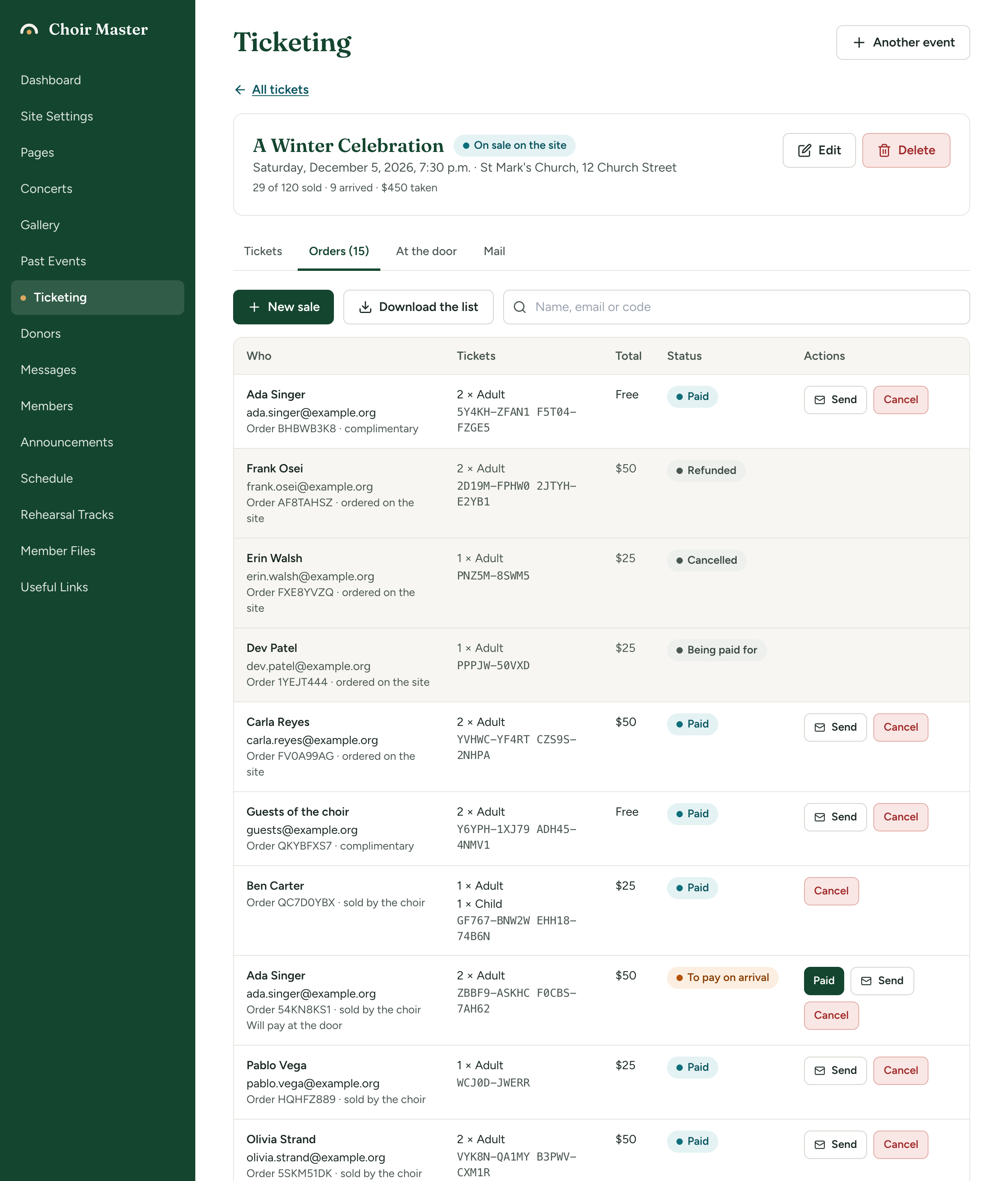
Every order for a concert is on its Orders tab, whether it was placed on your site or recorded by you. Use this page to answer "did my order go through?", to resend tickets, and to get a list for the door or your treasurer. Any admin can do this.
Open the orders
- In the admin panel, open Ticketing and press the concert.
- Open the Orders tab. The number on the tab counts the orders that are paid or to pay on arrival.
The newest orders are at the top. Orders that are not letting anyone in (Cancelled, Refunded and Being paid for) are shown greyed.
The summary line
Under the concert's name is a line such as "38 of 200 sold · 12 arrived · $640 taken".
| Part | What it counts |
|---|---|
| sold | Tickets on orders that are Paid or To pay on arrival, complimentary tickets included. "of 200" is the concert's Places; with no limit it reads "38 sold". |
| arrived | Tickets checked in at the door. |
| taken | The totals of Paid orders. Orders still to pay on arrival are not included until you mark them as paid. |
Tickets being paid for by card at this moment are held, and are not yet counted as sold.
What each column shows
| Column | What it shows |
|---|---|
| Who | The buyer's name, or "No name", and their email address. Under it, "Order" with its reference and where the order came from. Then any note. |
| Tickets | How many of each type, and each ticket's code. |
| Total | The order's total, or "Free". |
| Status | See below. |
| Actions | Paid, Send and Cancel, where they apply. |
Where an order came from
| Wording | Meaning |
|---|---|
| ordered on the site | A visitor ordered on your Tickets page. Free, or reserved to pay on arrival. |
| ordered on the site, paid by card | A visitor ordered on your Tickets page and paid by card through Stripe. |
| sold by the choir | You recorded it with New sale, as paid or as a hold. |
| complimentary | You gave the tickets away with New sale. |
Each status
| Status | Meaning | Tickets let people in? |
|---|---|---|
| Being paid for | The buyer is on Stripe's payment page, or left it without paying. The places are held for 30 minutes, then released. | No |
| To pay on arrival | Reserved. The buyer owes the total when they come. | Yes |
| Paid | Paid for, or free. | Yes |
| Cancelled | Cancelled with no money given back, or never paid. | No |
| Refunded | Cancelled and the money given back. | No |
An order that stays Being paid for changes by itself: to Paid when Stripe confirms the payment, or to Cancelled once its time has run out. The tidying-up happens when someone next opens your Tickets page or the buyer's own page, so an unpaid order can show as Being paid for a little longer than 30 minutes.
Find an order
Type in the search box above the table. It looks in the buyer's name, their email address, the order reference and every ticket code. The table narrows as you type. "Nothing matches." means no order fits.
Send the buyer their tickets again
Use this when someone has lost the email with their tickets.
- Find the order.
- Press Send.
A message confirms "Sent to" and the address. The buyer receives the same email as before, with the link to their tickets.
Send appears only on orders that are Paid or To pay on arrival and have an email address.
The private link to a buyer's tickets is never shown in the admin panel. It goes only to the buyer, by email. If the order has no email address, or the address is wrong, let them in by name at the door instead.
Mark an order as paid, or cancel it
- Paid appears on orders To pay on arrival. See Mark a held order as paid.
- Cancel appears on orders that are Paid or To pay on arrival. See Cancel an order or give a refund.
Download the list
- On the Orders tab, press Download the list.
- Open the file in your spreadsheet program.
The file is named after the concert's date and name, for example tickets-2026-12-05-Winter-Concert.csv.
It has one row for each ticket, not one for each order, so an order for three tickets is three rows. Every ticket is in it, including those on cancelled and refunded orders: use the Status column to leave those out.
The columns are listed in Spreadsheet columns for imports and downloads. Times in the Checked in column are in UTC, not your local time.
Download the whole list. It is not narrowed by what you have typed in the search box.
If something goes wrong
| Message | What to do |
|---|---|
| "The email could not be sent" | Your site could not send the email. Try again shortly. If it keeps failing, see How your site sends email on a hosted site, or Nobody can log in, or emails do not arrive on your own server. |
| "There is no email address on this order" | The order was recorded without one. |
| "This order was cancelled" | Tickets cannot be sent for a cancelled order. |
| "Could not load the orders" | Reload the page. |