Email a concert's ticket holders
You can email everyone who holds tickets for a concert: to tell them about a change of time, or to tell them about your next concert. Any admin can do this.
Write and send a message
- In the admin panel, open Ticketing and press the concert.
- Open the Mail tab.
- Press Write a message to ticket holders.
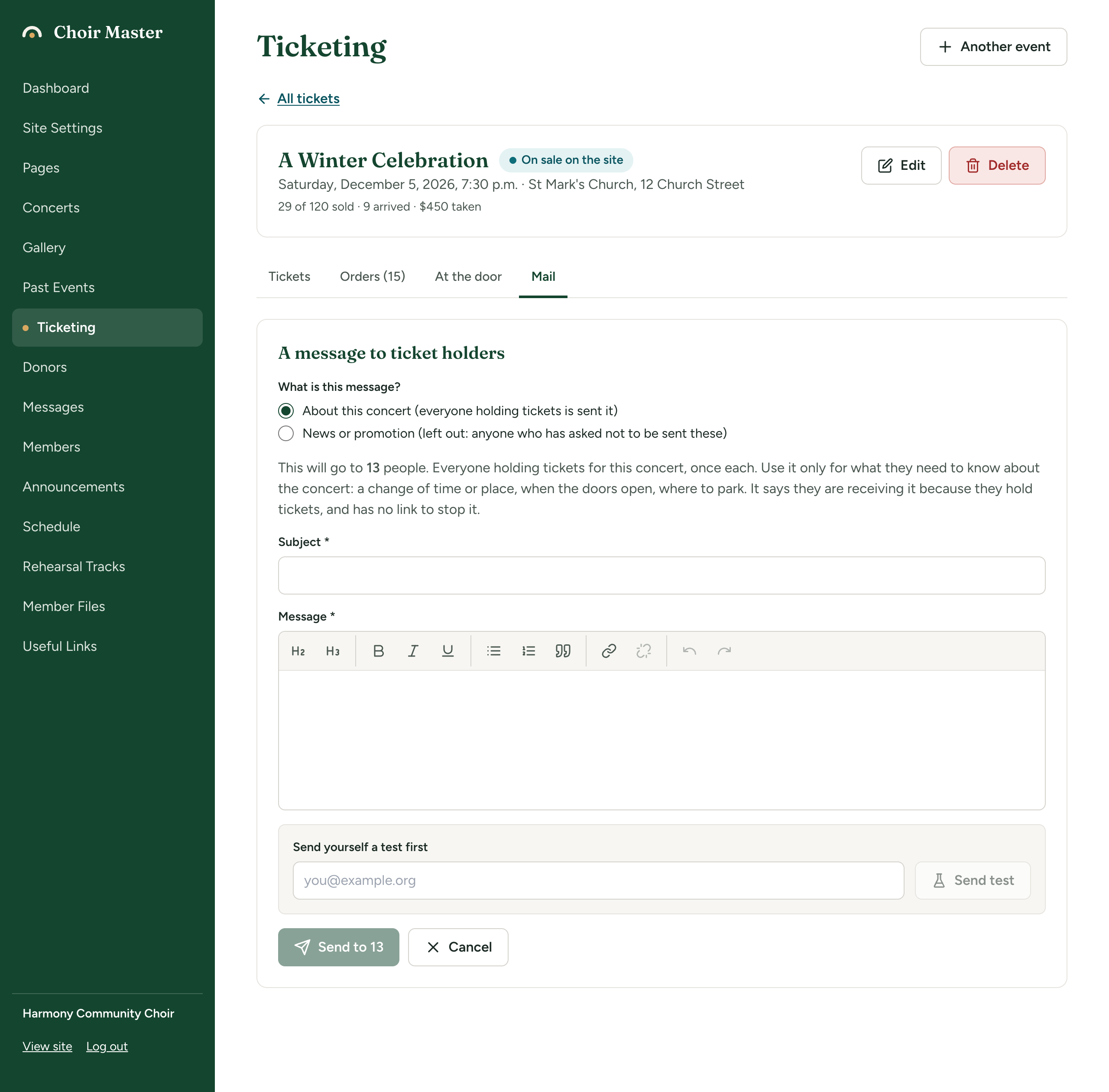
- Under What is this message?, choose About this concert or News or promotion. The next section explains the difference.
- Read the line that says "This will go to" and a number of people. Nothing has been sent yet.
- Type a Subject (up to 200 characters) and your Message. See Format text with the editor.
- Send yourself a test: type your own address under Send yourself a test first and press Send test. Check how it looks in your inbox. The test's subject begins "[Test]".
- Press the send button, which reads, for example, Send to 40.
- A box asks, for example, "Send "Doors open at 7" to 40 people?" and warns "This cannot be undone." Press Send to 40 to confirm.
Choose the right kind of message
| About this concert | News or promotion | |
|---|---|---|
| Use it for | What ticket holders need to know about the concert they are coming to: a change of time or place, when the doors open, where to park. | Anything else: your next concert, a season brochure, an appeal. |
| Who is sent it | Everyone holding tickets. | Everyone holding tickets, except anyone who has asked not to be sent news. |
| A link to stop these messages | No | Yes, in every copy |
| The line at the foot | "You are receiving this because you hold tickets for" and the concert | "You are receiving this because you ordered tickets for" the concert "from" your choir |
Why the choice matters
People who bought a ticket expect to hear about that concert. They did not necessarily ask for your news. A message about the concert is part of what they ordered, so it goes to everyone and cannot be stopped by its reader. News and promotion is different: each person can say no to it, and your site leaves them out once they have.
So use About this concert only for what ticket holders need to know. If you use it to advertise, you are writing to people who have asked you not to.
How people stop and restart your emails, and how you are told, is explained in How people stop your emails.
Who receives it
- The buyer of every order for this concert that is Paid or To pay on arrival, if the order has an email address. That includes orders you recorded yourself and complimentary tickets.
- Each email address once, however many orders it has.
- Not buyers whose orders were cancelled or refunded, or are still being paid for.
The count shown before you send is the number of addresses. If it is 0, the send button cannot be pressed.
Every copy ends with your choir's name, the Public email address and Address or location from Site Settings → Contact, and the line saying why the reader has it.
Watch it go, or stop it
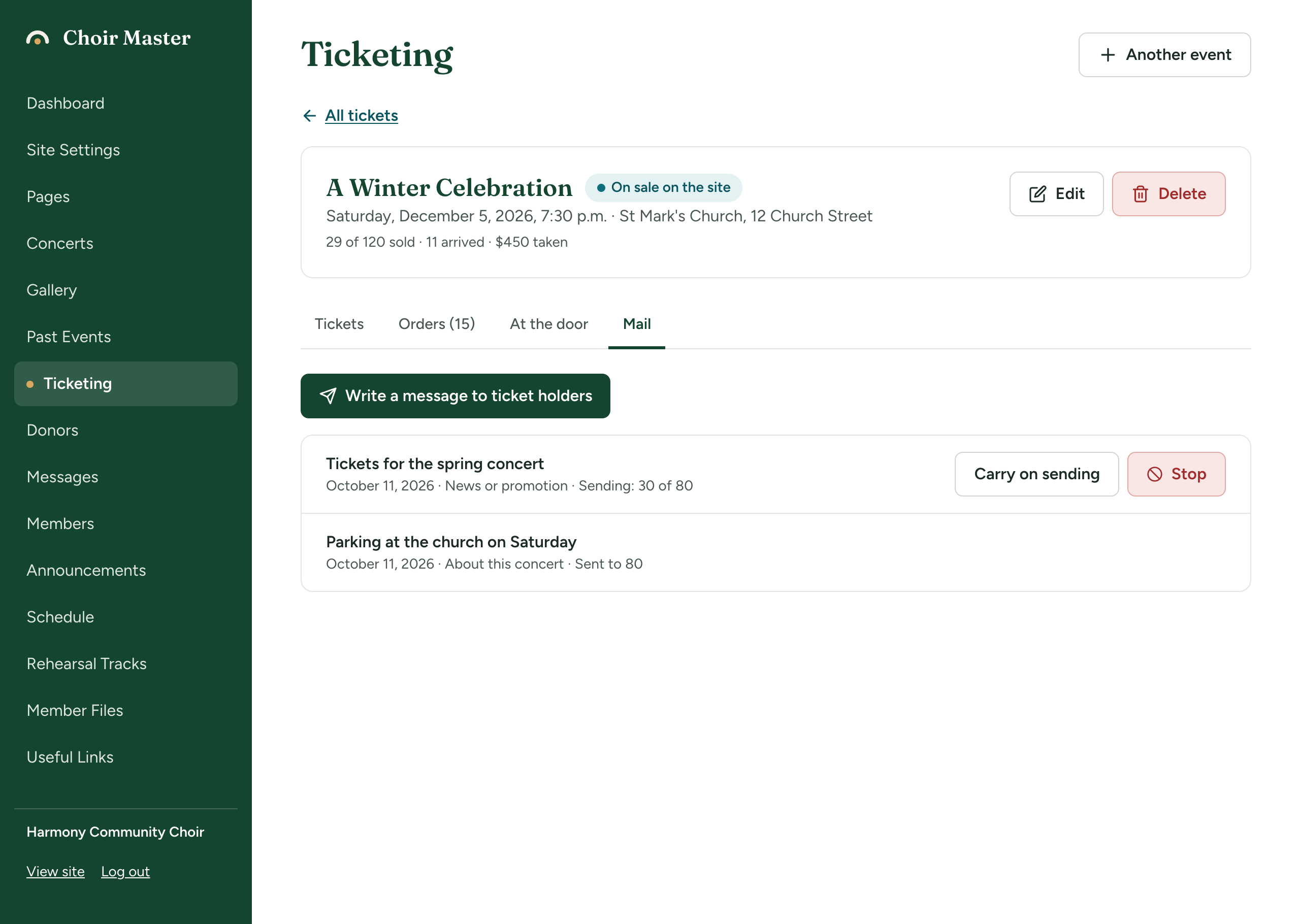
Messages you have sent are listed under the button, newest first, with the date, the kind of message and how it went:
| What the list says | Meaning |
|---|---|
| "Sending: 30 of 80" | Still going out. |
| "Sent to 80" | Finished. |
| "Stopped after 30 of 80" | You stopped it. |
| "2 could not be delivered" followed by addresses | Those addresses were refused. Check them for typing mistakes on the orders. |
To stop a message that is still going out:
- Press Stop beside it.
- A box asks "Stop sending" and the subject, and says "Those already sent it have it." Press Stop sending. Press Carry on to leave it sending.
Stopping cannot recall copies already sent, and a stopped message cannot be started again.
When email is not set up
If your site cannot send email, the Mail tab says "Email is not set up on this site's server, so messages cannot be sent from here." and the button cannot be pressed.
If something goes wrong
| Message | What to do |
|---|---|
| "The message needs a subject" | Fill in Subject. |
| "The message needs some text" | Type something in Message. |
| "The message is too long" | Shorten it. |
| "There is nobody to send this to" | No ticket holder fits. For News or promotion, everyone may have asked not to be sent news. |
| "Enter a valid email address for the test" | Check the address in the test box. |
| "The test email could not be sent" | Your site could not send email just then. Try again shortly. |
| "Sending stopped. Open this page again to carry on." | A batch failed. Open the Mail tab again and press Carry on sending. |
| "That message is not being sent" | It had already finished or been stopped. |