Check people in at the door
This page is for whoever is on the door. You need a phone or tablet with an internet connection, and a login to your choir's admin panel. Any kind of admin can do this; a Manager is enough.
Each ticket lets one person in, once. Your job is to mark each ticket as used when its holder walks in.
Before the doors open
- On your own phone, log in to the admin panel. See Log in to the admin panel.
- Open Ticketing.
- Press tonight's concert.
- Open the At the door tab.
Do this before people arrive, while you have time to sort out a login or a weak signal.
The top right of the panel shows how many have arrived, for example "12 of 38 arrived".
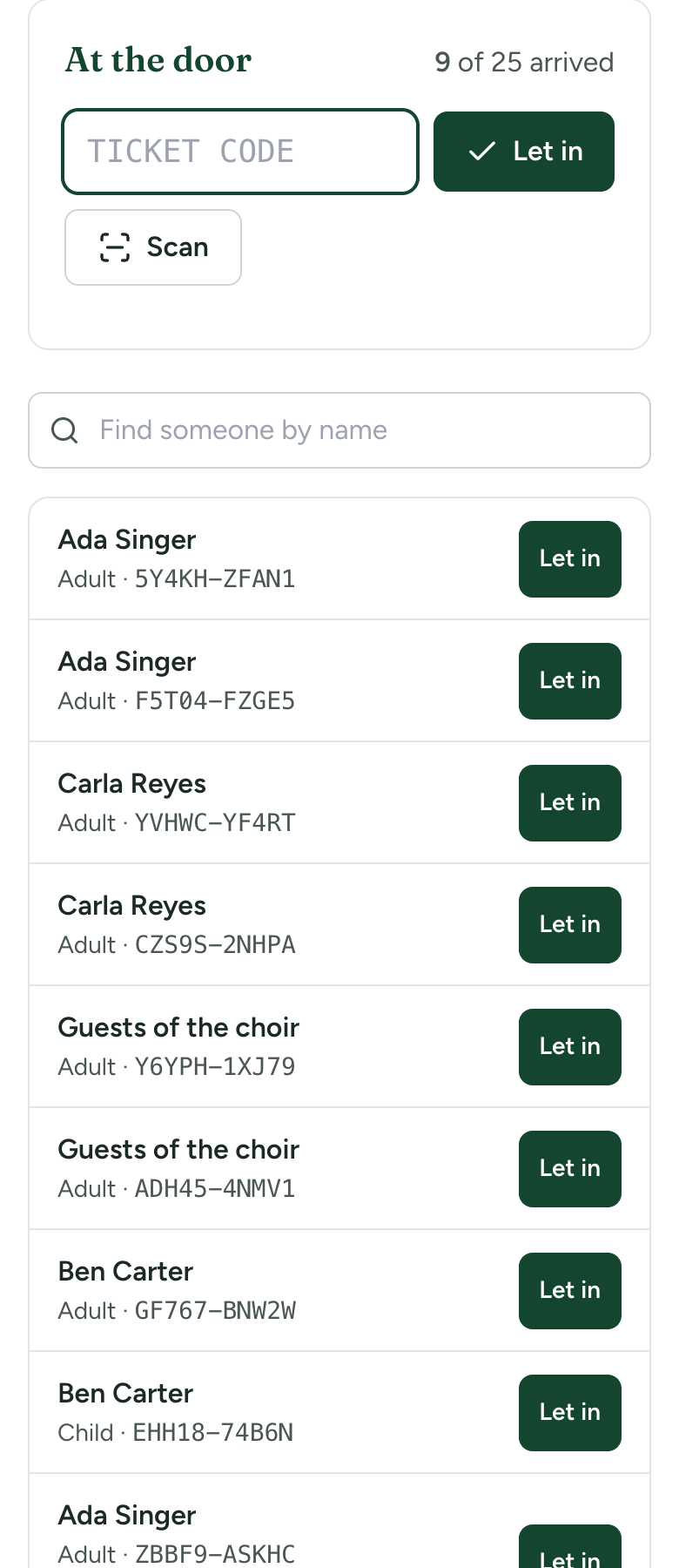
Let someone in with their code
Every ticket has a code such as K7Q4M-2XPRT, printed under its QR code.
- Type the code into the Ticket code box. Capitals do not matter and you can leave out the hyphen.
- Press Let in.
The box clears, ready for the next person.
Let someone in with the camera
- Press Scan. The first time, your phone asks whether this page may use the camera: allow it.
- Hold the ticket's QR code in front of the camera. It is read by itself; there is nothing to press.
- Read the result on screen, then scan the next ticket.
- Press Stop scanning when you have finished.
The same ticket held in front of the camera is read once, not over and over.
The Scan button appears only in browsers that can read QR codes themselves. Not every browser can. If you do not see it, try another browser on your phone, type the codes, or use the list of names. All three do the same thing.
Read the result
Green: let them in
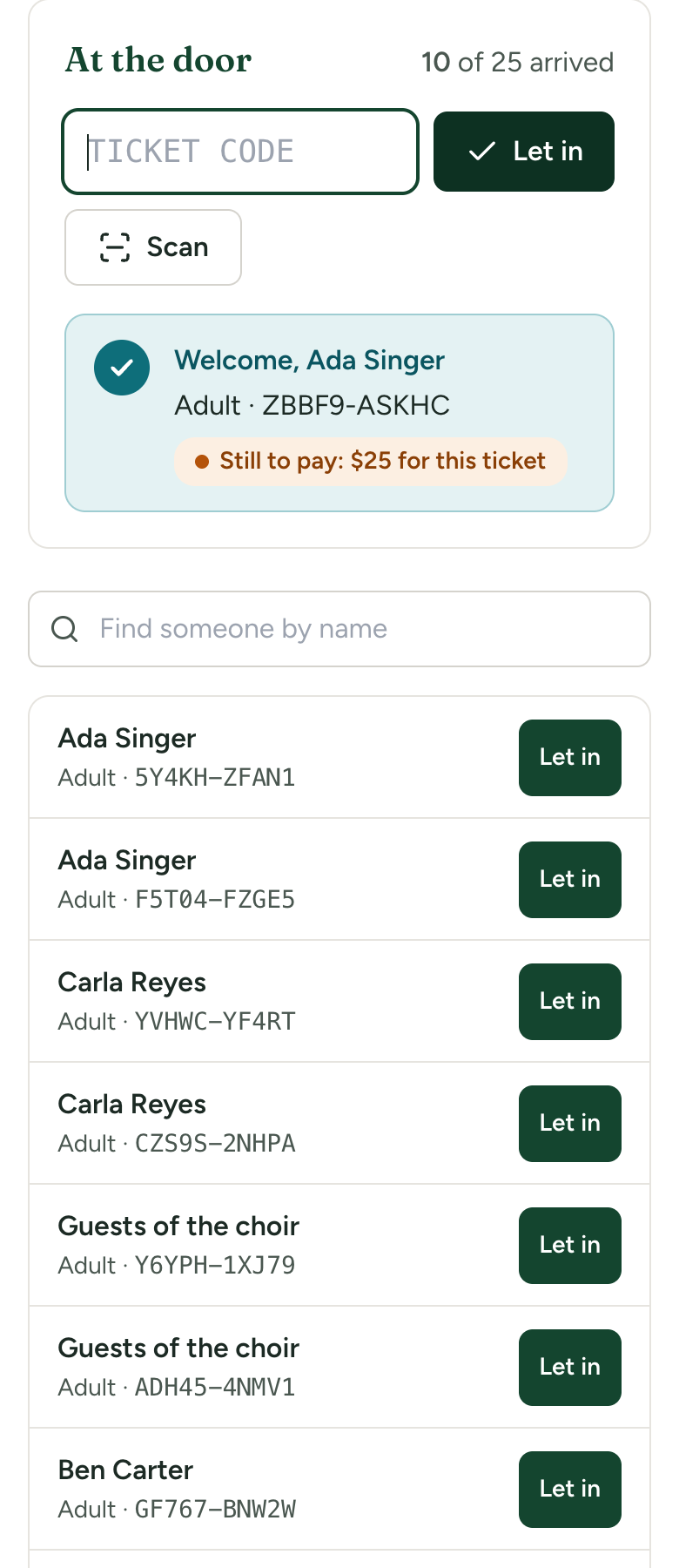
A green Welcome with the person's name, the ticket type and the code means the ticket is good and is now marked as used.
If it also says Still to pay and an amount, the ticket was reserved and not yet paid for. Take the money. The amount is for that one ticket. Afterwards, mark the order as paid: see Mark a held order as paid.
Red: do not let them in on this ticket
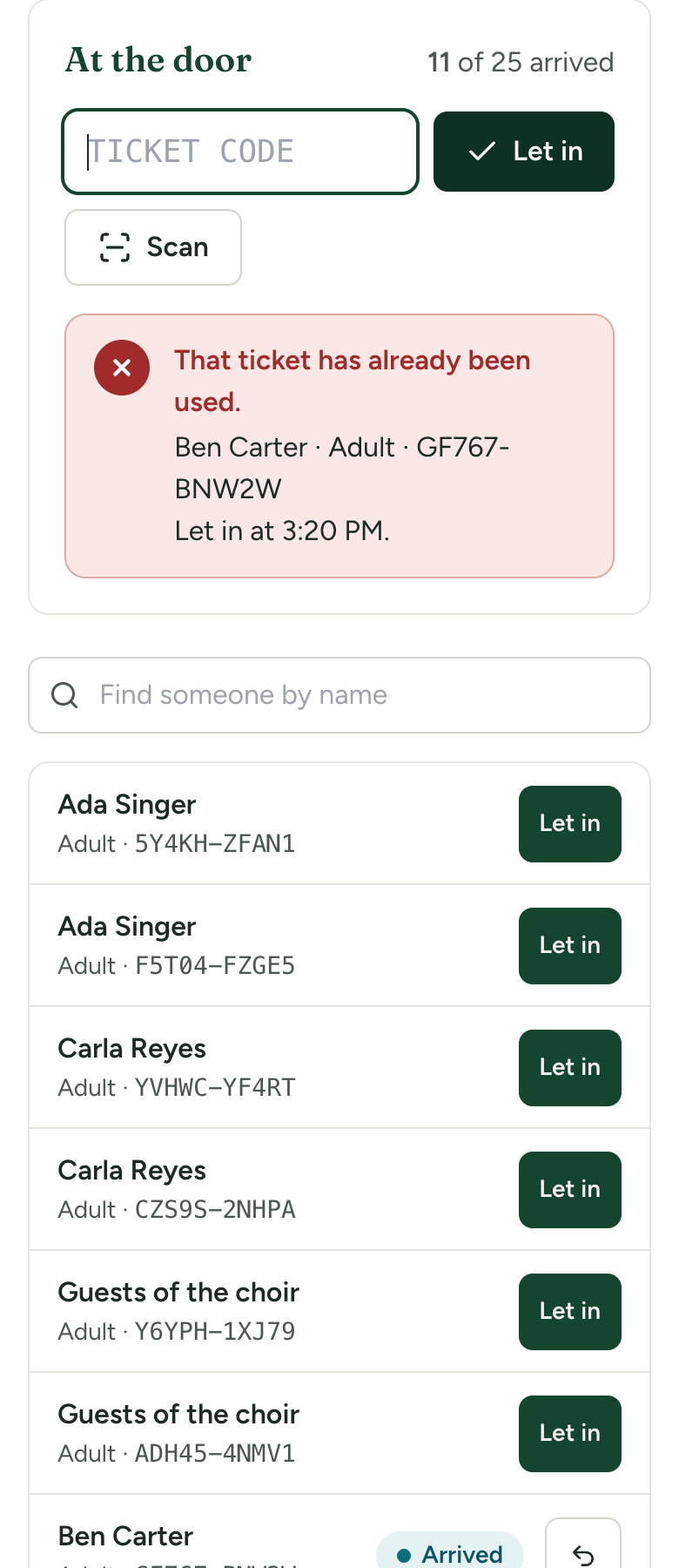
| Message | What it means | What to do |
|---|---|---|
| "No ticket has that code." | The code does not exist. Usually a typing mistake. | Type it again, or find the person by name. |
| "That ticket is for a different concert." | A real ticket, but not for the concert you have open. | Check you opened the right concert. If you did, the ticket is for another night. |
| "That ticket was cancelled." | Its order was cancelled or refunded. | Do not admit on this ticket. Sell them a new one if there is room. |
| "That ticket's order was never completed." | The buyer started paying by card and did not finish. | Sell them a ticket at the door. |
| "That ticket has already been used." | Someone has already come in on it. The time it was let in is shown. | Ask who came in earlier. If you pressed it by mistake, undo it from the list. |
Find someone by name
For someone with no ticket to show, or a name held on the list:
- Type their name in the Find someone by name box. You can also type an email address, an order reference or a code.
- Find their line in the list. Each ticket has its own line, so a party of three has three lines.
- Press Let in on each ticket as each person enters.
A line with an amber To pay label and an amount is a reserved ticket that has not been paid for.
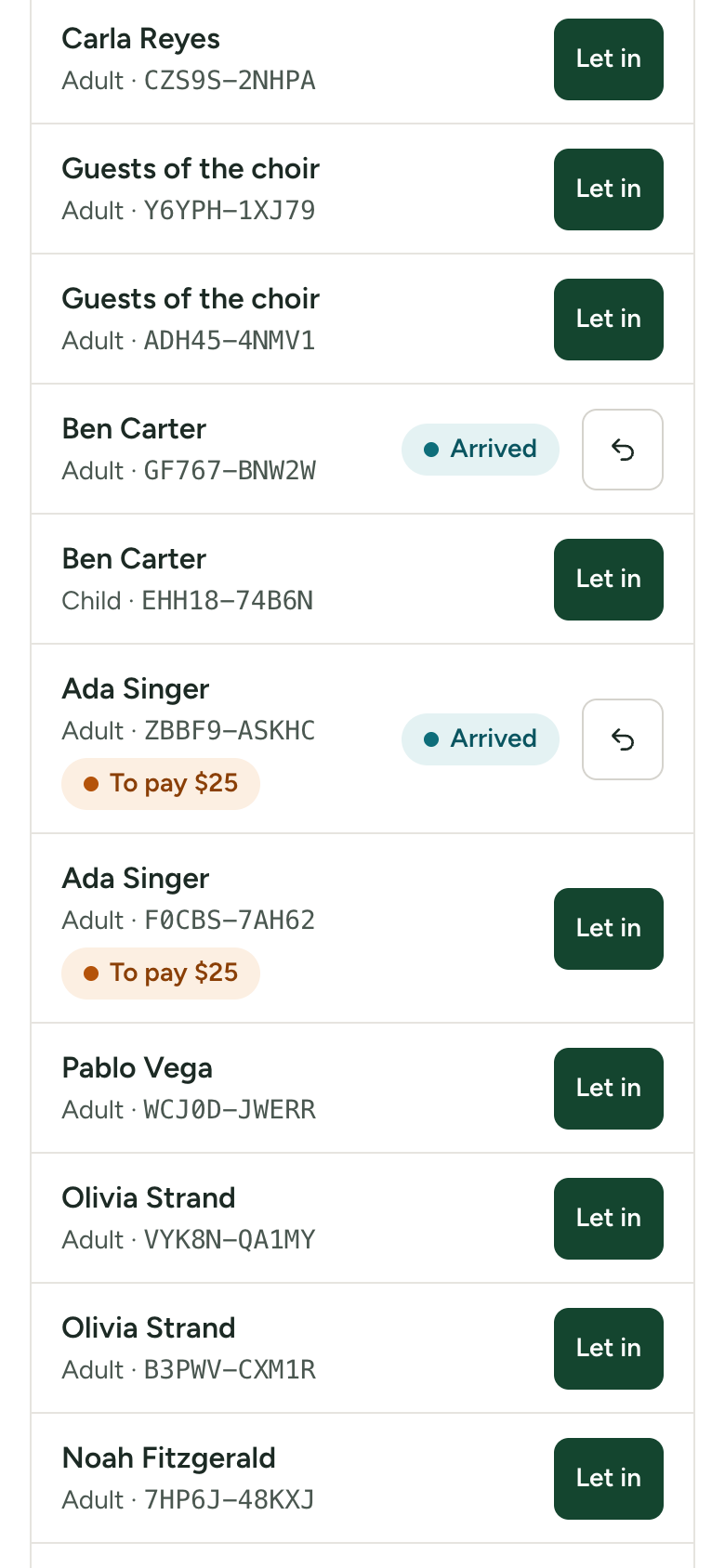
Undo a mistake
A ticket that has been used shows Arrived in the list, with an arrow button beside it. Press the arrow to mark it as not used. The person can then be let in again.
Sell a ticket at the door
- Open the Orders tab and press New sale.
- Choose Paid now, and type how many of each ticket.
- Choose how they paid in Paid by.
- Tick They are going in now (mark the tickets as used).
- Press the button at the bottom, which reads, for example, Record $25.
They are counted as arrived straight away. Go back to the At the door tab for the next person. See Sell, hold or give tickets yourself.
More than one person on the door
Several admins can check people in at the same time, each on their own phone and each with their own login. A ticket is only ever let in once: if two of you scan the same ticket in the same instant, one gets the green result and the other is told it has already been used.
The arrived count and the list on your phone are brought up to date each time you let someone in or undo.
What you need
- An internet connection. Every check-in is sent to your site as it happens. There is no offline mode. If the venue has poor signal, find out beforehand and bring a printed list: download it from the Orders tab. See Download the list.
- A secure address. Open your site at its
https://address. Browsers only let a page use the camera over a secure connection. - A charged phone.
If something goes wrong
| Problem | What to do |
|---|---|
| "The camera could not be used. Check that this page is allowed to use it." | In your browser's settings for this site, allow the camera, then press Scan again. Meanwhile, type the codes. |
| There is no Scan button | Your browser cannot read QR codes by itself. Type the codes or use the list. |
| "Nobody to let in yet" | No tickets have been issued for this concert, or you opened the wrong concert. |
| You are asked to log in again | Your login has run out. Log in and come back to Ticketing. |
| "That did not work" or nothing happens | Check your signal and try again. |