Sell, hold or give tickets yourself
Not every ticket is ordered on your site. Use New sale for tickets you sell at the door or over the phone, tickets you hold for someone, and tickets you give away. Any admin can do this.
A sale you record takes places like any other, so your counts and your list at the door stay right.
Record a sale
- In the admin panel, open Ticketing and press the concert.
- Open the Orders tab.
- Press New sale.
- Choose the kind of sale: Paid now, Hold, to pay on arrival or Complimentary.
- Type how many of each ticket type.
- Fill in the rest of the form. See the table below.
- Press the button at the bottom. It reads Record $50 for a paid sale with something to pay, and Issue tickets otherwise.
New sale cannot be pressed until the concert has at least one ticket type that is on sale. See Add ticket types and prices.
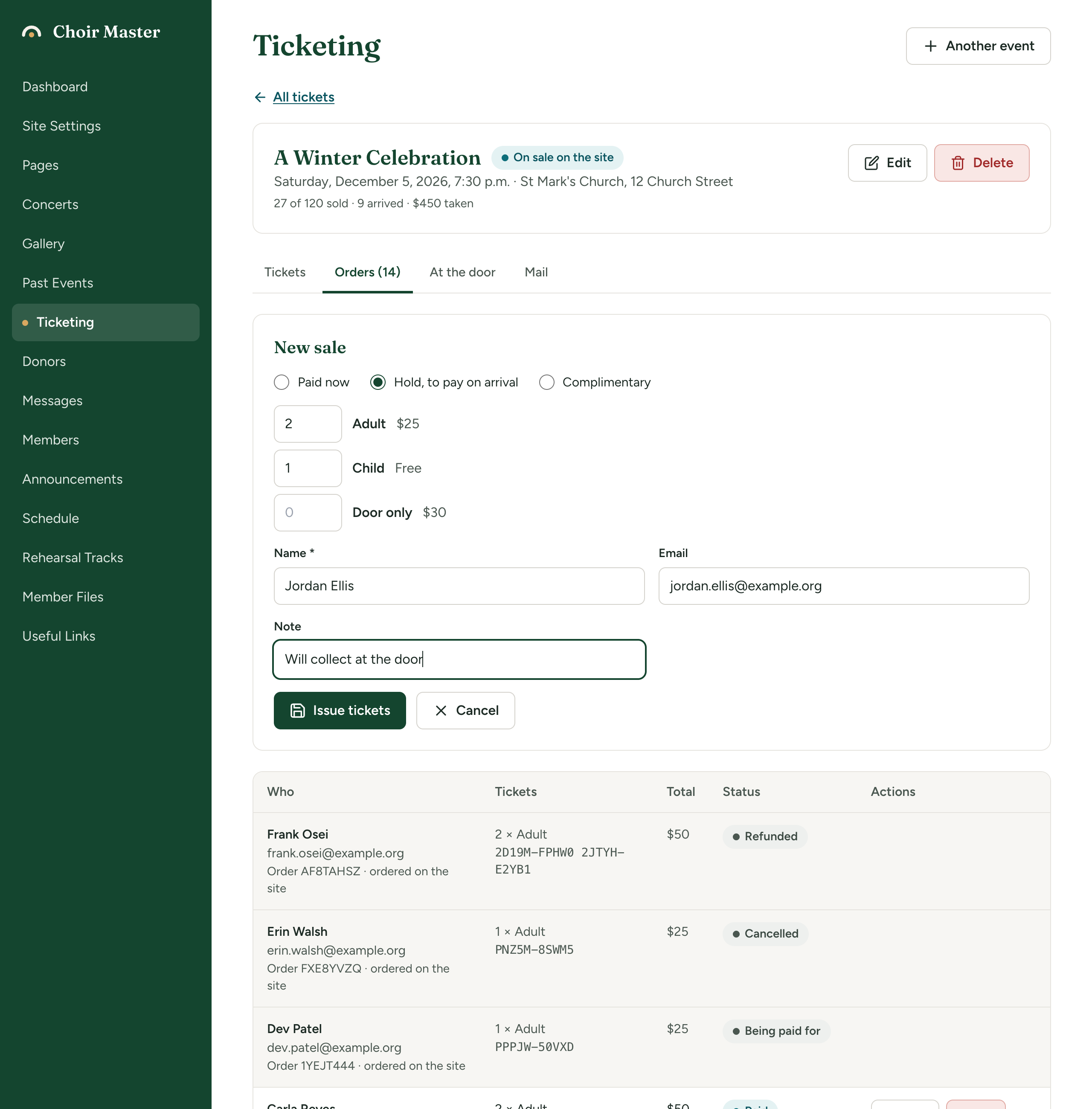
The three kinds of sale
| Kind | Use it when | The order's status |
|---|---|---|
| Paid now | Someone has paid you: cash at the door, a cheque, an e-transfer. | Paid |
| Hold, to pay on arrival | You are keeping tickets for someone who will pay when they come. | To pay on arrival |
| Complimentary | You are giving tickets away. Every ticket is free, whatever its usual price. | Paid, with a total of "Free" |
The form
| Field | What it is for |
|---|---|
| Quantities | A number beside each ticket type that is on sale. Types that are Not on the site are offered here too. |
| Name | Who the tickets are for. Required for a hold; optional otherwise. It is what you look for at the door. |
| Optional. If you give one, the tickets are emailed there. | |
| Paid by | Shown for Paid now only: Cash, Card, Cheque, E-transfer or Other. |
| Note | Optional, up to 500 characters. Shown with the order and in the downloaded list. |
| They are going in now (mark the tickets as used) | Shown for Paid now and Complimentary. Tick it for someone buying at the door and walking straight in. |
Paid by is a record only. Choosing Card does not charge a card. Take the payment yourself, by whatever means your choir uses, before you record it.
After you save
A banner confirms the sale, for example "2 tickets issued for Ada Singer." It lists the tickets' codes. If you gave an email address and the tickets were sent, it adds that they have been emailed to that address.
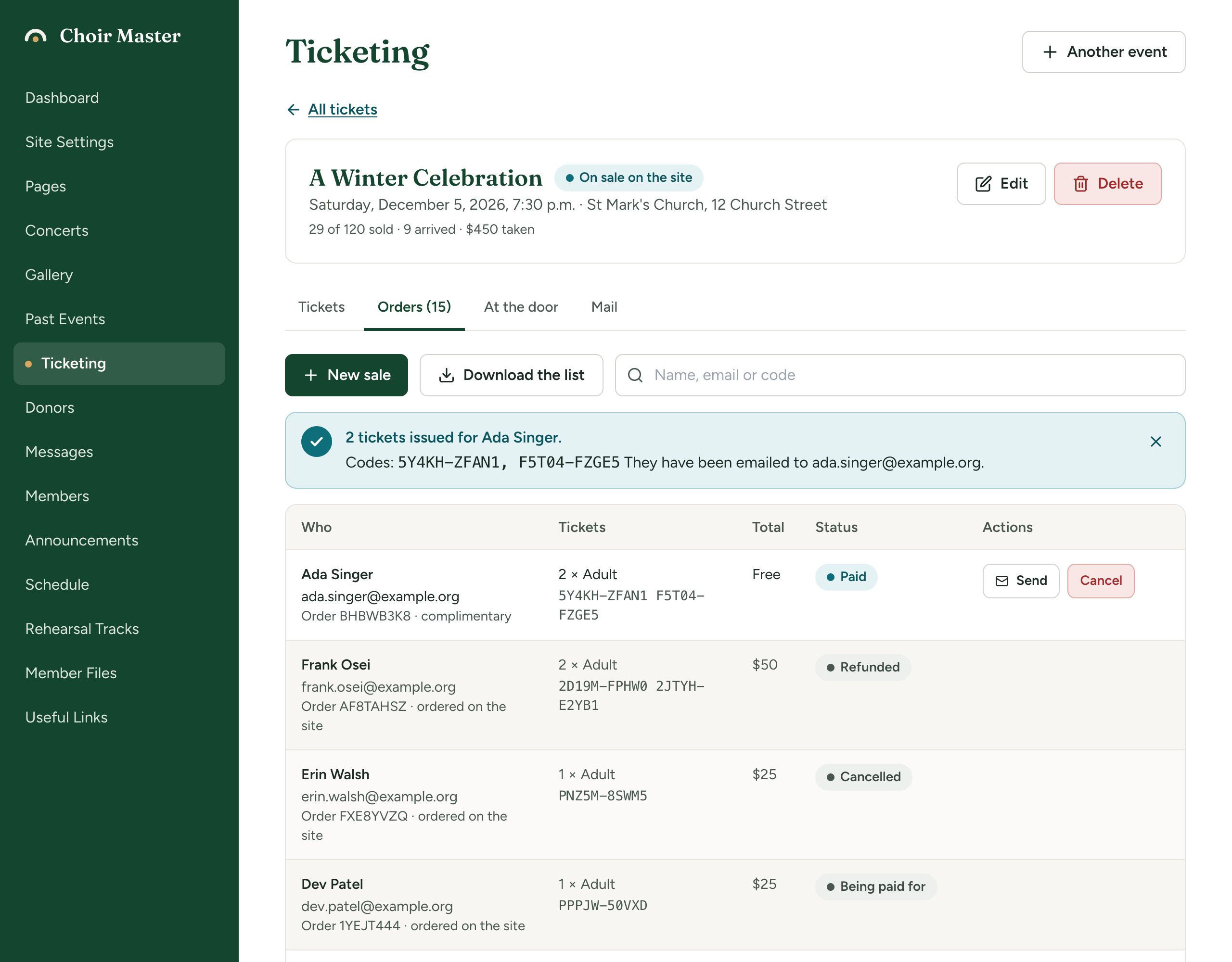
- With an email address, the buyer gets the same email and page of tickets as someone who ordered on your site. See What buying a ticket looks like.
- With no email address, write the codes down or tell the buyer their name is on the list. You can let them in by name.
- If you ticked They are going in now, the tickets are already marked as used and no email is sent.
What a sale respects, and what it does not
| Rule | Applies to a sale you record? |
|---|---|
| The concert's Places | Yes. A sale that would pass it is refused. |
| A ticket type's Limit | Yes. |
| A ticket type that is Off sale | Yes. It is not offered. |
| The concert's Sales setting, and its open and close times | No. You can record a sale whether or not the concert is on sale on your site, and after its day. |
| Most tickets in one order | No. You can record up to 50 tickets in one sale. |
| Three orders for each email address | No. |
Mark a held order as paid
When someone whose tickets were held pays you:
- On the Orders tab, find the order. Its status is To pay on arrival.
- Press Paid.
- Press Record as paid.
The order becomes Paid and its total is added to the money taken. It is recorded as paid in cash.
Letting someone in at the door does not mark their order as paid. Do both.
Orders reserved by buyers on your site are marked as paid in the same way.
What ticket codes look like
Every ticket has its own code of ten characters, shown in two groups of five: K7Q4M-2XPRT.
- Codes use digits and capital letters, but never the letters I, L, O or U, so a code read aloud or copied by hand is hard to get wrong.
- When you type one at the door, capitals do not matter and you can leave out the hyphen. A letter O typed by mistake is read as zero, and I or L as one.
- Each ticket also has a QR code holding the same code.
An order has a separate reference of eight characters, such as 8HQ2W4KD. It appears on the order in the admin panel, on the buyer's page and in their email.
If something goes wrong
| Message | What to do |
|---|---|
| "A name is needed to hold tickets for someone" | Fill in Name. |
| "That email address does not look right" | Correct the address, or clear it. |
| "No more than 50 tickets in one order" | Record the sale in two parts. |
| "There are not that many Adult tickets left" | That type's limit would be passed. Raise the limit or sell fewer. |
| "There are not that many places left" | The concert's Places would be passed. Raise it in the concert's details or sell fewer. |
| "Adult tickets are off sale" | The type was taken off sale while the form was open. |
| "That order is not waiting to be paid" | The order was already marked as paid or cancelled. Reload the page. |