See a year's giving and download your records
The Gifts tab shows what your choir received each year, and two buttons download your records as spreadsheets for your treasurer, your accountant or your own backup. Any admin can use them.
See a year's giving
- In the admin panel, open Donors, then the Gifts tab.
- Along the top are cards for your most recent years (up to four), latest first. Each shows the year, the total, and a line such as "12 gifts from 9 donors".
- Press a card to show only that year's gifts. The card turns dark and says "(showing)".
- Press the card again, or Show every year, to see all gifts.
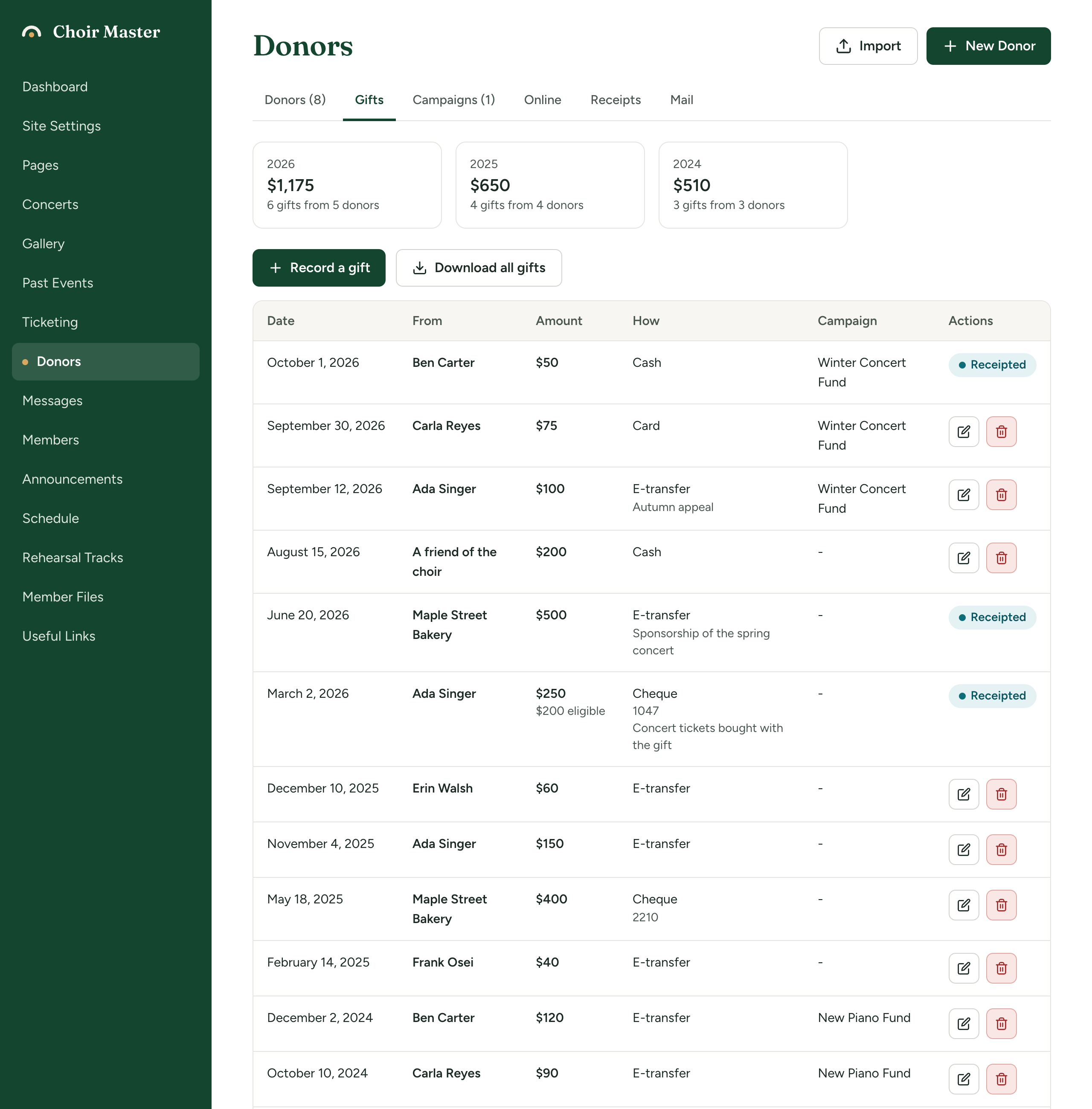
The list below the cards shows the newest gifts first, up to 2,000 at a time. With a year chosen, the list holds only that year's gifts. If the year has none, it says "No gifts in 2023".
How the totals are worked out
The same rules apply to every total in donor records: the year cards, each donor's total, each campaign's progress, and the downloads.
- Money given back is left out. A gift given by card on your Donate page that you later refund counts only for what you kept. A gift refunded in full counts for nothing, and is not counted among the gifts. A gift refunded in part shows, for example, "$20 refunded, $30 kept", and counts for the $30. Gifts you entered by hand are never reduced.
- A gift belongs to the year of its date. That is the Received on date, the first four figures of it. For gifts given online, the date is the day it was where your choir is, not where your server is. A gift paid at 11 pm on 31 December in your time zone is that year's gift. Check your time zone in Your choir's name, place, currency and time zone.
- Archived donors and campaigns still count. Archiving only tidies the lists.
- Gifts with and without a receipt both count. A receipt changes nothing about a total.
Download your records
The list of donors
- Open Donors and stay on the Donors tab.
- Press Download.
You receive donors.csv: one row per donor, including archived donors, with their details, how many gifts they have given, Total given, the date of their last gift, and whether they are marked anonymous, do not contact or archived. The total leaves out money given back.
The gifts
- Open Donors, then the Gifts tab.
- To download one year, press that year's card first. The button then reads Download 2026's gifts. With no year chosen it reads Download all gifts.
- Press the button.
You receive gifts-2026.csv for a year, or gifts.csv for everything. It has one row per gift, oldest first, with the date, donor, email, amounts, currency, method, campaign, reference, what is eligible for a receipt, description and notes.
Three of the amount columns matter:
| Column | What it holds |
|---|---|
| Amount | What was given. |
| Refunded | What was given back, if anything. |
| Amount kept | The column to add up. Amount less Refunded, and never less than nothing. |
A gift refunded in full is still in the file, with Amount kept of 0.00, so your records show what happened.
Both files open in Excel, Numbers and Google Sheets. Names and notes that start with =, +, - or @ have a quote mark put in front of them so a spreadsheet does not try to run them as a formula.
The full list of columns in each file is in Spreadsheet columns for imports and downloads.
Download all gifts once a year, after you have issued your receipts, and keep the file with your accounts. It is a record that does not depend on this site.
If something goes wrong
| Message | What to do |
|---|---|
| "Something went wrong making the list. Nothing was changed." | Try again. Your server's log has the detail if it keeps happening. |
| The year cards are missing | You have no gifts yet. |
| A gift you expect is in the wrong year | Open it and check Received on. A gift cannot be changed while it has a receipt; see Print, email, replace or cancel a receipt. |