Print, email, replace or cancel a receipt
Once a receipt is issued it is kept, exactly as issued, in the Receipts tab. This page is for getting a receipt to the donor and for putting one right. Any admin can do these things.
The list of receipts
- In the admin panel, open Donors.
- Choose the Receipts tab.
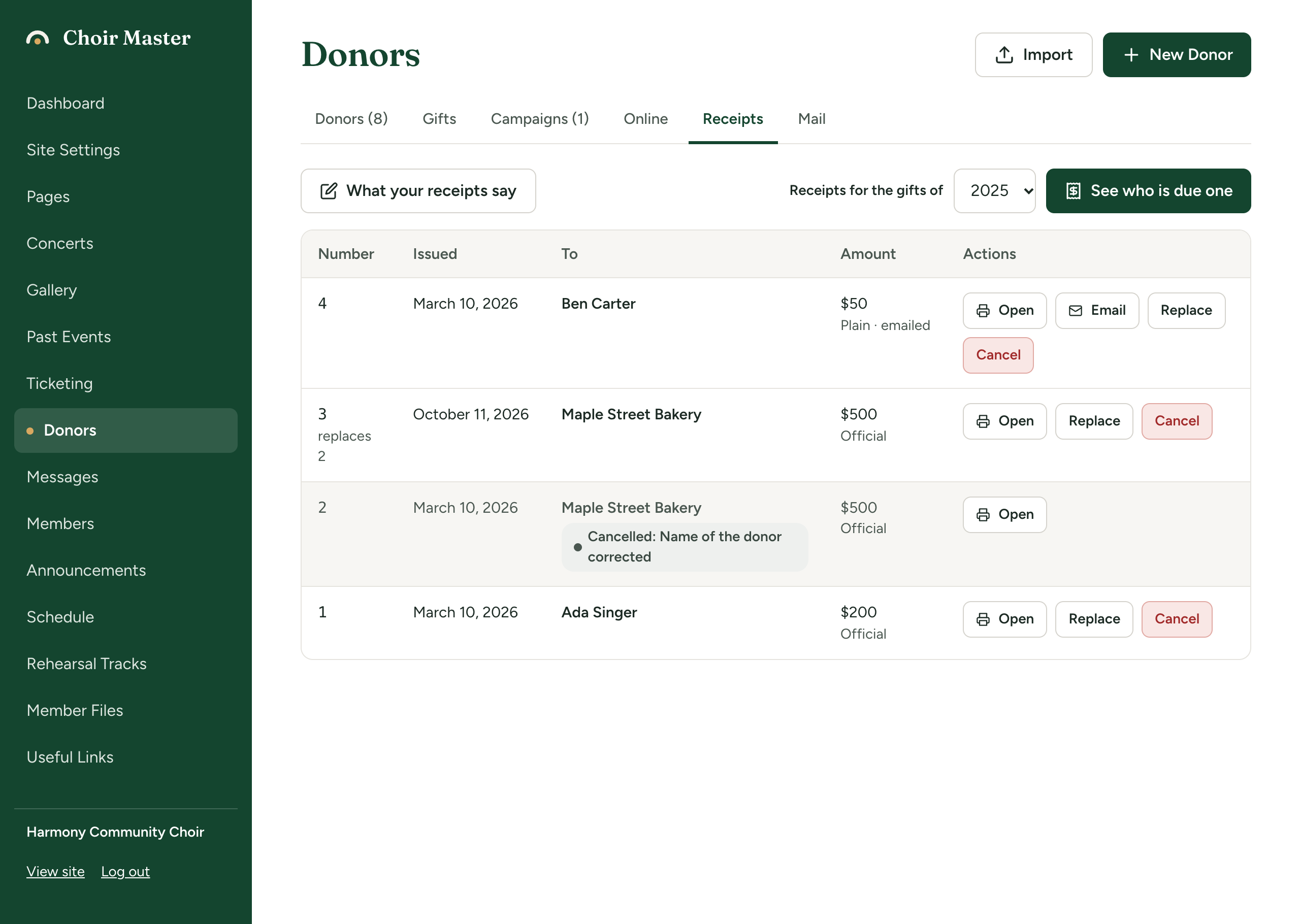
The newest receipt is first.
| Column | What it shows |
|---|---|
| Number | The receipt number, and "replaces 12" if it was issued in place of another. |
| Issued | The date it was issued. |
| To | The donor's name as it was on the receipt. A cancelled receipt is greyed and labelled Cancelled, with the reason if you gave one. |
| Amount | An official receipt shows the eligible amount, a plain one the amount received. Under it: Official or Plain, and "emailed" if a plain receipt has been emailed. |
| Actions | Open, Email (plain receipts only), Replace and Cancel. Cancelled receipts have only Open. |
If you have not issued any, it says "No receipts issued yet".
Print a receipt
- In the Receipts tab, press Open on the receipt. (You also reach it from the banner "Receipt 12 issued." with Open it to print.)
- Press Print at the top of the page, and print or save as a PDF from your browser. The side menu and the buttons are left off the paper. Look at your browser's print preview before you print a batch, and check that the charity's name, the receipt number and, on an official receipt, the signature line and the foot of the page are all there.
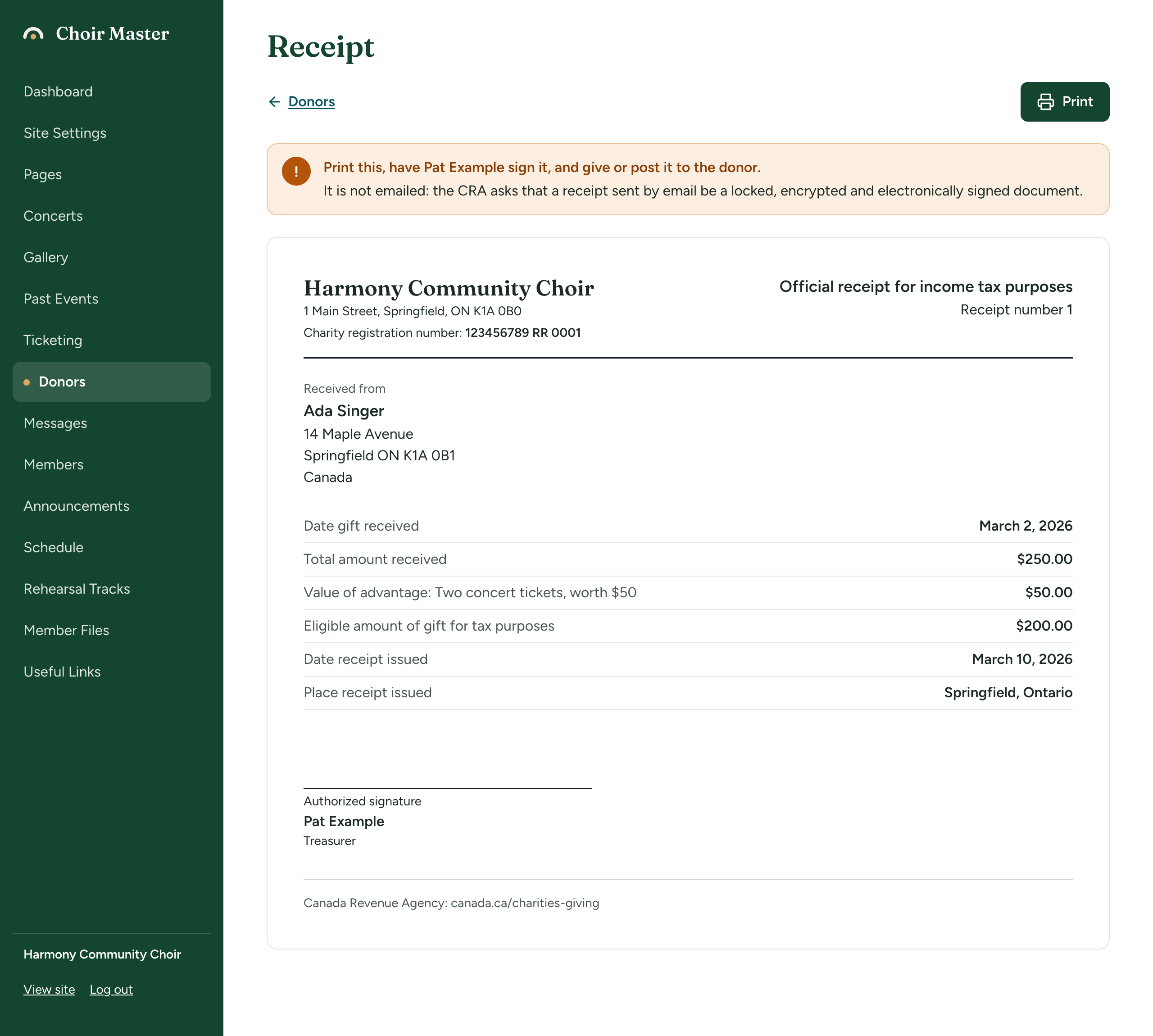
An official receipt
It carries what the Canada Revenue Agency lists: your charity's name, address and registration number; the words "Official receipt for income tax purposes"; the receipt number; the donor's name and address; the date or dates the gifts were received; the total, the value of any advantage and the Eligible amount of gift for tax purposes; for a gift in kind, a description and the appraiser; the date and place it was issued; and the authorized signature, with the signer's name and title. Where several gifts are on it, a small table lists each. The CRA's name and website are at the foot, with your own line if you set one.
At the top of the page, a yellow box says "Print this, have Pat Treasurer sign it, and give or post it to the donor." and "It is not emailed: the CRA asks that a receipt sent by email be a locked, encrypted and electronically signed document."
Official receipts are printed and signed, never emailed. There is no Email button for them, and the server refuses if one is attempted.
A plain receipt
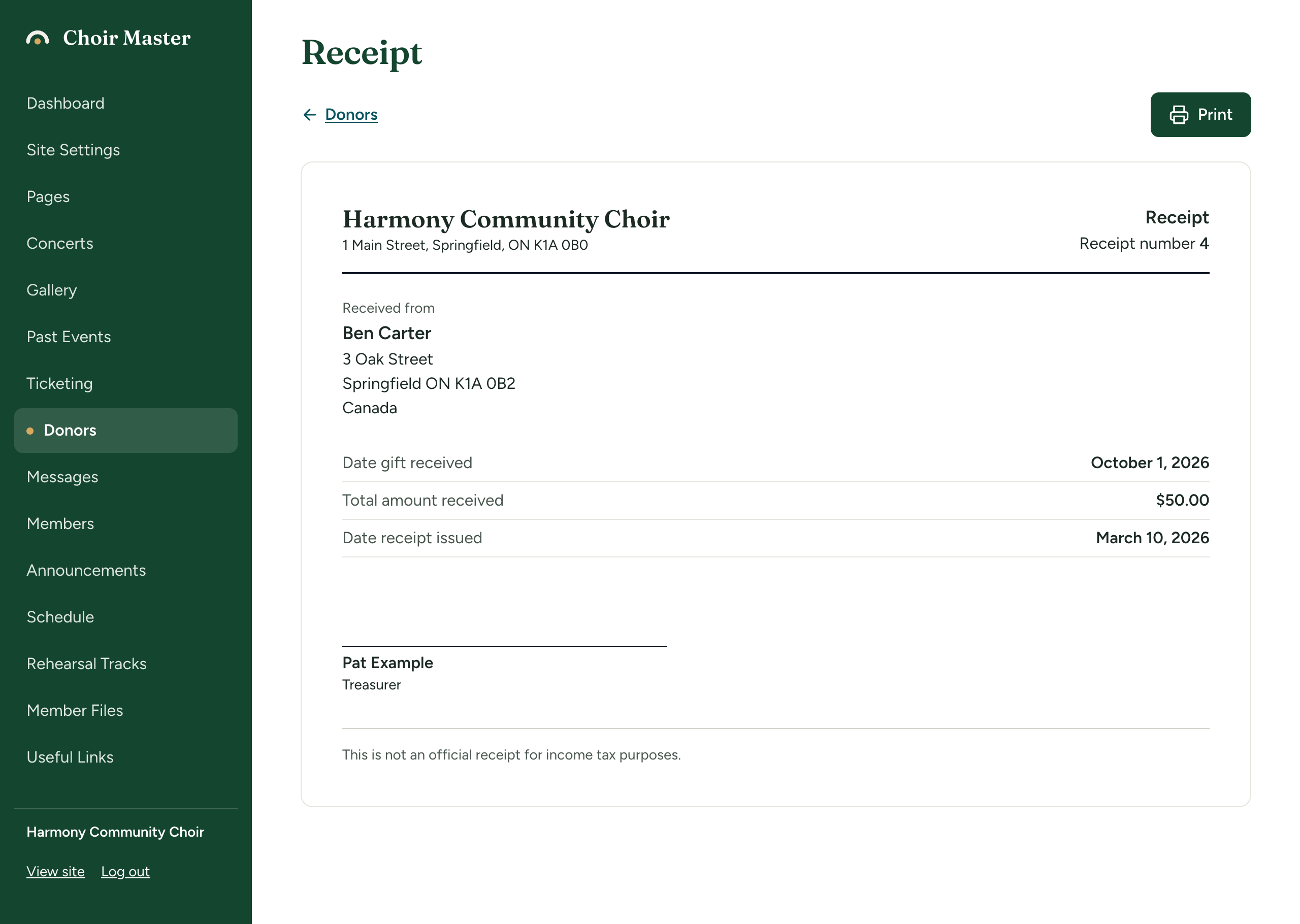
It is headed "Receipt" and has your name, the donor, the dates and amounts, and ends "This is not an official receipt for income tax purposes."
Email a plain receipt
- In the Receipts tab, press Email on the receipt.
- A box asks, for example, "Email receipt 12 to Ada Singer?" Press Email it.
- The banner says "Sent to ada@example.org". The row now says "emailed".
The email is titled "Your gift to Harmony Community Choir: receipt 12". It lists each gift with its date and amount, the total and the receipt number, then your foot line if you set one, and "This is not an official receipt for income tax purposes."
It goes to the address now on the donor's record. You can email it again at any time. If your site cannot send email, or the donor has no address, you are told.
Replace a receipt
Use Replace when a receipt is right in its gifts but wrong in its details: the donor's address was missing or wrong, or the copy was lost.
- Correct the donor's details first, if that is the reason. See Add and look after donors.
- In the Receipts tab, press Replace on the receipt.
- A box asks "Issue a new receipt in place of number 12?" and says "It will carry the donor's details as they are now and say that it replaces 12, which is cancelled." Press Issue the new receipt.
- The banner says "Receipt 15 issued in place of 12."
The new receipt has a new number, covers the same gifts, uses the donor's details and your receipt settings as they are today, and carries the same note about what the donor received in return or the appraiser, if there was one. It says "This receipt cancels and replaces receipt number 12." The old receipt is cancelled with the reason "Replaced".
If the new receipt cannot be issued (an official receipt that now lacks an address, for example), the old one has still been cancelled. You are told "Receipt 12 has been cancelled, but its replacement could not be issued:" and the reason. Fix it, then issue a receipt for the gifts from the donor's page. See Issue receipts.
Cancel a receipt
Cancel when a receipt should not stand at all: it was issued in error, or a gift was refunded.
- In the Receipts tab, press Cancel on the receipt.
- A box asks "Cancel receipt 12?" and says "It is kept, marked as cancelled, and its number is not used again." Type why under Why is it being cancelled?
- Press Cancel the receipt. Press Keep the receipt to leave it.
- The banner says "Receipt 12 cancelled. Its number will not be used again."
A cancelled receipt is not deleted. It stays in the list, greyed, with its reason. When opened it shows the word CANCELLED across it and "Cancelled" with the date. Its gifts become free again: they can be edited, and a new receipt can be issued for them.
Change a gift that already has a receipt
A gift with a receipt is locked, shown with the label Receipted and without buttons to edit or delete it. To change it:
- Cancel the receipt.
- Edit the gift. See Record a gift.
- Issue a new receipt. See Issue receipts.
If only the donor's details were wrong and the gifts are right, use Replace instead.
If something goes wrong
| Message | What to do |
|---|---|
| "That receipt was cancelled already" | Reload the page. |
| "An official receipt is printed and signed, not emailed." | Print it instead. |
| "There is no email address for this donor" | Add the address to the donor and try again. |
| "The email could not be sent" | Try again shortly. If it keeps happening, see Every email your site sends. |
| "Its donor or its gifts are no longer on record" | Replace is not possible. Cancel the receipt and issue a new one. |